
Ultrbeka Smart Tracker Card
Ultrbeka Smart Tracker Card Instruction Manual
Model: Smart Tracker Card
1. Introduction
The Ultrbeka Smart Tracker Card is a compact, card-shaped device designed to help you locate your personal belongings. Utilizing Apple's 'Find My' network, it provides a reliable solution for preventing loss and quickly finding misplaced items. Its ultra-thin design allows it to fit seamlessly into wallets, card cases, or passport covers.

Image: The Ultrbeka Smart Tracker Card, a sleek black card with a lightning bolt icon, positioned above a wallet and a smartphone showing a map interface from the Apple Find My app.
2. Key Features
- Ultra-Thin Design: At just 1.8mm thick, it's comparable to 2.5 credit cards, making it ideal for wallets, card cases, and passport covers.
- Apple MFi Certified: Fully compatible with Apple's 'Find My' app, allowing you to track your items on a map and play a sound when nearby. (iOS only)
- Wireless Charging: Supports Qi-compatible wireless charging, eliminating the need for battery replacements. Simply place it on a wireless charger.
- Long Battery Life: Designed for extended use, offering up to 10 years of battery life.
- Durable & Resilient: Features IP67/IP68 waterproof and dustproof ratings, ensuring durability in various environments.
- Privacy Protection: Utilizes advanced encryption within the 'Find My' network, ensuring your location data remains private.
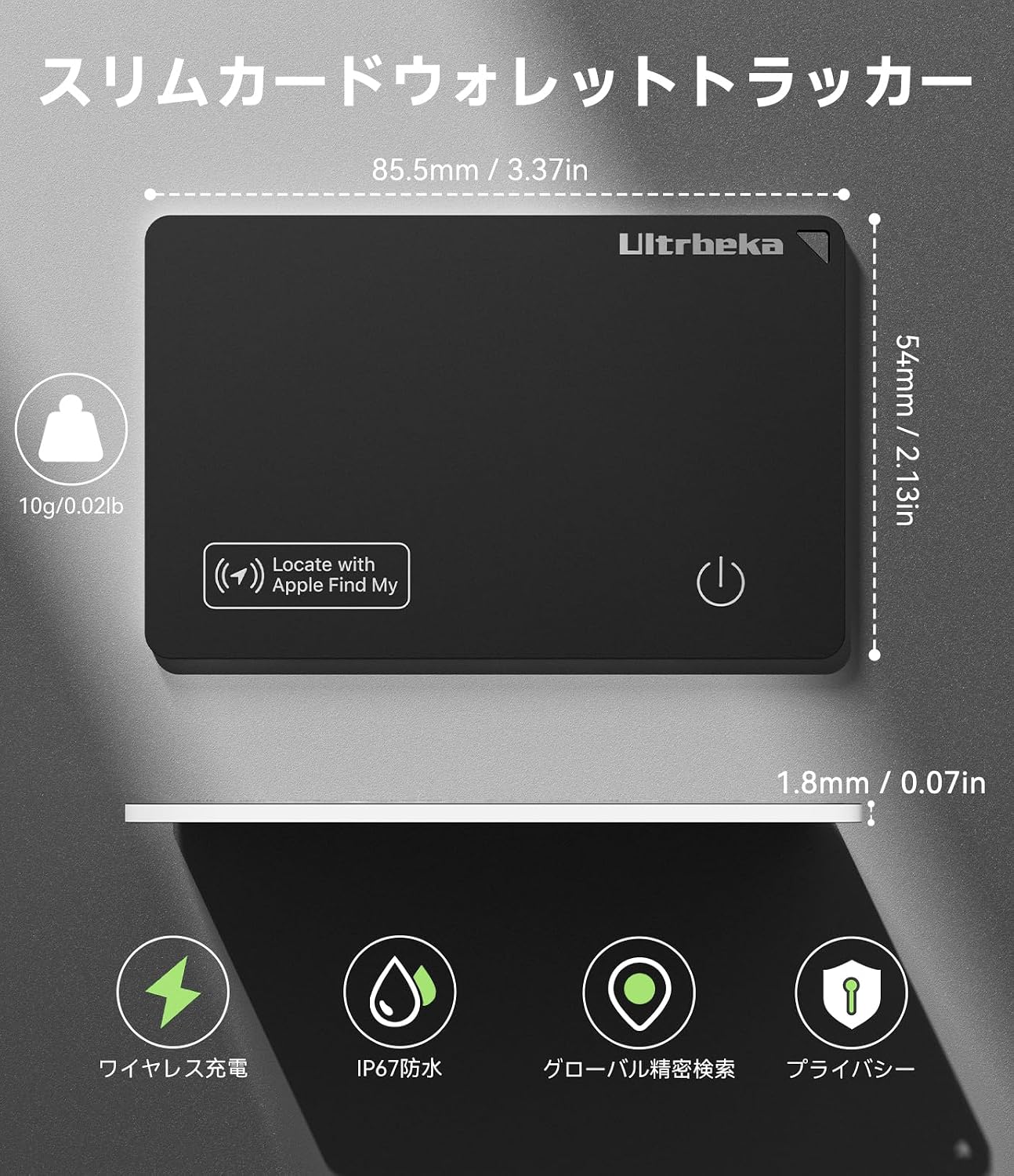
Image: A visual representation of the Ultrbeka Smart Tracker Card's key specifications, including its 1.8mm thickness, 10g weight, wireless charging capability, IP67 waterproof rating, global search function, and privacy protection.
3. Package Contents
The Ultrbeka Smart Tracker Card package typically includes:
- Ultrbeka Smart Tracker Card (1 unit)
- Quick Start Guide / Instruction Manual
Note: Wireless charger is not included.
Video: An unboxing and overview of a card-type lost prevention tag, showing the product and its packaging. This video demonstrates the physical appearance and initial contents of a similar product.
4. Setup
4.1. Power On/Off
- Power On: Press and hold the power button (circular icon) on the card for 1 second. You will hear two short beeps, indicating the device is powered on.
- Power Off: Press the power button twice quickly, then press and hold it for 5 seconds. You will hear two long beeps, indicating the device is powered off.
Video: A demonstration of the button operations for a card-type tracker, including how to power it on and off, and check its status.
4.2. Pairing with Apple Find My App
To pair your Smart Tracker Card with your iOS device:
- Ensure your iOS device (iPhone, iPad, or Mac) is updated to the latest version of iOS/iPadOS/macOS (iOS 14.5 or later recommended).
- Turn on Bluetooth on your iOS device.
- Open the 'Find My' app.
- Tap the 'Items' tab at the bottom of the screen.
- Tap '+' (Add Item) and then select 'Other Supported Item'.
- Press the power button on your Smart Tracker Card to activate it for pairing. You should hear a beep.
- Your device will search for the Smart Tracker Card. Once found (e.g., 'iCard' or 'Finder Card'), tap 'Connect'.
- Follow the on-screen prompts to name your item and select an emoji.
- Tap 'Continue' and then 'Finish' to complete the setup.
Video: A step-by-step guide on how to easily pair the Smart Tracker Card with the Apple Find My app on an iPhone, including initial setup and naming the device.
5. Operating Instructions
5.1. Locating Nearby Items (Play Sound)
If your item is within Bluetooth range, you can make the Smart Tracker Card emit a sound to help you find it.
- Open the 'Find My' app on your iOS device.
- Select the Smart Tracker Card from your 'Items' list.
- Tap 'Play Sound'. The card will emit a loud sound (80-100dB) to guide you to its location.

Image: A visual demonstration of using the 'Play Sound' feature in the Find My app to locate the Ultrbeka Smart Tracker Card, which is hidden inside a wallet, emitting an audible alert.
5.2. Locating Far Away Items (Navigation)
If your item is out of Bluetooth range, the 'Find My' network can help you locate it on a map.
- Open the 'Find My' app.
- Select your Smart Tracker Card from the 'Items' list.
- Tap 'Directions' to open the Maps app and get directions to the last known location of your item.

Image: The Apple Find My app interface on a smartphone, illustrating how to use the navigation feature to find the last known location of the Ultrbeka Smart Tracker Card, which is shown inside a wallet in front of a house.
5.3. Left Behind Reminders
Receive an alert on your iOS device if you leave your Smart Tracker Card behind.
- In the 'Find My' app, select your Smart Tracker Card.
- Under 'Notifications', enable 'Notify When Left Behind'. You will receive an alert if the card is separated from your device.

Image: A smartphone screen showing a 'Left Behind' notification, indicating that the Ultrbeka Smart Tracker Card, placed in a wallet, is no longer detected nearby, prompting the user to check its last known location.
5.4. Lost Mode
If your Smart Tracker Card is lost, you can put it into Lost Mode.
- In the 'Find My' app, select your Smart Tracker Card.
- Enable 'Lost Mode'. You can enter a contact phone number and message that will be displayed to anyone who finds your item.
- The card will be locked, preventing unauthorized pairing with other devices.
5.5. Sharing Your Item
You can share the location of your Smart Tracker Card with trusted friends or family members.
- In the 'Find My' app, select your Smart Tracker Card.
- Tap 'Share This Item' and follow the instructions to share access to its location.
Video: A demonstration of the various usage scenarios for a card-type tracker, including finding by sound, receiving left-behind notifications, and using navigation to locate items.
6. Charging
The Ultrbeka Smart Tracker Card supports wireless charging.
- Place the Smart Tracker Card on any Qi-compatible wireless charging pad.
- Ensure the charging icon on the card aligns with the charging area of the pad.
- The card will begin charging automatically.

Image: The Ultrbeka Smart Tracker Card being charged wirelessly on a circular charging pad, with a laptop and wireless earbuds nearby, illustrating the convenience of its charging method.
7. Maintenance
7.1. Waterproof and Dustproof
The Smart Tracker Card is rated IP67/IP68, providing excellent resistance to water and dust. This means it can withstand splashes, rain, and even brief immersion in water, making it suitable for outdoor use and protecting it from accidental spills.
Video: A demonstration of the waterproof capabilities of a card-type item tracker, showing it being submerged in water, highlighting its durability against liquids.
7.2. Cleaning
To clean your Smart Tracker Card, gently wipe it with a soft, dry cloth. Avoid using harsh chemicals or abrasive materials that could damage the device.
8. Troubleshooting
8.1. Resetting the Device
If you experience issues or wish to re-pair your device, you may need to reset it:
- Ensure the device is powered on.
- Press the power button quickly four times.
- On the fifth press, hold the button down for approximately 10 seconds until you hear a long beep. This indicates a successful reset.
8.2. Pairing Issues
- Ensure Bluetooth is enabled on your iOS device.
- Make sure the Smart Tracker Card is powered on and in close proximity to your iOS device during pairing.
- If issues persist, try resetting the Smart Tracker Card (see 8.1) and attempting the pairing process again.
8.3. Sound Not Playing
- Check if the Smart Tracker Card is within Bluetooth range of your iOS device.
- Ensure the card has sufficient battery charge.
- Verify that the volume on your iOS device is not muted or too low.
9. Specifications
| Brand | Ultrbeka |
| Model | Smart Tracker Card |
| Dimensions | 0.18 x 0.18 x 0.18 cm (approx. 85.5mm x 54mm x 1.8mm) |
| Weight | 30 g |
| Battery Life | Up to 10 years (continuous use) |
| Charging | Wireless (Qi-compatible) |
| Waterproof/Dustproof | IP67/IP68 |
| Connectivity | Bluetooth, Apple Find My Network |
| Compatibility | iOS devices (iOS 14.5 or later) |
10. Warranty and Support
Ultrbeka provides dedicated customer support for its products. For any inquiries regarding initial defects, usage instructions, or other concerns, please contact our Japanese customer support team. We are committed to providing thorough assistance to ensure your satisfaction.
Please refer to the product packaging or official website for specific warranty terms and contact information.
Ask a question about this manual
Ask about setup, troubleshooting, compatibility, parts, safety, or missing instructions. Manuals+ will review the question and use this page’s manual context to help answer it.