
1. Introduction
This manual provides detailed instructions for the installation, operation, and maintenance of your VECHTEL 9-inch Android Car Stereo. This 2-DIN car stereo features an integrated Android 15 operating system, 6GB RAM, and 128GB ROM. It includes a 9-inch HD IPS touchscreen with a resolution of 1280 x 720 pixels. The unit is compatible with Opel Mokka 1 (2012-2016) and Buick Encore (2013-2015) vehicles.

Image 1.1: Compatibility Overview. This image shows the VECHTEL car stereo seamlessly integrated into a vehicle dashboard, illustrating its compatibility with Opel Mokka 1 (2012-2016) and Buick Encore (2013-2015) models.
2. Package Contents
Before beginning installation, please verify that all components listed below are present in your package:
- Android Car Stereo Unit
- Power Cable
- GPS Antenna
- RCA Cable
- User Manual
- Installation Frame and Tools
- AHD Rear Camera
- Microphone
- USB Cables (x2)

Image 2.1: Product Size and Package List. This image displays the dimensions of the car stereo unit and a comprehensive visual list of all accessories included in the package, such as cables, antenna, camera, and tools.
3. Setup and Installation
Professional installation is recommended for this car stereo. Ensure the vehicle's power is disconnected before starting the installation process.
3.1 Wiring Connections
- Power Connection: Connect the provided power cable to the vehicle's wiring harness. Ensure correct polarity for constant power (B+), accessory power (ACC), and ground (GND).
- Speaker Connections: Connect the speaker wires to the corresponding vehicle speaker outputs. Observe correct positive and negative terminals for each speaker.
- GPS Antenna: Mount the GPS antenna in a location with a clear view of the sky, typically on the dashboard or under the windshield, and connect it to the designated port on the stereo.
- Rear Camera: Connect the AHD rear camera cable to the 'CAM IN' port on the stereo. Route the camera cable to the rear of the vehicle and mount the camera securely. Connect the camera's power to the vehicle's reverse light circuit for automatic activation.
- USB Cables: Connect the two USB cables to the stereo and route them to a convenient location, such as the glove compartment, for connecting external devices.
- Microphone: Connect the external microphone to the stereo for improved hands-free calling audio quality. Position the microphone near the driver for optimal performance.
- RCA Cables: If connecting external amplifiers or subwoofers, use the provided RCA cables to connect the stereo's audio outputs to your external audio equipment.
3.2 Mounting the Unit
Use the included installation frame and tools to securely mount the 9-inch car stereo into the 2-DIN slot of your Opel Mokka 1 or Buick Encore. Ensure all cables are properly routed and secured to prevent interference or damage.

Image 3.1: Before and After Installation. This image provides a visual comparison of the vehicle's dashboard, showing the original setup on the left and the integrated VECHTEL 9-inch Android Car Stereo on the right, demonstrating the aesthetic and functional upgrade.
4. Operating Instructions
4.1 Initial Power On and System Setup
- After installation, reconnect the vehicle's power. The stereo should power on automatically or by pressing the power button.
- Follow the on-screen prompts for initial Android system setup, including language selection, time zone, and Wi-Fi connection.
- Connect to a Wi-Fi network to enable online features and download applications from the App Store.

Image 4.1: WiFi Connectivity and App Support. This image illustrates the car stereo's ability to connect to a Wi-Fi network, enabling access to web browsing, streaming services, and various applications.
4.2 Wireless Carplay and Android Auto
The car stereo supports both wireless Carplay and Android Auto via Bluetooth and wired USB connections. This allows seamless integration with your smartphone for navigation, music, calls, and messaging.
- Wireless Connection: Enable Bluetooth on your smartphone and pair it with the car stereo. Select the Carplay or Android Auto option on the stereo's interface.
- Wired Connection: Connect your smartphone to one of the USB ports using a compatible USB cable. The system will automatically detect and launch Carplay or Android Auto.
- Once connected, you can access your phone's applications and features directly from the stereo's touchscreen or via voice commands.
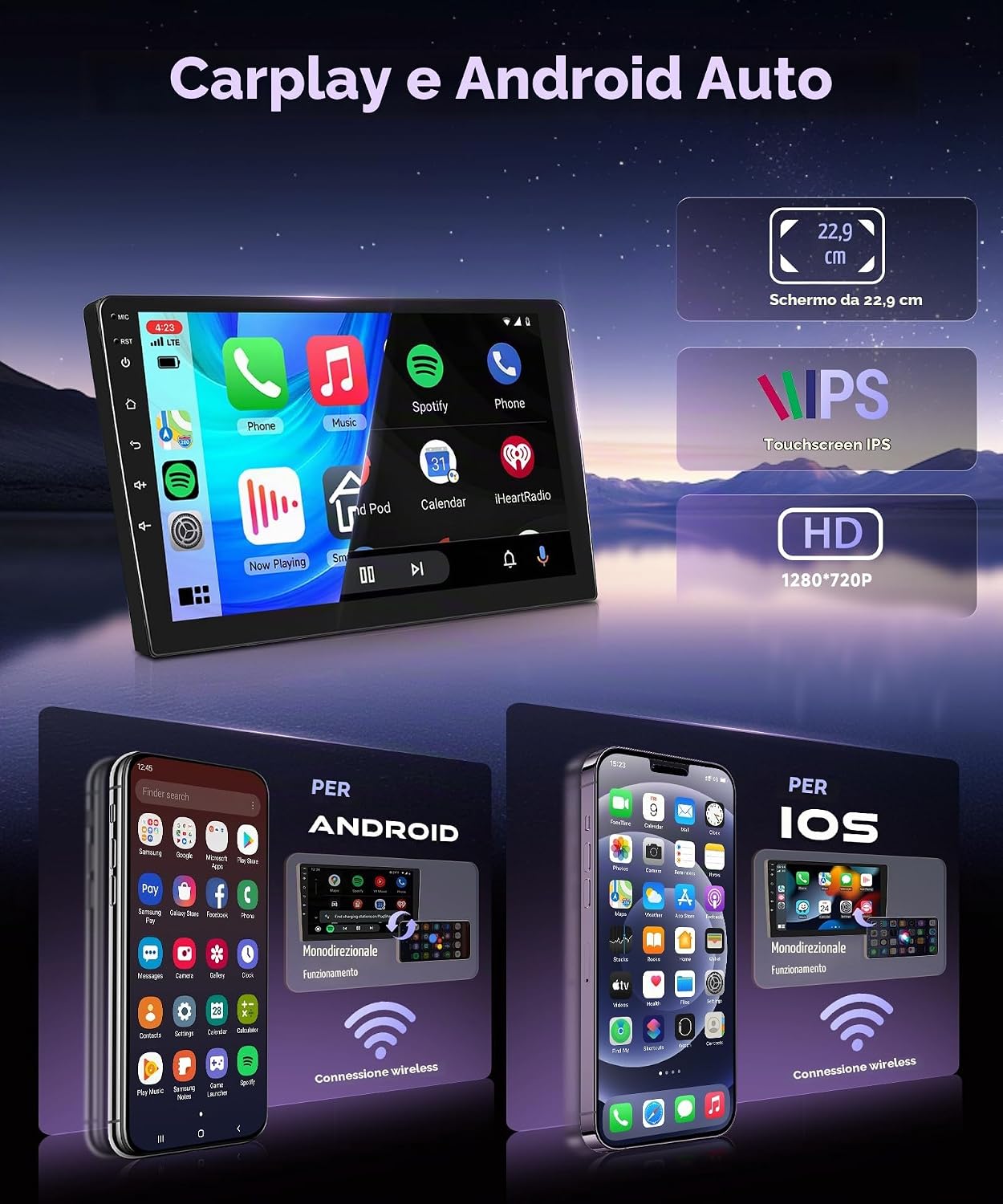
Image 4.2: Carplay and Android Auto Interface. This image showcases the user interface for Carplay and Android Auto on the 9-inch HD IPS touchscreen, demonstrating how smartphone applications are displayed and accessed.

Image 4.3: Wireless Carplay and Android Auto. This visual explains the wireless connectivity options for both Android and iOS devices, allowing users to mirror or integrate their smartphone's interface with the car stereo.
4.3 GPS Navigation
The stereo features integrated GPS navigation with support for both online and offline maps. Ensure the GPS antenna is properly installed for optimal signal reception.
- Access the Navigation application from the main menu.
- Enter your destination to receive turn-by-turn directions.
- Download offline maps for navigation without an internet connection.

Image 4.4: GPS and WiFi Functionality. This image highlights the car stereo's GPS capabilities, showing both online and offline navigation modes, along with its Wi-Fi connectivity.

Image 4.5: GPS Navigation System. A detailed view of the car stereo's navigation interface, displaying maps, route information, and estimated arrival times.
4.4 Bluetooth Connectivity (Hands-free Calling & Music)
Connect your smartphone via Bluetooth for hands-free calling and audio streaming.
- Enable Bluetooth on the car stereo and your smartphone.
- Search for available devices on your phone and select the car stereo's Bluetooth name.
- Once paired, you can make and receive calls directly from the stereo and stream music from your phone.

Image 4.6: Bluetooth and Radio Features. This image illustrates the Bluetooth functionality for hands-free calling and music playback, alongside the FM/RDS radio interface.

Image 4.7: Bluetooth Communication and Audio. This visual demonstrates the hands-free calling interface and Bluetooth music streaming capabilities of the car stereo, enhancing convenience and safety.
4.5 RDS/FM Radio and DSP Equalizer
The stereo includes an RDS/FM radio tuner for clear reception and a Digital Sound Processor (DSP) for advanced audio customization.
- Access the Radio application to scan for FM stations. RDS (Radio Data System) will display station names and program information.
- Navigate to the DSP settings (often labeled 'EQ' or 'Sound') to adjust frequency, AE, 36-band equalizer, 10-band equalizer, and tonal pattern selection.
- Customize sound settings to optimize audio quality for your vehicle's acoustics.

Image 4.8: Music Playback, Navigation, Camera Views. This image displays a multi-functional interface, showing music playback, navigation, and camera views, indicating the stereo's versatile capabilities.
4.6 AHD Rear Camera
The included AHD rear camera provides a clear view behind your vehicle, automatically activating when reverse gear is engaged.
- The camera features AHD night vision and is waterproof (IP69).
- The screen automatically switches to the rear view when reversing, displaying parking guidelines.

Image 4.9: Rear Camera and Steering Wheel Control. This image shows the clear view provided by the AHD night vision waterproof rear camera, complete with parking guidelines, and the interface for configuring steering wheel controls.

Image 4.10: Parking Assistance with Rear Camera. This visual demonstrates the functionality of the AHD rear camera, showing the parking view with dynamic guidelines to assist with safe reversing.
4.7 Steering Wheel Control
The unit supports integration with your vehicle's existing steering wheel controls, allowing you to manage audio playback and calls without taking your hands off the wheel.
- Access the Steering Wheel Control settings in the stereo's menu.
- Follow the on-screen instructions to program each button on your steering wheel to its corresponding function (e.g., volume up/down, skip track, answer/end call).

Image 4.11: Steering Wheel Control Integration. This image illustrates the car stereo's compatibility with steering wheel controls, showing the on-screen interface for programming functions like volume adjustment, track skipping, and call management.
5. Maintenance
To ensure the longevity and optimal performance of your VECHTEL car stereo, follow these maintenance guidelines:
- Screen Cleaning: Use a soft, lint-free cloth to gently wipe the touchscreen. For stubborn smudges, slightly dampen the cloth with water or a screen-safe cleaner. Avoid harsh chemicals or abrasive materials.
- Software Updates: Periodically check for system software updates via the settings menu. Connecting to Wi-Fi will facilitate these updates, which can improve performance and add new features.
- Cable Inspection: Regularly inspect all connected cables (power, USB, camera) for any signs of wear, damage, or loose connections.
- Temperature Control: Avoid exposing the unit to extreme temperatures for extended periods. While designed for automotive use, prolonged exposure to direct sunlight or freezing conditions can affect performance.
6. Troubleshooting
If you encounter issues with your car stereo, refer to the following troubleshooting tips:
| Problem | Possible Cause | Solution |
|---|---|---|
| Unit does not power on. | Loose power connection, blown fuse, vehicle battery issue. | Check power cable connections. Inspect vehicle fuses. Verify vehicle battery charge. |
| No sound from speakers. | Incorrect speaker wiring, volume too low, mute activated, incorrect audio source. | Verify speaker connections. Increase volume. Check if mute is active. Select correct audio source. |
| GPS signal lost or inaccurate. | GPS antenna improperly installed or obstructed. | Ensure GPS antenna has a clear view of the sky. Check antenna connection. |
| Carplay/Android Auto not connecting. | Bluetooth not paired, USB cable faulty, phone software issue. | Ensure Bluetooth is on and paired. Try a different USB cable. Restart phone and stereo. |
| Rear camera not displaying. | Camera cable loose, camera power issue, incorrect input selected. | Check camera cable connection. Verify camera power supply (reverse light). Ensure correct input is selected. |
If the problem persists after attempting these solutions, please contact VECHTEL customer support for further assistance.
7. Specifications
| Feature | Detail |
|---|---|
| Brand | VECHTEL |
| Model Number | B0FR936GZP |
| Operating System | Android 15 |
| RAM | 6GB |
| ROM (Internal Storage) | 128GB |
| Screen Size | 9 inches |
| Display Type | HD IPS Touchscreen (2.5D) |
| Resolution | 1280 x 720 pixels |
| Connectivity Technology | Bluetooth, USB, Wi-Fi |
| Wireless Features | Wireless Carplay, Android Auto |
| Audio Features | DSP EQ (36-band, 10-band), RDS/FM Radio, Stereo/Surround Output |
| Navigation | Built-in GPS Navi (Online/Offline) |
| Rear Camera | AHD Night Vision, Waterproof (IP69) |
| Control Type | Steering Wheel Controls, Touchscreen |
| Output Power | 45 Watts (per channel), 180 Watts (total) |
| Number of Channels | 4.0 (Audio), 4 (Amplifier) |
| Video Encoding | H.264, H.265/HEVC |
| Compatible Devices | Smartphone, Tablet, Vehicle |
| Supported Formats | AVI, WAV, WMA |

Image 7.1: Display Technology. This image visually emphasizes the key features of the car stereo's display, including its 1280x720 HD resolution, 2.5D curved screen, fast touch response, and wide viewing angles.
8. Warranty and Support
8.1 Product Warranty
Your VECHTEL car stereo comes with a 2-year warranty from the date of purchase. This warranty covers manufacturing defects and malfunctions under normal use. Please retain your proof of purchase for warranty claims.
8.2 Customer Support
For technical assistance, troubleshooting not covered in this manual, or warranty inquiries, please contact VECHTEL customer support. You can typically find contact information on the product packaging or the official VECHTEL website.
