
KUKIHO 2-in-1 Wireless CarPlay and Android Auto Adapter
KUKIHO 2-in-1 Wireless CarPlay and Android Auto Adapter
User Manual
Model: 2-in-1 Wireless CarPlay and Android Auto Adapter
1. Introduction
The KUKIHO 2-in-1 Wireless CarPlay and Android Auto Adapter is designed to convert your vehicle's existing wired CarPlay or Android Auto system into a wireless one. This device allows for seamless integration of your smartphone's navigation, music, voice assistant, phone calls, and text messaging functionalities directly onto your car's display without the need for physical cable connections.

Image 1: The KUKIHO 2-in-1 Wireless Adapter enabling CarPlay and Android Auto on a car's infotainment screen, with a smartphone displaying CarPlay.
2. Safety Information
- Ensure the adapter is securely connected to a USB port in your vehicle.
- Do not attempt to disassemble or modify the device.
- Keep the device away from water, extreme temperatures, and direct sunlight.
- Operate your vehicle safely and adhere to all traffic laws. Avoid operating your phone or the car's infotainment system in a manner that distracts from driving.
3. Package Contents
Verify that all items are present in the package:
- KUKIHO 2-in-1 Wireless CarPlay and Android Auto Adapter
- USB to USB-C Converter
- User Manual (this document)
4. Product Overview
The KUKIHO adapter features a compact and elegant design, crafted from zinc alloy to prevent signal interference and enhance durability. It includes a high-quality glazed panel for improved heat dissipation, ensuring long-term daily use. The device is equipped with an upgraded intelligent chip and advanced signal filtering technology for stable and reliable wireless connectivity.
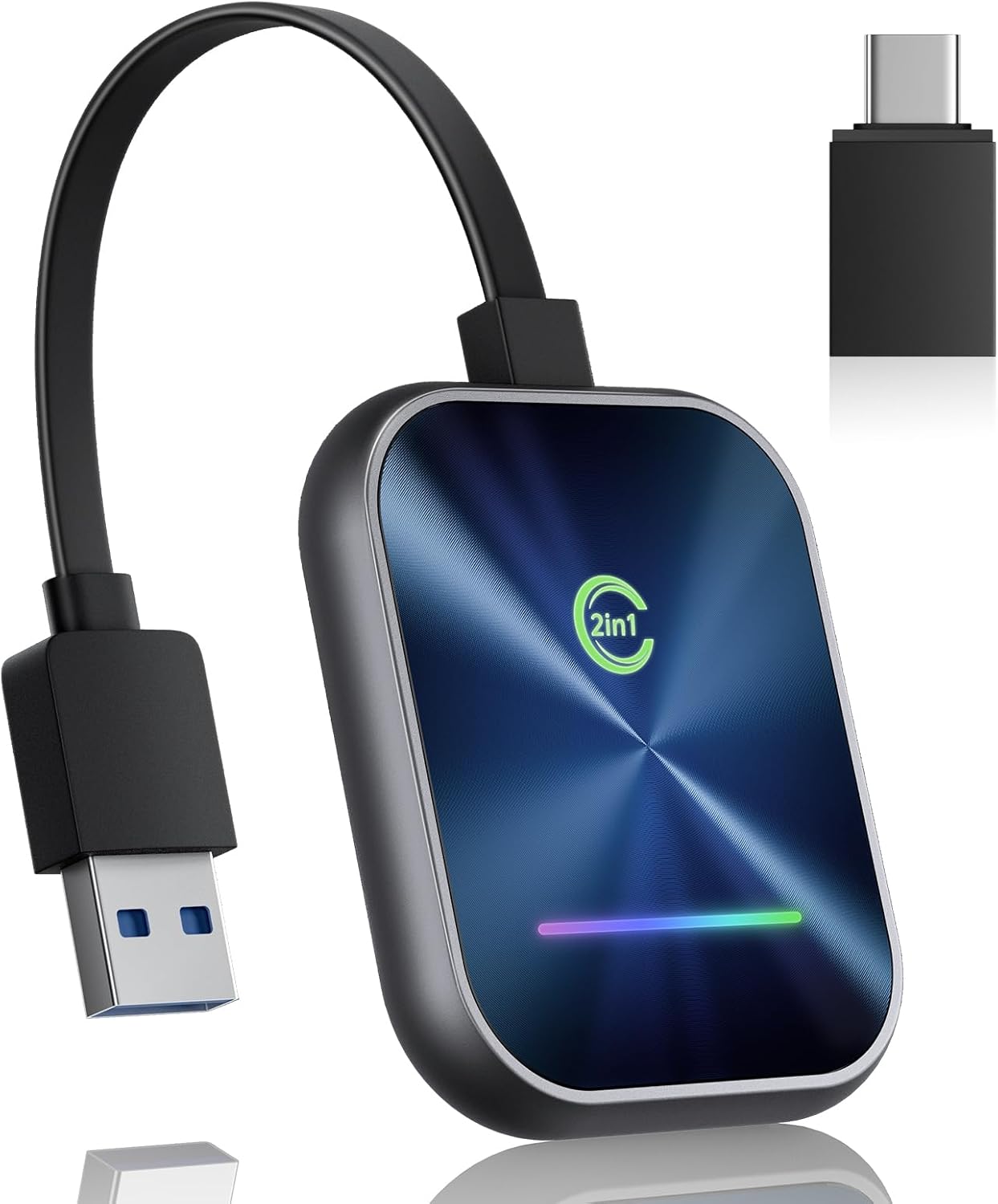
Image 2: The KUKIHO wireless adapter, highlighting its compact form factor and included USB-C adapter.
Key Features:
- 2-in-1 Functionality: Supports both Wireless CarPlay for iPhone and Wireless Android Auto for Android devices.
- Plug and Play: Simple 3-step setup process.
- Automatic Reconnection: Connects automatically upon vehicle startup after initial pairing.
- Upgraded Chip: Features an intelligent A7 chip for fast app launches, seamless multitasking, and swift data processing with ultra-low latency.
- Stable Connection: Enhanced Wi-Fi signal and advanced signal filtering technology ensure a reliable connection.
- Versatile Control: Supports original steering wheel controls, touchscreen, and knob operations.
- Compact Design: Small and discreet, fitting seamlessly into your car's interior.
- USB/USB-C Compatibility: Includes a USB to USB-C converter for broad vehicle compatibility.

Image 3: Illustration of the A7 intelligent chip, highlighting its high performance for stable transmission and ultra-low latency.
5. Setup Guide
Follow these steps to set up your KUKIHO Wireless Adapter:
- Connect the Adapter: Plug the adapter into the USB or USB-C port in your car that is dedicated to wired CarPlay or Android Auto. Use the provided USB to USB-C converter if necessary.
- Verify Car Screen: The indicator light on the adapter will illuminate, and your car's screen should enter the pairing interface. Ensure your car's CarPlay or Android Auto system is turned on.
- Enable WLAN (Wi-Fi) on Phone: On your smartphone, go to Settings and ensure WLAN (Wi-Fi) is enabled. You do not need to connect to a specific Wi-Fi network at this stage, just ensure the Wi-Fi radio is active.
- Activate Bluetooth and Pair: Open your phone's Bluetooth settings. Locate and select the device named "AIBox-BT-67A8" (or similar) from the list of available devices. Confirm the pairing request on both your phone and the car screen if prompted.
- Allow CarPlay/Android Auto: Once paired, your phone may ask to "Use CarPlay" or "Use Android Auto". Select "Use CarPlay" or "Allow" to grant necessary permissions for contacts and favorites sync.
- Automatic Connection: After the initial setup, the adapter will automatically reconnect to your phone when Wi-Fi and Bluetooth are available and you start your car.

Image 4: Visual guide demonstrating the four steps for setting up the KUKIHO wireless adapter, from plugging it in to activating CarPlay or Android Auto.
Setup Video:
Video 1: A detailed demonstration of the plug-and-play setup process for the KUKIHO Wireless CarPlay Adapter, including pairing with a smartphone and activating CarPlay.
6. Operating Instructions
Once connected, your car's infotainment system will display the CarPlay or Android Auto interface. You can interact with your phone's features directly from the car screen.
Supported Functions:
- Navigation: Use your preferred navigation apps (e.g., Apple Maps, Google Maps, Waze) for real-time directions.
- Music & Audio: Stream music, podcasts, and audiobooks from your favorite apps.
- Voice Assistant: Activate Siri or Google Assistant for hands-free control, making calls, sending messages, or getting directions.
- Phone Calls: Make and receive calls safely through your car's audio system.
- Messaging: Send and receive text messages using voice commands.
Control Methods:
The adapter maintains compatibility with your vehicle's original control mechanisms:
- Steering Wheel Controls: Use your car's steering wheel buttons to manage audio, calls, and navigation.
- Touchscreen Controls: Interact directly with the car's touchscreen display.
- OEM Control Knob: Utilize your vehicle's factory control knob for menu navigation.

Image 5: Demonstrates the various control methods available with the KUKIHO adapter, including voice commands, OEM knob, touchscreen, and steering wheel controls.
7. Compatibility
The KUKIHO Wireless Adapter is designed for vehicles equipped with factory-wired CarPlay or Android Auto. It supports a wide range of smartphones and car models.
- iPhone Compatibility: iPhone 6 and later models running iOS 10 or later.
- Android Phone Compatibility: Devices running Android 11 and above.
- Vehicle Compatibility: Supports over 800 CarPlay-enabled car models and over 500 Android Auto-enabled car models.
- Important Note: This adapter requires your vehicle to have an existing wired CarPlay or Android Auto system. It does not add CarPlay or Android Auto functionality to vehicles that do not already support it.
- Exclusions: Please note that this product does not support BMW or Tesla vehicles.

Image 6: Illustrates the broad compatibility of the adapter with both Android and iPhone devices, and its adaptability to USB-C and USB-A car ports.
For a detailed list of compatible vehicles, please visit: https://smartcarfit.com
8. Troubleshooting
If you encounter issues, try the following solutions:
- No Connection:
- Ensure your car has wired CarPlay or Android Auto functionality.
- Verify the adapter is securely plugged into the correct USB port.
- Check that Wi-Fi and Bluetooth are enabled on your phone.
- Forget the device from your phone's Bluetooth settings and re-pair.
- Restart your phone and the car's infotainment system.
- Intermittent Connection/Lag:
- Ensure there are no other devices interfering with the Wi-Fi or Bluetooth signal.
- Try moving your phone closer to the adapter.
- Check for firmware updates (see Section 10: Warranty and Support).
- Audio Issues:
- Adjust volume settings on both your phone and car stereo.
- Ensure no other Bluetooth audio devices are connected to your phone.
- CarPlay/Android Auto Not Launching:
- Confirm that CarPlay/Android Auto is enabled in your car's settings.
- Ensure your phone's operating system is up to date.
9. Specifications
| Brand | KUKIHO |
| Model | 2-in-1 Wireless CarPlay and Android Auto Adapter |
| Connectivity | Wireless (Wi-Fi 5.8GHz, Bluetooth 5.3) |
| Input Port | USB-A (with included USB-C converter) |
| Compatible Devices | iPhone (iOS 10+), Android (Android 11+) |
| Dimensions | 5.71 x 2.99 x 0.67 inches |
| Item Weight | 2.89 ounces |
| Manufacturer | KUKIHO |

Image 7: Illustrates the compact and convenient design of the KUKIHO wireless adapter, including its dimensions and the included USB-C adapter.
10. Maintenance
To ensure the longevity and optimal performance of your adapter:
- Cleaning: Use a soft, dry cloth to clean the adapter. Avoid liquid cleaners or abrasive materials.
- Storage: When not in use for extended periods, store the adapter in a cool, dry place.
- Handling: Handle the adapter with care. Avoid dropping it or exposing it to physical shock. The zinc alloy material provides impact resistance, but excessive force can still cause damage.
11. Warranty and Support
KUKIHO is committed to providing high-quality products and customer satisfaction.
- Technical Support: Enjoy lifetime technical support for your KUKIHO Wireless Adapter. If you encounter any operational or compatibility issues, please contact our support team.
- Firmware Updates: The adapter supports firmware updates to improve performance and compatibility. Our technical support team can assist you with updating the firmware if needed.
- Return Policy: We offer a 365-day refund policy.
For assistance, please refer to the contact information provided with your product packaging or visit the KUKIHO official website.

Image 8: KUKIHO's support details, including high-level customer care, 24/7 online service, and a 365-day refund policy.