
1. Introduction
Thank you for purchasing the Rii K28 Bluetooth Mini Keyboard Remote Control. This device combines a full QWERTY keyboard, a multi-touch touchpad, and a remote control into a compact, backlit unit. It offers versatile connectivity options, including 2.4GHz wireless and Bluetooth, making it suitable for a wide range of devices such as Smart TVs, Android TV Boxes, PCs, and gaming consoles. This manual provides detailed instructions for setup, operation, and maintenance to ensure optimal performance.
2. Key Features
- Dual Connectivity: Supports both Bluetooth 4.0 and 2.4GHz wireless connections for broad compatibility.
- Integrated Touchpad: Responsive multi-touch touchpad for precise cursor control and gesture support.
- Backlit Keys: Allows for clear operation in low-light environments.
- Rechargeable Battery: Built-in Li-ion battery with auto-sleep function for extended use.
- Compact and Portable: Ergonomic design for comfortable handheld use and easy portability.
- Wide Compatibility: Compatible with Amazon Fire TV Stick, Android TV Box, Smart TV, Raspberry Pi, Xbox 360, PS3, HTPC, IPTV, Pad, and PC.
3. Package Contents
Please check the package contents upon unboxing:
- Rii K28 Mini Keyboard
- 2.4GHz USB Receiver
- USB Charging Cable
- User Manual (this document)

Figure 3.1: Package contents including the Rii K28 Mini Keyboard, USB receiver, and charging cable.
4. Product Layout
Familiarize yourself with the layout and components of your Rii K28 Mini Keyboard:

Figure 4.1: Front and side view of the Rii K28 Mini Keyboard with labeled components and dimensions.
- Touchpad: Located at the top center, supports multi-finger gestures.
- Left/Right Mouse Buttons: Located on the sides of the keyboard for convenient clicking.
- QWERTY Keyboard: Full QWERTY layout for typing.
- Function (FN) Key: Used in combination with other keys for special functions.
- Power Switch: Located on the side to turn the device on/off.
- USB Receiver Compartment: Located on the back for storing the 2.4GHz USB receiver.
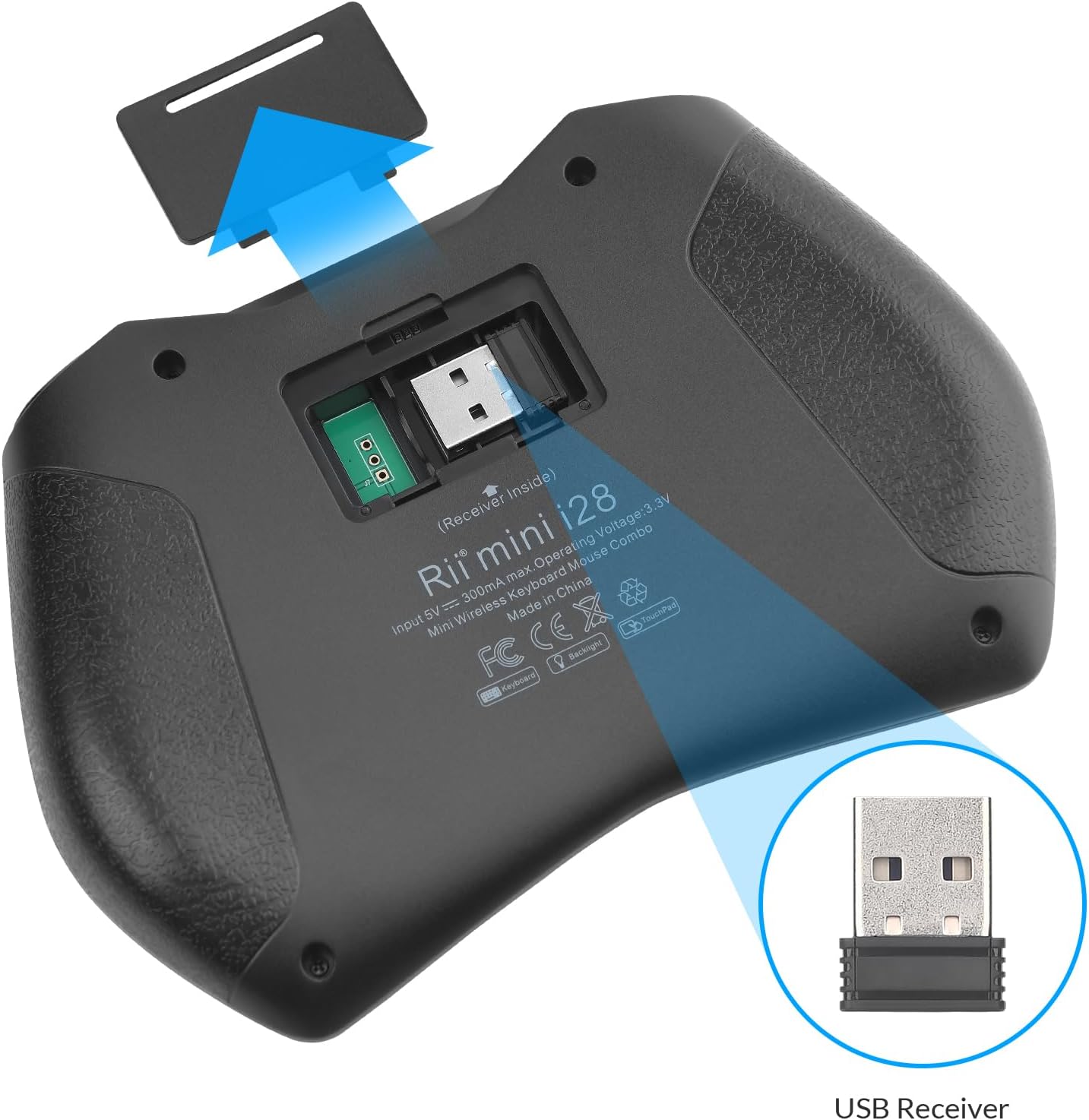
Figure 4.2: Rear view showing the USB receiver storage compartment.
5. Setup
5.1. Charging the Keyboard
Before initial use, fully charge the Rii K28 keyboard using the provided USB charging cable. Connect the cable to the keyboard's charging port and a standard USB power source (e.g., computer USB port, USB wall adapter).
- The charging indicator light will illuminate during charging.
- The indicator light will turn off or change color once fully charged.
5.2. Connecting via 2.4GHz Wireless
- Locate the 2.4GHz USB receiver in the compartment on the back of the keyboard.
- Insert the USB receiver into an available USB port on your device (e.g., Smart TV, PC, Android TV Box).
- Turn on the Rii K28 keyboard using the power switch.
- The keyboard should automatically connect to your device. If not, press FN + Caps to ensure it is in 2.4GHz mode.
5.3. Connecting via Bluetooth
- Turn on the Rii K28 keyboard using the power switch.
- Press FN + Tab to switch the keyboard to Bluetooth mode. The Bluetooth indicator light will blink.
- On your device (e.g., Smart TV, PC, tablet), navigate to the Bluetooth settings.
- Search for available Bluetooth devices. You should see "Rii K28" or a similar name.
- Select "Rii K28" to pair. Follow any on-screen prompts to complete the pairing process.

Figure 5.1: Visual guide for switching between Bluetooth (FN+Tab) and 2.4GHz (FN+Caps) modes.
6. Operating Instructions
6.1. Basic Keyboard Functions
The Rii K28 functions as a standard QWERTY keyboard. Type as you would on a regular keyboard. Use the FN key in combination with blue-labeled keys for secondary functions (e.g., multimedia controls, F-keys).
6.2. Touchpad Gestures
The integrated touchpad supports various gestures for navigation:
- Single Finger Tap: Left-click.
- Two Finger Tap: Right-click.
- Single Finger Drag: Move cursor.
- Two Finger Scroll: Scroll up/down or left/right (if supported by application).

Figure 6.1: Demonstrating single-finger touchpad interaction.
6.3. Backlight Control
To toggle the keyboard backlight on or off, press the FN key simultaneously with the light bulb icon key (usually F2 or similar, indicated by an icon).

Figure 6.2: Activating the keyboard backlight.
6.4. Hotkeys and Multimedia Keys
The keyboard includes various hotkeys and multimedia keys accessible via the FN key. These keys provide quick access to functions like volume control, media playback, and web browsing shortcuts. Refer to the key labels for specific functions.
7. Compatibility
The Rii K28 Mini Keyboard is designed for broad compatibility with various operating systems and devices, including but not limited to:
- Android TV Box
- Smart TV (with USB port or Bluetooth support)
- PC (Windows, macOS, Linux)
- Raspberry Pi
- Gaming Consoles (Xbox 360, PS3)
- HTPC (Home Theater PC)
- IPTV
- Tablets/Pads (with Bluetooth support)
- Amazon Fire TV Stick 4K/Lite/Cube
8. Maintenance
- Cleaning: Use a soft, dry cloth to clean the keyboard surface. For stubborn dirt, a slightly damp cloth can be used, ensuring no liquid enters the device.
- Battery Care: To prolong battery life, avoid fully discharging the battery frequently. Charge the device regularly, especially if it will not be used for an extended period.
- Storage: Store the keyboard in a cool, dry place away from direct sunlight and extreme temperatures.
- USB Receiver: Always store the USB receiver in its dedicated compartment on the back of the keyboard when not in use to prevent loss.
9. Troubleshooting
| Problem | Solution |
|---|---|
| Keyboard not responding. |
|
| Cursor movement is erratic or unresponsive. |
|
| Backlight not working. |
|
| Cannot pair via Bluetooth. |
|
10. Specifications
| Feature | Detail |
|---|---|
| Model Number | K28 |
| Brand | Rii |
| Connectivity Technology | 2.4G Wireless, Bluetooth 4.0 |
| Operating Range | Up to 10 meters (33 feet) |
| Keyboard Layout | QWERTY |
| Power Source | Rechargeable Li-ion Battery |
| Additional Features | Backlit, Ergonomic, Portable, Multi-touch Touchpad |
| Color | Black |
| Manufacturer | Riitek |
11. Warranty and Support
For warranty information and technical support, please visit the official Rii website or contact their customer service. You can find more information at: www.riitek.com or for security related information: www.riitek.com/support/security.html.
Please retain your purchase receipt for warranty claims.


