
1. Introduction
Thank you for choosing the wansview F1 Smart Bird Feeder with Camera. This manual provides essential information for the proper setup, operation, and maintenance of your new device. This innovative bird feeder combines traditional bird feeding with advanced smart technology, allowing you to observe and interact with wild birds from your smartphone.
The wansview F1 features a 2K live video camera, AI bird species identification, instant alerts, and solar power for continuous operation. Enjoy a captivating birdwatching experience right from your home.
2. Package Contents
Please verify that all items listed below are included in your package. If any items are missing or damaged, please contact customer support.
- Bird Feeder Camera Unit (1)
- Solar Panel (1)
- Jelly Box & Suet Feeder & Honey Feeder Kit (1 set)
- Mounting Kit (includes screws, anchors, strap for tree/pole/wall mounting) (1 set)
- User Guide (1)
- USB Charging Cable (1)
- Antenna (1)
- Bird Perch (1)
Video: Unboxing and installation of the smart bird feeder. This video demonstrates the contents of the package and initial assembly steps.
3. Product Overview
The wansview F1 bird feeder is designed for outdoor use, featuring a durable, weatherproof construction and a solar-powered camera system. Key components include:
- 2K HD Camera: Captures clear video and images of visiting birds.
- Solar Panel: Provides continuous power to the camera's rechargeable battery.
- AI Bird Identification: Recognizes thousands of bird species (requires subscription).
- Color Night Vision: Allows for vibrant bird observation even in low light.
- Motion Detection & Instant Alerts: Notifies you when birds visit.
- Multiple Feeding Options: Includes attachments for seeds, jelly, suet, and honey.
- Weatherproof Design (IP65): Ensures durability against rain, snow, and humidity.
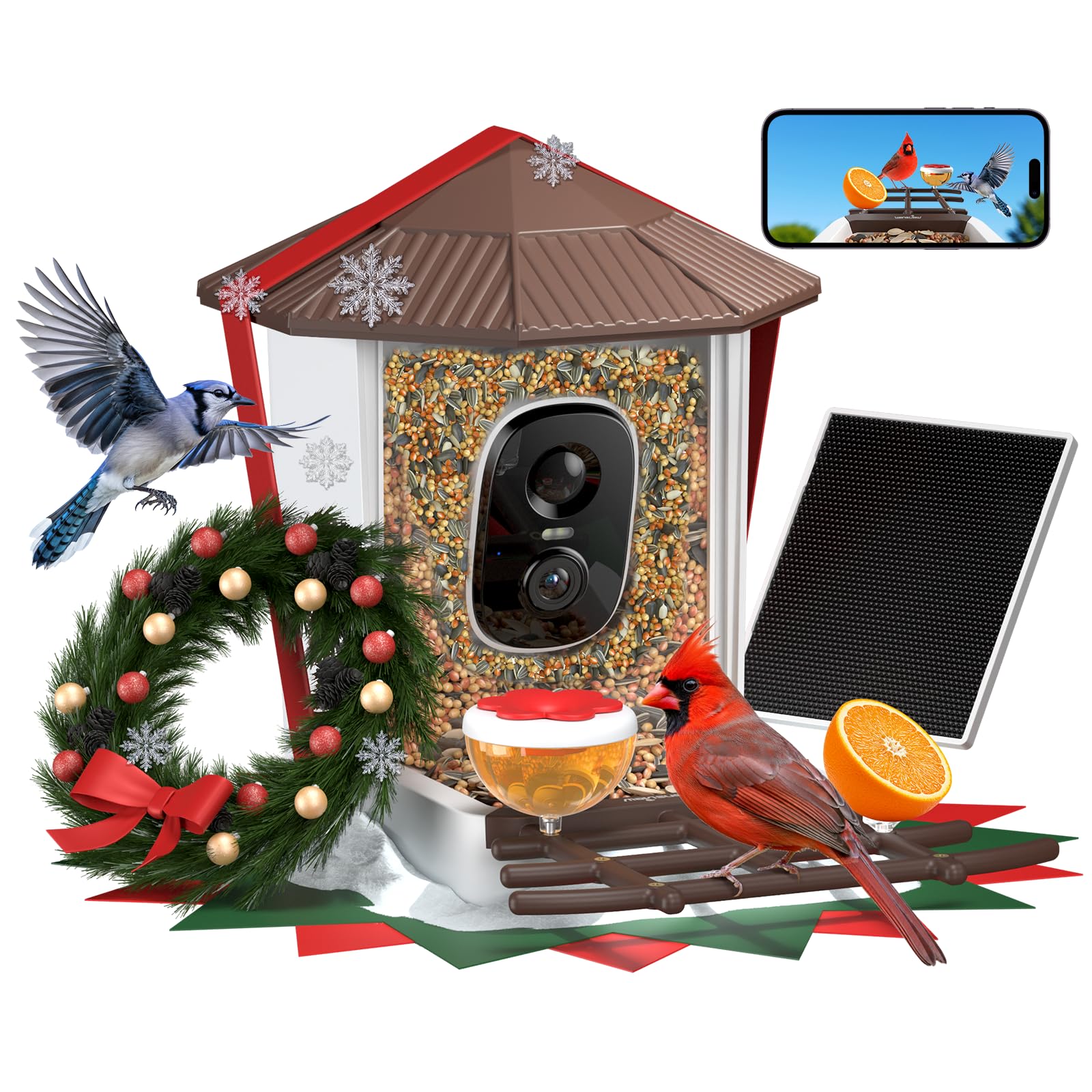
Image: The wansview F1 Smart Bird Feeder, showcasing its integrated camera, solar panel, and various feeding attachments.
4. Setup
4.1. Assembly
- Unpack Components: Carefully remove all items from the packaging.
- Install Antenna: Screw the antenna into the designated port on the back of the bird feeder unit.
- Attach Bird Perch: Securely attach the bird perch to the front base of the feeder.
- Add Optional Feeders: Attach the jelly box, suet feeder, or honey feeder to the available slots on the perch as desired.
- Connect Solar Panel: Plug the solar panel cable into the charging port on the bird feeder unit. Ensure the connection is firm.

Image: Visual guide for assembling the bird feeder components, including the antenna, perch, and optional feeders.
4.2. Installation
The wansview F1 offers flexible mounting options:
- Tree Mount: Use the provided strap to secure the feeder to a tree trunk.
- Pole Mount: Attach the feeder to a pole using the appropriate mounting hardware.
- Wall Mount: Secure the feeder to a wall using screws and anchors.
Ensure the solar panel is positioned to receive maximum direct sunlight throughout the day for optimal charging. Place the feeder in an area where birds frequently visit and within range of your 2.4G Wi-Fi network.

Image: Different installation methods for the wansview F1 bird feeder, showing tree, pole, and wall mounting.
4.3. App Setup & Wi-Fi Connection
- Download the App: Search for "wansview Cloud" in your smartphone's app store (iOS or Android) and download it.
- Create Account: Follow the in-app instructions to create a new user account.
- Power On Camera: Ensure the camera is charged and powered on.
- Add Device: In the app, select "Add Device" and choose "Battery Camera" or the appropriate device type.
- Pair via Bluetooth: The app will guide you to pair the camera via Bluetooth.
- Connect to 2.4G Wi-Fi: Select your 2.4G Wi-Fi network and enter the password. The camera only supports 2.4G Wi-Fi.
- Connection Succeeded: Once connected, you can name your device and start live viewing.

Image: Step-by-step guide for setting up the wansview Cloud app and connecting the bird feeder camera to your 2.4G Wi-Fi network.
5. Operating Instructions
5.1. Live View & 2K Video
Access the wansview Cloud app to view a live 2K HD video stream from your bird feeder. This allows you to watch birds in real-time, observing every detail in vibrant clarity.

Image: A smartphone displaying the 2K HD live video feed from the wansview F1 bird feeder, showing a bird in clear detail.
5.2. Motion Detection & Instant Alerts
The feeder is equipped with motion detection. When a bird is detected, you will receive instant notifications on your phone, often accompanied by an HD snapshot of the visitor. This feature ensures you never miss a bird's visit.

Image: A smartphone screen showing an instant notification for a bird detection at the feeder, with a clear snapshot.
5.3. AI Bird Identification
With an active wansview AI Bird Plan subscription, the camera can identify thousands of bird species. The app will provide detailed information about each identified bird, turning your backyard into an educational wildlife observation area.

Image: An illustration demonstrating the AI bird identification feature, highlighting an Oriole and a Blue Jay with their species names.
5.4. Recording & Storage
The camera supports local storage via a TF card (up to 128GB, not included) and offers a 30-day trial for a cloud subscription plan. All detected motion events are recorded, allowing you to review and save your favorite bird moments.

Image: A visual representation of the storage options, including TF card support and cloud storage, for saving bird feeder recordings.
5.5. Color Night Vision
Equipped with 2 LED lights, the wansview F1 provides vibrant color night vision, allowing you to observe birds in full color even in dark conditions, unlike traditional infrared black and white views.

Image: A side-by-side comparison showing the clear, colorful view of an Oriole at night with the wansview F1's color night vision, versus a traditional black and white IR view.
6. Maintenance
6.1. Refilling Birdseed
To refill the birdseed, simply lift the roof of the feeder and pour in your desired birdseed. The transparent design allows you to easily monitor seed levels.

Image: A three-step illustration demonstrating how to easily refill the bird feeder: clip, fill, and close the roof.
6.2. Cleaning
Regular cleaning of the bird feeder is recommended to prevent the spread of disease among birds. Disassemble the feeder components and wash them with warm, soapy water. Rinse thoroughly and allow to dry completely before refilling and reassembling.
6.3. Weather Protection
The IP65 weatherproof design protects the feeder from rain, snow, and humidity. Ensure all seals are properly closed after maintenance to maintain its weather resistance.
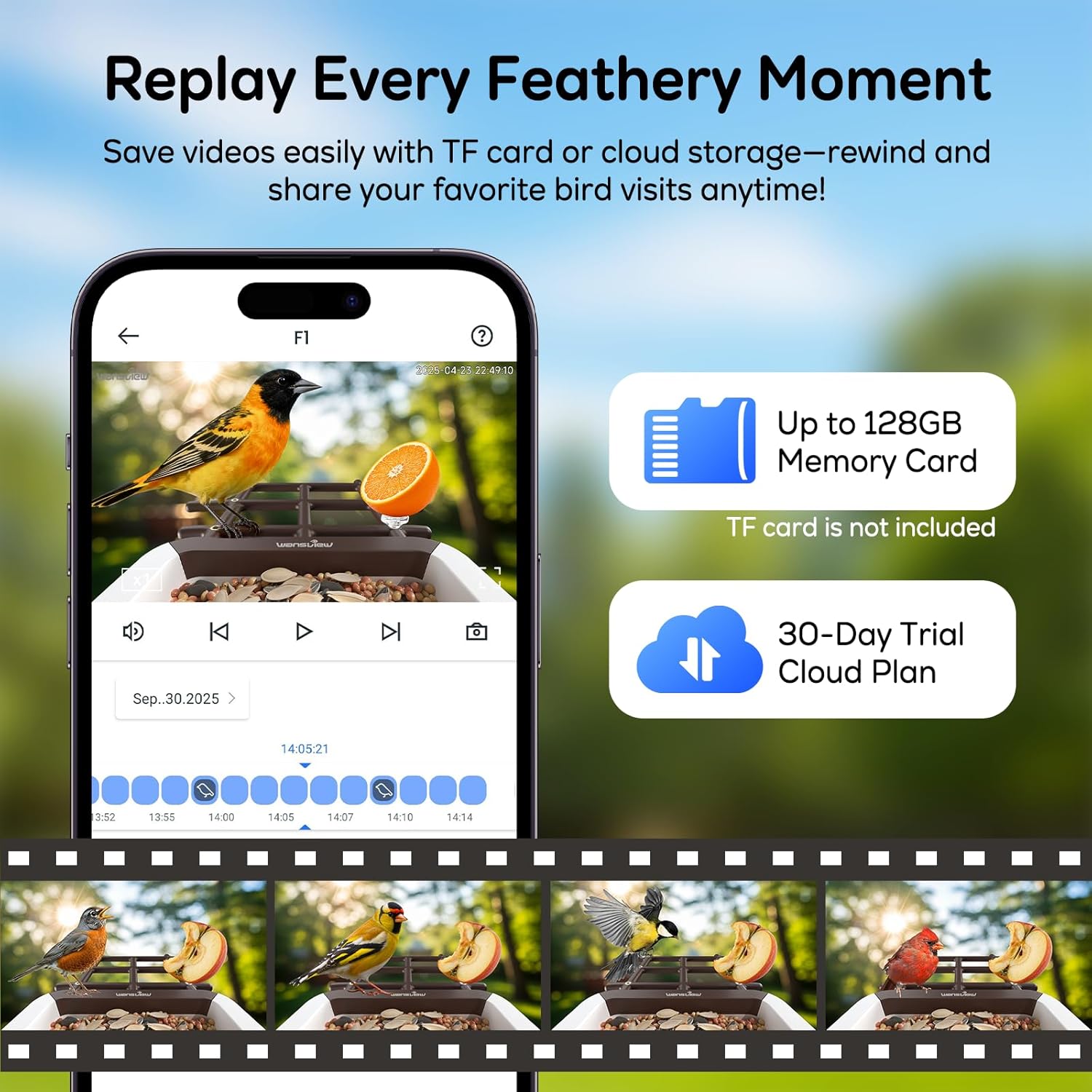
Image: The wansview F1 bird feeder shown outdoors in the rain, highlighting its IP65 weatherproof construction.
7. Troubleshooting
| Issue | Possible Cause | Solution |
|---|---|---|
| Camera not connecting to Wi-Fi | Incorrect Wi-Fi password; out of 2.4G Wi-Fi range; camera not in pairing mode. | Verify password, move feeder closer to router, ensure camera is in pairing mode (refer to app instructions). Ensure your router supports 2.4G Wi-Fi. |
| Battery not charging | Insufficient sunlight on solar panel; faulty solar panel connection; extreme weather. | Relocate solar panel to an area with more direct sunlight, check cable connection, bring indoors for USB charging if necessary. |
| No motion alerts | Motion detection sensitivity too low; app notifications disabled; camera offline. | Adjust motion sensitivity in app settings, enable app notifications, check camera's Wi-Fi connection. |
| Poor video quality | Dirty camera lens; poor Wi-Fi signal; low light conditions. | Clean camera lens gently, improve Wi-Fi signal strength, ensure adequate lighting or rely on color night vision. |
8. Specifications
- Brand: wansview
- Model: F1
- Camera Resolution: 2K HD
- Power Source: Solar Powered (with rechargeable Lithium Ion batteries included)
- Connectivity: 2.4G Wi-Fi Only
- Special Features: AI Identify Birds, Built-In Camera, Easy-Refill Top, Instant Notifications, Color Night Vision
- Material: Acrylonitrile Butadiene Styrene (ABS), Polycarbonate (PC)
- Mounting Type: Tree Mount, Pole Mount, Wall Mount
- Product Dimensions: 12.65"L x 7.4"W x 9.05"H
- Item Weight: 3.7 Pounds
- Capacity: 1.25 Liters (seed)
- Weather Resistance: IP65 Waterproof
9. Warranty & Support
The wansview F1 Smart Bird Feeder with Camera comes with a standard manufacturer's warranty. For detailed warranty information, product support, or to purchase accessories, please visit the official wansview website or contact their customer service directly. Keep your purchase receipt for warranty claims.
For further assistance, please refer to the contact information provided in your product packaging or on the wansview official website.
