Introduction
This manual provides detailed instructions for using your Motivaris Fitness Tracker Smart Watch, Model IDB05. Please read this guide thoroughly to ensure proper operation and to maximize your device's potential. For optimal performance, ensure your device is fully charged before first use.

Image: The Motivaris Fitness Tracker Smart Watch in black, showing its main display with time, step count, and calorie burn.
What's in the Box
Upon unboxing your Motivaris Fitness Tracker Smart Watch, you should find the following items:
- Motivaris Fitness Tracker Smart Watch (Model IDB05)
- Charging Cable
- Quick Start Guide
- User Manual (this document)

Image: A visual representation of the items included in the product packaging.
Setup
1. Charging the Device
Before initial use, fully charge your Motivaris Fitness Tracker. Connect the magnetic charging cable to the charging points on the back of the watch and plug the USB end into a 5V/1A USB power adapter (not included) or a computer USB port. A full charge typically takes 2 hours.

Image: The fitness tracker connected to its magnetic charger, illustrating the charging process.
2. Installing the VeryFit App
To unlock all features and synchronize data, download the VeryFit app from the App Store (iOS) or Google Play Store (Android). Search for "VeryFit" and install the application on your smartphone.

Image: A smartphone displaying the VeryFit app download page, indicating compatibility with both iOS and Android.
3. Pairing with Your Smartphone
- Ensure your smartphone's Bluetooth is enabled.
- Open the VeryFit app and follow the on-screen instructions to create an account or log in.
- Tap on the device icon within the app to search for your fitness tracker.
- Select "IDB05" or the device name that appears in the search results.
- Confirm the pairing request on both your phone and the watch.
For a visual guide on pairing and initial setup, please watch the official instruction video:
Video: Instruction for IDB05 Fitness Tracker - Mobile Version. This video demonstrates the process of connecting the fitness tracker to a smartphone via the VeryFit app.
Operating Instructions
1. Navigating the Interface
- Touch Screen: Swipe up, down, left, or right to navigate through menus and features.
- Side Button: Press to wake the screen, return to the home screen, or confirm selections.
- Custom Watch Faces: Choose from over 100 watch faces in the VeryFit app or upload your own photos to personalize your display.

Image: The fitness tracker showcasing various customizable watch faces, demonstrating personalization options.
2. Health Monitoring
The Motivaris Fitness Tracker continuously monitors key health metrics:
- Heart Rate: 24/7 monitoring of your heart rate. View real-time data on the watch or detailed trends in the VeryFit app.
- Blood Oxygen (SpO2): Monitor your blood oxygen saturation levels.
- Stress Levels: Track your stress levels throughout the day.
- Sleep Tracking: Automatically records deep, light, and awake sleep stages. Access detailed sleep scores and reports in the VeryFit app.
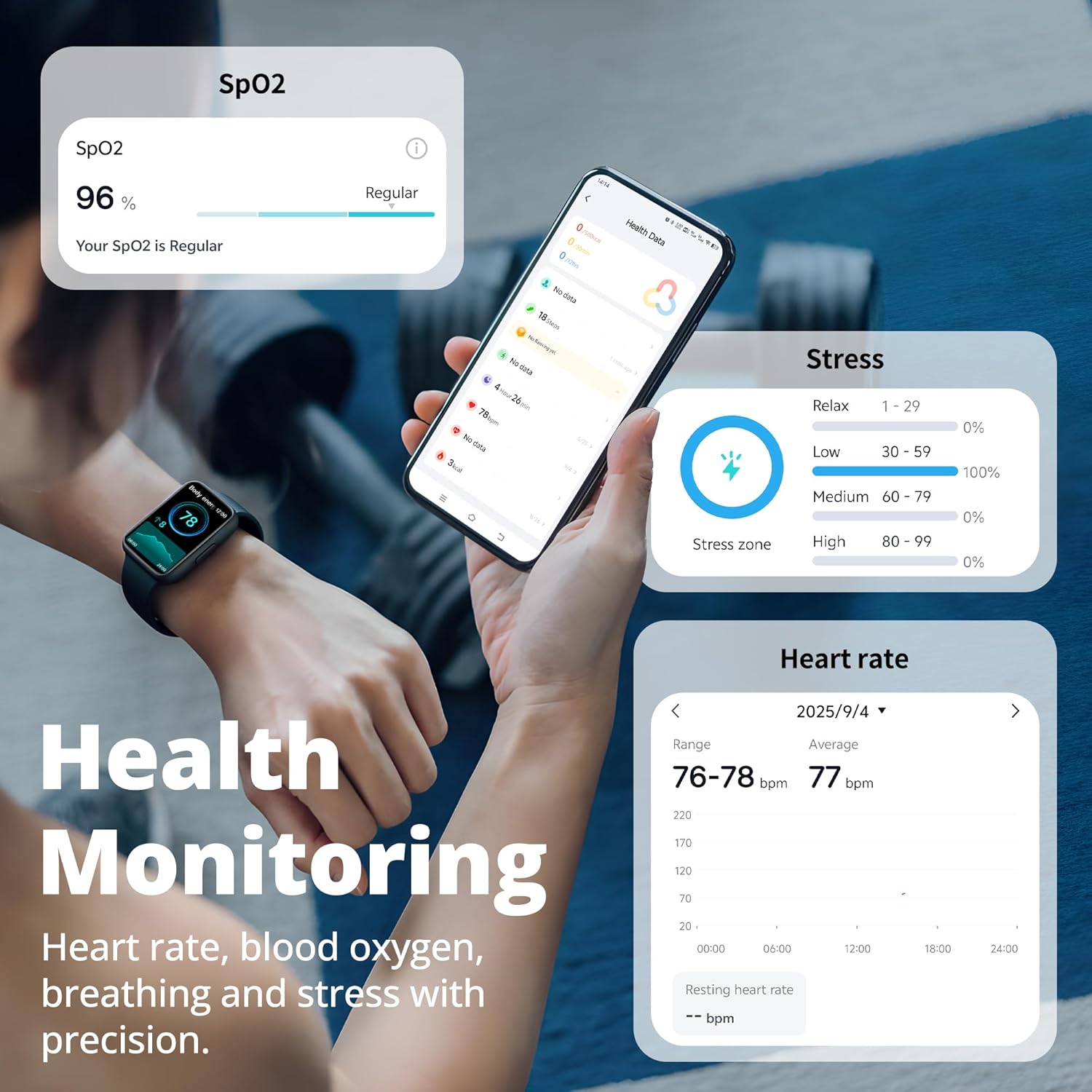
Image: The fitness tracker and a smartphone displaying various health monitoring data, including SpO2, stress, and heart rate.

Image: The fitness tracker displaying sleep tracking data, including sleep stages and quality metrics.
3. Activity Tracking
Track your daily activity and workouts with precision:
- Steps, Calories, Distance: Automatically records your daily steps, calories burned, and distance traveled.
- 100+ Sports Modes: Select from a wide range of sports modes (e.g., running, cycling, swimming, yoga) to get tailored workout data.
- GPS via Smartphone: Connect to your phone's GPS for accurate route mapping during outdoor activities.

Image: The fitness tracker showing sport tracking metrics and icons for different sports activities.
4. Smart Features
- Notifications: Receive real-time alerts for calls, SMS, and app notifications (Facebook, WhatsApp, Instagram, TikTok, Twitter, etc.) directly on your wrist.
- Music Control: Control music playback on your smartphone.
- Weather Updates: Get current weather information.
- Reminders: Set sedentary and hydration reminders, and utilize female health tracking.
- Alarm Clock: Set up to 10 alarms.
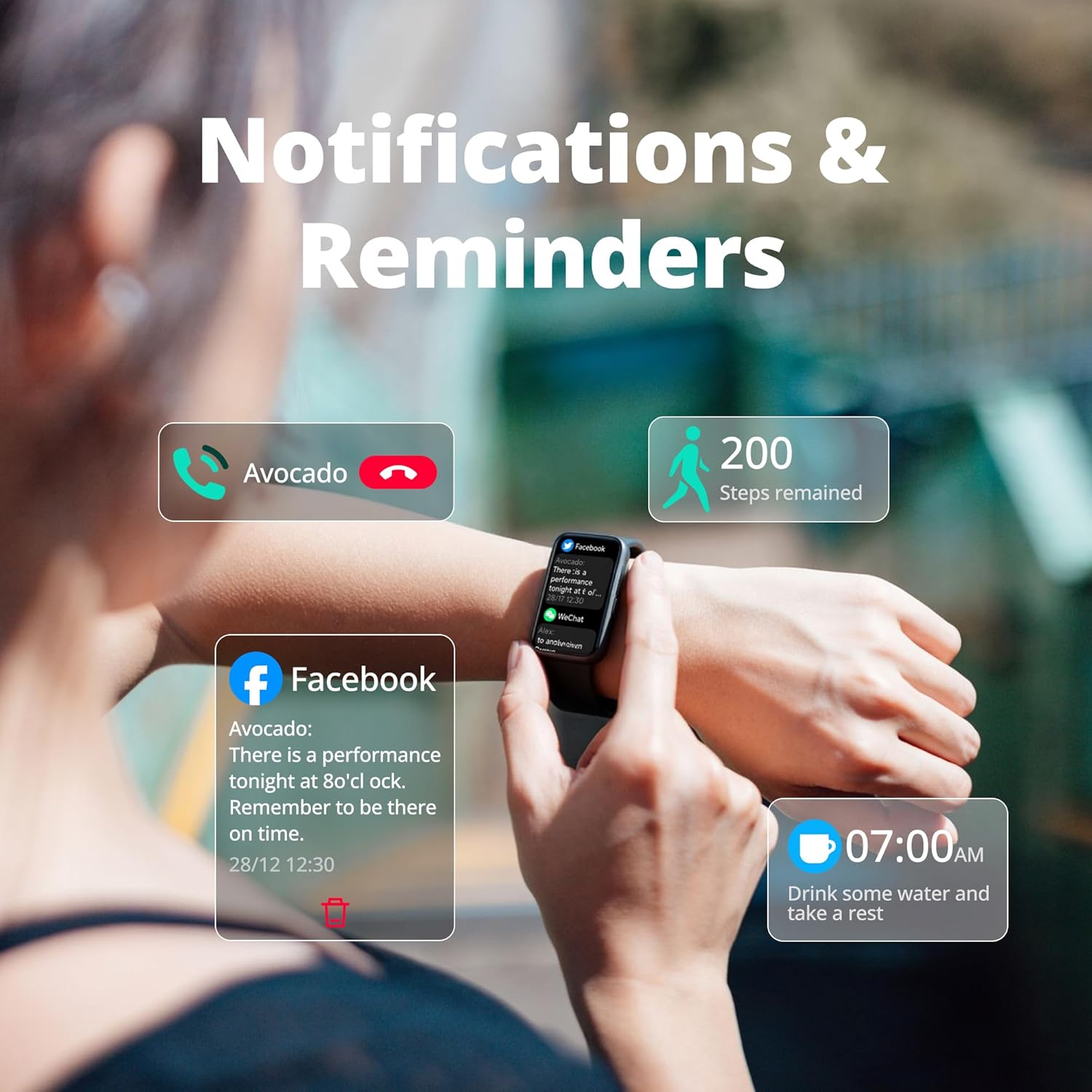
Image: The fitness tracker showing incoming call, message, and reminder notifications.
Maintenance
1. Water Resistance (IP68)
Your Motivaris Fitness Tracker is IP68 waterproof, meaning it is resistant to dust and can withstand immersion in water up to 1.5 meters for 30 minutes. It is suitable for daily use, hand washing, rain, and sweat during workouts. However, it is not recommended for long soaking or hot water exposure (e.g., hot showers, saunas).
Image: A person washing their hands while wearing the fitness tracker, highlighting its water-resistant feature.
2. Cleaning and Care
- Regularly clean your watch and strap with a soft, damp cloth.
- Avoid using harsh chemicals or abrasive materials.
- Ensure the charging contacts are clean and dry before charging.
3. Removing and Attaching the Strap
The strap is removable for cleaning or replacement. To remove, press the small latch on the underside of the watch where the strap connects and gently pull the strap away. To reattach, align the strap with the watch body and push it in until it clicks securely into place.
Troubleshooting
If you encounter any issues with your Motivaris Fitness Tracker, refer to the solutions below or consult the Frequently Asked Questions video.
1. Cannot Connect/Pair with App
- Ensure the watch is turned on and fully charged.
- Verify Bluetooth is enabled on your smartphone.
- Keep the watch close to your phone during pairing.
- If pairing fails, try removing the device from the app and your phone's Bluetooth settings, then attempt to reconnect.
2. Not Receiving Notifications
- Check that notification permissions are enabled for the VeryFit app in your phone's settings.
- Ensure the VeryFit app is allowed to run in the background.
- For iOS users, set "Show Previews" to "Always" for notifications.
- Confirm your phone is not in "Do Not Disturb" or "Sleep" mode.
3. Screen Unresponsive/Frozen
- Connect the band to its charger.
- Press and hold the side button for more than 10 seconds to force a restart.
- Check for charging indicators. If the screen remains unresponsive, contact support.
4. Battery Drains Quickly
- Frequent use of features like continuous heart rate monitoring or screen wake alerts can increase battery consumption.
- Try rebooting the band.
- Reduce the number of active features if not needed.
5. Cannot Charge
- Ensure the charging cable is securely connected to the watch and the power source.
- Avoid charging on metal surfaces.
- Try a different USB port or charger (recommended output: 5V/1A).
- If the watch is in power-saving mode, press and hold the side button to exit.
6. How to Reset Smart Band
- Press and hold the side button until the band vibrates to enter the function menu.
- Swipe down to Settings → Reset → Clear Data → Confirm.
- Note: This action will erase all data on your device.
For additional troubleshooting tips, refer to the official FAQ video:
Video: Frequently Asked Questions. This video addresses common user queries and provides solutions for various issues.
Specifications
| Model | IDB05 |
| Display Size | 1.47 Inches HD |
| Material | Aluminum Alloy, Plastic |
| Water Resistance | IP68 (3ATM) |
| Battery Capacity | 152 Milliamp Hours |
| Battery Life | 7-15 days (normal use), 20+ days (standby) |
| Charging Time | Approx. 2 hours |
| Connectivity | Bluetooth |
| Operating System | Compatible with Android & iOS |
| Special Features | Activity Tracker, Cycle Tracking, Sedentary Reminder, Touchscreen, Weather Forecast, Heart Rate, SpO2, Stress Monitoring |
| Weight | 14.8g (ultra-light) |

Image: A visual summary of the smart band's capabilities and limitations.
Warranty and Support
Your Motivaris Fitness Tracker Smart Watch comes with a 1-year warranty from the date of purchase, covering manufacturing defects. For technical assistance, warranty claims, or any product-related inquiries, please contact Motivaris customer support.
- Online Support: Visit the official Motivaris website for FAQs and support resources.
- Email Support: Refer to your Quick Start Guide for specific contact email.
- Firmware Updates: Free firmware updates are available via the VeryFit app to enhance performance and add new features.

Image: Motivaris brand commitment to quality and support.

