1. Overview
The Dell Pro 24 All-in-One QC24251 Desktop Computer is a versatile and compact computing solution designed for productivity and multimedia. It integrates all essential computer components into a single, sleek 23.8-inch Full HD touchscreen display, minimizing clutter and maximizing workspace efficiency. This model features a powerful 14th Generation Intel Core i5-14500T processor, ample 32GB DDR5 RAM, and a fast 1TB NVMe SSD, ensuring smooth performance for various tasks. It comes pre-installed with Windows 11 Pro, offering advanced features for business and personal use.
Key features include a vibrant 23.8" Full HD (1920x1080) IPS Multi-Touch Display, integrated Intel UHD Graphics, and a convenient pop-up Full HD HDR Camera for enhanced video conferencing. The system also boasts integrated stereo speakers for clear audio and a range of connectivity options including DisplayPort 1.4a, multiple USB ports (including USB 3.2 Gen 2 with PowerShare and USB-C 3.2 Gen 2), and Gigabit Ethernet.
2. What's in the Box
Upon unpacking your Dell Pro 24 All-in-One QC24251, please ensure all the following items are present:
- Dell Pro 24 All-in-One QC24251 Desktop Computer
- Keyboard
- Mouse
- A/C Adapter
- Quick Setup Guide

Figure 2.1: Dell Pro 24 All-in-One Desktop Computer with its accompanying keyboard and mouse.
3. Setup Instructions
- Unpack the System: Carefully remove the Dell Pro 24 All-in-One computer and all accessories from the packaging. Place the computer on a stable, flat surface.
- Connect Keyboard and Mouse: Connect the included keyboard and mouse to the available USB ports on the rear of the computer.
- Connect Power Adapter: Plug the A/C adapter into the power port on the back of the computer, then plug the other end into a wall outlet.
- Power On: Press the power button, usually located on the side or bottom bezel of the display. The computer will boot up and guide you through the initial Windows 11 Pro setup process.
- Initial Windows Setup: Follow the on-screen instructions to configure Windows 11 Pro, including language, region, network connection, and user account creation.
4. Operating the Computer
4.1. Display and Touchscreen
The 23.8-inch Full HD IPS display offers vibrant visuals and wide viewing angles. It is a multi-touch screen, allowing for intuitive interaction with Windows 11 Pro using gestures such as tapping, swiping, pinching, and zooming directly on the screen.
4.2. Pop-Up Webcam
The integrated Full HD HDR webcam is designed for privacy and convenience. It is located at the top of the display and can be manually extended or retracted. To use the webcam, gently press on its top edge to make it pop up. To retract it, push it back down until it clicks into place. The High Dynamic Range (HDR) technology automatically adjusts clarity for optimal video quality during calls.
4.3. Integrated Audio
The Dell Pro 24 features integrated stereo speakers for clear audio output. For private listening, connect a headset to the side-facing 3.5mm audio jack.
4.4. Ports and Connectivity
The computer provides a variety of ports for connecting peripherals and external devices:
- DisplayPort 1.4a: For connecting an external monitor.
- Headphones/Mic Combo Jack: For audio input/output.
- LAN (Gigabit Ethernet): For wired network connection.
- USB 3.2 Gen 2 (PowerShare): High-speed USB port with power delivery for charging devices even when the computer is off.
- USB 2.0 (SmartPower On): Standard USB ports with SmartPower On feature.
- USB 3.2 Gen 1: Standard high-speed USB ports.
- USB-C 3.2 Gen 2: Versatile high-speed USB-C port.
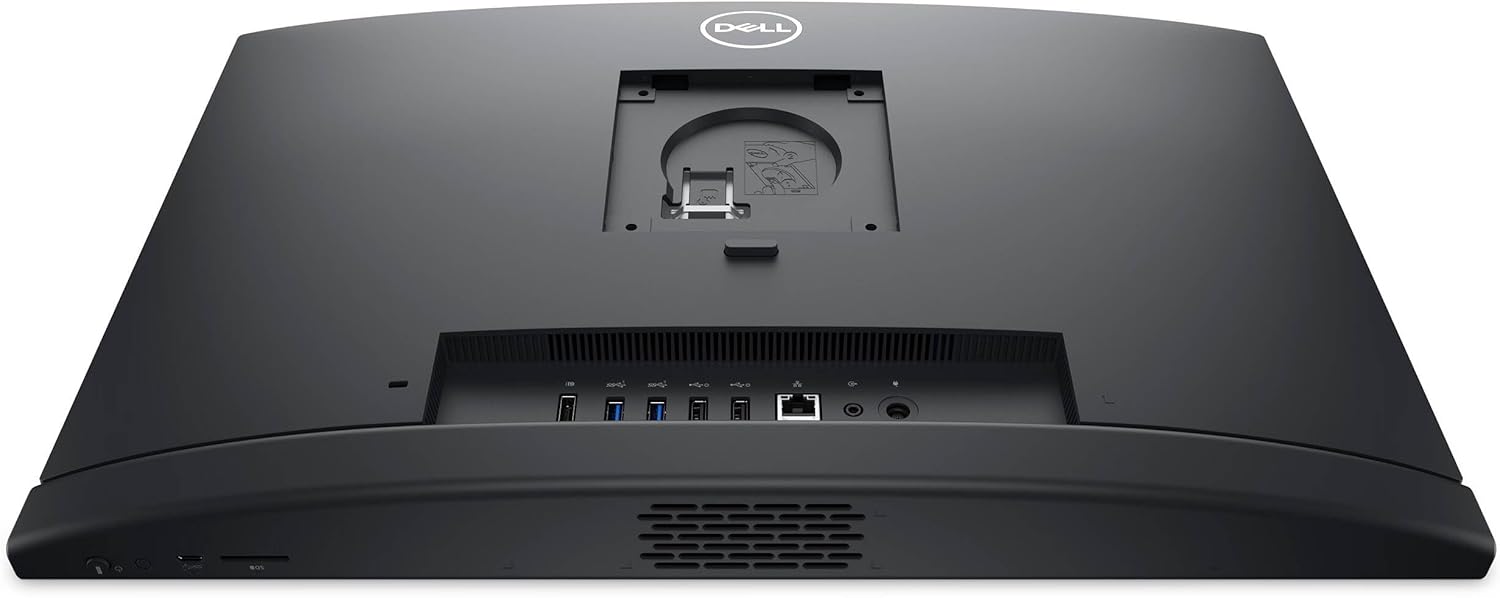
Figure 4.1: Rear view illustrating the available ports for connectivity.
5. Specifications
| Feature | Detail |
|---|---|
| Processor | 14th Generation Intel Core i5-14500T (14-Core, up to 4.80 GHz) |
| RAM | 32GB DDR5 4800MHz |
| Storage | 1TB PCIe NVMe M.2 Solid State Drive |
| Display | 23.8" Full HD (1920x1080) IPS Multi-Touch Display |
| Graphics | Intel UHD Graphics |
| Operating System | Windows 11 Pro (64-bit) |
| Webcam | Pop-up Full HD HDR Camera |
| Audio | High Definition Audio, Integrated Stereo Speakers |
| Ports | 1x DisplayPort 1.4a, 1x Headphones/Mic, 1x LAN (Gigabit Ethernet), 1x USB 3.2 Gen 2 (PowerShare), 2x USB 2.0 (SmartPower On), 2x USB 3.2 Gen 1, 1x USB-C 3.2 Gen 2 |
| Wireless Connectivity | 802.11ax, Bluetooth |
| Security | TPM 2.0 Security Chip |
| Dimensions (LxWxH) | 21.3 x 2.3 x 13.9 inches |
| Weight | 12.37 pounds |
6. Maintenance
To ensure the longevity and optimal performance of your Dell Pro 24 All-in-One computer, regular maintenance is recommended:
- Cleaning: Use a soft, lint-free cloth to clean the screen and exterior surfaces. For the screen, a specialized screen cleaner can be used. Avoid harsh chemicals.
- Software Updates: Regularly update your Windows operating system and drivers to ensure security and performance enhancements.
- Dust Removal: Periodically clean the vents to prevent dust buildup, which can affect cooling and performance. Use compressed air for this purpose.
- Data Backup: Regularly back up your important data to an external drive or cloud storage to prevent data loss.
7. Troubleshooting
If you encounter issues with your Dell Pro 24 All-in-One, try the following basic troubleshooting steps:
- No Power: Ensure the power adapter is securely connected to both the computer and a working wall outlet. Try a different outlet if necessary.
- Display Issues: If the screen is blank, ensure the computer is powered on. If an external monitor is connected, try disconnecting it to see if the internal display works.
- Peripheral Not Working: If a keyboard, mouse, or other USB device is not responding, try connecting it to a different USB port. Ensure drivers are up to date.
- Slow Performance: Close unnecessary applications, check for malware, and ensure sufficient free storage space on your SSD.
- System Restore: Windows 11 Pro offers system restore options that can revert your computer to a previous working state without affecting your personal files.
For more complex issues, refer to the Dell support website or contact customer service.
8. Warranty and Support
The Dell Pro 24 All-in-One QC24251 Desktop Computer comes with a 2-Year Warranty by Techno Intelligence & Free Tech Support. This warranty covers manufacturing defects and hardware failures under normal use conditions.
Additionally, Dell offers various protection plans for extended coverage and enhanced support:
- 3-Year Protection Plan: Provides extended coverage for your device.
- Complete Protect: A comprehensive plan that covers all eligible past and future purchases, available on a monthly subscription basis.
For warranty claims, technical assistance, or to inquire about protection plans, please visit the official Dell support website or contact their customer service.