1. Product Overview
This Back Button Enhancement Set is designed to improve the tactile feel and ergonomics of the rear buttons on your Steam Deck LCD or OLED model. It provides an enhanced grip and a more comfortable pressing experience for extended gaming sessions. The set includes multiple button cap designs to suit individual preferences.
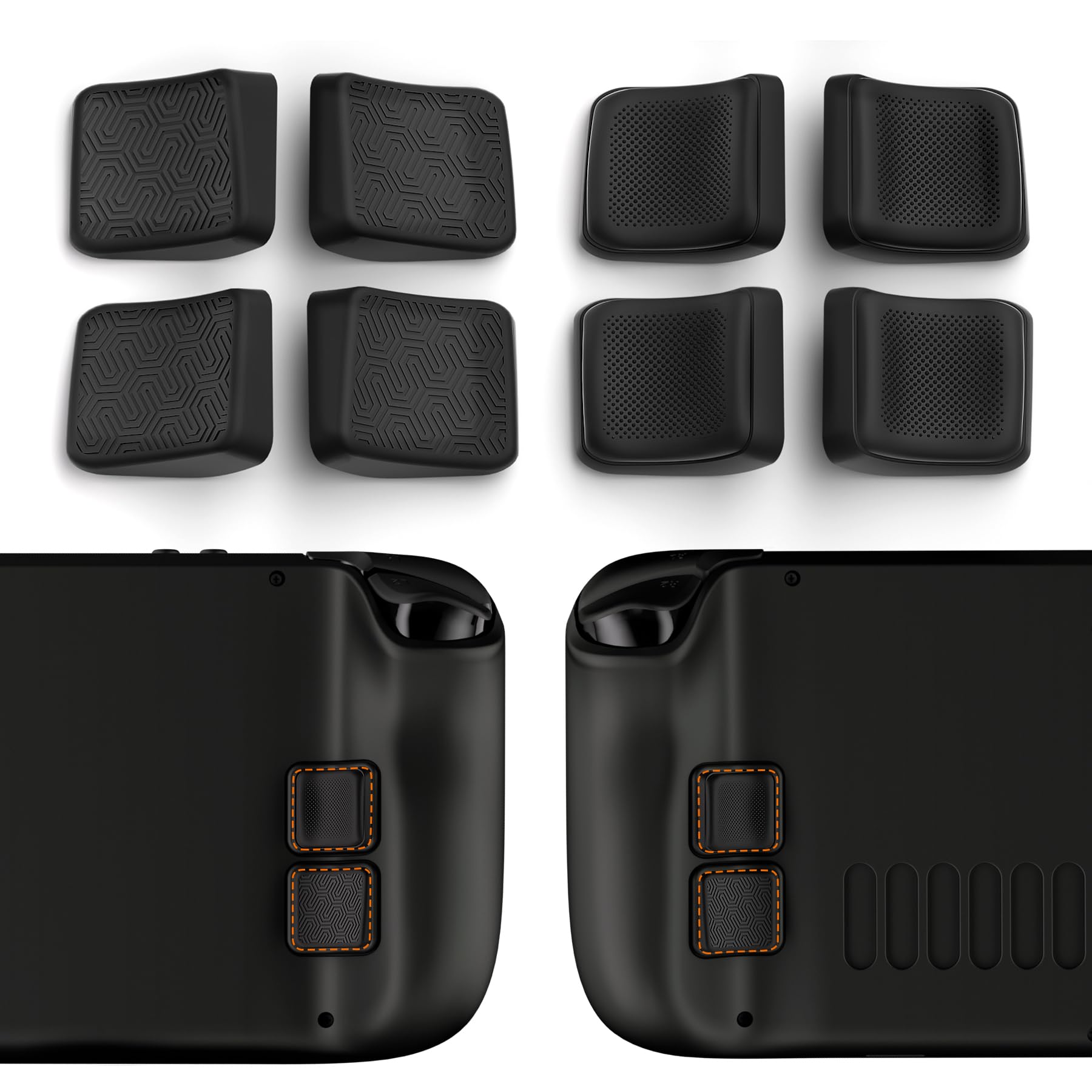
Image 1.1: Overview of the Back Button Enhancement Set, showing various button cap designs and an example of the caps installed on a Steam Deck's rear buttons.
2. Package Contents
Please verify that all items listed below are present in your package:
- 8 x Back Button Enhancement Caps (4 pairs, various designs)
- 4 x Adhesive Tapes (pre-cut for L4, L5, R4, R5 buttons)
- 1 x Wet Wipe
- 1 x Dry Wipe
- 1 x Cleaning Cloth
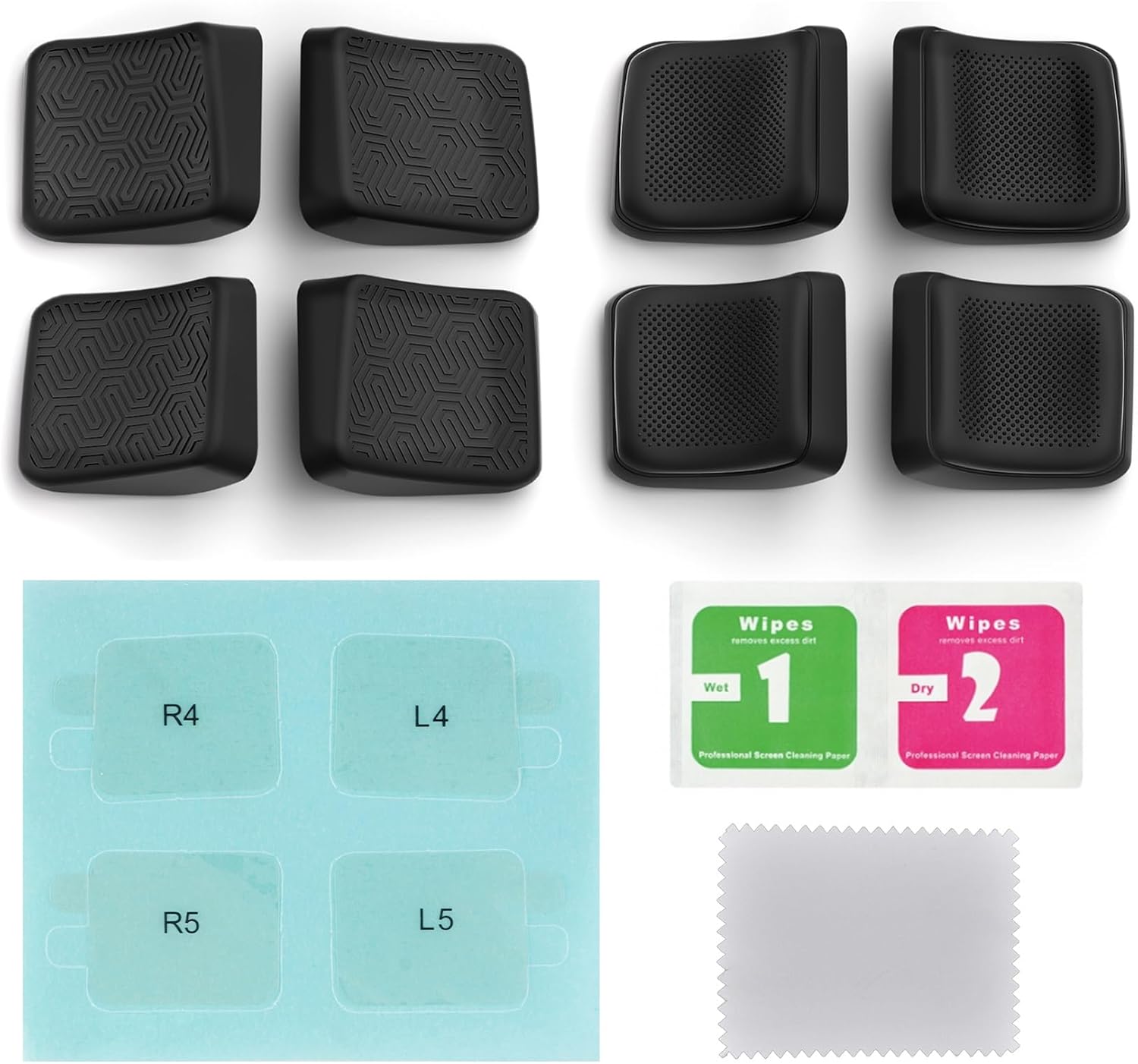
Image 2.1: All components included in the package: eight back button caps, four adhesive tapes, and cleaning accessories.
3. Features
- Ergonomic Design: Curved profiles and appropriate thickness centralize finger placement and optimize press angles for comfort.
- Anti-Slip Surfaces: Available in various textures including dotted concave and striped slant designs for enhanced grip.
- Secure Adhesion: Utilizes strong nano tape for reliable attachment to your Steam Deck's back buttons.
- Multiple Styles: Includes streamlined and studded designs to match user preference.
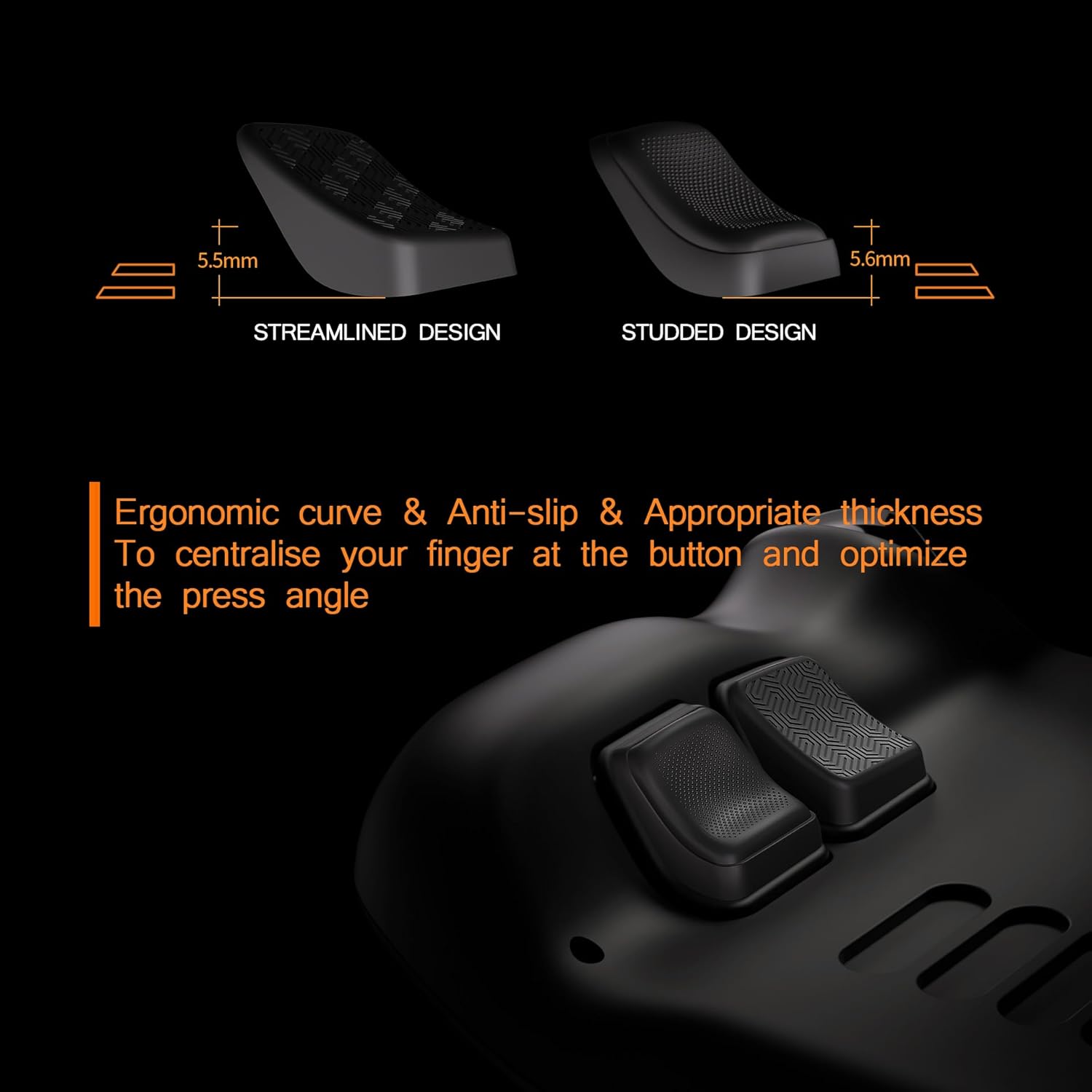
Image 3.1: Comparison of streamlined and studded back button designs, highlighting their ergonomic curve and thickness.

Image 3.2: Close-up view of the striped slant surface design and the dotted concave surface design, offering different tactile feedback.

Image 3.3: Illustration showing the application of nano tape for secure attachment and the reinforced pad structure.
4. Installation Guide
Follow these steps carefully to install the back button enhancements:
- Clean the Surface: Use the provided wet wipe, dry wipe, and cleaning cloth to thoroughly clean the surface of your Steam Deck's L4, L5, R4, and R5 back buttons. Ensure the surface is free of dust, oil, and moisture.
- Prepare Adhesive Tape: Carefully remove the blue backing paper from the adhesive tape corresponding to the button (e.g., R4, L4) along its shape line.
- Apply Adhesive: Slowly peel off the blue backing paper starting from the protruding tear tab on the adhesive side. Align the adhesive tape precisely onto the Steam Deck's back button.
- Attach Enhancement Cap: Place the corresponding back button enhancement cap onto the adhesive tape. Press firmly for at least 10 seconds to ensure strong initial adhesion.
- Secure Adhesion: After placing all caps, allow the adhesive to set for at least 2 minutes before use. This allows the back adhesive tape to paste stronger and ensures a secure bond.
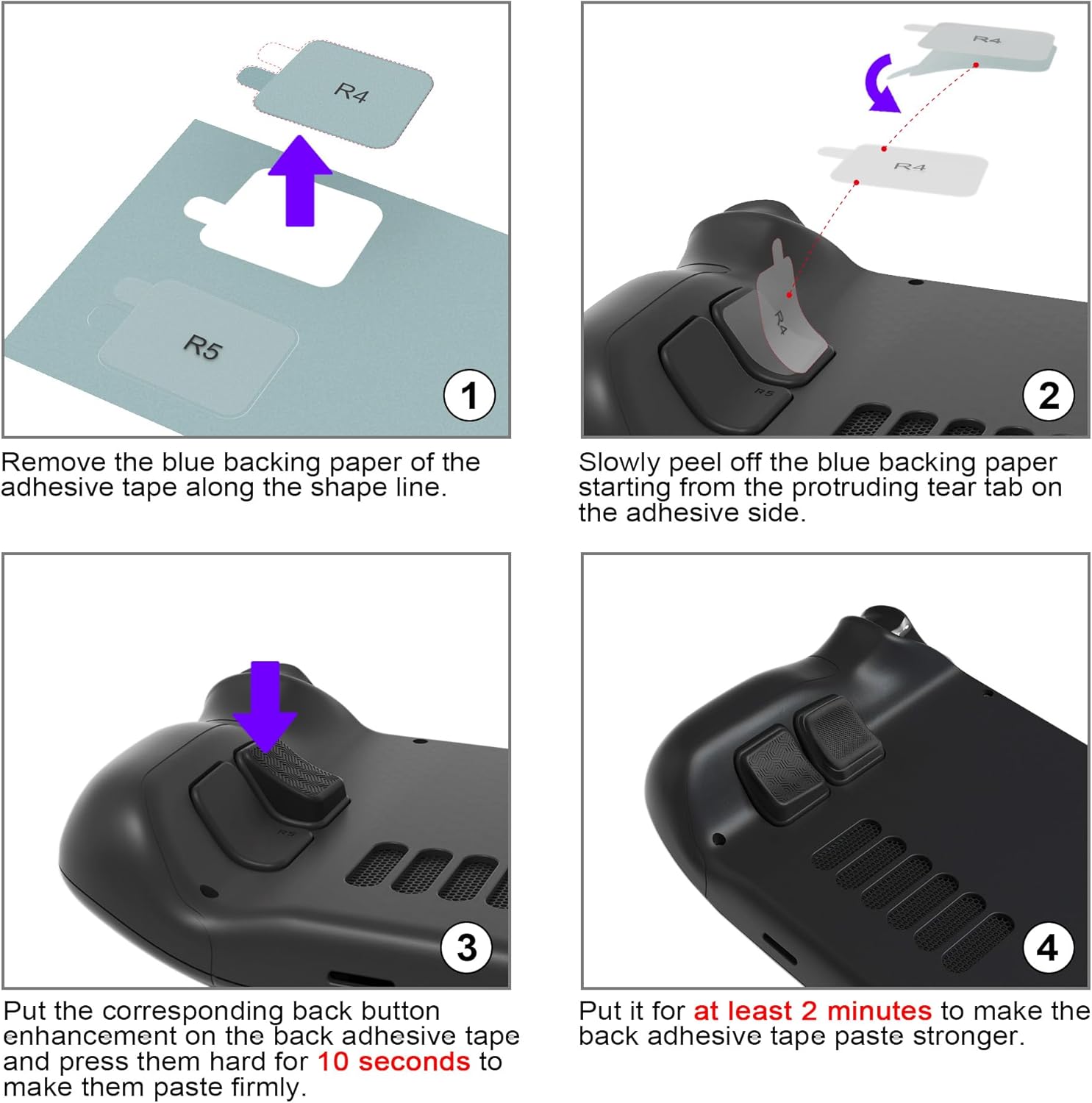
Image 4.1: Visual guide demonstrating the four key steps for installing the back button enhancement caps: preparing adhesive, applying adhesive, attaching the cap, and allowing time for adhesion.
5. Operating Instructions
Once installed, the back button enhancement caps function passively. They do not alter the electronic operation of your Steam Deck's buttons but rather enhance the physical interaction. Simply use your Steam Deck as normal, enjoying the improved grip and ergonomic feel of the enhanced back buttons.
6. Maintenance
To ensure the longevity and cleanliness of your back button enhancements:
- Cleaning: Use a soft, dry cloth to wipe the surface of the caps. For stubborn dirt, a slightly damp cloth with mild soap can be used, followed by immediate drying. Avoid harsh chemicals or abrasive materials.
- Adhesion Check: Periodically check the adhesion of the caps. If any cap feels loose, gently press it down firmly for a few seconds. If a cap detaches, clean both the cap and the Steam Deck button surface thoroughly before re-applying with new adhesive tape (not included).
- Storage: When not in use for extended periods, store your Steam Deck in a clean, dry environment to prevent dust accumulation on the button enhancements.
7. Troubleshooting
- Caps not sticking properly: Ensure the Steam Deck button surface was thoroughly cleaned and dry before application. Press firmly for the recommended duration during installation. Extreme temperatures or humidity might affect adhesion.
- Caps feel loose after some time: Re-press the caps firmly. If they continue to loosen, the adhesive may have worn out. Replace with new adhesive tape.
- Discomfort during use: Experiment with the different included cap designs to find the one that best suits your hand shape and grip style.
8. Specifications
- Compatibility: Steam Deck LCD, Steam Deck OLED
- Material: High-quality silicone/rubber composite
- Color: Black
- Quantity: 8 pieces (4 pairs)
- Adhesive Type: Nano Tape
Image 8.1: Illustrative diagram showing approximate thickness for streamlined (5.5mm) and studded (5.6mm) designs.
9. Warranty and Support
This product is a third-party accessory and does not come with a manufacturer's warranty unless specified by the retailer at the time of purchase. For any issues or questions regarding this product, please contact the seller or retailer from whom you purchased it. Keep your purchase receipt for reference.


