
1. Introduction
This manual provides essential instructions for the safe and effective operation of your BooaBei AI Smart Glasses W610. Please read this guide thoroughly before use to ensure optimal performance and to familiarize yourself with all features, including the 8MP 2K HD camera, AI voice control, photo recognition, real-time translation, Bluetooth 5.3 connectivity, and IP67 waterproof design.
2. What's in the Box
- 1x BooaBei AI Smart Camera Glasses (W610)
- 1x APP Instruction Manual
- 1x USB Charging Cable
- 1x Packaging Box
- 1x Glasses Cloth
- 2x Replaceable Photochromic Lenses
- 2x Silicone Ear Pads

3. Product Overview
The BooaBei AI Smart Glasses W610 integrate advanced technology into a stylish eyewear design, offering a range of smart features for daily use.
3.1. Key Features
- 8MP 2K HD Camera: Capture high-resolution photos and videos.
- AI Voice Control: Interact with the glasses using voice commands.
- AI Photo Recognition: Analyze captured images for information.
- AI Real-Time Translation: Translate conversations and text instantly.
- Bluetooth 5.3: Stable and efficient wireless audio and calls.
- IP67 Waterproof: Resistant to dust and water splashes.
- Removable Lenses: Easily swap lenses for different conditions.
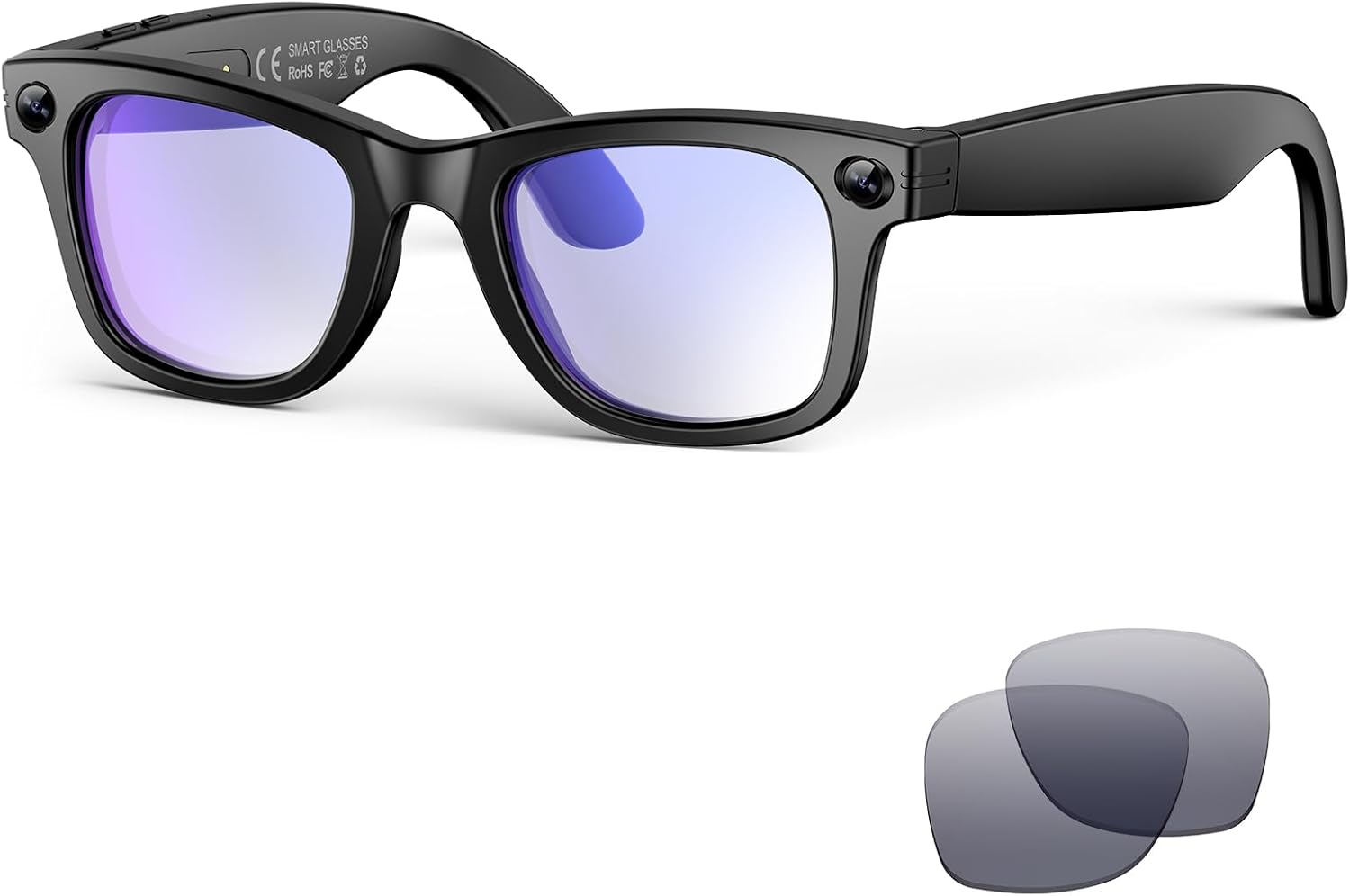
3.2. Camera Capabilities
Equipped with an 8-megapixel high-definition camera, the glasses capture detailed landscapes and portraits. A smart fill-in flash activates in low-light conditions to improve image clarity.


3.3. AI Intelligent Features
The glasses feature advanced AI for intelligent question and answer, photo recognition, and real-time translation, powered by technologies like GPT-4.0.


3.4. Immersive Wireless Audio
Dual-mic noise cancellation and beamforming technology provide clear HD Bluetooth calls and high-quality audio for music, videos, and movies.

3.5. Durability and Battery Life
The glasses are IP67 waterproof and sweatproof, ensuring durability in various environments. A 270mAh battery provides over 12 hours of music playback and up to a week of standby time.


4. Setup
4.1. Charging the Glasses
The device can be activated by charging. The indicator light will be red during charging and turn blue once charging is complete. Use the provided magnetic charging cable.
4.2. App Download and Connection
To unlock the full potential of your smart glasses, download the companion app. Scan the QR code in the manual or search for "HeyCyan" on Google Play or the App Store.

Download the HeyCyan app: http://fitcloud.hetangsmart.com/qrcode/
Video 4.1: G2 Pro AI Glasses User Guide - Covers basic setup, power, and app connection.
Video 4.2: App Download and Quick Connection - Detailed steps for app installation and pairing.
5. Operating Instructions
5.1. Power On/Off
- Power On: Long press the front button on the right temple for 2 seconds.
- Power Off: Long press the front button on the right temple for 5 seconds.
5.2. Call Management
- Answer Incoming Call: Click the front button on the right temple.
- Reject Incoming Call: Long press the front button on the right temple for 2 seconds.
- Adjust Volume During Call: Slide forward on the touch area to increase volume, slide backward to decrease volume.
- Hang Up Call: Click the front button on the right temple.
5.3. Camera Functions
- Take a Photo: Short press the front button on the right temple.
- Record Video: Double-press the front button on the right temple to start recording. The shooting indicator light stays on. Short press the button again to exit and save the video.
5.4. Audio Recording
- Start Recording: Long-tap the rear button on the right temple.
- Save Recording: Short press the button to exit and save the recording.
5.5. AI Voice Assistant
- Voice Wake-up: Say "Hey Cyan".
- Button Wake-up: Short press the rear button on the right temple when connected to your phone.
Video 5.1: AI Smart Camera Glasses - Demonstrates AI voice interaction and photo recognition.
5.6. Touchpad Operations (Music Control)
- Play/Pause Music: Double-tap the touch area.
- Switch to Next Song: Long press the touch area.
- Switch to Previous Song: Triple-tap the touch area.
- Adjust Volume: Slide forward to increase volume, slide backward to decrease volume.
5.7. File Transfer
When importing photos, videos, or audio, ensure your phone's Wi-Fi is enabled. Go to the APP album interface and click "Import". The phone will automatically connect to the glasses' Wi-Fi, and files will be imported sequentially. After import, files can be viewed in the APP and saved to your phone's album.
5.8. AI Translation
The glasses support 26 languages for real-time translation. Click "AI translation" in the app, choose the languages, and speak the content you want to translate. Supports 1-on-1 and simultaneous translation.
Video 5.2: Blue Light Translation Smart Glasses - Demonstrates real-time translation features.
Video 5.3: AI Intelligent Translation - Shows the AI translation functionality.
6. Maintenance
6.1. Cleaning
Use the provided glasses cloth to gently clean the lenses and frame. Avoid harsh chemicals or abrasive materials that could damage the surfaces.
6.2. Water Resistance
The glasses are IP67 rated for dust and water resistance. This means they are protected against dust ingress and immersion in water up to 1 meter for 30 minutes. While suitable for rain and sweat, avoid prolonged submersion.
6.3. Battery Care
To prolong battery life, avoid fully discharging the battery frequently. Charge the glasses using the provided USB cable and a compatible power adapter.
6.4. Lens Replacement
The lenses are removable and can be swapped without tools. Simply click and lock new lenses into place. This allows for easy customization with blue light blocking, transition, or transparent lenses.

Video 6.1: Anti-slip Silicone Ear Pad Installation - Demonstrates how to install ear pads, which is relevant to maintenance.
7. Troubleshooting
If you encounter any issues, please refer to the following common solutions:
- Device not powering on: Ensure the glasses are fully charged. Long press the power button for 2 seconds.
- Cannot connect to app: Verify Bluetooth is enabled on your phone and the glasses are in pairing mode. Restart both devices and try again.
- Poor audio quality: Check the volume settings on both the glasses and your connected device. Ensure there are no obstructions to the speakers.
- AI features not responding: Confirm the glasses are properly connected to the app and have an active internet connection for AI functions.
- Files not transferring: Ensure your phone's Wi-Fi is enabled and you are following the correct import procedure in the app.
8. Specifications
| Feature | Detail |
|---|---|
| Product Dimensions | 7.4 x 3.35 x 2.95 inches |
| Item Weight | 1.48 ounces (42 Grams) |
| Model Number | W610 |
| Batteries | 1 Nonstandard Battery (included), 270 Milliamp Hours (Lithium Ion) |
| Memory Storage Capacity | 32 GB |
| Operating System | Compatible with Android and iOS systems |
| Special Features | AI Voice Wake-Up, AI Photo Recognition, AI Intelligent Question-And-Answer Interaction, AI Intelligent Translation, HD Photo And Video Recording (With Anti-Shake Function), Voice Recording, Wi-Fi Image Transfer To Mobile Phone (Photo, Video Recording), Slide To Adjust Volume, Wear Detection, Call Noise Reduction, Intelligent Voice Assistant, Bluetooth Calling, Music Playback (Switch, Pause Music), IP67 Dust And Water Resistance (Dotted Glue Waterproof Process) |
| Connectivity Technology | Bluetooth, Wi-Fi (802.11ac) |
| GPS | No GPS |
| Shape | Rectangular |
9. Warranty and Support
BooaBei offers a 30-day worry-free return and exchange policy, a two-year warranty, and 24/7 customer support. For any questions or assistance, please contact our support team. Your satisfaction is our top priority.
10. Factory Reset
To perform a factory reset, long press the front button on the right temple for 10 seconds. All files stored in the glasses will be cleared.
Video 10.1: G2 Pro AI Glasses User Guide - Includes instructions for factory reset.

