
1. Introduction
The Redragon GS821 Soundbar is a versatile audio system designed to enhance your entertainment experience. It features dual powerful drivers and dual diaphragms for high-fidelity stereo sound, rich bass, and clear dialogue. With multiple connectivity options including HDMI ARC, Optical, Bluetooth 5.3, AUX, and USB, it integrates seamlessly with various devices such as TVs, PCs, projectors, and smartphones. The soundbar also offers three specialized equalizer modes to optimize audio for movies, music, and dialogue.
This manual provides detailed instructions for setting up, operating, and maintaining your Redragon GS821 Soundbar. Please read it thoroughly before use to ensure proper functionality and to maximize your audio experience.
2. Package Contents
Verify that all items listed below are included in your package:
- Redragon GS821 Soundbar
- Remote Control
- Power Adapter
- 3.5mm Audio Cable
- Wall Mounting Kit (screws and anchors)
- User Manual (this document)
3. Product Overview
3.1 Front and Side View
The soundbar features a sleek, compact design suitable for various placements.

The Redragon GS821 Soundbar, a compact audio device designed for TV and PC use.
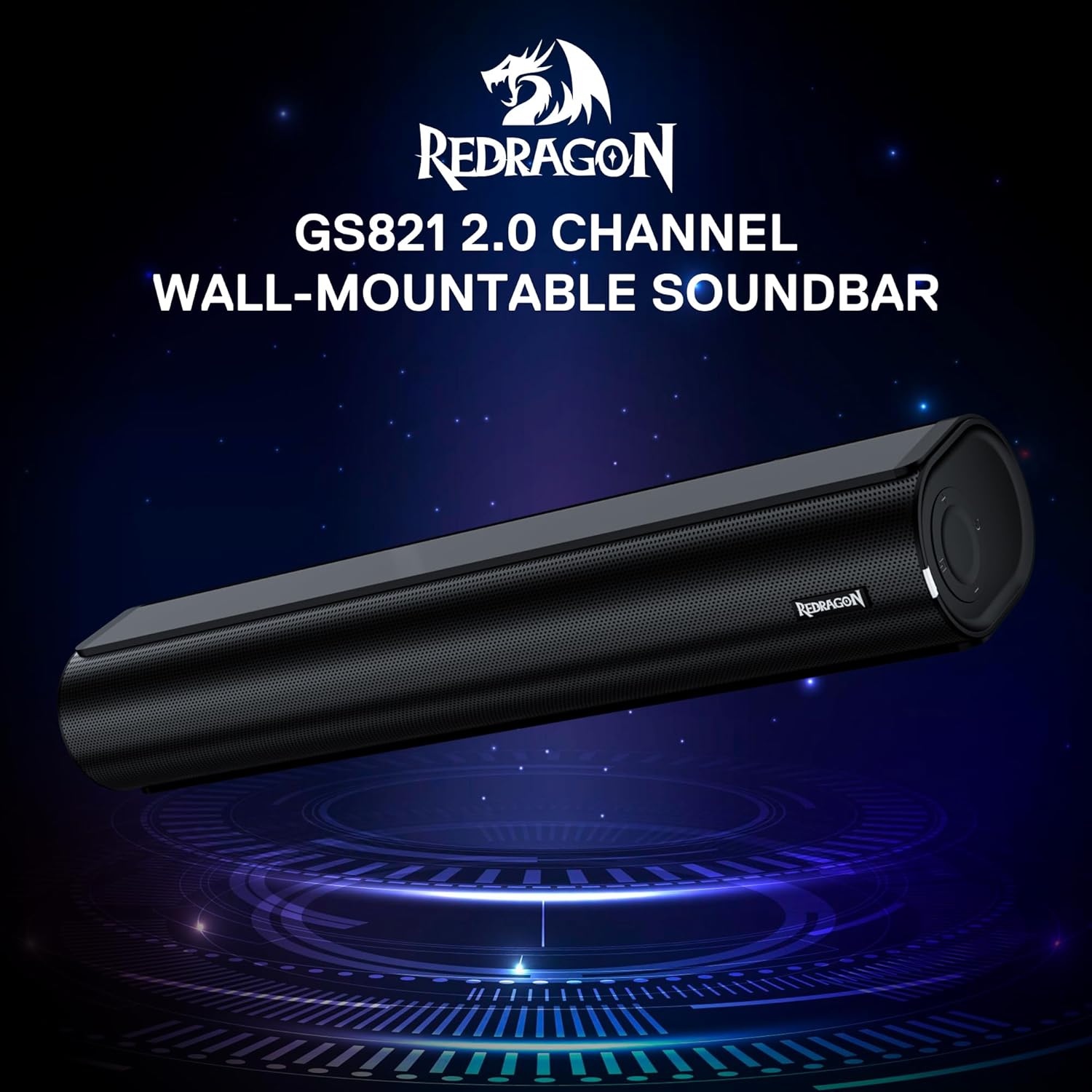
The Redragon GS821 Soundbar showing its compact dimensions: 15.9 inches wide, 4 inches deep, and 2.8 inches high.

An exploded view illustrating the dual 45mm sound units and internal components of the Redragon GS821 Soundbar, designed for Hi-Fi stereo sound.
3.2 Rear Panel and Connections
The rear panel provides various ports for connecting to your devices.
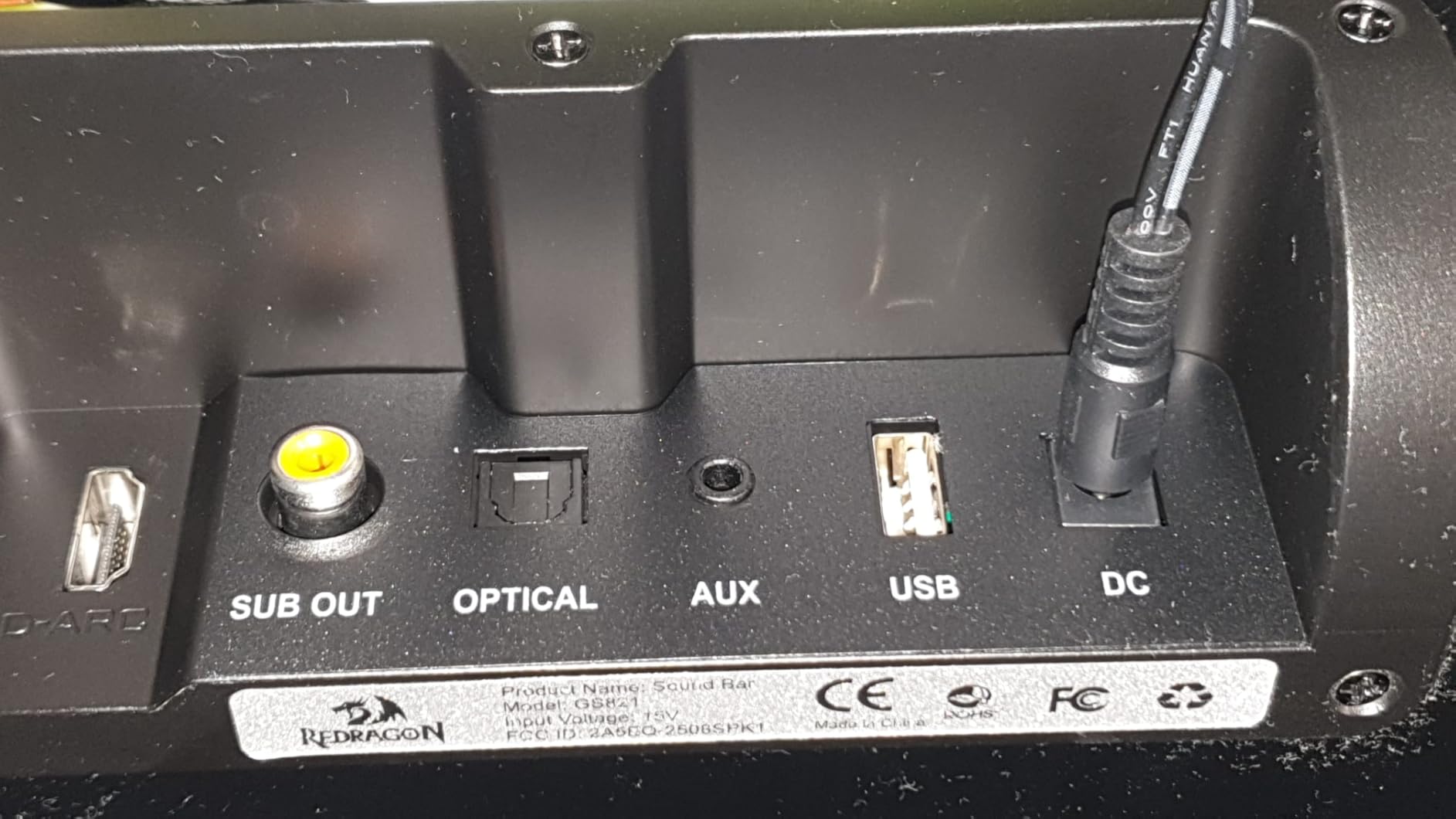
The rear panel of the Redragon GS821 Soundbar, featuring various input ports including HDMI ARC, Optical, AUX, and USB for versatile connectivity.
3.3 Controls and Remote
The soundbar can be controlled via its side buttons or the included remote control.

The included remote control for the Redragon GS821 Soundbar, alongside the manual control buttons located on the side of the soundbar for easy access.
4. Setup
4.1 Placement
The Redragon GS821 Soundbar can be placed on a tabletop or mounted on a wall.
- Tabletop Placement: Position the soundbar on a flat, stable surface directly in front of your TV or monitor. Ensure it does not block any sensors or the screen.
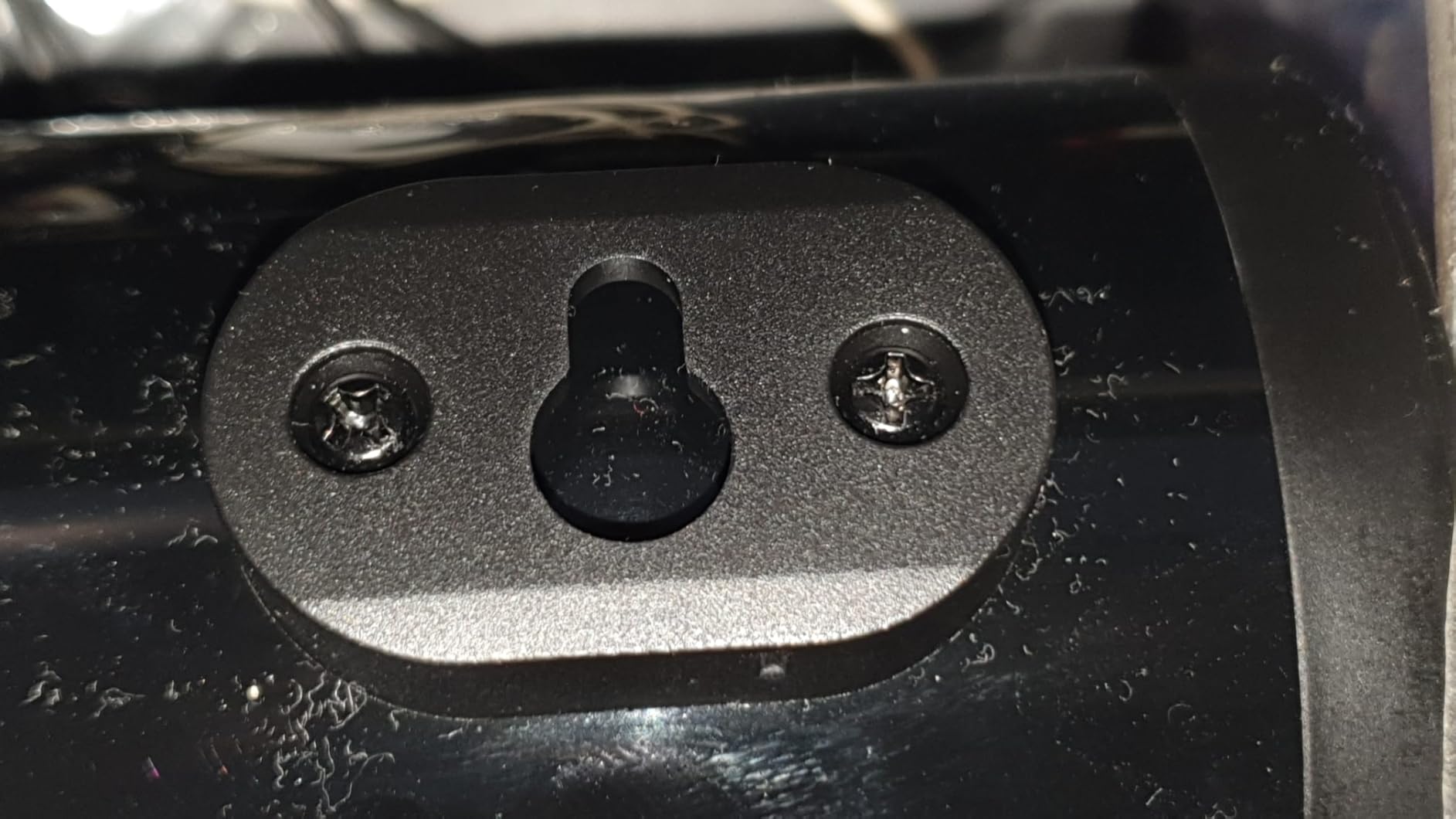
- Wall Mounting: Use the provided wall mounting kit. Mark the desired positions on the wall, drill pilot holes, insert anchors, and secure the soundbar using the screws. Ensure the soundbar is level and securely fastened.
4.2 Power Connection
- Connect the power adapter to the DC IN port on the soundbar.
- Plug the power adapter into a wall outlet.
4.3 Audio Connections
Choose one of the following methods to connect the soundbar to your audio source:
- HDMI ARC: Connect an HDMI cable from the soundbar's HDMI ARC port to your TV's HDMI ARC port. Ensure your TV's HDMI ARC function is enabled in its settings.
- Optical: Connect an optical cable from the soundbar's OPTICAL port to your TV's or device's optical output port.
- AUX (3.5mm): Use the provided 3.5mm audio cable to connect the soundbar's AUX port to the headphone jack or audio output of your device.
- USB: Insert a USB flash drive containing audio files into the USB port. The soundbar will automatically detect and play compatible audio files.
- Bluetooth: For wireless connection, refer to section 5.3 Bluetooth Pairing.
5. Operating Instructions
5.1 Power On/Off
- Press the power button on the soundbar or the remote control to turn the unit on or off.
5.2 Input Selection
Cycle through input modes using the 'M' button on the soundbar or the 'Input' button on the remote control. The LED indicator will change color to show the active input:
A guide to the LED indicator colors on the Redragon GS821 Soundbar, showing which color corresponds to each input mode (Standby, BT, ARC, Optical, AUX, USB).
- Red: Standby
- Blue: Bluetooth (BT)
- Cyan: HDMI ARC
- White: Optical
- Yellow: AUX
- Purple: USB
5.3 Bluetooth Pairing
To connect your device via Bluetooth:

A visual representation of the advanced Bluetooth 5.3 technology integrated into the Redragon GS821 Soundbar, ensuring ultra-low latency for perfect audio synchronization.
- Switch the soundbar to Bluetooth mode (Blue LED). The soundbar will enter pairing mode automatically.
- On your device (smartphone, tablet, etc.), enable Bluetooth and search for available devices.
- Select "Redragon GS821" from the list to pair.
- Once paired, the LED indicator will stop flashing and remain solid blue.
5.4 EQ Modes
The soundbar offers three specialized EQ modes to optimize your listening experience. Press the EQ button on the remote control to cycle through them:

An illustration of the three specialized sound modes available on the Redragon GS821 Soundbar: Music, Movie, and Dialogue, each optimized for different audio experiences.
- Movie Mode: Enhances surround sound effects for cinematic immersion.
- Music Mode: Boosts bass and high frequencies for a rich, full-bodied audio experience.
- Dialogue Mode: Isolates and clarifies human voices, ideal for news, podcasts, or talk shows.
5.5 Volume Control
Adjust the volume using the volume buttons on the soundbar or the remote control.
- Press + to increase volume.
- Press - to decrease volume.
- Press the Mute button on the remote to mute/unmute the sound.
6. Maintenance
- Cleaning: Use a soft, dry cloth to clean the surface of the soundbar. Do not use liquid cleaners or abrasive materials.
- Storage: When not in use for extended periods, store the soundbar in a cool, dry place away from direct sunlight and extreme temperatures.
- Avoid Obstructions: Ensure the speaker grilles are not obstructed to maintain optimal sound quality.
7. Troubleshooting
| Problem | Solution |
|---|---|
| No power | Ensure the power adapter is securely connected to the soundbar and a working power outlet. |
| No sound | Check the input source selection. Ensure the volume is not muted and is turned up. Verify audio cables are correctly connected. If using HDMI ARC, ensure the TV's ARC function is enabled. |
| Bluetooth pairing issues | Ensure the soundbar is in Bluetooth mode. Turn off and on Bluetooth on your device. Move your device closer to the soundbar. Forget the device from your Bluetooth list and try pairing again. |
| Remote control not working | Check the battery in the remote control and replace if necessary. Ensure there are no obstructions between the remote and the soundbar. |
| Poor sound quality / Distortion | Adjust the volume level. Try different EQ modes. Ensure the audio source is of good quality. Check cable connections for any damage. |
8. Specifications
| Feature | Value |
|---|---|
| Brand | Redragon |
| Model Number | GS821 |
| Speaker Maximum Output Power | 20 Watts |
| Frequency Response | 20000 Hz |
| Connectivity Technology | Bluetooth (BT 5.3), HDMI ARC, Optical, USB, 3.5mm AUX |
| Audio Output Mode | Stereo |
| Mounting Type | Tabletop Mount, Wall Mountable |
| Color | Black |
| Item Dimensions (D x W x H) | 2.8"D x 15.9"W x 4"H |
| Signal-to-Noise Ratio | 80 dB |
| Compatible Devices | Desktop, Laptop, Projector, Tablet, Television |
9. Warranty Information
The Redragon GS821 Soundbar comes with a 1-Year Warranty from the date of purchase. This warranty covers manufacturing defects and workmanship under normal use. It does not cover damage caused by misuse, accidents, unauthorized modifications, or external factors. Please retain your proof of purchase for warranty claims.
10. Customer Support
If you encounter any issues or have questions regarding your Redragon GS821 Soundbar that are not addressed in this manual, please contact Redragon customer support. Refer to the official Redragon website or your product packaging for the most up-to-date contact information.
For online support and FAQs, visit: www.redragonzone.com