
1. Introduction
Thank you for choosing the Dinosoo X-Rawr 900 Wireless Gaming Headset. This headset is designed to provide a high-quality audio experience for gaming across multiple platforms, including Xbox, PlayStation 5, Mac, PC, and Nintendo Switch. It features game/chat audio balance, a flexible microphone with mute function, Bluetooth connectivity, and 3D surround sound capabilities. This manual will guide you through the setup, operation, and maintenance of your new headset.

Image: Dinosoo X-Rawr 900 Wireless Gaming Headset with its included Xbox adapter.
2. What's in the Box
Your Dinosoo X-Rawr 900 Wireless Gaming Headset package includes the following items:
- Dinosoo X-Rawr 900 Wireless Gaming Headset
- Xbox Controller Adapter (12-pin interface)
- Detachable Boom Microphone
- USB-C Charging Cable
- USB-A to USB-C Adapter Cable
- User Manual
Video: Unboxing of the Dinosoo X-Rawr 900 Wireless Gaming Headset, showing the contents and initial impressions.
3. Product Features and Controls
The Dinosoo X-Rawr 900 headset is designed for intuitive control and comfort during extended gaming sessions.
3.1 Headset Controls
- Power Button: Press and hold to power on/off.
- Volume Up/Down: Adjusts overall audio volume.
- Mode Toggle Button: Double-press to switch between 2.4GHz wireless (dongle) and Bluetooth modes.
- Microphone Port: For connecting the detachable boom microphone.
- USB-C Port: For charging the headset.
- Built-in Microphone: The headset includes an integrated microphone for use when the boom mic is detached.
3.2 Xbox Adapter Controls
The included Xbox adapter provides direct control over game and chat audio balance:
- Game Balance Button: Increases game audio volume while decreasing chat audio volume.
- Chat Balance Button: Increases chat audio volume while decreasing game audio volume.
- Mic Mute Button: Press to mute/unmute the microphone.

Image: Close-up of the Xbox adapter, detailing the 12-pin interface and control buttons for game balance, mic mute, and chat balance.
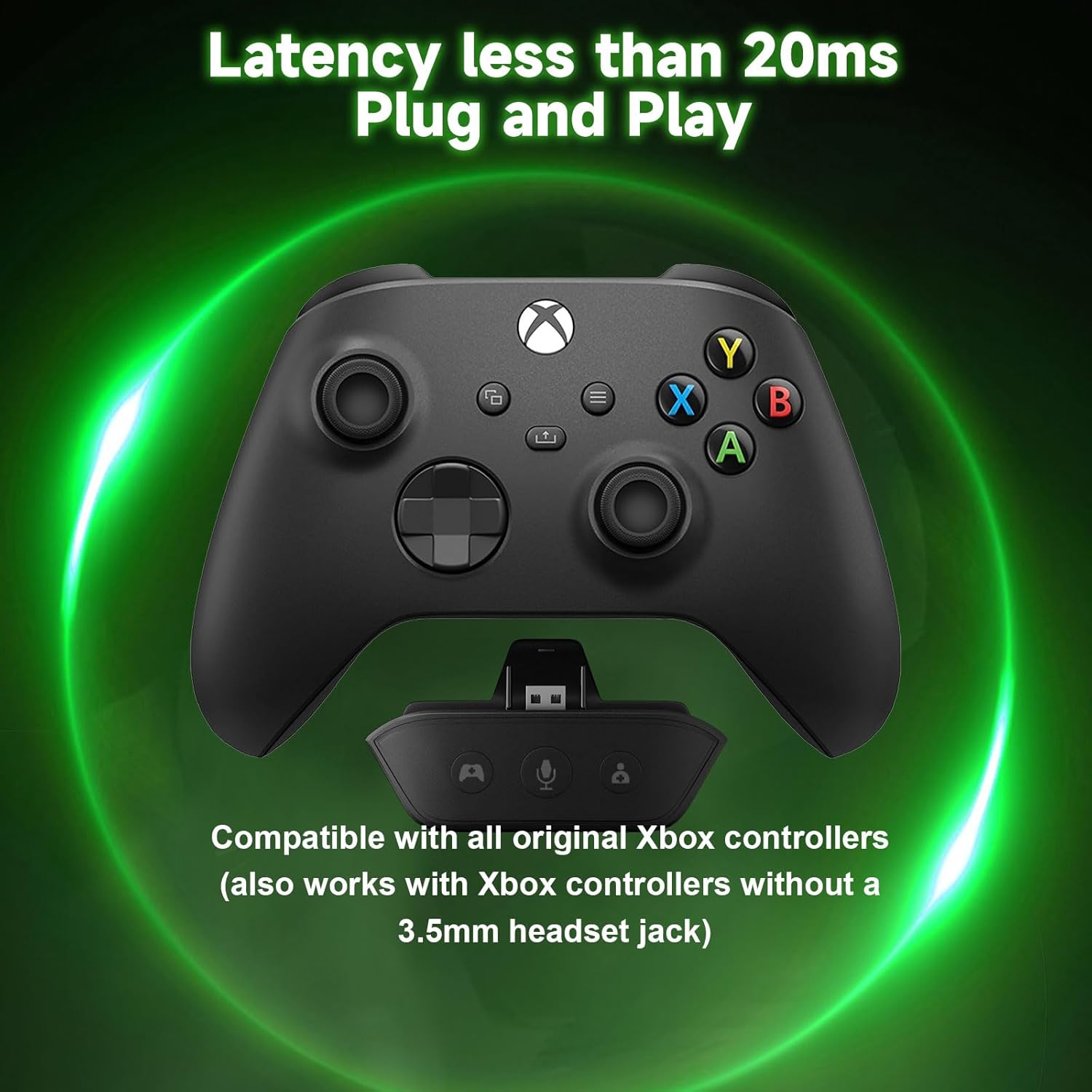
Image: The headset features a dual microphone system, including a built-in microphone and a detachable boom microphone with 360° angle adjustment.
4. Setup and Connectivity
Your Dinosoo X-Rawr 900 headset offers versatile connectivity options.
4.1 Connecting to Xbox (2.4GHz Dongle Mode)
- Ensure your Xbox controller is powered on.
- Insert the 12-pin Xbox adapter into the bottom port of your Xbox controller.
- Connect the USB-C end of the provided USB-A to USB-C adapter cable to the Xbox adapter.
- Plug the USB-A end of the adapter cable into an available USB port on your Xbox console.
- Power on your Dinosoo headset by pressing and holding the Power button.
- Double-press the Mode Toggle button on the headset to ensure it is in 2.4GHz dongle mode. The headset should automatically pair with the Xbox adapter.
- Adjust game and chat audio using the dedicated buttons on the Xbox adapter.
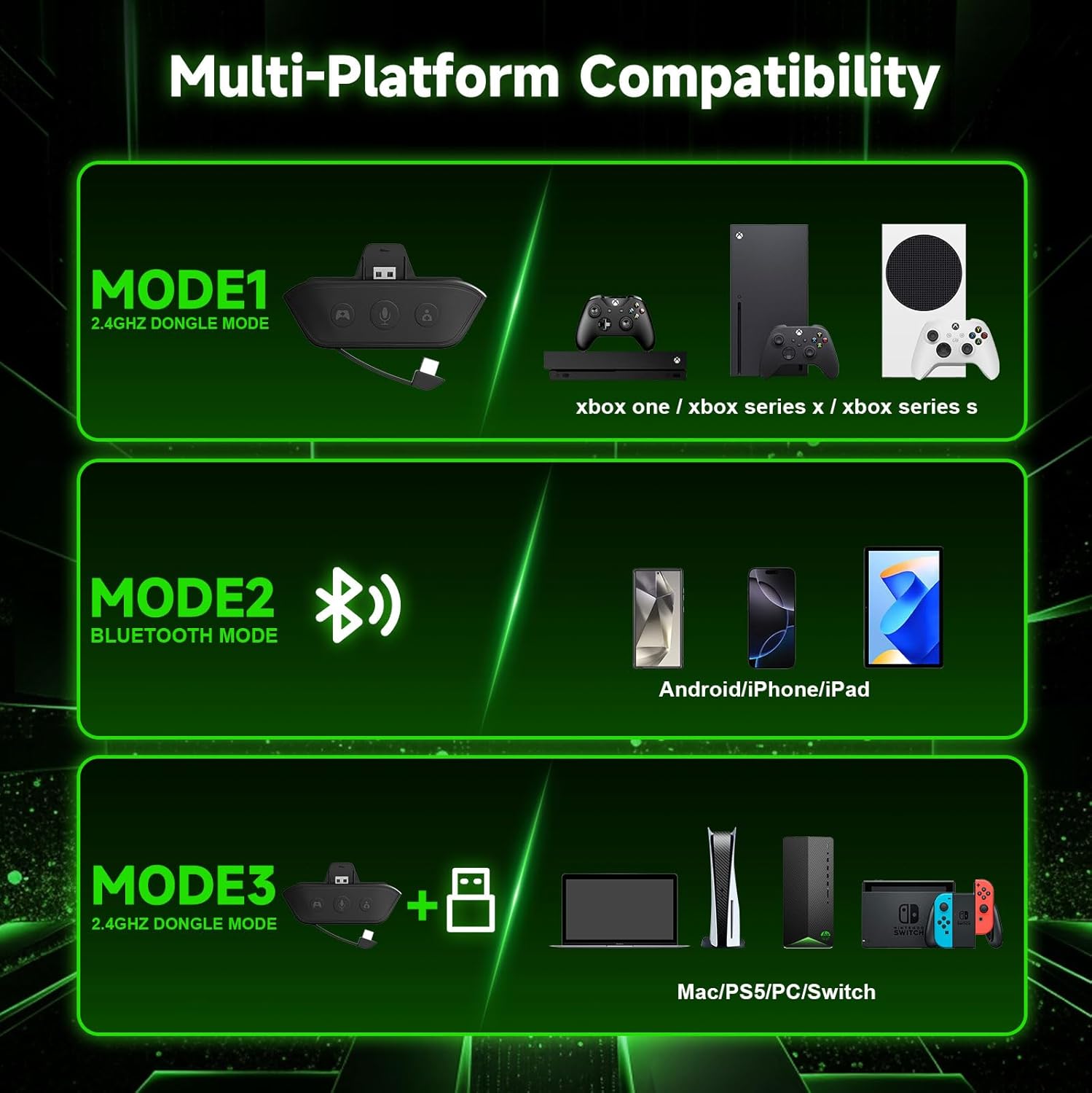
Image: An Xbox controller with the 12-pin adapter connected, illustrating the low-latency plug-and-play setup for Xbox consoles.
4.2 Connecting to PS5, Mac, PC, Nintendo Switch (2.4GHz Dongle Mode)
- Connect the USB-A to USB-C adapter cable to the headset's USB-C port.
- Plug the USB-A end of the adapter cable into an available USB port on your PS5, Mac, PC, or Nintendo Switch dock.
- Power on your Dinosoo headset.
- Double-press the Mode Toggle button on the headset to ensure it is in 2.4GHz dongle mode. The headset should automatically pair with the connected device.
4.3 Connecting via Bluetooth (Mode 3)
For mobile devices (Android, iPhone, iPad) and other Bluetooth-enabled systems, use Bluetooth mode:
- Power on your Dinosoo headset.
- Double-press the Mode Toggle button on the headset until it enters Bluetooth pairing mode (indicated by a flashing LED).
- On your device, go to Bluetooth settings and select "Dinosoo X-Rawr 900" from the list of available devices to pair.

Image: Multi-platform compatibility diagram, showing connections for Xbox, PS5, PC, Mac, Nintendo Switch via 2.4GHz dongle, and Android/iPhone/iPad via Bluetooth.
Video: Demonstration of the headset's easy pairing process and highlights its audio and microphone quality.
5. Operating Instructions
5.1 Power On/Off
To power on the headset, press and hold the Power button for approximately 3 seconds until the indicator light illuminates. To power off, press and hold the Power button again until the indicator light turns off.
5.2 Volume Control
Use the Volume Up (+) and Volume Down (-) buttons on the headset to adjust the overall listening volume.
5.3 Microphone Usage
The headset comes with a detachable boom microphone. Insert it into the dedicated microphone port on the left earcup. To mute the microphone, press the Mic Mute button on the Xbox adapter (if connected) or the dedicated mute button on the headset (if available and in use). The headset also has a built-in microphone for convenience when the boom mic is not attached.
5.4 Game/Chat Audio Balance (Xbox Only)
When connected to an Xbox controller via the adapter, use the Game Balance and Chat Balance buttons on the adapter to fine-tune your audio mix. This allows you to prioritize in-game sounds or voice chat without interrupting your gameplay.
5.5 3D Surround Sound
Experience immersive 3D surround sound for enhanced spatial awareness in games. This feature is automatically enabled when the headset is connected and supported by your gaming platform.
6. Maintenance
To ensure the longevity and optimal performance of your Dinosoo X-Rawr 900 headset, follow these maintenance guidelines:
- Cleaning: Use a soft, dry cloth to clean the headset. Avoid using abrasive cleaners or solvents.
- Storage: Store the headset in a cool, dry place away from direct sunlight and extreme temperatures. The foldable design allows for compact storage.
- Charging: Charge the headset using the provided USB-C cable. Avoid overcharging or completely draining the battery frequently to prolong its lifespan.
- Microphone Care: Handle the detachable boom microphone with care. Avoid excessive bending or force.
7. Troubleshooting
If you encounter any issues with your Dinosoo X-Rawr 900 headset, please refer to the following common solutions:
| Problem | Solution |
|---|---|
| No sound from headset |
|
| Microphone not working |
|
| Connection issues |
|
| Poor audio quality |
|
8. Specifications
Key technical specifications for the Dinosoo X-Rawr 900 Wireless Gaming Headset:
- Model Name: X-Rawr 900
- Connectivity Technology: Wireless (2.4GHz, Bluetooth 5.0)
- Noise Control: Passive Noise Cancellation
- Audio Driver Type: Dynamic Driver
- Earpiece Shape: Over Ear
- Material: Silicone, Leather, Fabric
- Item Weight: 1.1 pounds
- Battery: 1 Nonstandard Battery (included)
- Compatible Devices: All Xbox controllers, Cellphones, Laptops, PS5, Mac, PC, Nintendo Switch
9. Warranty and Support
Dinosoo products are manufactured to the highest quality standards. For warranty information, technical support, or any inquiries, please refer to the contact details provided on the product packaging or visit the official Dinosoo website. Please retain your proof of purchase for warranty claims.