
1. Product Overview
The Redragon M908 is a high-performance wired RGB MMO gaming mouse designed for precision and customization. It features a high-precision optical sensor with up to 24000 DPI, 18 programmable buttons, and customizable RGB backlighting. The ergonomic design ensures comfort during extended gaming sessions, and the adjustable weight tuning system allows for personalized feel.
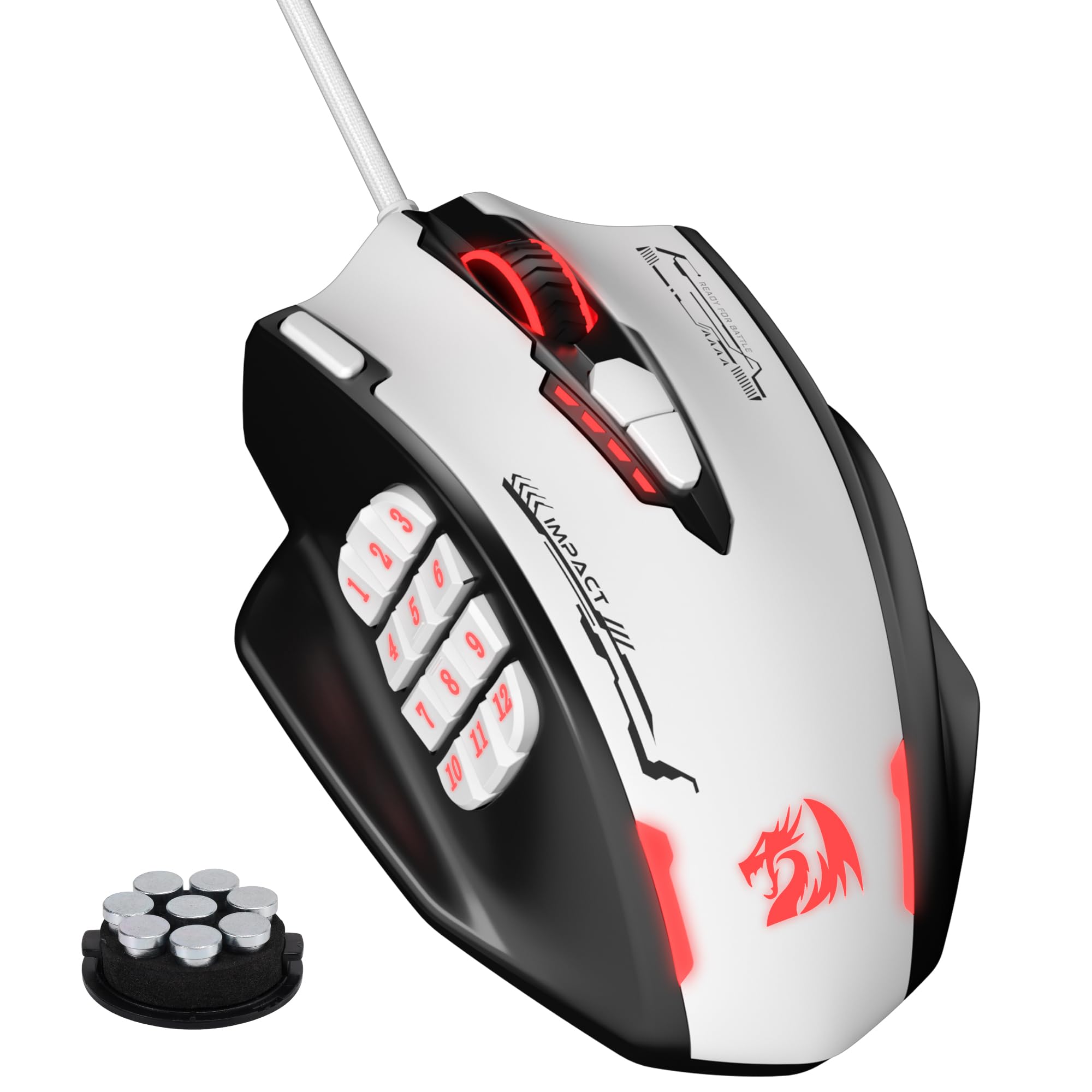
Figure 1: Redragon M908 Wired RGB MMO Gaming Mouse, showcasing its overall design.

Figure 2: Illustration of the ergonomic design for maximum comfort during use.
2. Setup Guide
2.1 Connecting the Mouse
- Unpack the Redragon M908 gaming mouse from its packaging.
- Locate an available USB port on your computer.
- Plug the USB connector of the mouse into the USB port. The mouse should be automatically recognized by your operating system.
2.2 Software Installation
To unlock the full customization features of your Redragon M908 mouse, including DPI settings, button remapping, and RGB lighting, it is recommended to install the official Redragon software.
- Visit the official Redragon website (www.redragonzone.com) to download the latest software for the M908 model.
- Run the downloaded installer and follow the on-screen instructions to complete the installation.
- Once installed, launch the Redragon software.
Note: The software is primarily designed for Windows operating systems. While the mouse functions normally on Mac OS and Linux, advanced programming features may require specific workarounds or may not be fully supported.

Figure 3: The Redragon software interface for customizing mouse settings.
3. Operating Instructions
3.1 DPI Adjustment
The M908 mouse offers 5 adjustable DPI levels by default, which can be cycled through using the dedicated DPI buttons (DPI+ and DPI-) located on the top of the mouse. The current DPI level is often indicated by the mouse's LED lighting.
- Default DPI levels: 400, 800, 1600, 2400, 3200.
- For precise DPI customization from 100 to 24000, use the Redragon software.
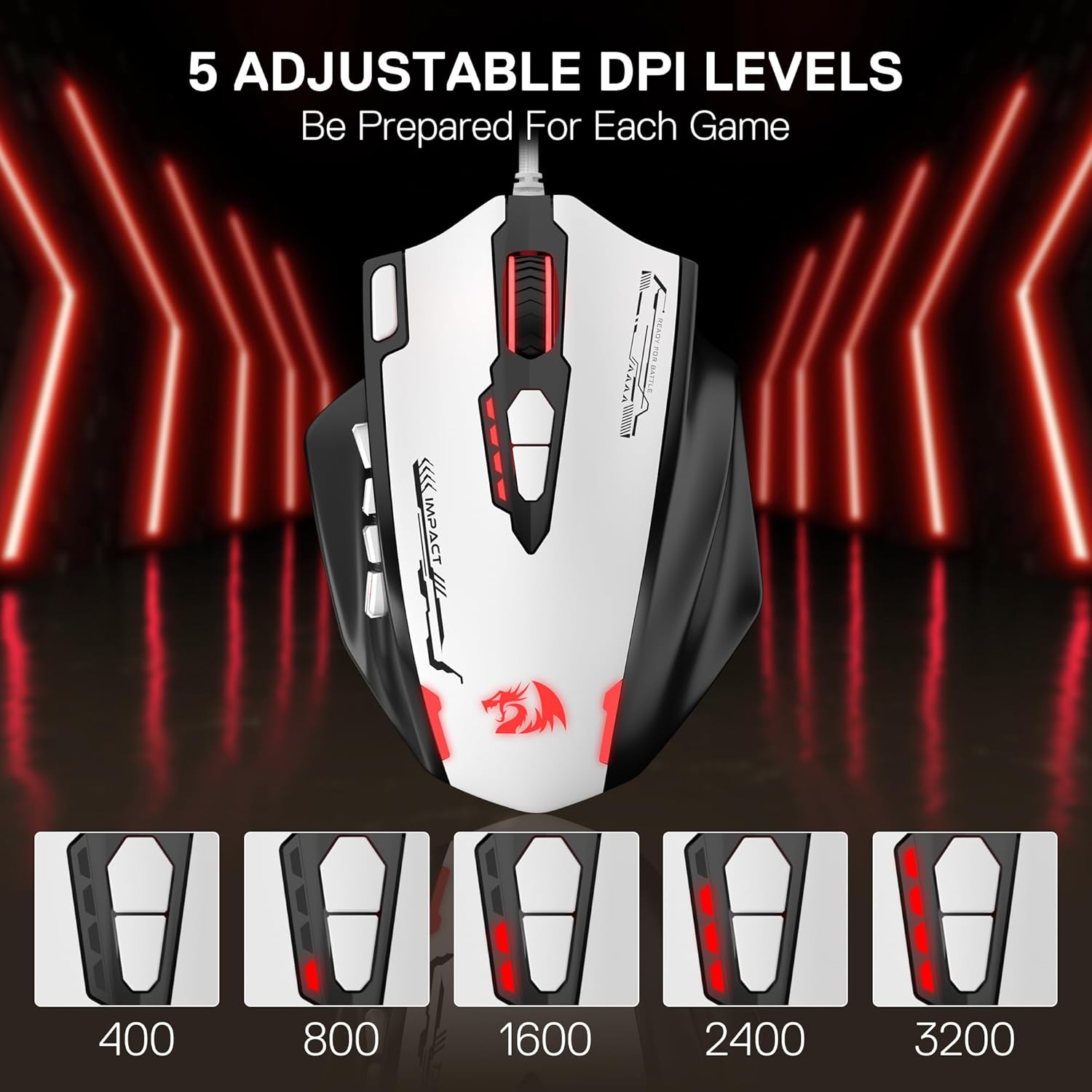
Figure 4: Visual representation of the 5 adjustable DPI levels.
3.2 Programmable Buttons
The mouse features 18 programmable buttons, including the standard left/right click, scroll wheel, DPI buttons, and 12 side buttons, plus a rapid fire key. These buttons can be assigned various functions, macros, or key combinations using the Redragon software.

Figure 5: Diagram illustrating the various buttons on the Redragon M908 mouse, including DPI, scroll, side, rapid fire, left, and right buttons.
3.3 Rapid Fire Key
The dedicated Rapid Fire Key allows for quick, repeated actions with a single press. Its function can be customized via the software to suit different gaming needs.
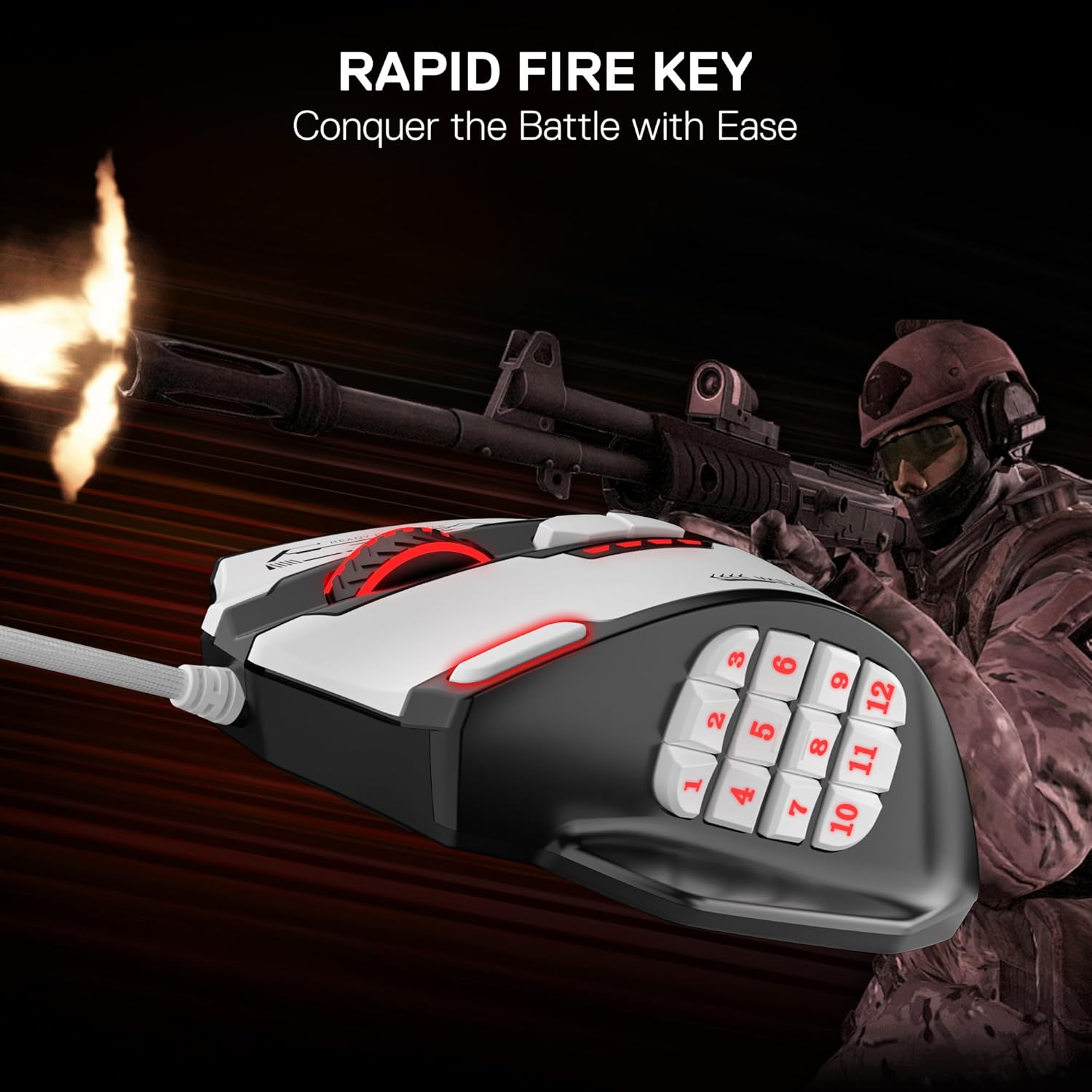
Figure 6: Close-up view highlighting the Rapid Fire Key on the mouse.
3.4 RGB Backlighting
The M908 features 16.8 million RGB LED color options. The lighting can be customized through the software, allowing you to choose colors, effects, and even disable the backlighting if preferred. Five memory profiles each have a dedicated light color for quick identification.

Figure 7: The Redragon M908 mouse showcasing its RGB side key lighting.
4. Advanced Customization
4.1 Using the Redragon Software
The Redragon software provides extensive options for personalizing your M908 mouse:
- Button Remapping: Assign any key, macro, or multimedia function to the 18 programmable buttons.
- Macro Editor: Create complex sequences of commands and assign them to a single button.
- DPI Settings: Fine-tune DPI levels and polling rates.
- Lighting Control: Customize RGB colors, brightness, and lighting effects.
- Profile Management: Save multiple profiles for different games or applications.
Important Software Tip: When making adjustments in the software, ensure you click "Stop" (if recording a macro or key sequence), then "Apply," and finally "OK" to save your changes to the mouse's onboard memory.

Figure 8: The Redragon software interface showing options for lighting, customization, DPI, and macros.
4.2 Weight Tuning System
The M908 includes an 8-piece weight tuning set (8 x 2.4g weights) located in a compartment on the underside of the mouse. This allows you to adjust the mouse's weight and balance to your preference, enhancing control and aiming precision.
- Carefully open the weight compartment cover on the bottom of the mouse.
- Add or remove weights as desired.
- Close the compartment cover securely.
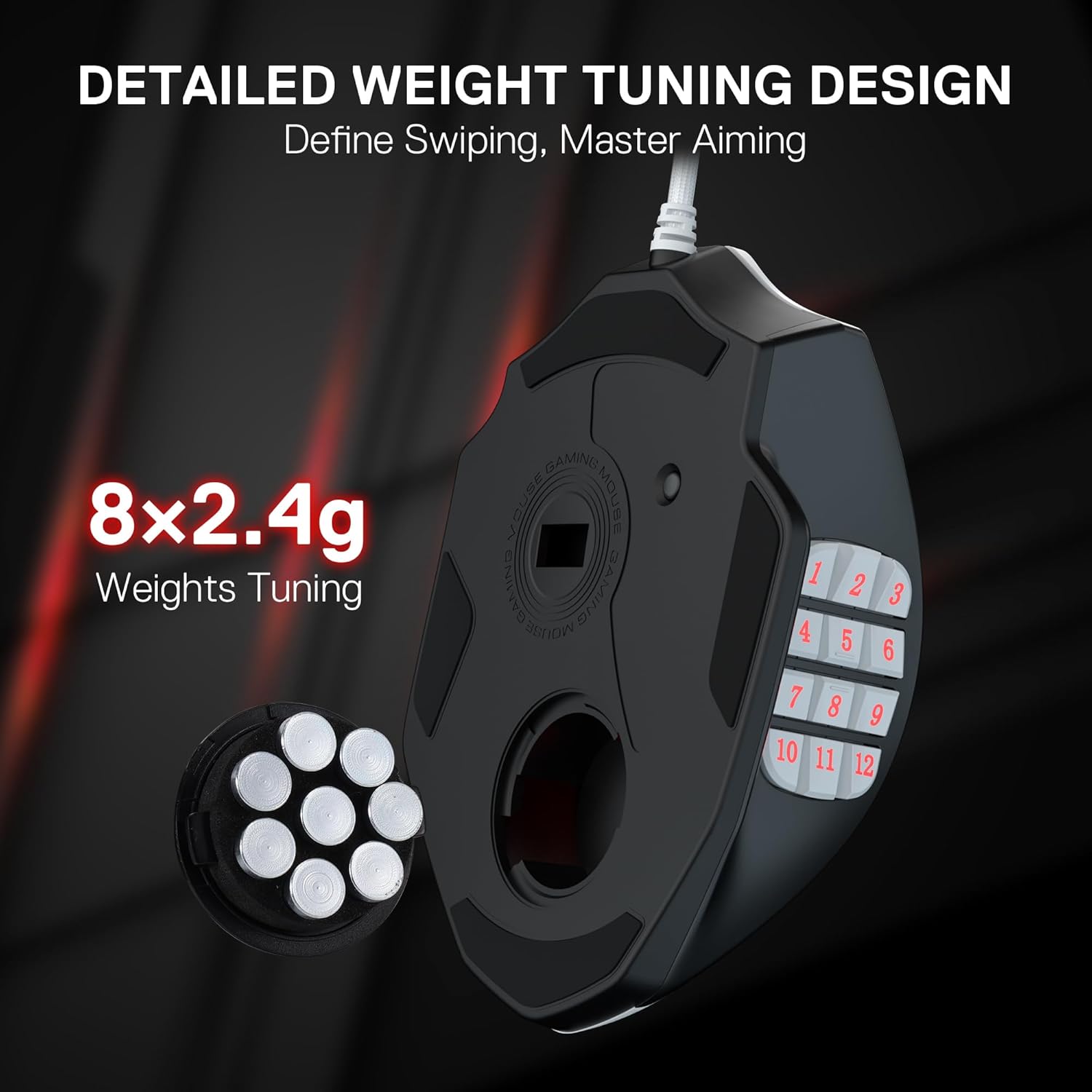
Figure 9: Detailed view of the weight tuning system with 8 removable 2.4g weights.
5. Maintenance
5.1 Cleaning the Mouse
To maintain optimal performance and hygiene, clean your mouse regularly:
- Disconnect the mouse from your computer before cleaning.
- Use a soft, slightly damp cloth to wipe the surface of the mouse. Avoid harsh chemicals or abrasive materials.
- For crevices and button gaps, use a cotton swab or compressed air.
- Clean the optical sensor on the underside with a dry cotton swab to ensure accurate tracking.
5.2 Cable Care
The M908 features a durable braided-fiber cable. To prolong its lifespan:
- Avoid sharp bends or kinks in the cable.
- Do not pull the cable forcefully when disconnecting the mouse; always grasp the USB connector.
6. Troubleshooting
6.1 Mouse Not Detected or Unresponsive
- Ensure the USB cable is securely plugged into a working USB port.
- Try plugging the mouse into a different USB port on your computer.
- Restart your computer.
- Check your operating system's device manager to see if the mouse is listed and if there are any driver issues. Reinstalling drivers may be necessary.
6.2 Software Customization Issues
- Verify that you have downloaded the correct software version for the M908 model from the official Redragon website.
- Ensure you follow the correct saving procedure: "Stop" (if applicable), then "Apply," and finally "OK" to save changes.
- If using Linux or Mac OS, be aware that full software functionality may be limited, and alternative remapping tools like AntiMicroX might be required for side buttons.
6.3 Buttons Unresponsive or Double-Clicking
- Clean the affected buttons and surrounding areas to remove any debris.
- Check the software settings to ensure the buttons are correctly mapped and not conflicting.
- If the issue persists, it may indicate a hardware fault. Contact customer support.
6.4 DPI Not Changing
- Ensure you are pressing the correct DPI adjustment buttons (DPI+ / DPI-).
- Check the DPI settings within the Redragon software to confirm the configured levels and ensure they are enabled.
7. Technical Specifications
| Feature | Specification |
|---|---|
| Brand | Redragon |
| Model | M908 |
| Connectivity Technology | USB Wired |
| Movement Detection Technology | Optical |
| Maximum Sensitivity (DPI) | 24000 |
| Adjustable DPI Levels | 5 (400/800/1600/2400/3200, software adjustable 100-24000) |
| Polling Rate | 1000 Hz |
| Acceleration | 80G |
| Number of Buttons | 18 (Programmable) |
| Side Buttons | 12 (MMO Programmable) |
| Backlighting | RGB (16.8 million colors, customizable) |
| Weight Tuning | 8 x 2.4g weights |
| Cable Length | 6 ft (Braided-fiber with gold-plated USB connector) |
| Hand Orientation | Right |
| Compatible Operating Systems | Windows 2000/ME/XP/03/VISTA/7/8/10 (Programmable), Mac OS (Normal use) |
8. Warranty and Support
8.1 Warranty Information
The Redragon M908 Wired RGB MMO Gaming Mouse comes with a 1-year limited warranty from the date of purchase. This warranty covers manufacturing defects and issues arising from normal use. It does not cover damage caused by misuse, accidents, unauthorized modifications, or external factors.
Please retain your proof of purchase for warranty claims.
8.2 Customer Support
For technical assistance, troubleshooting, or warranty inquiries, please contact Redragon customer support through their official website:
- Website: www.redragonzone.com/support
- Refer to the support section for FAQs, driver downloads, and contact options.
When contacting support, please have your product model (M908) and proof of purchase readily available.


