
1. Introduction
This manual provides essential information for the installation, operation, and maintenance of your keepLiNK 5-Port 10G Multi-Gigabit Unmanaged Network Switch. Please read this manual thoroughly before using the device to ensure proper and safe operation. This switch is designed to provide high-speed network connectivity for various devices in home and small office environments.
2. Safety Information
- Power Supply: Use only the power adapter provided with the device. Ensure the power source matches the voltage requirements specified on the adapter.
- Ventilation: Do not block any ventilation openings. Ensure adequate airflow around the device to prevent overheating.
- Environment: Avoid placing the switch in areas with high humidity, extreme temperatures, direct sunlight, or near water. Keep the device away from flammable materials.
- Cleaning: Disconnect the power before cleaning. Use a dry, soft cloth. Do not use liquid or aerosol cleaners.
- Lightning Protection: The device features 4KV lightning protection. However, for enhanced safety during thunderstorms, it is recommended to disconnect the power adapter.
3. Package Contents
Please verify that your package contains the following items:
- keepLiNK 5-Port 10G Multi-Gigabit Unmanaged Network Switch
- Power Adapter
- User Manual (this document)
If any item is missing or damaged, please contact your retailer.
4. Product Overview
The keepLiNK 5-Port 10G Multi-Gigabit Unmanaged Network Switch provides five 10 Gigabit Ethernet ports for high-speed network connections. Its metal casing ensures durability and efficient heat dissipation.

Figure 1: Front view of the keepLiNK 5-Port 10G Multi-Gigabit Unmanaged Network Switch, showing the five RJ45 ports and status indicators.
The switch features LED indicators for each port to show link status and activity. The auto-negotiation function intelligently detects the link speed of connected devices and adjusts to 100Mb, 1G, 2.5G, 5G, or 10G for optimal performance.
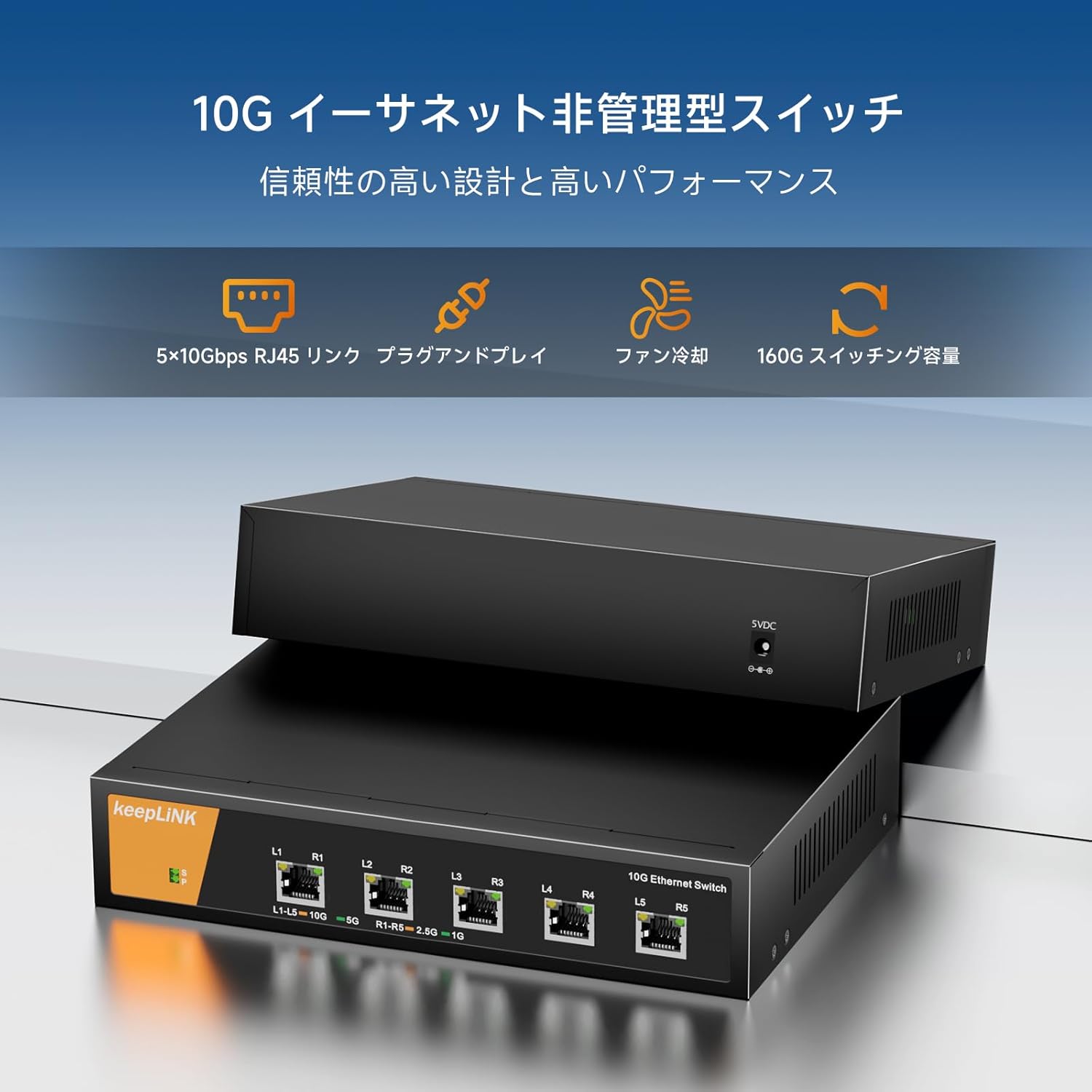
Figure 2: Close-up view of the switch ports with labels indicating link speed and activity.
5. Setup
The keepLiNK 5-Port 10G Multi-Gigabit Unmanaged Network Switch is designed for simple plug-and-play operation, requiring no software installation or complex configuration.

Figure 3: Visual representation of the switch's plug-and-play functionality and other features like energy saving and lightning protection.
- Placement: Choose a stable, flat surface for the switch. Ensure there is adequate space around the device for ventilation.
- Connect Power: Connect the provided power adapter to the switch's power input port and then plug the adapter into a standard electrical outlet. The power LED indicator on the switch should illuminate.
- Connect Devices: Use Ethernet cables (Cat6a or higher recommended for 10G speeds) to connect your network devices (e.g., computers, NAS, routers, servers) to any of the five RJ45 ports on the switch.
- Verify Connection: Once a device is connected, the corresponding port LED on the switch should light up, indicating an active link. The color or blinking pattern of the LED may indicate the link speed and activity.
Important Note on Cables: For optimal 10G performance, Cat6a or Cat7 Ethernet cables are required. Cat5e cables are typically limited to 1 Gigabit per second (1Gbps) and Cat6 cables may support 10G over shorter distances (up to 55 meters).

Figure 4: Chart illustrating the maximum supported speeds for different Ethernet cable types (Cat5, Cat5e, Cat6, Cat6A).
6. Operating Instructions
The keepLiNK 5-Port 10G Multi-Gigabit Unmanaged Network Switch operates automatically once connected. It functions as a central connection point for your wired network devices, facilitating high-speed data transfer.
- Auto-Negotiation: Each port on the switch automatically detects the speed of the connected device (100Mbps, 1Gbps, 2.5Gbps, 5Gbps, or 10Gbps) and adjusts its operating mode accordingly.
- Full Duplex Support: All ports support full-duplex mode, allowing data to be sent and received simultaneously, maximizing network efficiency.
- Non-Blocking Architecture: The switch features a non-blocking switching architecture, meaning it can forward packets at full wire speed on all ports simultaneously, ensuring maximum throughput. The total switching capacity is 160Gbps.
- LED Indicators: Observe the LED indicators on the front panel to monitor the status of each port. A solid light typically indicates a stable link, while a blinking light indicates data activity. Refer to the product's specific LED behavior if detailed information is needed.

Figure 5: Overview of key features including 5x 10Gbps RJ45 links, plug-and-play, fan cooling, and 160G switching capacity.
7. Maintenance
To ensure the longevity and optimal performance of your keepLiNK network switch, follow these maintenance guidelines:
- Cleaning: Periodically clean the exterior of the switch with a soft, dry cloth. Do not use abrasive cleaners or solvents. Ensure no dust accumulates in the ventilation holes.
- Ventilation: Regularly check that the ventilation openings are clear and unobstructed. The metal casing and internal fan are designed for efficient heat dissipation, but proper airflow is crucial.
- Environmental Conditions: Operate the switch within the specified temperature and humidity ranges (refer to Specifications section). Avoid exposing it to extreme conditions.
- Cable Management: Ensure all connected Ethernet cables are properly routed and not excessively bent or strained. Damaged cables can lead to performance issues.
- Firmware Updates: As an unmanaged switch, firmware updates are generally not required or available.
8. Troubleshooting
If you encounter issues with your keepLiNK network switch, refer to the following common troubleshooting steps:
- No Power:
- Ensure the power adapter is securely connected to both the switch and a working electrical outlet.
- Verify the power outlet is functional by plugging in another device.
- No Link Light:
- Check if the Ethernet cable is securely plugged into both the switch port and the connected device.
- Try a different Ethernet cable.
- Ensure the connected device is powered on and its network adapter is functioning correctly.
- Try connecting the device to a different port on the switch.
- Slow Network Speed:
- Verify that your Ethernet cables are Cat6a or higher for 10G connections. Older cables (e.g., Cat5e) will limit speeds.
- Ensure your connected devices (e.g., network cards, NAS) support 10G or multi-gigabit speeds.
- Check for network congestion on your overall network.
- Restart the switch and all connected devices.
- Intermittent Connection:
- Inspect Ethernet cables for damage.
- Ensure the switch is placed in a well-ventilated area and not overheating.
- Check for sources of electromagnetic interference.
If the problem persists after trying these steps, please contact customer support.
9. Specifications
| Feature | Description |
|---|---|
| Brand | keepLiNK |
| Model Number | 10G Network Switch |
| Port Count | 5 |
| Interface Type | RJ45 |
| Data Transfer Rate | 10 Gigabits per second (per port) |
| Switching Capacity | 160 Gbps |
| Case Material Type | Metal |
| Maximum Power Consumption | 24 Watts |
| Maximum Temperature Rating | 55 ℃ (131 ℉) |
| Product Dimensions | 16.1 x 4.4 x 22 cm |
| Product Weight | 1.3 kg |
| Batteries Required | No |
| Compatible Devices | Game consoles, Tablets, Laptops, Printers, Routers |
10. Warranty and Support
keepLiNK products are designed for reliability and performance. For information regarding warranty coverage and technical support, please refer to the warranty card included with your product or visit the official keepLiNK website. Please have your product model number and purchase date available when contacting support.
