
1. Introduction
The QCOQ Air Tracker Tag is a portable locator device designed to help you keep track of your important belongings. Utilizing the Apple Find My network, this smart tag provides global tracking capabilities, sound alerts, and anti-loss functions. It is compatible exclusively with iOS devices.

Image: Front view of the QCOQ Air Tracker Tag, showcasing its compact design, along with included lanyard and keyring accessories.
2. Package Contents
- 1 x QCOQ Air Tracker Tag
- 1 x Lanyard
- 1 x Keyring
- 1 x User Manual

Image: Visual representation of the items included in the QCOQ Air Tracker Tag 1-pack box.
3. Product Overview
The QCOQ Air Tracker Tag integrates seamlessly with the Apple Find My network, offering a robust solution for preventing loss and quickly locating your valuables. Key features include:
- Worldwide Tracking: Leverage the global Apple Find My network.
- 100dB Sound Alert: Locate nearby items with a loud audible signal.
- Replaceable Battery: CR2032 battery with up to 1 year lifespan.
- Left-Behind Reminders: Receive notifications when you leave an item behind.
- Lost Mode: Enable secure contact information for anonymous return.
- Privacy Protection: All communications are encrypted and anonymous.
- Compact & Lightweight Design: Easy to attach to various items.
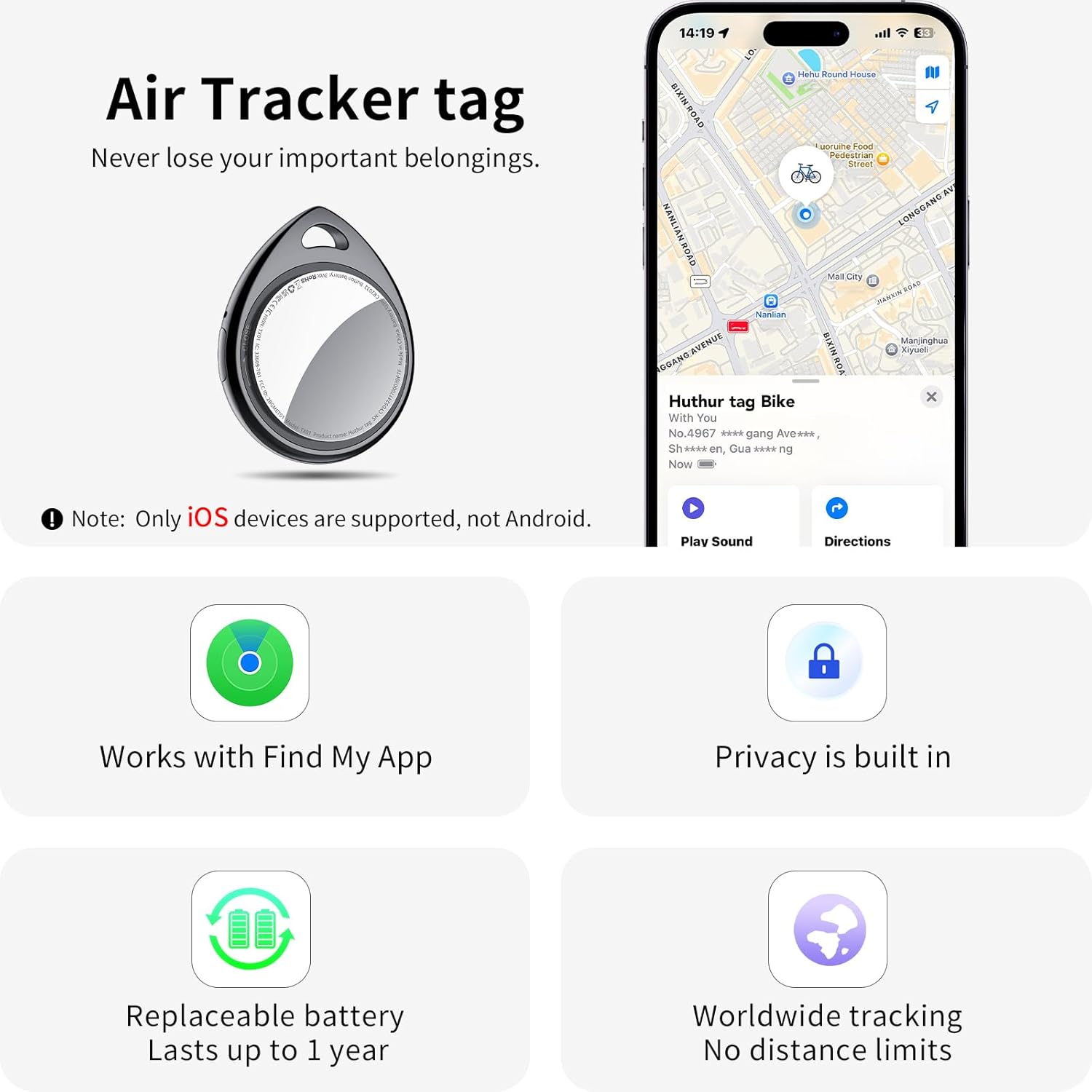
Image: Overview of the Air Tracker Tag's main features, including compatibility with Apple Find My, built-in privacy, replaceable battery, and worldwide tracking capabilities.
4. Setup Instructions
- Activate the Tag: Upon receiving the Air Tracker Tag, remove any protective tabs or films. Locate the small button on the side of the tag. Press and hold this button for approximately 2 seconds until you hear a confirmation tone, indicating activation.
- Open Apple Find My App: On your iOS device (iPhone, iPad, Mac, Apple Watch), open the "Find My" application. Ensure Bluetooth and network functions are enabled on your device.
- Add New Item: In the "Find My" app, navigate to the "Items" tab. Tap the "+" icon and select "Add Other Item" or "Add AirTag" (depending on your iOS version).
- Pairing: Your device will begin searching for nearby compatible items. When "Huthur tag" appears, tap "Connect".
- Name Your Tag: Follow the on-screen prompts to name your Air Tracker Tag (e.g., "Keys," "Luggage," "Backpack"). You can also assign an emoji for easy identification.
- Confirm Activation: Once named, confirm the connection. Your QCOQ Air Tracker Tag is now linked to your Apple ID and ready for tracking.

Image: Visual instructions for activating the tag and pairing it with the Apple Find My app on an iOS device.
5. Operating Instructions
5.1 Finding Items Nearby (Sound Alert)
When your Air Tracker Tag is within Bluetooth range (approximately 200 feet or 60 meters), you can make it play a loud 100dB sound to help you locate it. Open the "Find My" app, select your tag, and tap "Play Sound."

Image: Demonstrates using the "Play Sound" feature in the Find My app to locate a nearby Air Tracker Tag with a loud beep.
5.2 Finding Items Far Away (Map Tracking)
If your item is out of Bluetooth range, the Apple Find My network, composed of millions of Apple devices worldwide, will anonymously detect your tag's location and securely relay it to your "Find My" app. You can view its last known location on a map and get directions to it.

Image: Illustrates tracking a lost item using the Apple Find My map, showing directions to the tag's location.
5.3 Left-Behind Reminders
Enable "Notify When Left Behind" in the "Find My" app. If you leave your Air Tracker Tag behind, your iOS device will receive a notification with its last detected location, helping you retrieve it promptly.
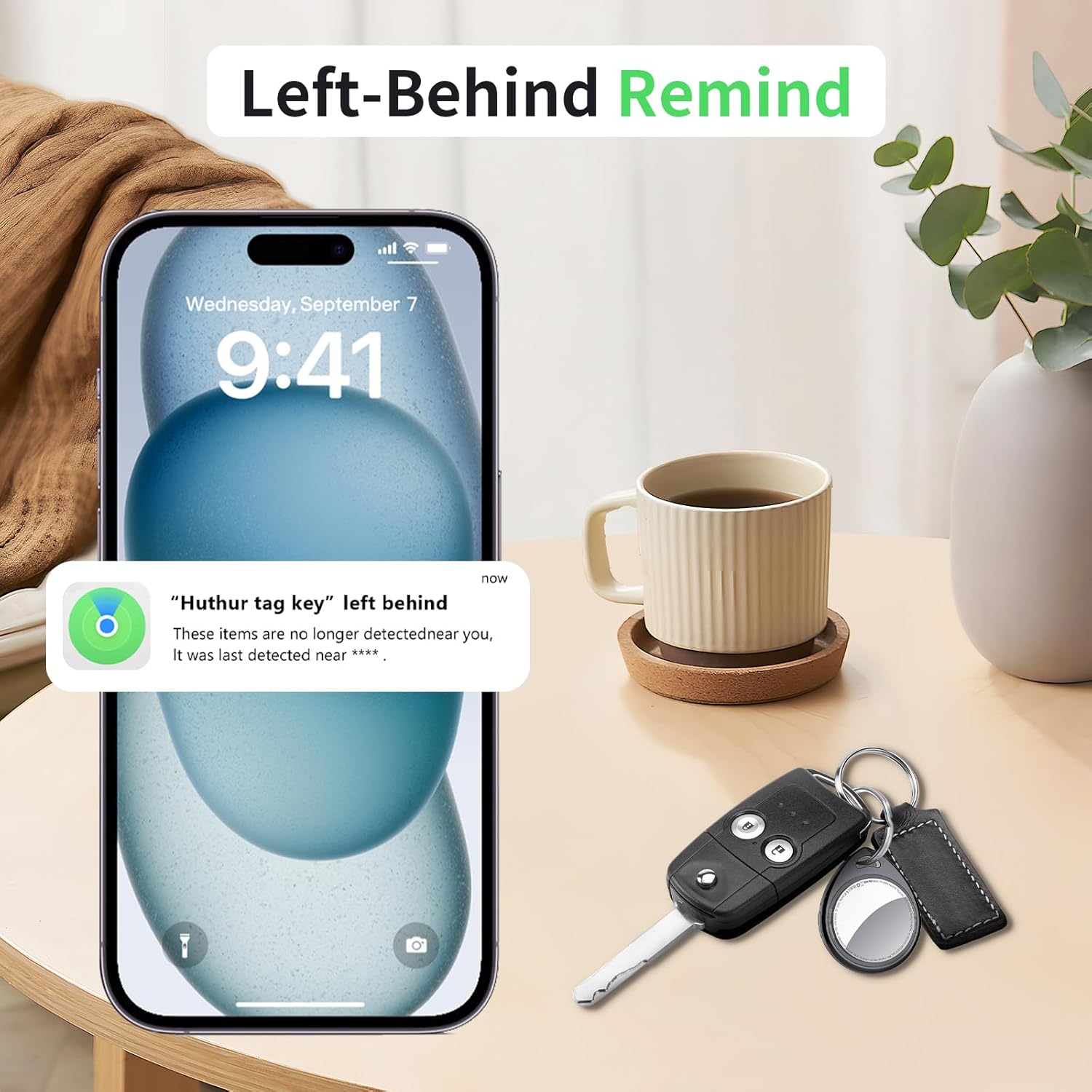
Image: An iPhone screen showing a 'Left Behind' notification, indicating the tracker has been separated from the user.
5.4 Lost Mode
If your item is truly lost, activate "Lost Mode" in the "Find My" app. You can enter a contact phone number or email address. If another Apple user finds your tag, they can use their device to view your contact information and help return your item, all while maintaining your privacy.

Image: A sequence of iPhone screens demonstrating how to activate Lost Mode and securely display contact information for a found item.
5.5 Sharing with Contacts
You can share the location of your Air Tracker Tag with up to 5 trusted contacts through the "Find My" app, allowing multiple individuals to help track important shared items.
5.6 Privacy and Security
The QCOQ Air Tracker Tag is MFi-certified, ensuring all location data is encrypted and anonymous. Your tracking records are never stored on the tag itself, and even the manufacturer cannot access them. An anti-tracking feature is built-in to warn you if someone attempts to track you with an unknown tag.

Image: A graphic highlighting the privacy and security features of the Air Tracker Tag, showing a shield protecting the device.
6. Maintenance
6.1 Battery Replacement
The Air Tracker Tag uses a replaceable CR2032 coin cell battery. The tag will proactively alert you when the battery is low. To replace the battery:
- Turn the stainless steel battery cover counter-clockwise to remove it.
- Insert a new CR2032 battery with the positive (+) side facing up.
- Align the battery cover and press it gently.
- Rotate the battery cover clockwise to tighten it securely.

Image: A four-step visual guide demonstrating the process of replacing the CR2032 battery in the Air Tracker Tag.
6.2 Battery Life
A new CR2032 battery provides up to 1 year of battery life, depending on usage.
7. Troubleshooting
- Tag not connecting: Ensure the tag is activated (press and hold the side button for 2 seconds). Check that Bluetooth and network access are enabled on your iOS device. Make sure the tag is within range during initial pairing.
- Sound alert not playing: Verify the tag is within Bluetooth range of your iOS device. Check the battery level of the tag in the "Find My" app.
- Inaccurate location: Location accuracy depends on the density of Apple devices in the area. In remote locations, updates may be less frequent. Ensure your iOS device has a stable internet connection.
- Battery low notification: Replace the CR2032 battery as soon as possible to ensure continuous tracking.
8. Specifications
| Feature | Detail |
|---|---|
| Model | TX01 |
| Dimensions | 1.26 x 1.52 x 0.35 inches (32.1 x 38.6 x 9 mm) |
| Item Weight | 1.13 ounces (approx. 7.8g) |
| Battery Type | CR2032 (replaceable) |
| Battery Life | Up to 1 year |
| Sound Level | 100dB |
| Connectivity | Bluetooth 5.3 |
| Compatible Devices | iPhone, iPad, Mac, Apple Watch (iOS 14.5 or higher) |
| Material | Plastic |

Image: The Air Tracker Tag held in a hand, illustrating its compact and lightweight nature (7.8g).

Image: Detailed diagram displaying the dimensions of the Air Tracker Tag in millimeters and inches.
9. Safety Information
- Keep the device out of reach of small children due to small parts (battery).
- Do not attempt to disassemble or modify the device beyond battery replacement.
- Dispose of batteries according to local regulations.
- Avoid extreme temperatures and direct sunlight.
10. Warranty & Support
QCOQ products are designed for reliability. For any support inquiries or warranty information, please refer to the contact details provided in your product packaging or visit the official QCOQ website. Please retain your proof of purchase for warranty claims.


