
Introduction
The Rapoo M308 is a versatile multi-mode wireless mouse designed for efficiency and comfort. It features an ambidextrous design, allowing comfortable use for both right-handed and left-handed individuals. With its dual connectivity options, Bluetooth 5.0 and 2.4 GHz wireless, you can seamlessly connect to up to three devices and switch between them with ease. The mouse is engineered for long-lasting performance, offering a battery life of up to 12 months.
Package Contents
- Rapoo M308 Multi-mode Wireless Mouse
- USB Receiver (stored inside the mouse)
- 2 AA Batteries
- Quick Start Guide (this manual)
Product Overview
Familiarize yourself with the components of your Rapoo M308 mouse.
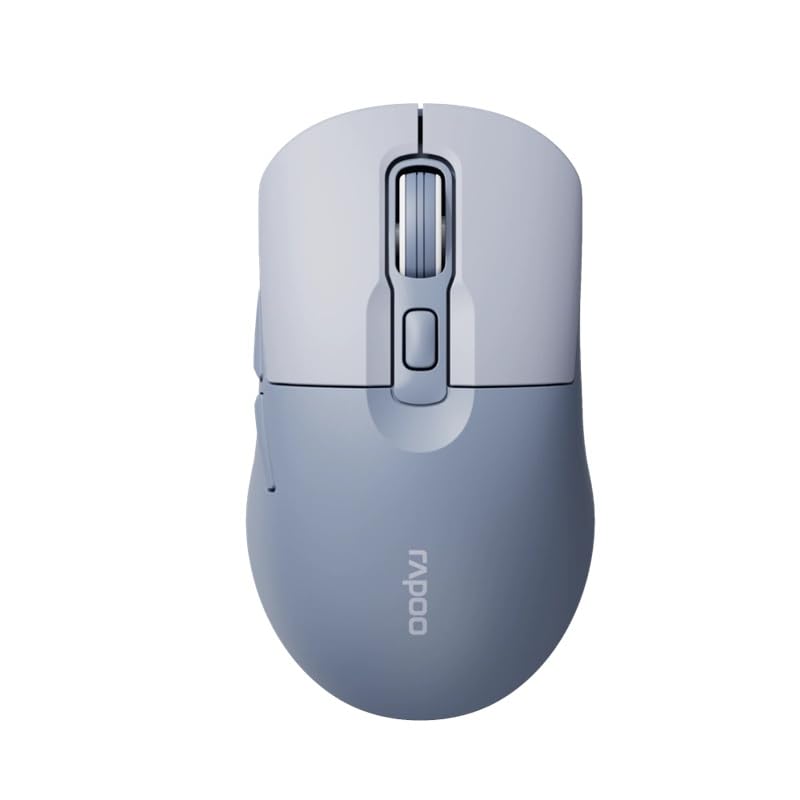
Image: The Rapoo M308 Multi-mode Wireless Mouse in blue, showcasing its ergonomic, ambidextrous design with a scroll wheel and multiple buttons.
- Left Button: Standard left-click function.
- Right Button: Standard right-click function.
- Scroll Wheel: For scrolling and middle-click function.
- DPI Button: Adjusts cursor sensitivity (DPI).
- Mode Switch Button/Indicator: Switches between connected devices (2.4G, Bluetooth 1, Bluetooth 2) and indicates current mode.
- Side Buttons: Forward/Backward navigation (programmable).
- Battery Compartment: Located on the underside, holds 2 AA batteries.
- USB Receiver Slot: Located inside the battery compartment for storage.
Setup
1. Battery Installation
- Open the battery compartment cover on the underside of the mouse.
- Insert the two AA batteries, ensuring correct polarity (+/-).
- Close the battery compartment cover.
2. Connecting via 2.4 GHz Wireless
- Remove the USB receiver from its storage slot inside the battery compartment.
- Plug the USB receiver into an available USB port on your computer.
- Turn on the mouse. The mouse should automatically connect to your computer. The mode indicator light will show a steady green light for a few seconds.
3. Connecting via Bluetooth
The M308 mouse supports two Bluetooth connections (BT1 and BT2).
- Turn on the mouse.
- Press the mode switch button to select either Bluetooth 1 (blue light flashes slowly) or Bluetooth 2 (blue light flashes slowly).
- Press and hold the mode switch button for 3 seconds until the blue light starts flashing rapidly. This indicates the mouse is in pairing mode.
- On your computer or device, go to Bluetooth settings and search for new devices.
- Select "Rapoo M308" from the list of available devices to pair.
- Once paired, the blue light will become steady for a few seconds and then turn off.
Operating Instructions
Switching Between Devices
The Rapoo M308 allows you to connect to up to three devices (one 2.4G wireless and two Bluetooth devices) and switch between them.
- Briefly press the mode switch button to cycle through the connected devices: 2.4G (green light), Bluetooth 1 (blue light), Bluetooth 2 (blue light).
- The indicator light will briefly illuminate in the corresponding color to confirm the selected mode.
DPI Adjustment
Press the DPI button (usually located behind the scroll wheel) to cycle through different DPI settings. This changes the cursor speed and sensitivity. The indicator light may flash to show the current DPI level (e.g., one flash for low DPI, two for medium, etc.).
Maintenance
- Cleaning: Use a soft, dry cloth to clean the mouse. For stubborn dirt, a slightly damp cloth can be used, but ensure no moisture enters the device.
- Battery Replacement: When the mouse performance degrades or the indicator light signals low battery, replace the two AA batteries following the installation steps.
- Storage: When not in use for extended periods, turn off the mouse to conserve battery life. Store the USB receiver inside the mouse to prevent loss.
Troubleshooting
- Mouse not responding:
- Check if the mouse is turned on.
- Ensure batteries are correctly installed and not depleted. Replace if necessary.
- For 2.4G connection, ensure the USB receiver is securely plugged into a working USB port. Try a different USB port.
- For Bluetooth connection, ensure the mouse is in the correct Bluetooth mode (BT1 or BT2) and successfully paired with your device. Re-pair if needed.
- Cursor movement is erratic or slow:
- Clean the optical sensor on the underside of the mouse.
- Ensure you are using the mouse on a suitable surface (non-reflective, non-transparent).
- Adjust the DPI setting using the DPI button.
- Cannot switch between devices:
- Ensure all devices are properly connected (2.4G receiver plugged in, Bluetooth devices paired).
- Briefly press the mode switch button to cycle through modes. A long press will initiate Bluetooth pairing mode.
Specifications
| Brand Name | Rapoo |
| Model | M308 |
| Connectivity Technology | Bluetooth 5.0, 2.4 GHz Radio Frequency |
| Special Features | Lightweight |
| Motion Detection | Optical |
| Button Quantity | 4 |
| Hand Orientation | Ambidextrous |
| Recommended Uses | Office |
| Compatible Devices | Personal Computer, Laptop |
| Item Weight | 50 grams |
| Operating System | Linux, Mac, Windows |
| Battery Life | 12 months |
| Number of Batteries | 2 AA (Included) |
| Power Source | Battery Powered |
| Minimum OS Required | Mac OS 14 Sonoma, Windows 11 |
| Material | Plastic |
| Country of Origin | China |
| Included Components | Mouse |
Warranty and Support
The Rapoo M308 Multi-mode Wireless Mouse comes with a 2-year warranty from the date of purchase. This warranty covers manufacturing defects and malfunctions under normal use.
For technical support, warranty claims, or further assistance, please refer to the contact information provided on the Rapoo official website or your local distributor's support channels. Please retain your proof of purchase for warranty validation.


