
Introduction
This manual provides essential information for the setup, operation, maintenance, and troubleshooting of your VGKE B12 2-in-1 Touch Screen Laptop. Please read this manual thoroughly before using your device to ensure proper function and longevity.
The VGKE B12 is a versatile device designed for both productivity and entertainment, featuring a 12.3-inch 3K IPS touchscreen and a detachable magnetic keyboard.
Product Overview
The VGKE B12 combines the functionality of a laptop with the portability of a tablet. Key features include:
- Processor: Intel Celeron J4125 (4 Cores, up to 2.7 GHz)
- Display: 12.3-inch WQHD (3000 x 2000) 3K IPS Touchscreen, 300 nits brightness, 100% sRGB
- Memory: 8GB LPDDR4 RAM
- Storage: 256GB SSD
- Connectivity: Wi-Fi 5 (802.11ac), Bluetooth 4.2
- Ports: 2x Full-functional USB Type-C, 1x 3.5 mm Headphone Jack
- Camera: 2MP Front Camera
- Battery: 3500mAh lithium battery, up to 8.5 hours usage
- Operating System: Windows 11
Device Components
Familiarize yourself with the various parts of your VGKE B12 device.

Figure 1: The VGKE B12 2-in-1 laptop with its magnetic keyboard attached, showcasing its sleek design and kickstand.

Figure 2: The VGKE B12 in tablet mode, supported by its integrated kickstand, displaying a vibrant screen.
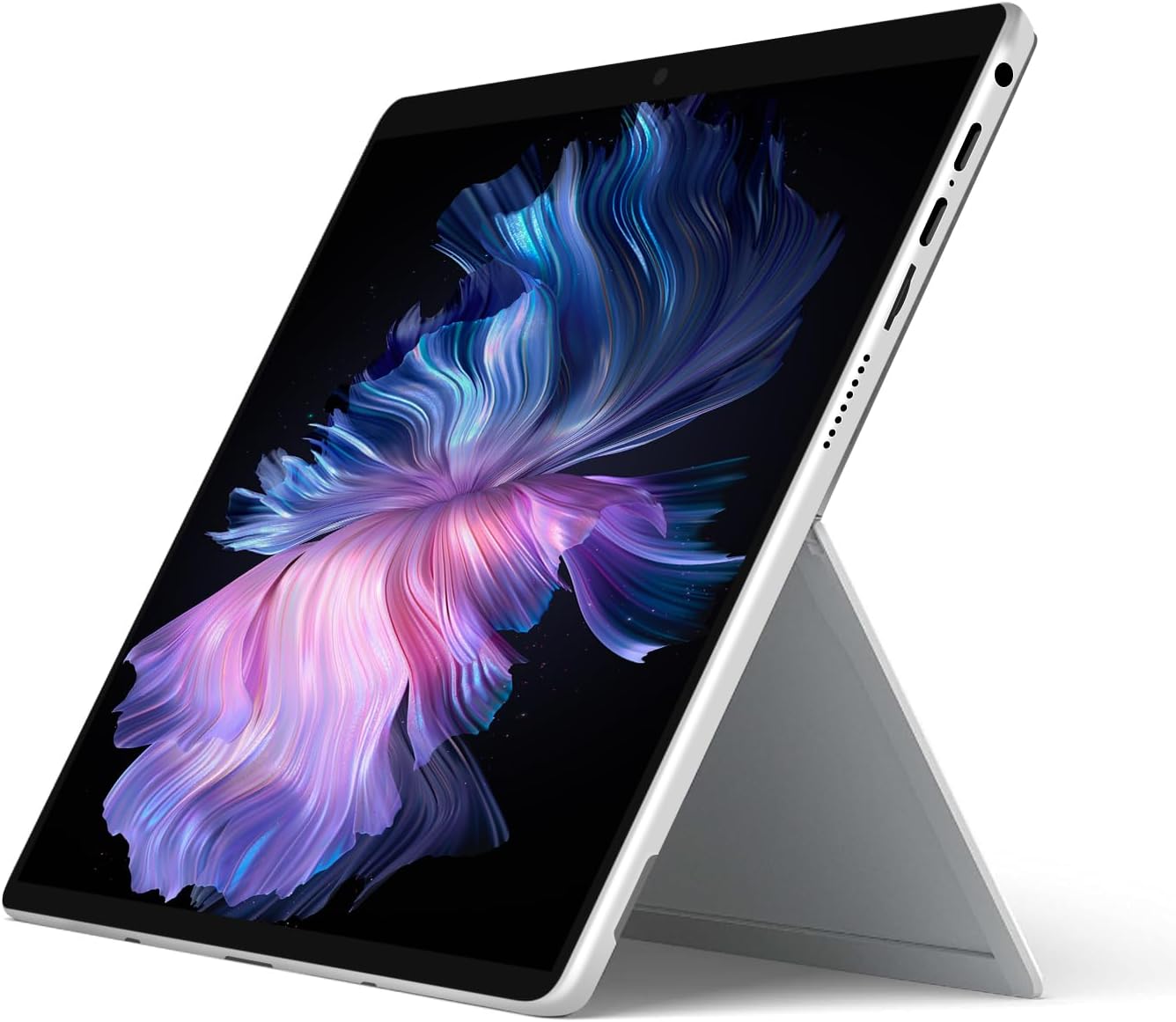
Figure 3: A detailed view of the magnetic connection mechanism for attaching the keyboard to the tablet.

Figure 4: The VGKE B12 tablet separated from its magnetic keyboard, illustrating the full keyboard layout and touchpad.
Setup
1. Initial Charging
Before first use, fully charge your VGKE B12. Connect the included USB Type-C charger to one of the USB Type-C ports on the device and plug it into a power outlet. The charging indicator light will illuminate.
2. Attaching the Magnetic Keyboard
Align the magnetic connector of the keyboard with the corresponding port at the bottom edge of the tablet. The magnets will automatically snap the keyboard into place. Ensure a secure connection for proper functionality.
3. First Power-On
Press and hold the power button (typically located on the side or top edge of the tablet) for a few seconds until the screen illuminates. The device will boot up.
4. Initial Windows Setup
Follow the on-screen prompts to complete the Windows 11 setup process. This includes selecting your region, language, connecting to a Wi-Fi network, and setting up your user account.
Operating Instructions
Power Management
- Power On: Press and hold the power button.
- Sleep Mode: Briefly press the power button. Press again to wake.
- Shut Down: Go to Start Menu > Power > Shut down. Alternatively, press and hold the power button for 10 seconds for a forced shutdown (use only when necessary).
Touchscreen Usage
The 3K IPS touchscreen supports multi-touch gestures for intuitive navigation.
- Tap: Select an item or open an application.
- Tap and Hold: Access context menus or drag items.
- Pinch-to-Zoom: Use two fingers to zoom in or out.
- Swipe: Scroll through content or navigate between screens.

Figure 5: A user interacting with the responsive touchscreen of the VGKE B12.
Keyboard and Touchpad
When the magnetic keyboard is attached, it functions like a standard laptop keyboard and touchpad.
- Typing: Use the keys for text input.
- Function Keys: Use the Fn key in combination with F1-F12 for special functions (e.g., volume, brightness).
- Touchpad: Use for cursor control, left-click (single tap), right-click (two-finger tap or tap bottom right corner), and multi-touch gestures.
Connectivity
- Wi-Fi: Access network settings via the Windows taskbar to connect to available Wi-Fi networks.
- Bluetooth: Enable Bluetooth in Windows settings to pair with compatible devices like headphones or mice.
- USB Type-C Ports: Use the two full-functional USB Type-C ports for charging, data transfer, or connecting external displays with compatible adapters.
- Headphone Jack: Connect 3.5mm headphones or external speakers.
Webcam Usage
The integrated 2MP front camera can be used for video calls and conferences. Access it through applications like Camera, Microsoft Teams, or Zoom.
Maintenance
Cleaning the Device
- Screen: Use a soft, lint-free cloth slightly dampened with water or a screen cleaner. Avoid harsh chemicals.
- Body and Keyboard: Wipe with a soft, dry cloth. For stubborn dirt, use a slightly damp cloth. Ensure no liquid enters ports.
Battery Care
- Avoid extreme temperatures.
- Do not let the battery fully discharge frequently.
- For long-term storage, charge the battery to about 50-60%.
Software Updates
Regularly check for and install Windows updates to ensure optimal performance and security. Go to Settings > Windows Update.
Storage Management
Periodically clean up unnecessary files and applications to maintain system speed. Use Windows' built-in Disk Cleanup tool or Storage Sense.
Troubleshooting
| Issue | Possible Cause / Solution |
|---|---|
| Device does not power on | Ensure the device is charged. Connect the charger and wait a few minutes before attempting to power on again. Try a forced shutdown by holding the power button for 10 seconds, then press it again to restart. |
| Screen is blank or unresponsive | Check if the device is in sleep mode; press the power button to wake it. If unresponsive, perform a forced shutdown and restart. Ensure brightness is not set to minimum. |
| Keyboard or touchpad not working | Ensure the magnetic keyboard is securely attached. Detach and reattach the keyboard. Restart the device. |
| Wi-Fi connection issues | Check if Wi-Fi is enabled in Windows settings. Restart your router. Forget the network and reconnect. Update Wi-Fi drivers if necessary. |
| Slow performance | Close unnecessary applications. Check for background processes. Ensure sufficient free storage space. Run Windows Update. |
If you encounter issues not listed here or if the suggested solutions do not resolve the problem, please contact customer support.
Specifications
| Feature | Detail |
|---|---|
| Brand | VGKE |
| Model Name | B12 |
| Screen Size | 12.3 Inches |
| Resolution | 3000 x 2000 (3K WQHD) |
| Display Type | IPS LCD, Touchscreen |
| Processor | Intel Celeron J4125 (4 Cores, up to 2.7 GHz) |
| RAM | 8 GB LPDDR4 |
| Storage | 256 GB SSD |
| Operating System | Windows 11 |
| Graphics Coprocessor | Intel UHD Graphics 600 |
| Connectivity | Wi-Fi 5 (802.11ac), Bluetooth 4.2 |
| Ports | 2x USB Type-C, 1x 3.5mm Headphone Jack |
| Webcam | 2MP Front Camera |
| Battery Life | Up to 8.5 Hours (3500mAh) |
| Dimensions (L x W x Th) | 10.8" x 7.83" x 0.36" |
| Form Factor | Convertible (2-in-1) |
Warranty and Support
Warranty Information
The VGKE B12 comes with a limited warranty. Please refer to the warranty card included with your product for specific terms and conditions. Additionally, a 30-day return policy may apply from the point of purchase.
Customer Support
For technical assistance, troubleshooting, or warranty claims, please contact VGKE customer support. You can typically find contact information on the official VGKE website or through your retailer's support channels.
For more information, visit the VGKE Store on Amazon.