
1. Product Overview
The RENASSER Raphael H520C is a versatile hybrid stylus pen designed for seamless use across multiple platforms. It supports both Microsoft Pen Protocol (MPP 2.0) and USI 2.0 technology, making it compatible with a wide range of devices including Microsoft Surface models, Fire Max 11 Tablet, and Pixel Tablet. This stylus offers 4096 levels of pressure sensitivity and tilt recognition for a natural writing and drawing experience.

Image 1.1: The RENASSER Raphael H520C Hybrid Stylus Pen, showcasing its sleek design.

Image 1.2: Visual representation of the Raphael Hybrid Pen's multi-device compatibility, combining Surface Stylus and AMZ Fire Max 11/Google Pixel functionalities.
2. Setup and First Use
The Raphael H520C stylus is designed for immediate use without complex pairing. Simply ensure the pen is charged, and it will automatically connect to compatible devices upon contact with the screen.
2.1 Charging the Stylus
Before first use, or when the battery is low, charge the stylus using a standard USB-C cable. The charging port is located on the side of the pen. A full charge takes approximately 1 hour and provides over 110 hours of use. A quick 20-minute charge can provide up to 50 hours of use.
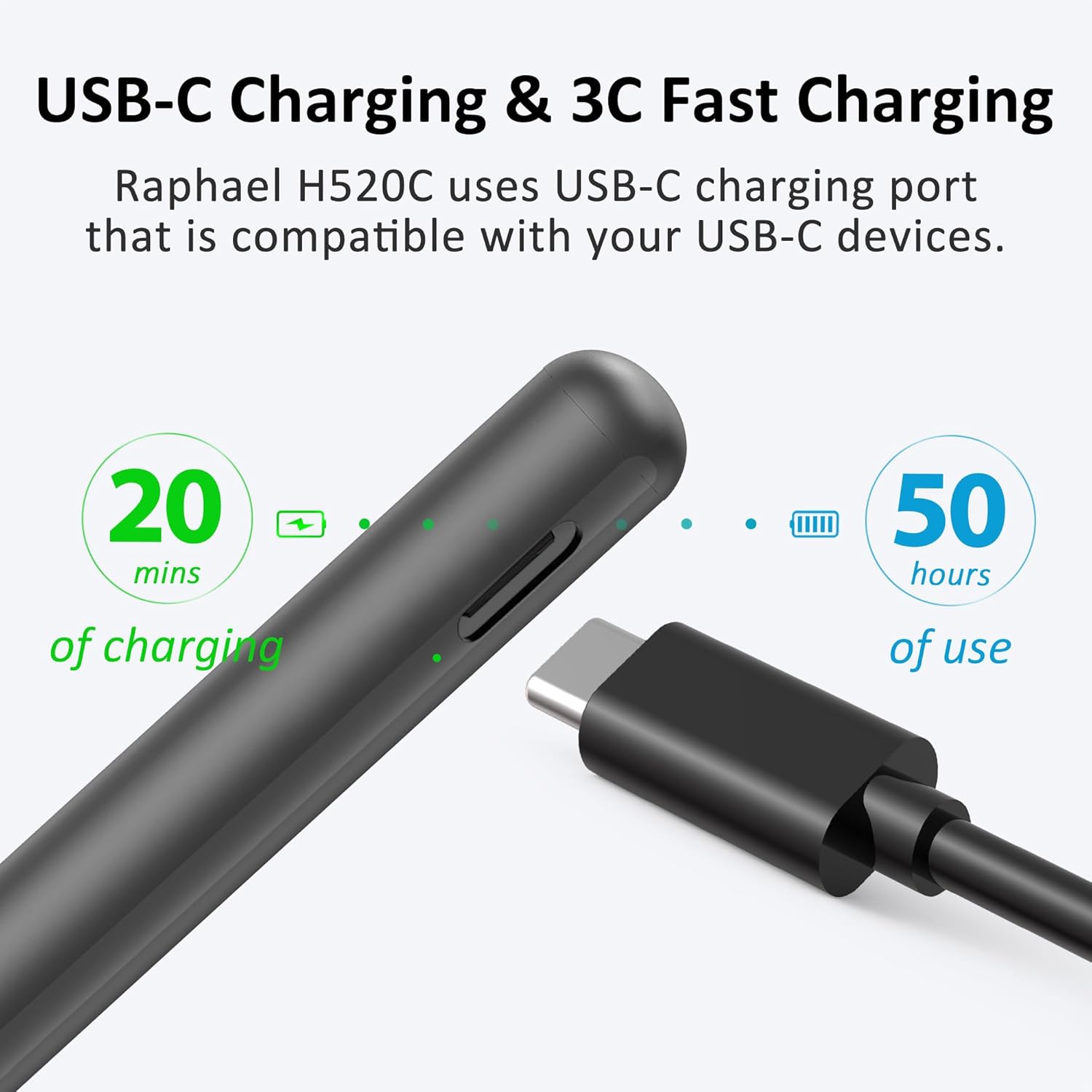
Image 2.1: Diagram illustrating the USB-C charging port and charging times for the Raphael H520C stylus.
2.2 Initial Connection
No pairing is required. Once charged, simply touch the stylus tip to your compatible device's screen to begin using it. The stylus will automatically detect the device and protocol (MPP 2.0 or USI 2.0).

Image 2.2: The stylus features instant use, requiring no pairing for immediate functionality.
3. Operating Instructions
3.1 Basic Functions
The Raphael H520C features two side buttons for enhanced functionality:
- Right-Click Button: Used for selection or context-menu functions, similar to a mouse right-click.
- Eraser Button: Activates the eraser function in compatible applications.

Image 3.1: The Raphael H520C stylus highlighting the right-click and erase buttons.
3.2 Advanced Features
- 4096 Pressure Sensitivity: The stylus responds to 4096 levels of pressure, allowing for precise control over line thickness and opacity in drawing and writing applications.
- Tilt Sensitivity: Supports tilt recognition, enabling shading effects similar to a traditional pencil when the stylus is angled. Note: Tilt sensitivity compatibility may vary depending on the application and brush settings.
- Palm Rejection: Rest your hand comfortably on the screen while writing or drawing without causing unintended marks or interference.

Image 3.2: Illustration of 4096 levels of pressure sensitivity for detailed strokes.

Image 3.3: Demonstrates natural tilt recognition for shading and varied line thickness.
4. Compatibility
The Raphael H520C Hybrid Stylus is compatible with devices supporting Microsoft Pen Protocol (MPP 2.0) and USI 2.0 technology. Below is a list of commonly supported devices:
4.1 MPP 2.0 Compatible Devices (Microsoft Surface)
- Microsoft Surface Pro 12/11/10/9/X/8/7+/7/6/5/4/3
- Microsoft Surface Laptop 5/4/3/2/1
- Microsoft Surface Book 3/2/1
- Microsoft Surface Go 4/3/2/1
- Microsoft Surface Studio 2+/2/1
4.2 USI 2.0 Compatible Devices
- Amazon Fire Max 11 Tablet
- Google Pixel Tablet
4.3 Other Compatible Devices
- HP Envy x360 series (various models)
- HP Spectre x360 series (various models)
- HP Pavilion x360 series (various models)
- Kobo Sage, Kobo Elipsa, Kobo Elipsa 2E, Kobo Libra Colour
For specific model verification, please refer to the manufacturer's website or contact customer support.

Image 4.1: Detailed compatibility list for the H520C stylus, including Microsoft Surface, HP, Kobo, and USI 2.0 devices.
5. Maintenance
5.1 Cleaning
Wipe the stylus body with a soft, dry cloth. Avoid using harsh chemicals or abrasive materials, which can damage the finish.
5.2 Tip Replacement
The stylus comes with one replacement tip (MU1). If the tip becomes worn or damaged, gently pull out the old tip and insert the new one. Replacement tips are available for purchase separately.
5.3 Storage
Store the stylus in a safe place to prevent damage. While the stylus is durable, avoid dropping it or exposing it to extreme temperatures.
6. Troubleshooting
6.1 Stylus Not Responding
- Check Battery: Ensure the stylus is sufficiently charged. Connect it to a USB-C charger for at least 20 minutes.
- Wake Up Stylus: If the stylus has been inactive for 10 minutes, it will automatically turn off. Press either side button to wake it up.
- Device Compatibility: Verify that your device is listed as compatible with MPP 2.0 or USI 2.0.
- Restart Device: Sometimes, restarting your tablet or laptop can resolve connectivity issues.
- Check Tip: Ensure the stylus tip is securely in place and not damaged. Replace if necessary.
6.2 Inaccurate Input or Jitter
- Screen Cleanliness: Ensure your device screen is clean and free of smudges or debris.
- Application Settings: Check the settings within your drawing or writing application for stylus calibration or sensitivity adjustments.
- Interference: Move away from strong electromagnetic fields that might interfere with stylus performance.
6.3 Buttons Not Working
- Application Support: Ensure the application you are using supports the right-click and eraser functions of the stylus.
- Firmware Update: Check the RENASSER website for any available firmware updates for the stylus.
7. Specifications
| Model Number | Raphael H520C |
| Product Dimensions | 5.87 x 0.35 x 0.35 inches (149 x 9 x 9 mm) |
| Item Weight | 0.374 ounces (10.6 Grams) |
| Pressure Sensitivity | 4096 Levels |
| Tilt Sensitivity | Supported |
| Palm Rejection | Supported |
| Connectivity | MPP 2.0, USI 2.0 |
| Charging Port | USB-C |
| Charging Time | 1 Hour (for 110+ hours use) |
| Quick Charge | 20 minutes for 50 hours use |
| Auto-Off | After 10 minutes of non-use |
| Batteries Included | 1 Lithium Ion (included) |
8. Warranty and Support
8.1 Warranty Information
RENAISSER offers a 12-month worry-free warranty for the Raphael H520C Hybrid Stylus Pen from the date of purchase. This warranty covers manufacturing defects and ensures attentive customer service.
8.2 Customer Support
For any questions regarding compatibility, troubleshooting, or warranty claims, please contact RENASSER customer service at service@renaisser.com. When contacting support, please provide your model number and a detailed description of the issue.


