
1. Introduction
This manual provides detailed instructions for the setup, operation, maintenance, and troubleshooting of your Lenovo ThinkVision E24-40 monitor. Please read this manual thoroughly before using your monitor to ensure proper functionality and to maximize its performance.
The Lenovo ThinkVision E24-40 is a 24-inch (23.8" viewable) Full HD LED monitor featuring In-plane Switching (IPS) technology for wide viewing angles and vibrant colors. It offers a 1920 x 1080 resolution, 100 Hz refresh rate, and a 4 ms response time, making it suitable for various computing tasks. The monitor also includes ergonomic adjustments for enhanced user comfort.
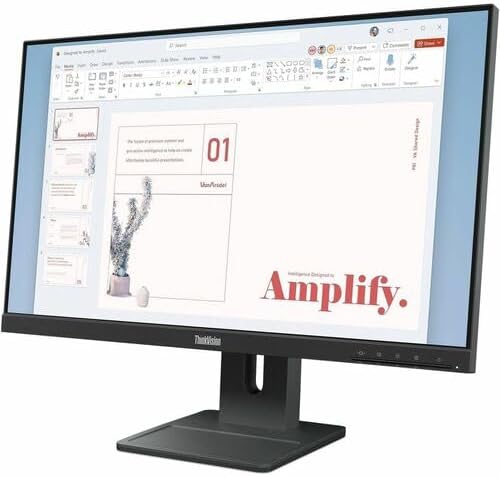
Figure 1: Front view of the Lenovo ThinkVision E24-40 monitor.
2. Setup
2.1 Unpacking the Monitor
Carefully remove all components from the packaging. Ensure all items listed in the packing list are present. Retain the packaging materials for future transport or service needs.
2.2 Assembling the Stand
- Place the monitor face down on a soft, clean surface to prevent scratches.
- Attach the stand neck to the monitor's VESA mounting area. Secure it with the provided screws.
- Attach the stand base to the stand neck. Tighten the thumb screw or screws at the bottom of the base.

Figure 2: Lenovo ThinkVision E24-40 monitor with its ergonomic stand.
2.3 Connecting Cables
Connect the necessary cables to the corresponding ports on the monitor and your computer. Refer to Figure 3 for port locations.
- Power Cable: Connect one end to the monitor's power input and the other to a grounded electrical outlet.
- Video Cable: Choose one of the following:
- HDMI: Connect an HDMI cable from your computer's HDMI output to the monitor's HDMI port.
- DisplayPort: Connect a DisplayPort cable from your computer's DisplayPort output to the monitor's DisplayPort.
- VGA: Connect a VGA cable from your computer's VGA output to the monitor's VGA port.

Figure 3: Rear view of the monitor displaying the power and video input ports.
2.4 Initial Power-On
After connecting all cables, press the power button on the monitor. The power indicator will illuminate, and the monitor will display an image from your connected computer. If no image appears, ensure your computer is powered on and the correct input source is selected on the monitor.
3. Operating the Monitor
3.1 Power Button and OSD Controls
The power button is typically located on the front or bottom bezel of the monitor. Adjacent to it, you will find buttons for navigating the On-Screen Display (OSD) menu. These buttons allow you to adjust various monitor settings.
3.2 Adjusting Monitor Settings
Use the OSD menu to customize your viewing experience:
- Brightness/Contrast: Adjust the overall luminance and difference between light and dark areas.
- Color Settings: Modify color temperature, gamma, and individual RGB levels.
- Input Source: Manually select between HDMI, DisplayPort, or VGA inputs if auto-detection fails.
- Picture Mode: Select predefined modes (e.g., Standard, Movie, Gaming) for optimized display settings.
- Audio: Adjust volume for the integrated speakers.
3.3 Ergonomic Adjustments
The ThinkVision E24-40 monitor features an ergonomic stand for optimal viewing comfort:
- Height Adjustment: Raise or lower the monitor to eye level.
- Tilt: Adjust the screen's vertical angle (forward or backward).
- Swivel: Rotate the monitor horizontally on its base.
- Pivot: Rotate the screen 90 degrees for portrait mode viewing.

Figure 4: Side view illustrating the tilt capability of the monitor.
4. Maintenance
4.1 Cleaning the Monitor
To clean the monitor screen:
- Turn off the monitor and unplug the power cord.
- Gently wipe the screen with a soft, lint-free cloth. For stubborn marks, lightly dampen the cloth with water or a non-abrasive screen cleaner. Do not spray liquid directly onto the screen.
To clean the monitor casing:
- Wipe the casing with a soft, dry cloth. Avoid using harsh chemicals or abrasive materials.
4.2 General Care
- Avoid placing the monitor in direct sunlight or near heat sources.
- Ensure adequate ventilation around the monitor.
- Do not block ventilation openings.
- Protect the monitor from excessive dust and moisture.
5. Troubleshooting
If you encounter issues with your monitor, refer to the following common problems and solutions:
| Problem | Possible Cause | Solution |
|---|---|---|
| No image on screen | Monitor not powered on; video cable loose or disconnected; incorrect input source selected. | Ensure power cable is securely connected and monitor is on. Check video cable connections. Press the input select button on the monitor to cycle through inputs (HDMI, DisplayPort, VGA). |
| Image is blurry or distorted | Incorrect resolution setting; video cable issue. | Set your computer's display resolution to 1920 x 1080. Ensure the video cable is securely connected and not damaged. |
| Flickering screen | Refresh rate mismatch; faulty cable; interference. | Check your computer's display settings to ensure the refresh rate is set to 100 Hz. Try a different video cable. Move other electronic devices away from the monitor. |
| No sound from speakers | Volume too low; audio not routed to monitor; monitor speakers disabled. | Increase monitor volume via OSD. Ensure your computer's audio output is set to the monitor. Check OSD settings to ensure speakers are enabled. |
If the problem persists after trying these solutions, please contact Lenovo customer support.
6. Specifications
Below are the detailed technical specifications for the Lenovo ThinkVision E24-40 monitor (Model: 64BAMAT1US).
| General | |
|---|---|
| Brand | Lenovo |
| Model | E24-40 (64BAMAT1US) |
| Product Type | LED Monitor |
| Color | Raven Black |
| Display | |
| Screen Size Class | 24" |
| Viewable Screen Size | 23.8" |
| Panel Technology | In-plane Switching (IPS) Technology |
| Resolution | 1920 x 1080 (Full HD) |
| Aspect Ratio | 16:9 |
| Refresh Rate | 100 Hz |
| Response Time | 4 ms (Extreme Mode), 6 ms (Normal Mode) |
| Brightness | 250 Nit |
| Contrast Ratio | 1,300:1 (Native) |
| Color Support | 16.7 Million Colors |
| Color Gamut | 99% sRGB |
| Viewing Angles | 178° Horizontal / 178° Vertical |
| Features | Anti-glare, Low Blue Light, Flicker-free, Natural Low Blue Light |
| Connectivity | |
| HDMI | 1x HDMI 1.4 |
| DisplayPort | 1x DisplayPort |
| VGA | 1x VGA |
| Audio | |
| Speakers | Yes (2 Speakers) |
| Ergonomics | |
| Stand Adjustments | Height, Tilt, Swivel, Pivot |
| VESA Mount Compatible | Yes (100 x 100 mm) |
| Power | |
| Operating Power Consumption | 13 W |
| Maximum Power Consumption | 24 W |
| Physical Characteristics | |
| Dimensions (W x D x H) | 21.3" x 1.7" x 12.8" (without stand) 21.25" x 7.03" x 19.62" (with stand, extended height) |
| Weight | 6.39 lb (Approximate, without stand) 13.2 lb (Approximate, with stand) |
7. Warranty & Support
7.1 Product Warranty
Lenovo provides a standard limited warranty for the ThinkVision E24-40 monitor. The specific terms and duration of your warranty may vary by region and purchase date. Please refer to the warranty card included with your product or visit the official Lenovo support website for detailed warranty information.
7.2 Customer Support
For technical assistance, service, or additional information, please visit the official Lenovo support website:
You can also find drivers, manuals, and FAQs on the support website.