
1. Introduction
The TCL 85P79K television offers superior image quality, immersive sound, and a customizable smart interface via Google TV. Its 215 cm (85-inch) QLED panel combined with Quantum Dot technology reproduces a wider, more intense, and more realistic color spectrum. With 4K Ultra HD resolution and 450 nits HDR brightness, this model displays vibrant and precise images, even in high-contrast scenes or broad daylight. The integrated AiPQ processor optimizes textures, colors, details, and contrast of each scene in real-time, offering a sharp, fluid, and impressively realistic rendering. This device supports all the most advanced HDR formats, reproducing every luminous nuance with great precision. On the audio side, it relies on a 2.1 system with Dolby Atmos, enhanced by DTS Virtual:X and Dolby TrueHD, for a clear, enveloping, three-dimensional audio experience. The Google TV operating system (under Android TV 12.0) provides access to a varied application catalog via the Google Play Store, and you can control everything by voice with Google Assistant. Designed for gamers, this product features 3 HDMI 2.1 ports, with VRR, FreeSync, ALLM, and eARC, for smooth display, without tearing or latency, up to 2160p at 60 Hz or 1080p at 120 Hz.
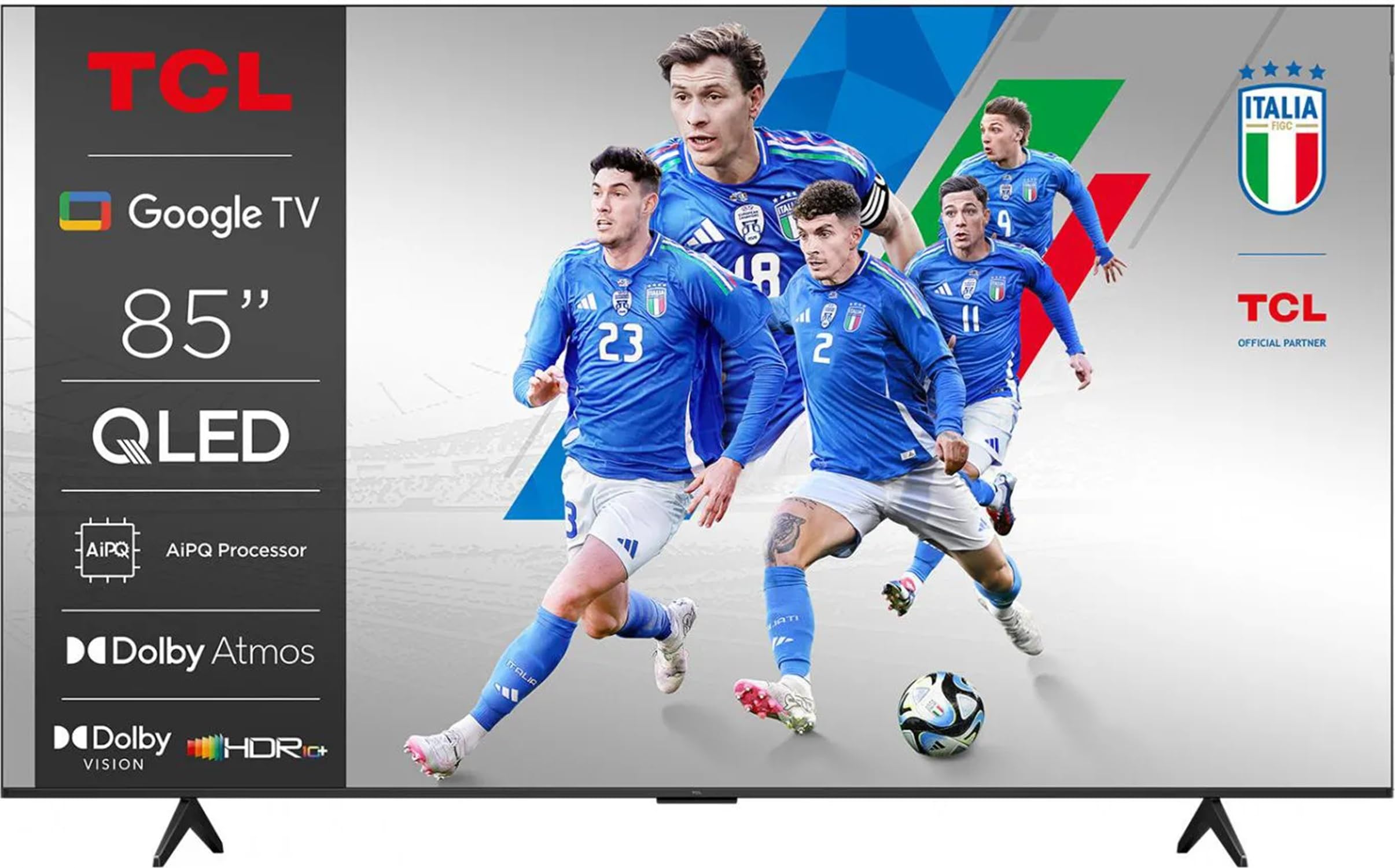
Figure 1: Front view of the TCL 85P79K 85-inch QLED 4K UHD Smart TV.
2. Key Features
- QLED 4K Ultra HD Television - 215 cm (85 inches)
- 3400 PPi - 450 nits brightness
- 120 Hz FHD Game Accelerator - Native 60 Hz Panel
- Quantum Dot Technology for enhanced color reproduction
- AiPQ Processor + AI Upscaling for optimized image quality
- Google TV operating system with Wi-Fi and Bluetooth connectivity
- 3 HDMI 2.1 Ports (supporting 4K 120 Hz) + 2 USB Ports
- 35 W Sound - 2.1 CH with Dolby Atmos and DTS Virtual:X
- Supports Dolby Vision, HDR10+, HDR10, and HLG HDR formats
- Optimal Gaming Experience with HDMI, ALLM, VRR, eARC, and FreeSync
3. Setup Instructions
3.1 Unpacking and Placement
- Carefully remove the TV from its packaging. It is recommended to have at least two people for this.
- Place the TV on a stable, flat surface or mount it on a wall using a compatible VESA mount (sold separately). Ensure adequate ventilation around the TV.
- Connect the power cable to the TV and then to a power outlet.
3.2 Initial Power On and Configuration
- Press the power button on the remote control or the TV itself.
- Follow the on-screen instructions to select your language, country, and time zone.
- Connect the TV to your Wi-Fi network by selecting your network and entering the password.
- Sign in with your Google account to access Google TV features, including the Google Play Store and Google Assistant.
- Perform a channel scan if you are connecting an antenna or cable.
3.3 Connecting External Devices
Use the available ports to connect your external devices:
- HDMI Ports (3x HDMI 2.1): For gaming consoles, Blu-ray players, soundbars, etc.
- USB Ports (2x): For USB drives, external hard drives, or other USB accessories.
- Ethernet Port: For a wired internet connection.
- Optical Audio Output: For connecting to an external audio system.
4. Operating Instructions
4.1 Remote Control Functions
Familiarize yourself with the remote control buttons for easy navigation:
- Power Button: Turns the TV on/off.
- Navigation Buttons (Up/Down/Left/Right): Navigate menus and select options.
- OK/Enter Button: Confirms selections.
- Back Button: Returns to the previous screen.
- Home Button: Accesses the Google TV home screen.
- Volume Up/Down: Adjusts the volume.
- Channel Up/Down: Changes channels.
- Google Assistant Button: Activates voice control.
- App Shortcut Buttons: Quick access to popular streaming services.
4.2 Google TV Interface
The Google TV interface organizes content from your apps and subscriptions, making it easy to find what to watch. Use the navigation buttons to browse recommendations, access your apps, and manage settings.
4.3 Voice Control with Google Assistant
Press the Google Assistant button on your remote and speak into the microphone to control your TV. You can ask to search for movies, open apps, change settings, or get information.
4.4 Gaming Features
This TV is optimized for gaming with HDMI 2.1 ports supporting VRR (Variable Refresh Rate), ALLM (Auto Low Latency Mode), eARC, and FreeSync. Connect your gaming console to an HDMI 2.1 port for the best gaming experience. The 120 Hz FHD Game Accelerator ensures smooth gameplay.
Video 1: TCL T8C QLED Gaming TV 144Hz 55-98 Inches. This video demonstrates the gaming capabilities and visual quality of TCL QLED TVs, highlighting features like 144Hz refresh rate and advanced image processing.
Video 2: TCL T6C 4K HDR Fire TV with Dolby Vision & Atmos 43-85". This video showcases the 4K HDR capabilities, Dolby Vision, and Dolby Atmos sound features of TCL TVs, providing an overview of the visual and audio experience.
5. Maintenance
5.1 Cleaning the Screen
- Turn off the TV and unplug it from the power outlet.
- Use a soft, lint-free cloth (microfiber is ideal) to gently wipe the screen.
- For stubborn marks, lightly dampen the cloth with water or a specialized screen cleaner (never spray directly onto the screen).
5.2 Cleaning the TV Body
- Use a soft, dry cloth to wipe dust from the TV frame and stand.
- Avoid using abrasive cleaners or solvents.
5.3 Software Updates
- Ensure your TV is connected to the internet.
- Navigate to the TV settings menu and look for 'System' or 'About' to check for software updates.
- Install any available updates to ensure optimal performance and access to the latest features.
6. Troubleshooting
6.1 No Power
- Check if the power cable is securely plugged into both the TV and the wall outlet.
- Ensure the power outlet is working by plugging in another device.
- Try pressing the power button on the TV itself, not just the remote.
6.2 No Picture, But Sound is Present
- Verify the correct input source is selected (e.g., HDMI 1, AV).
- Check the cable connections between the TV and the external device. Try a different HDMI cable if possible.
- Restart the connected device.
6.3 Poor Picture Quality
- Adjust picture settings (brightness, contrast, sharpness, color) in the TV menu.
- Ensure the content source is high quality (e.g., 4K content for 4K TV).
- Check antenna or cable connections for signal strength.
6.4 Remote Control Not Working
- Replace the batteries in the remote control.
- Ensure there are no obstructions between the remote and the TV's IR sensor.
- Try re-pairing the remote if it's a Bluetooth remote (refer to the on-screen guide for pairing instructions).
6.5 Network Connection Issues
- Restart your Wi-Fi router and modem.
- Check the Wi-Fi password entered in the TV settings.
- If using a wired connection, ensure the Ethernet cable is securely connected.
7. Specifications
- Brand:
- TCL
- Model Name:
- TCL 85P79K
- Manufacturer Reference:
- UB-TCCA18_TVQL-3LTZI
- ASIN:
- B0FR22LZV8
- Display Technology:
- QLED
- Resolution:
- 4K Ultra HD
- Refresh Rate:
- 60 Hz (Native), 120 Hz FHD Game Accelerator
- Color:
- Black
- Operating System:
- Google TV
- Connectivity Technology:
- Bluetooth, Wi-Fi
- Connectivity Ports:
- 3 HDMI 2.1, 2 USB
- Total USB Ports:
- 2
- Aspect Ratio:
- 16:9
- Supported Internet Services:
- Netflix, YouTube, Disney+, Amazon Prime Video, and other apps available on Google Play Store
- Compatible Devices:
- Laptop, Game Console, Smartphone, Tablet, Speaker
- Included Components:
- TV only
- Recommended Uses for Product:
- Video Games
- Date First Available on Amazon.fr:
- September 13, 2025
8. Warranty and Support
8.1 Manufacturer Warranty
This product comes with a standard manufacturer's warranty. Please refer to the warranty card included in the packaging or visit the official TCL website for detailed terms and conditions.
8.2 Spare Parts Availability
Information regarding the availability of spare parts is currently unavailable. Please contact TCL customer support for any inquiries.
8.3 Software Updates
Information regarding guaranteed software updates is not available. TCL regularly releases software updates to improve performance and add new features. Ensure your TV is connected to the internet to receive these updates.
8.4 Customer Support
For further assistance, technical support, or service requests, please visit the official TCL support website or contact their customer service hotline. You can find contact information on the TCL website or in your product documentation.


