
1. Introduction
This manual provides essential information for the proper use and care of your SAMSUNG Galaxy S24 Ultra (Model: SM-S928U). Please read this guide thoroughly before using your device to ensure optimal performance and longevity. This device is a carrier-unlocked smartphone, offering flexibility with various network providers.
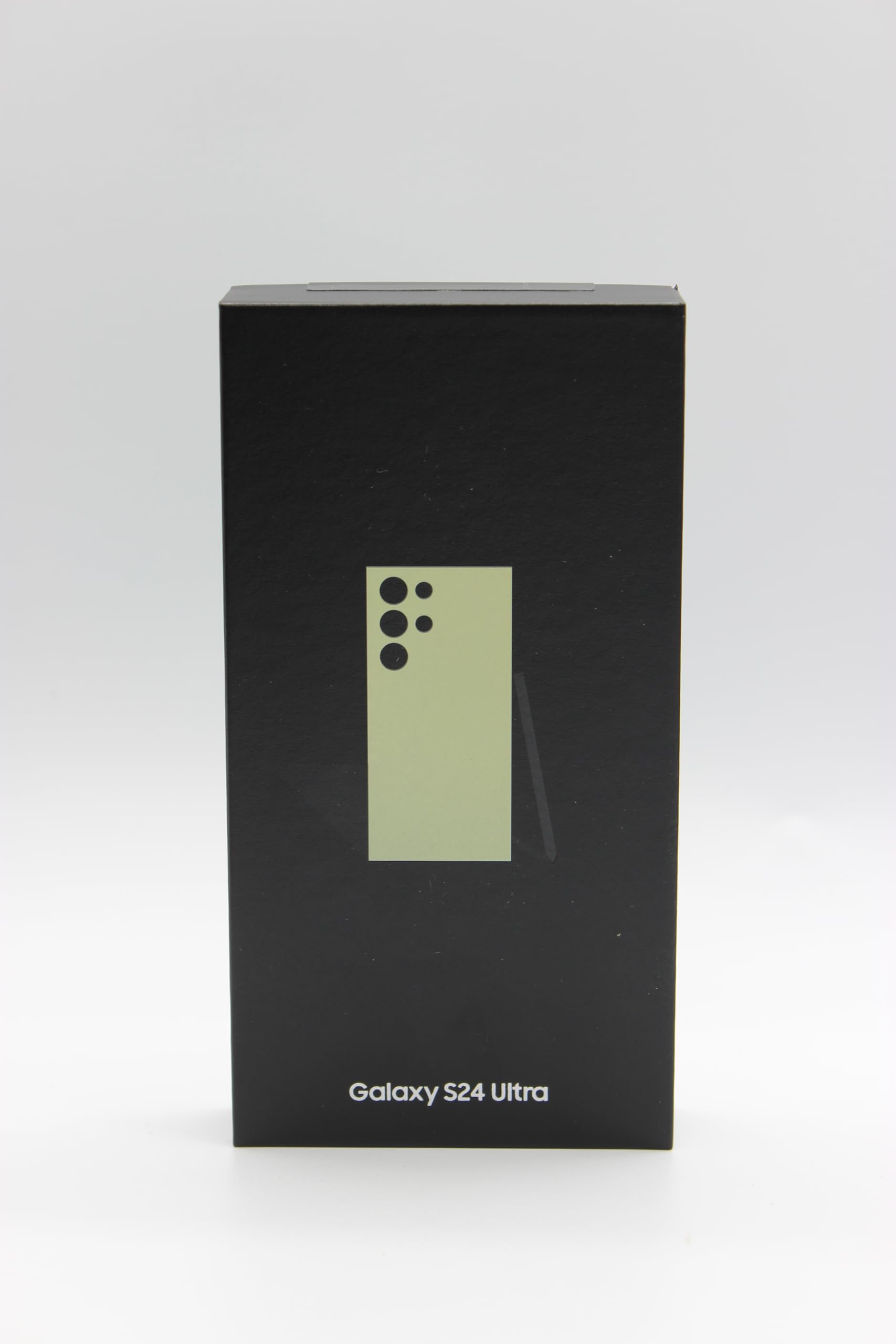
Image: Front view of the SAMSUNG Galaxy S24 Ultra smartphone, highlighting its large display and sleek design.
2. What's in the Box
Verify that all items are present in your product package:
- SAMSUNG Galaxy S24 Ultra (SM-S928U)
- USB Cable
- SIM Tray Ejector
- Quick Start Guide (may be separate)
3. Setup
- Insert SIM Card: Locate the SIM card tray on the side of your device. Use the provided SIM tray ejector tool to open the tray. Insert your Nano SIM card into the tray with the gold contacts facing down. Close the tray securely.
- Power On: Press and hold the Power/Side key until the Samsung logo appears.
- Initial Setup: Follow the on-screen prompts to select your language, connect to a Wi-Fi network, and sign in to your Google account. This process will guide you through essential settings.
- Data Transfer: If you are upgrading from another device, follow the instructions to transfer your data using Samsung Smart Switch or Google's data transfer tools.
4. Operating Instructions
4.1 Basic Navigation
- Touchscreen: Tap, swipe, pinch, and spread gestures are used to interact with the 6.8-inch AMOLED display.
- Home Screen: Access apps, widgets, and notifications.
- Navigation Bar/Gestures: Customize your navigation preference in Settings.
4.2 Calls and Messaging
- Making Calls: Open the Phone app, enter the number, and tap the call icon.
- Sending Messages: Open the Messages app, start a new conversation, enter the recipient and your message.
4.3 Camera Usage
Your Galaxy S24 Ultra features advanced camera capabilities, including a 12 MP front camera. Open the Camera app and select your desired mode (Photo, Video, Portrait, etc.). Tap the shutter button to capture images or start recording videos.
4.4 Connectivity
- Wi-Fi: Connect to wireless networks via Settings > Connections > Wi-Fi.
- Mobile Data (5G): Enable or disable mobile data via Quick Panel or Settings > Connections > Data usage.
- Bluetooth: Pair with other devices like headphones or speakers via Settings > Connections > Bluetooth.
4.5 Battery Management
The device is equipped with a 5000 mAh battery, providing approximately 50 hours of talk time. To optimize battery life, adjust screen brightness, close unused apps, and utilize power-saving modes available in Settings > Battery and device care.
4.6 Software
Your device runs on Android 14, offering a range of features and customization options. Regularly check for software updates to ensure your device has the latest security patches and features.
5. Maintenance
- Cleaning: Use a soft, lint-free cloth to clean the screen and body of the device. Avoid harsh chemicals or abrasive materials.
- Software Updates: Keep your device's software up to date. Go to Settings > Software update to check for and install available updates.
- Battery Care: Avoid extreme temperatures. Do not fully discharge the battery frequently. Use only Samsung-approved chargers and cables.
- Water Resistance: Note: This device is not water resistant. Avoid exposure to liquids to prevent damage.
- Storage Management: Regularly clear unnecessary files and apps to maintain optimal performance.
6. Troubleshooting
- Device Not Turning On: Ensure the battery is charged. Connect the device to a charger for at least 10 minutes, then try powering it on again.
- Frozen Screen/Unresponsive: Press and hold the Power/Side key and Volume Down key simultaneously for about 7-10 seconds to force restart the device.
- Network Issues: Check if your SIM card is properly inserted. Try restarting the device. Verify your mobile data settings or contact your carrier.
- Apps Crashing: Clear the cache and data for the problematic app (Settings > Apps > [App Name] > Storage). If the issue persists, uninstall and reinstall the app.
- Slow Performance: Close background apps, clear device cache (Settings > Battery and device care > Storage > Clean now), and ensure sufficient storage space.
- Factory Reset: As a last resort, if issues persist, you may need to perform a factory reset. Warning: This will erase all data on your device. Back up important data before proceeding. Go to Settings > General management > Reset > Factory data reset.
7. Specifications
| Brand | Samsung |
| Model Name | Galaxy S24 Ultra (SM-S928U) |
| Operating System | Android 14 |
| RAM Memory | 12 GB |
| Storage Capacity | 512 GB |
| Screen Size | 6.8 Inches |
| Resolution | 3120 x 1440 |
| Refresh Rate | 120 Hz |
| Wireless Carrier | Unlocked for All Carriers |
| Cellular Technology | 5G |
| Color | Yellow |
| SIM Card Type | Nano SIM (Single SIM) |
| Connector Type | Micro USB |
| Water Resistance Level | Not Water Resistant |
| Battery Power | 5000 mAh |
| Average Battery Life (Talk Time) | 50 Hours |
| Front Photo Sensor Resolution | 12 MP |
| UPC | 610214680358 |
8. Warranty and Support
Your SAMSUNG Galaxy S24 Ultra (SM-S928U) comes with a limited manufacturer's warranty. For specific details regarding warranty coverage, terms, and conditions, please refer to the warranty card included in your product packaging or visit the official Samsung support website.
For technical support, service, or additional information, please visit the official Samsung support website or contact Samsung customer service directly. Have your device's model number (SM-S928U) and serial number ready when seeking support.
Manufacturer: SAMSUNG


