Introduction
This manual provides detailed instructions for the ORACLE Red Bull RACING RB-EB190 Bluetooth In-Ear Headphones. These headphones combine a sporty design with clear sound quality, featuring 13 mm drivers and Environmental Noise Cancelling (ENC) technology. They are designed for music listening, phone calls, and mobile entertainment, offering a stable wireless connection and a compact charging case.
Package Contents
- RB-EB190 Bluetooth In-Ear Headphones (Left and Right earbuds)
- Charging Case
- USB-C Charging Cable
- User Manual
Product Overview
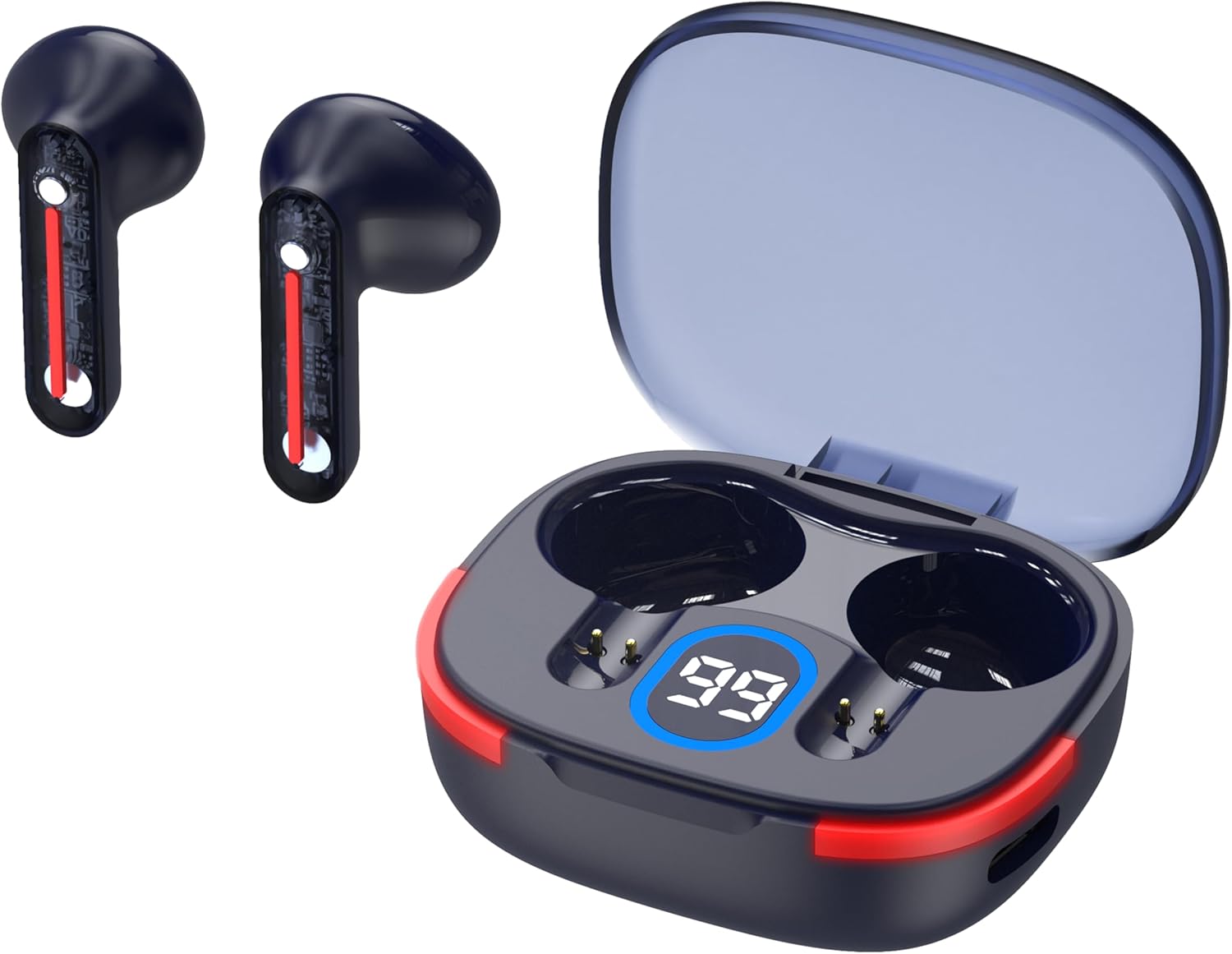
Image: The RB-EB190 earbuds shown with their charging case. The earbuds feature a sleek design with red accents, and the charging case displays a digital battery percentage.
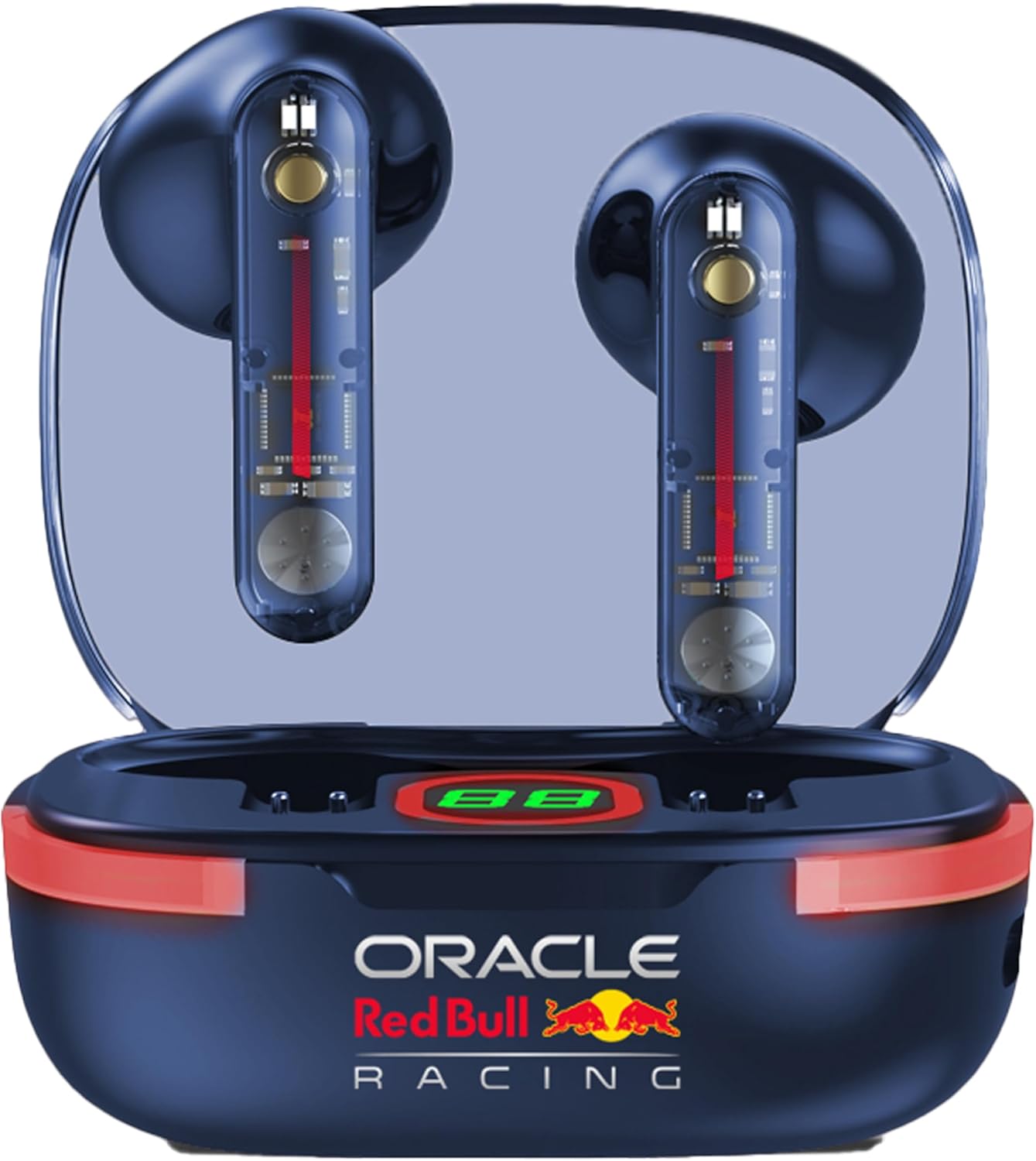
Image: The RB-EB190 earbuds placed inside the open charging case, highlighting the internal design and the Red Bull Racing branding on the case.

Image: The RB-EB190 charging case in a closed position, showcasing the compact form factor and the Red Bull Racing logo.
Setup
1. Charging the Earbuds and Case
- Place the earbuds into the charging case. Ensure they are correctly seated in their respective slots.
- Connect the provided USB-C charging cable to the charging port on the case and the other end to a compatible USB power source (e.g., wall adapter, computer USB port).
- The digital display on the charging case will indicate the charging status. A full charge for the earbuds takes approximately 1 hour, and the case takes about 1.5 hours.
- Once fully charged, disconnect the charging cable.
2. Bluetooth Pairing
- Ensure the earbuds are charged.
- Open the charging case. The earbuds will automatically enter pairing mode, indicated by a flashing LED light on the earbuds.
- On your device (smartphone, tablet, laptop), enable Bluetooth.
- Search for available Bluetooth devices. Select "RB-EB190" from the list.
- Once connected, the LED indicator on the earbuds will stop flashing, and your device will confirm the connection.
- The earbuds will automatically reconnect to the last paired device when removed from the case, if Bluetooth is enabled on the device.
Operating Instructions
Touch Controls
The RB-EB190 earbuds feature touch-sensitive controls for various functions:
- Play/Pause: Single tap on either earbud.
- Next Track: Double tap on the right earbud.
- Previous Track: Double tap on the left earbud.
- Answer/End Call: Single tap on either earbud.
- Reject Call: Press and hold either earbud for 2 seconds.
- Activate Voice Assistant: Triple tap on either earbud.
- Toggle ENC/Transparency Mode: Press and hold the right earbud for 2 seconds (if applicable).
Audio Playback
The 13 mm drivers deliver a frequency range of 20 Hz - 20 kHz, providing clear treble and powerful bass. Adjust volume directly from your connected device.
Phone Calls
With the integrated microphone, the RB-EB190 allows for clear conversations. Use the touch controls to manage calls as described above.
Environmental Noise Cancelling (ENC)
The ENC feature reduces ambient noise by 25-30 dB, allowing for a more focused listening experience during music playback or calls. This feature is automatically active or can be toggled via touch control if supported by the specific earbud firmware.
Maintenance
- Cleaning: Use a soft, dry, lint-free cloth to clean the earbuds and charging case. Do not use abrasive cleaners or solvents.
- Water Resistance: The RB-EB190 earbuds are not water resistant. Avoid exposure to water, moisture, rain, or sweat to prevent damage.
- Storage: Store the earbuds in their charging case when not in use to protect them and keep them charged. Store in a cool, dry place away from extreme temperatures.
- Battery Care: To prolong battery life, avoid fully discharging the earbuds and charging case frequently. Charge them regularly, even if not used for extended periods.
Troubleshooting
| Problem | Possible Cause | Solution |
|---|---|---|
| Earbuds not pairing | Earbuds not in pairing mode; Bluetooth off on device; already connected to another device. | Ensure earbuds are in pairing mode (open case). Turn Bluetooth on/off on your device. Forget/remove "RB-EB190" from your device's Bluetooth list and re-pair. |
| No sound from one or both earbuds | Low battery; earbuds not properly connected; volume too low. | Charge earbuds and case. Reconnect Bluetooth. Increase volume on your device. Try resetting the earbuds (refer to manufacturer's website for specific reset instructions if needed). |
| Charging case not charging | Faulty cable or power source; dirty charging port. | Try a different USB-C cable and power adapter. Ensure the charging port is clean and free of debris. |
| Poor call quality | Weak Bluetooth connection; microphone obstructed; environmental noise. | Move closer to your connected device. Ensure the microphone area on the earbuds is clear. ENC helps reduce ambient noise, but extreme noise may still affect clarity. |
Specifications
| Feature | Detail |
|---|---|
| Model | RB-EB190 |
| Brand | ORACLE Red Bull RACING |
| Connectivity Technology | Wireless (Bluetooth) |
| Driver Size | 13 mm |
| Noise Control | Environmental Noise Cancellation (ENC) |
| Noise Cancellation Level | 25-30 dB |
| Battery Life (Earbuds) | 3-4 hours per charge |
| Charging Case Battery | 200 mAh (provides multiple charging cycles) |
| Charging Time (Earbuds) | Approx. 1 hour |
| Charging Time (Case) | Approx. 1.5 hours |
| Charging Port | USB-C |
| Bluetooth Range | Up to 10 meters |
| Control Method | Touch |
| Microphone | Included |
| Water Resistance Level | Not Water Resistant |
| Material | Plastic |
| Item Weight | 50 Grams |
| Compatible Devices | Telephones, Tablets, Laptops, Desktops, Smart Speakers, Car Audio Systems, Gaming Consoles, Television, Cellphones |
Warranty and Support
For warranty information and customer support, please refer to the official ORACLE Red Bull RACING website or contact your retailer. Keep your proof of purchase for any warranty claims.