
1. Introduction
This manual provides essential information for setting up, operating, and maintaining your CHROX HK1RBOX X50 Android TV Box. Please read it carefully to ensure proper use and to maximize your device's performance.
2. Package Contents
Verify that all items are present in the package:
- 1 x HK1RBOX X50 Android TV Box
- 1 x Remote Control
- 1 x HDMI Cable
- 1 x Power Adapter (DC 5V/2A)
- 1 x Mini Wireless Keyboard
- 1 x User Manual (this document)

Image: The HK1RBOX X50 Android TV Box, its remote control, and the included mini wireless keyboard.
3. Safety Information
Please handle the device with care to avoid drops and impacts. Ensure the product is securely assembled before use. Refer to the warning label for multilingual safety instructions.

Image: A warning label providing instructions on careful handling and secure assembly in various languages.
4. Specifications
The CHROX HK1RBOX X50 Android TV Box features advanced hardware for a smooth media experience.
4.1 Hardware Configuration
- Operating System: Android 14.0
- CPU: Amlogic S905A/X5M 64-bit Quad-core A55 CPU
- GPU: G31 MP2 Processor
- SDRAM: 4GB
- Flash Storage: 64GB (expandable via external HDD, SD card, TF card)
- Wi-Fi: 2.4G & 5G Dual-band Wi-Fi 6
- Bluetooth: BT 5.0
- Ethernet: Standard 10/100/1000M RJ-45
- HDMI: HDMI 2.0, supports 8Kx4K@60fps maximum resolution output
- SPDIF: Digital audio interface
- USB Host: 1 x USB 2.0, 1 x USB 3.0

Image: An illustration highlighting the Amlogic S905A processor, detailing its Quad-core Cortex-A55 CPU and ARM Mali-G31 GPU, indicating strong performance.
4.2 Video & Audio Capabilities
- 2D Graphics: Hardware 2D graphics acceleration
- Video Decoder:
- H.265 HEVC/MVC Main10 Profile YUV420@L5.1 up to 4096x2304@60fps
- H.264 AVC/MVC Main10 Profile YUV400/YUV420/YUV422/@L5.1 up to 4096x2304@60fps
- VP9 Profile0/2 YUV420@L5.1 up to 4096x2304@60fps
- VP8 Version2
- AV1 (saves 20%-30% bandwidth efficiency compared to H.265 or VP9)
- Video Coder:
- H.264/AVC BP/MP/HP@level4.2, up to 1920x1080@100fps
- H.265/HEVC MP@level4.1, up to 1920x1080@100fps (4096x4096@10fps with mosaic)
- Supports YUV/RGB video source with rotation and mirror
- JPEG Decoder: Supports YUV400/YUV411/YUV420/YUV422/YUV440/YUV444, 1920x1080@120fps, MJPEG

Image: A visual comparison demonstrating the enhanced clarity and detail of 4K Ultra HD video experience compared to 1080p Full HD.

Image: An illustration showing that AV1 decoding provides 20%-30% more bandwidth efficiency compared to H.265 or VP9, resulting in more videos for less time.
5. Setup Guide
5.1 Connecting the TV Box
- Connect to TV: Use the provided HDMI cable to connect the HDMI port on the TV Box to an HDMI input port on your television.
- Connect Power: Plug the power adapter into the DC 5V/2A port on the TV Box, then plug the adapter into a wall outlet. The device should power on automatically or can be turned on using the remote control.
5.2 Network Connection
- Wi-Fi Connection: Once powered on, navigate to the 'Settings' menu on the TV Box. Select 'Network' or 'Wi-Fi', choose your desired Wi-Fi network, and enter the password. The device supports 2.4GHz and 5GHz dual-band Wi-Fi 6.
- Ethernet Connection: For a stable wired connection, connect an Ethernet cable from your router to the RJ-45 Ethernet port on the TV Box. The device supports 10/100/1000M speeds.
5.3 Connecting Peripherals
- USB Devices: Connect USB storage devices (e.g., flash drives, external hard drives) or other USB peripherals (e.g., mouse, keyboard) to the USB 2.0 or USB 3.0 ports.
- Micro SD Card: Insert a Micro SD card into the designated slot for additional storage.
- Mini Wireless Keyboard: The included mini wireless keyboard connects via a USB dongle. Insert the dongle into one of the USB ports on the TV Box.
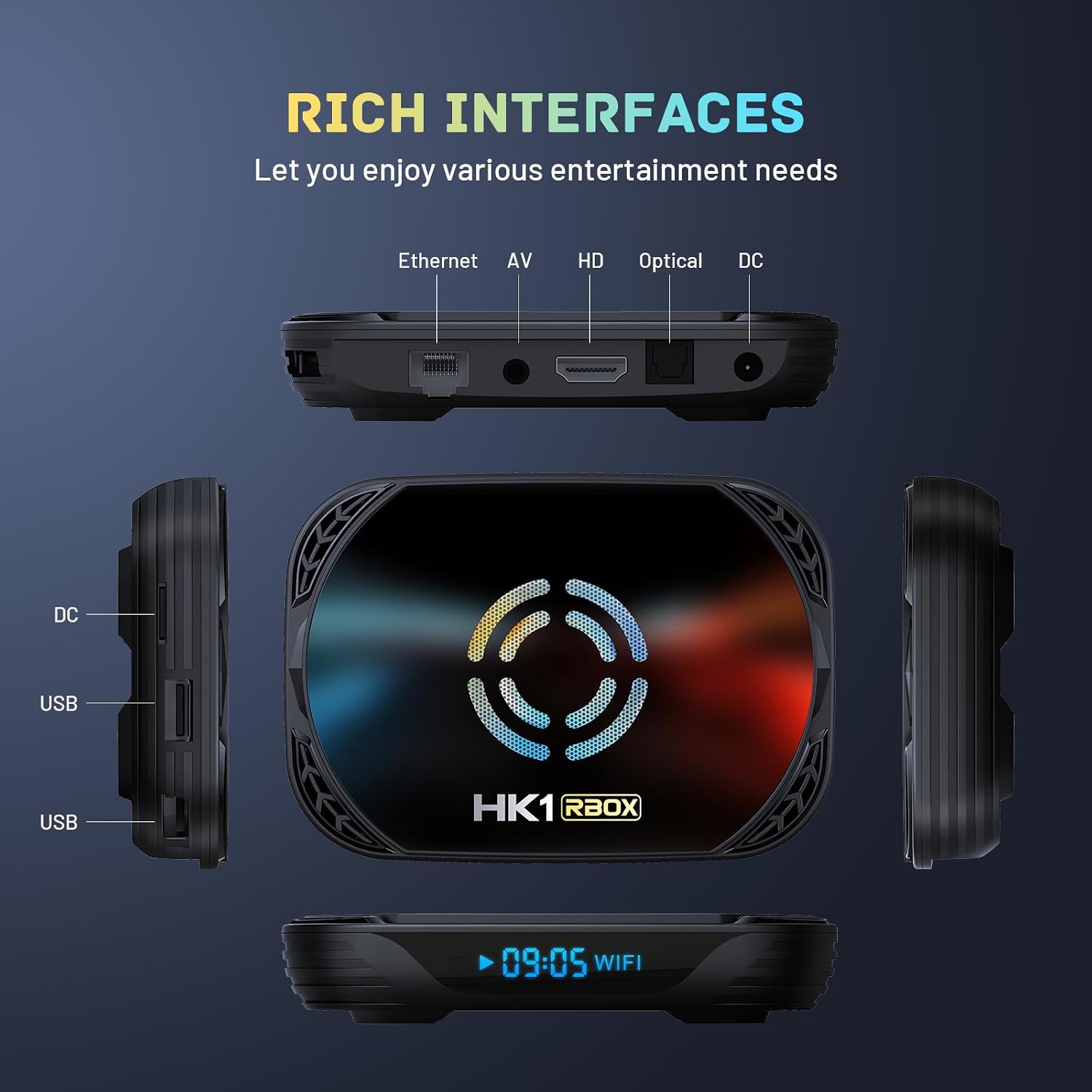
Image: A detailed view of the HK1RBOX X50 Android TV Box's interfaces, including Ethernet, AV, HD (HDMI), Optical, DC power input, and USB ports.
6. Operating Instructions
6.1 Navigating the Interface
The Android 14.0 operating system provides a user-friendly interface. Use the remote control or the mini wireless keyboard to navigate through menus, launch applications, and control media playback.
6.2 Media Playback and Streaming
- The TV Box supports Ultra HD 8K resolution with H.265 decoding technology, enhancing image quality with rich colors and deep details.
- Enjoy 3D content and various video formats.
- Access streaming applications through the Android interface.
6.3 Wireless Casting and Screen Mirroring
The built-in screen casting feature allows you to stream videos, photos, and applications directly from your smartphone, tablet, or laptop to your TV screen. Ensure your mobile device and the TV Box are connected to the same Wi-Fi network.

Image: A living room scene depicting a smartphone, tablet, and laptop wirelessly casting content to a large TV screen through the Android TV Box.
6.4 Multi-Scene Applications
The HK1RBOX X50 is suitable for various entertainment and utility scenarios:
- Home Theater: Stream movies and TV shows in high resolution.
- Screen Mirroring: Share content from your mobile devices.
- Gaming: Play compatible Android games.
- Music: Listen to music through connected audio systems.

Image: A collage illustrating the diverse applications of the TV Box, including use as a home theater, for screen mirroring, playing games, and listening to music.
7. Maintenance
- Software Updates: The device supports OTA (Over-The-Air) updates, which automatically download and install update packages via the network. Ensure your device is connected to the internet for timely updates.
- Cleaning: Use a soft, dry cloth to clean the exterior of the TV Box. Avoid using liquid cleaners or abrasive materials.
- Ventilation: Ensure the TV Box is placed in a well-ventilated area to prevent overheating. Do not block ventilation openings.
8. Troubleshooting
- No Power:
- Check if the power adapter is securely connected to the TV Box and the wall outlet.
- Ensure the power outlet is functional.
- No Signal on TV:
- Verify the HDMI cable is correctly connected to both the TV Box and the TV.
- Ensure your TV input source is set to the correct HDMI port.
- Try a different HDMI cable or TV port.
- Wi-Fi Connection Issues:
- Check if your Wi-Fi router is working correctly.
- Ensure you have entered the correct Wi-Fi password.
- Restart the TV Box and your Wi-Fi router.
- Remote Control Not Responding:
- Check and replace the batteries in the remote control.
- Ensure there are no obstructions between the remote and the TV Box.
- System Lag or Freezing:
- Close unnecessary background applications.
- Clear cache from applications in the 'Settings' menu.
- Restart the TV Box.
9. Warranty and Support
Your CHROX HK1RBOX X50 Android TV Box comes with a standard warranty. For any questions or issues, please contact the seller, MYYGZQ. Their professional after-sales team is committed to resolving your concerns within 24 hours.
For support, please refer to the contact information provided with your purchase or on the seller's Amazon page.