
1. Introduction
Thank you for choosing the ZZA UltraWide 34 Inch Curved Gaming Monitor, Model Z34B. This monitor is designed to provide an immersive visual experience with its 1500R curvature, WQHD resolution, and high refresh rate. This manual provides essential information for setting up, operating, maintaining, and troubleshooting your new monitor. Please read it thoroughly before use to ensure optimal performance and safety.
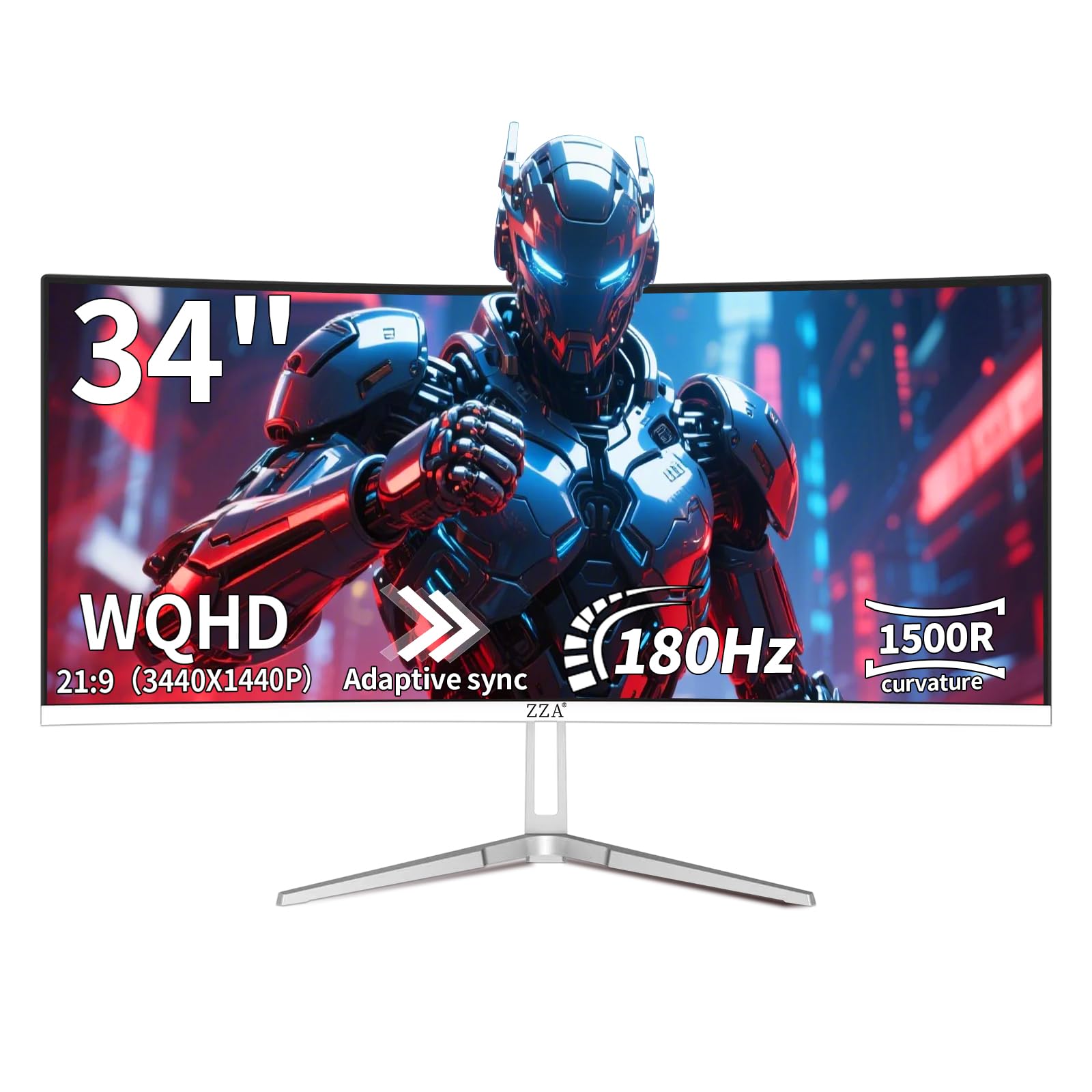
Image 1.1: ZZA UltraWide 34 Inch Curved Gaming Monitor (Model Z34B).
2. Safety Information
- Do not expose the monitor to rain or moisture to prevent fire or electric shock.
- Do not open the monitor casing. There are no user-serviceable parts inside. Refer all servicing to qualified personnel.
- Place the monitor on a stable, flat surface to prevent it from falling.
- Ensure proper ventilation around the monitor. Do not block ventilation openings.
- Use only the power adapter and cables provided by the manufacturer.
- Unplug the monitor from the power outlet during lightning storms or when unused for long periods.
- Avoid placing heavy objects on the power cord.
3. Package Contents
Verify that all items are present in the package:
- ZZA UltraWide 34 Inch Curved Gaming Monitor (Model Z34B)
- Monitor Stand (Base and Neck)
- Power Adapter
- Power Cable
- DisplayPort (DP) Cable
- Screws for Stand Assembly
- User Manual (this document)
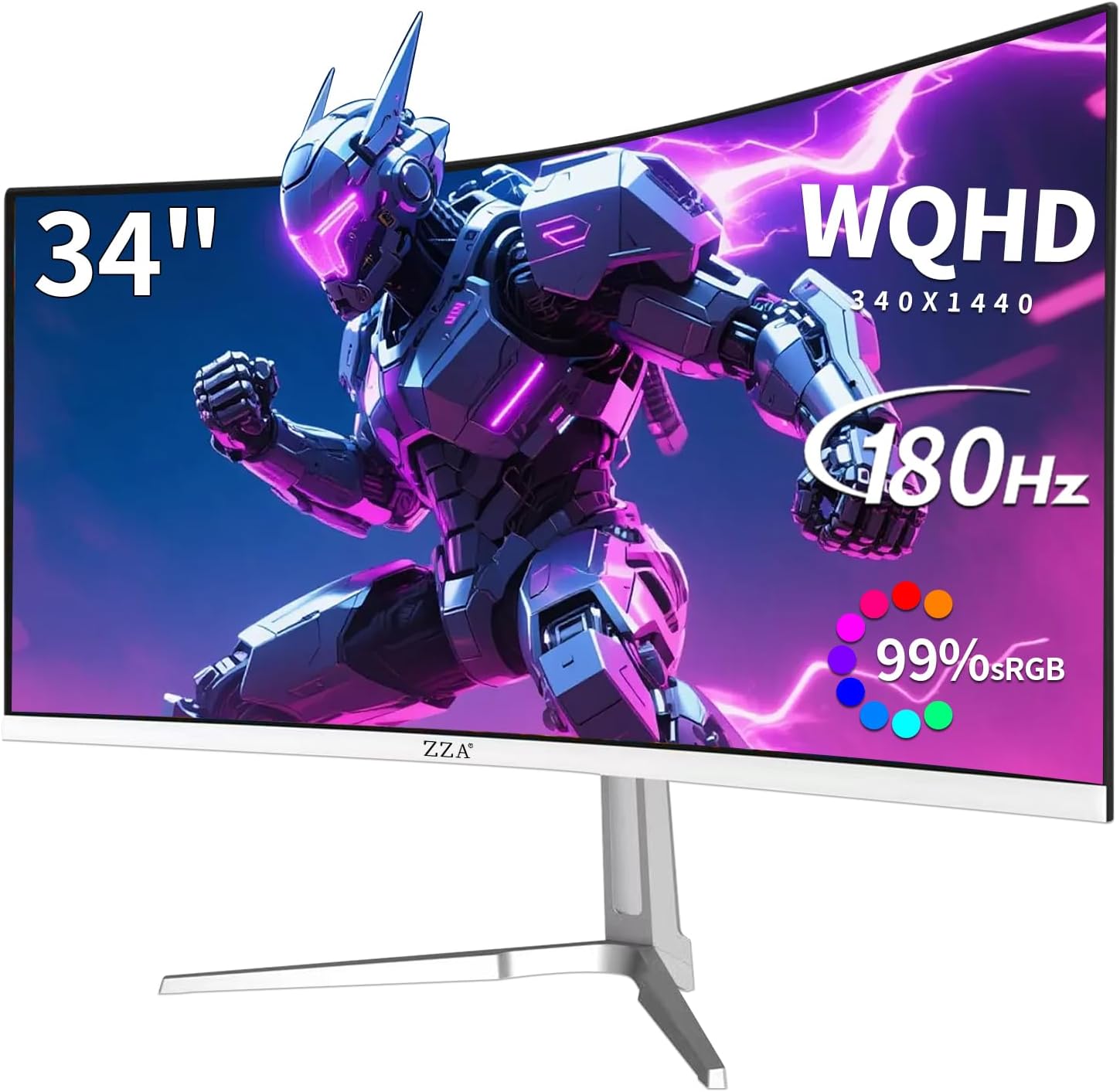
Image 3.1: Overview of the ZZA 34 Inch Ultrawide Gaming Monitor and its key features.
4. Setup
4.1 Monitor Assembly
Follow these steps to assemble the monitor stand and attach it to the monitor:
- Carefully remove the monitor and all components from the packaging. Place the monitor face down on a soft, clean surface to prevent scratches.
- Attach the stand neck to the stand base using the provided screw. Tighten securely.
- Align the assembled stand with the mounting area on the back of the monitor. Insert the stand into the slot until it clicks into place. Ensure it is firmly attached.
- Alternatively, the monitor supports VESA 100x100mm mounting for compatible wall mounts or monitor arms (not included).
Video 4.1: Unboxing and assembly guide for the ZZA 34 inch gaming monitor. This video demonstrates how to unpack the monitor and assemble its stand components.

Image 4.2: The ZZA monitor demonstrating VESA compatibility for alternative mounting solutions.
4.2 Connecting to a Computer
Connect the monitor to your computer using the appropriate cables:
- Power Connection: Connect the power adapter to the monitor's DC IN 12V port, then plug the power cable into a wall outlet.
- Video Connection:
- For optimal performance (up to 180Hz refresh rate), use the provided DisplayPort (DP) cable to connect the monitor to your computer's graphics card.
- Alternatively, you can use an HDMI cable (up to 100Hz refresh rate) to connect to your computer.
- Audio Output: If desired, connect external speakers or headphones to the Audio Out port on the monitor.

Image 4.3: Rear view of the monitor highlighting the available input and output ports.
After connecting, power on your computer and the monitor. The monitor should automatically detect the input signal. If not, you may need to manually select the input source using the On-Screen Display (OSD) menu.
5. Operating Instructions
5.1 Power On/Off
Press the power button, usually located on the back or bottom of the monitor, to turn it on or off. A power indicator light will typically illuminate when the monitor is on.
5.2 On-Screen Display (OSD) Menu
The OSD menu allows you to adjust various monitor settings. Access the OSD menu by pressing the OSD button (refer to your monitor's physical buttons for exact location). Use the navigation buttons to browse through options and make adjustments.
Common OSD settings include:
- Brightness/Contrast: Adjust the overall luminance and contrast of the display.
- Color Settings: Fine-tune color temperature, gamma, and individual RGB levels.
- Input Source: Manually select between HDMI and DisplayPort inputs.
- Picture Mode: Select preset display modes optimized for different content (e.g., Standard, Game, Movie, Text).
- Gaming Features: Enable/disable FreeSync Premium, adjust response time settings.
- Low Blue Light Mode: Reduce blue light emission to minimize eye strain during prolonged use.
5.3 Key Features and Performance
- Immersive Curved Display: The 34-inch 1500R curved screen with a 21:9 aspect ratio provides a panoramic and immersive viewing experience, reducing eye movement across the screen.
- WQHD Resolution: Enjoy sharp and detailed visuals with a WQHD (3440x1440) resolution.
- High Refresh Rate: A 180Hz refresh rate ensures smooth motion and reduced input lag, especially beneficial for fast-paced gaming.
- Fast Response Time: Experience crisp images without ghosting thanks to the rapid response time.
- AMD FreeSync Premium: Synchronizes the monitor's refresh rate with your GPU's frame rate to eliminate screen tearing and stuttering, providing a fluid gaming experience.
- Vibrant Color Reproduction: With 99% sRGB wide color gamut, HDR10 support, 300 cd/m² brightness, and a 4000:1 contrast ratio, the monitor delivers accurate and vivid colors.
- Eye Care Technology: Features like low blue light mode and flicker-free technology help reduce eye fatigue during extended use.

Image 5.1: Visual demonstration of AMD FreeSync technology reducing screen tearing and stuttering.
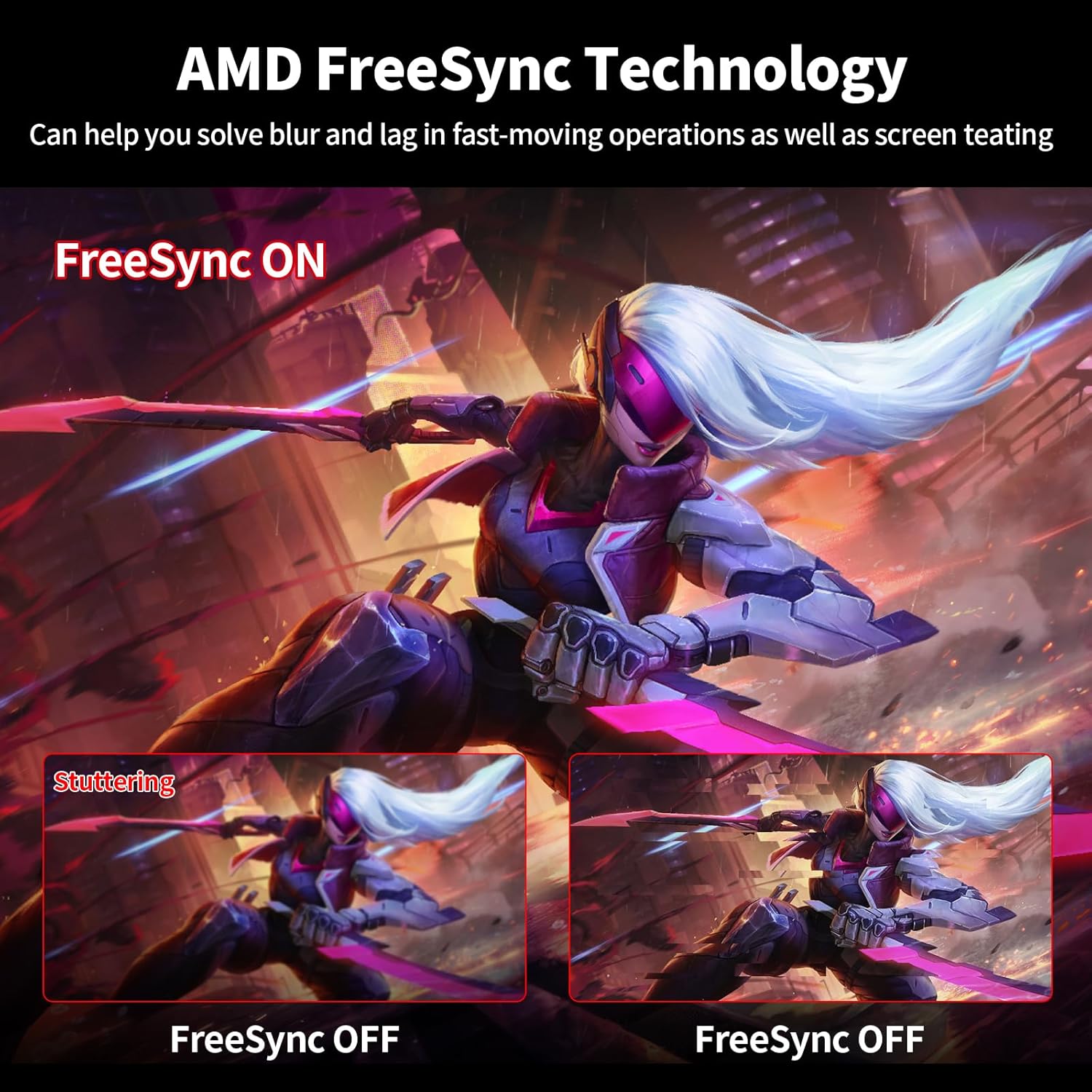
Image 5.2: Highlighting the 180Hz refresh rate and 1ms response time for competitive gaming.

Image 5.3: Illustrating the expansive 21:9 panoramic view compared to a standard 16:9 display.

Image 5.4: Demonstrating the professional image quality with high contrast, color depth, and luminance.
6. Maintenance
To ensure the longevity and optimal performance of your ZZA monitor, follow these maintenance guidelines:
- Cleaning the Screen: Gently wipe the screen with a soft, lint-free cloth. For stubborn marks, lightly dampen the cloth with water or a specialized screen cleaner. Never spray cleaner directly onto the screen.
- Cleaning the Casing: Use a soft, dry cloth to wipe the monitor casing. Avoid using abrasive cleaners or solvents.
- Ventilation: Ensure the ventilation openings on the monitor are clear of dust and obstructions to prevent overheating.
- Power Off: Always turn off and unplug the monitor before cleaning or when it will not be used for an extended period.
7. Troubleshooting
If you encounter issues with your monitor, refer to the following common problems and solutions:
| Problem | Possible Cause | Solution |
|---|---|---|
| No image on screen | Power cable disconnected, video cable disconnected, incorrect input source. | Check power and video cable connections. Select the correct input source via the OSD menu. Ensure the computer is on. |
| Image flickering or unstable | Loose video cable, incorrect refresh rate, FreeSync issue. | Ensure video cable is securely connected. Check display settings on your computer for correct refresh rate (180Hz for DP). Try disabling/enabling FreeSync in the OSD menu or graphics card settings. |
| Colors appear incorrect | Color settings misconfigured, faulty cable. | Reset color settings to default in the OSD menu. Try a different video cable. |
| Monitor not reaching 180Hz | Using HDMI instead of DP, graphics card limitation, incorrect display settings. | Ensure you are using a DisplayPort cable. Verify your graphics card supports 180Hz at WQHD resolution. Adjust refresh rate in your computer's display settings. |
| No audio from monitor | No external speakers/headphones connected, audio settings. | The monitor does not have built-in speakers. Connect external speakers or headphones to the Audio Out port. Check audio output settings on your computer. |
If the problem persists after trying these solutions, please contact ZZA customer support for further assistance.
8. Specifications
| Feature | Specification |
|---|---|
| Model Number | Z34B |
| Screen Size | 34 Inches |
| Panel Type | VA Panel |
| Curvature | 1500R |
| Resolution | WQHD (3440 x 1440 Pixels) |
| Aspect Ratio | 21:9 |
| Refresh Rate | 180Hz (via DisplayPort), 100Hz (via HDMI) |
| Response Time | 1ms (GTG) |
| Brightness | 300 cd/m² |
| Contrast Ratio | 4000:1 |
| Color Gamut | 99% sRGB |
| Viewing Angle | 178° (Horizontal/Vertical) |
| HDR Support | HDR10 |
| Adaptive Sync | AMD FreeSync Premium |
| Connectivity | 2x HDMI, 2x DisplayPort, 1x Audio Out, 1x DC IN 12V |
| VESA Compatibility | 100x100mm |
| Product Dimensions | 23 x 15.2 x 4.3 inches (without stand) |
| Item Weight | 13.97 pounds (without stand) |
| Manufacturer | Jetta (Shenzhen) E-commerce Co.., Ltd. |
9. Warranty and Support
ZZA monitors come with a manufacturer's warranty. For specific warranty details, please refer to the warranty card included in your product packaging or visit the official ZZA website. If you encounter any issues during use, our dedicated after-sales service team is available to provide support. Whether it's troubleshooting, warranty inquiries, or parts replacement, please feel free to reach out to us. We are committed to ensuring your monitor operates like new, providing you with peace of mind.
For support, please contact ZZA-Direct through the retailer's platform or the contact information provided in your product documentation.