
MYSTILUCK MYSTILUCK Wireless Controller
MYSTILUCK Wireless Controller User Manual
For PS5, PC, Mac, iOS, Android, and Steam Deck
1. Introduction
This manual provides detailed instructions for the MYSTILUCK Wireless Controller. It is designed for use with multiple platforms, including PlayStation 5, PC (Windows 10 and above), Mac, iOS (10 and above), Android (10 and above), and Steam Deck. Please read this manual carefully before using the controller to ensure proper operation and to maximize your gaming experience.
2. Package Contents
Verify that all items are present in your package:
- MYSTILUCK Wireless Controller
- USB Charging Cable
- User Manual
3. Controller Layout
Familiarize yourself with the buttons and features of your MYSTILUCK Wireless Controller.

Image 3.1: Front view of the MYSTILUCK Wireless Controller, showcasing its ergonomic design, joysticks, action buttons, D-pad, touchpad, and vibrant RGB lighting along the edges and around the joysticks.
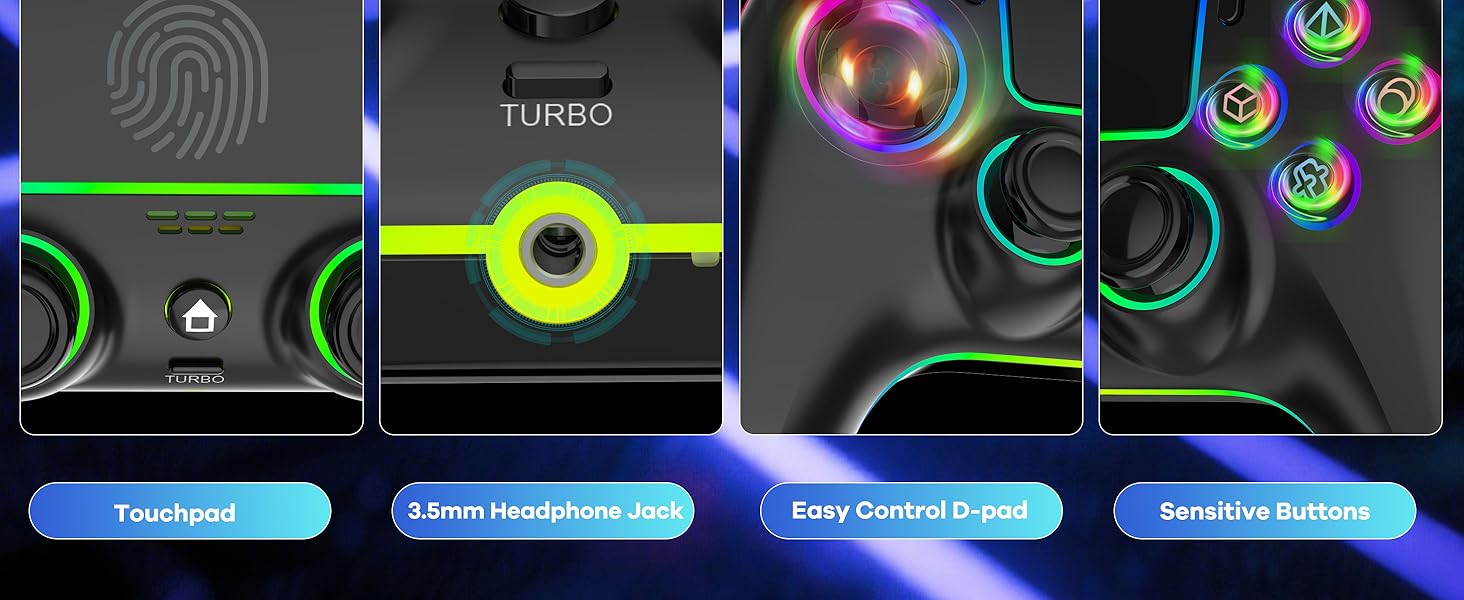
Image 3.2: Detailed view highlighting the multi-functional touchpad, the 3.5mm headphone jack for audio connectivity, the responsive D-pad, and the sensitive action buttons.
- Action Buttons: Triangle, Circle, Cross, Square.
- Directional Pad (D-pad): Up, Down, Left, Right.
- Left/Right Analog Sticks: For precise movement and camera control.
- L1/R1 Buttons: Shoulder buttons.
- L2/R2 Triggers: Adaptive triggers with pressure sensitivity.
- Touchpad: Multi-functional surface for gestures and navigation.
- HOME Button: Access system menus.
- SHARE Button: Share gameplay content.
- OPTIONS Button: Access in-game menus.
- TURBO Button: Activates Turbo function.
- M1/M2 Buttons: Programmable back paddles.
- 3.5mm Headset Jack: For wired audio connection.
- USB-C Port: For charging and wired connection.
4. Setup and Connection
The MYSTILUCK Wireless Controller supports multiple connection modes. Ensure the controller is sufficiently charged before initial setup.

Image 4.1: Visual representation of the controller's compatibility with various platforms, including Android devices, PlayStation 5 consoles, iOS devices, personal computers, and Steam Deck.
4.1 Initial Pairing Reminder
When connecting to a host device for the first time, do not touch the joysticks on the controller. They are automatically calibrated during the pairing process. Calibration will complete once pairing is successful.
4.2 Connecting to PlayStation 5
- Ensure your PS5 console is powered on.
- Press and hold the HOME button on the controller until the light bar flashes.
- On your PS5, navigate to Settings > Accessories > Bluetooth Accessories.
- Select the MYSTILUCK Wireless Controller from the list of found devices to complete pairing.
4.3 Connecting to PC (Windows 10 and above) / Mac
- Wireless Connection:
- On your PC/Mac, enable Bluetooth.
- Press and hold the HOME button on the controller until the light bar flashes.
- Go to Bluetooth settings on your PC/Mac and select the MYSTILUCK Wireless Controller to pair.
- Wired Connection:
- Connect the controller to your PC/Mac using the provided USB charging cable. The controller will be recognized automatically.
4.4 Connecting to iOS / Android (10 and above)
- Ensure Bluetooth is enabled on your iOS/Android device.
- Press and hold the HOME button on the controller until the light bar flashes.
- In your device's Bluetooth settings, select the MYSTILUCK Wireless Controller to pair.
4.5 Connecting to Steam Deck
- On your Steam Deck, go to Settings > Bluetooth.
- Press and hold the HOME button on the controller until the light bar flashes.
- Select the MYSTILUCK Wireless Controller from the list of available devices to pair.
5. Operating Instructions
5.1 RGB Lighting
The controller features 7 colors of RGB lighting (Red, Orange, Yellow, Green, Cyan, Blue, Violet) and 4 light modes (Dazzle, Monochrome, Monochrome Breathe, Monochrome Breathe Cycle). Refer to the controller's specific button combinations for changing colors and modes.

Image 5.1: The controller displaying its customizable RGB lighting, with an illustration of the seven available colors and four distinct lighting modes.
5.2 Hall Effect Joysticks and Triggers
The controller utilizes Hall Effect sensors for joysticks and triggers, providing enhanced precision, zero drift, and extended lifespan. The adaptive triggers offer adjustable resistance levels for a more immersive experience, with a response time of less than 0.1ms and 256 levels of pressure sensitivity.

Image 5.2: An internal view highlighting the Hall Effect Joysticks, emphasizing their design to eliminate physical damage and prevent stick drift for long-term accuracy.

Image 5.3: A cutaway view demonstrating the finely tuned Hall Effect Triggers, highlighting their rapid response time of less than 0.1 milliseconds for precise input.
5.3 Dual Motor Vibration
The controller is equipped with two vibration motors offering 4 adjustable vibration levels: 100%, 75%, 50%, and 0%. This provides tactile feedback that enhances immersion in games.

Image 5.4: The controller visually depicting its dual vibration feature, with a bar indicating adjustable vibration speed intensities across four levels.
5.4 Turbo Function
The Turbo function allows for rapid, repeated button presses, reducing fatigue during gameplay. It supports both automatic and manual Turbo modes with three adjustable speeds: 5Hz, 10Hz, and 15Hz.
- Adjusting Turbo Speed:
- Press TURBO + Right 3D Joystick Upward: Increase one gear of continuous firing speed.
- Press TURBO + Right 3D Joystick Downward: Decrease one gear of continuous firing speed.
- The default speed is the middle gear (10Hz).

Image 5.5: An illustration of the Turbo function, explaining its purpose to reduce repetitive button presses and showing the three adjustable speed settings (5, 10, 15 shots/s).
5.5 Programmable Keys (M1/M2)
The controller features two programmable back paddles (M1 and M2) that allow you to map complex operations or frequently used button combinations, providing a competitive advantage.

Image 5.6: Rear view of the controller, highlighting the M1 and M2 programmable keys and their potential for simplifying complex in-game actions.
5.6 6-Axis Gyro Sensor
A built-in 6-axis gyro sensor chip provides precise motion control, allowing for immersive gameplay where your physical movements are translated into in-game actions.

Image 5.7: The controller in use, illustrating the 6-axis gyro motion control feature that allows for intuitive character control through physical movement.
5.7 Touchpad and 3.5mm Headset Jack
The integrated touchpad supports precise swipes, taps, and presses for in-game gestures, menu navigation, and context-specific actions. The 3.5mm audio jack allows direct connection of wired headsets for in-game audio and communication.
6. Charging and Battery Life
The controller is equipped with a 1500mAh high-capacity battery.

Image 6.1: An X-ray view of the controller highlighting the internal 1500mAh battery, along with indicators for working time (13 hours) and charging time (3 hours).
- Battery Capacity: 1500mAh
- Continuous Play Time: Approximately 6-8 hours (up to 13 hours after full charge, depending on usage).
- Charging Time: Approximately 3 hours for a full charge.
- Charging Method: Use the provided USB charging cable. Connect it to the controller's USB-C port and a compatible USB power source.
- Important Note: It is recommended not to use the controller while it is charging. Using it during charging, especially with a power source where output power is greater than input power, may lead to misinterpretation of charging status.
- Automatic Sleep Mode: The controller will automatically enter sleep mode if the console screen is turned off or if no button is pressed for more than 1 minute to conserve battery.
7. Maintenance
- Keep the controller clean by wiping it with a soft, dry cloth.
- Avoid exposing the controller to extreme temperatures, humidity, or direct sunlight.
- Do not disassemble the controller, as this will void the warranty.
- Store the controller in a safe place when not in use to prevent damage.
8. Troubleshooting
8.1 Controller Not Connecting/Pairing
- Ensure the controller is charged.
- Verify Bluetooth is enabled on your device.
- Make sure no other Bluetooth devices are interfering.
- Try restarting both the controller and the host device.
- For initial pairing, remember not to touch the joysticks during the process.
8.2 Joysticks Not Responding or Drifting
- Ensure the controller was not touched during initial pairing, as this can affect calibration.
- Restart the controller and reconnect.
- If issues persist, contact customer support for potential software upgrades or replacement.
8.3 Charging Issues
- Use the provided USB charging cable.
- Ensure the charging port on the controller and the USB power source are clean and free of debris.
- Avoid using the controller while charging.
- Try a different USB power source.
8.4 Vibration Not Working
- Check in-game settings to ensure vibration is enabled.
- Verify the controller's vibration level is not set to 0%.
9. Specifications
| Feature | Detail |
|---|---|
| Model | MYSTILUCK Wireless Controller |
| Compatibility | PS5, PC (Windows 10+), Mac, iOS (10+), Android (10+), Steam Deck |
| Connectivity | Wireless (Bluetooth), Wired (USB-C) |
| Battery Capacity | 1500mAh |
| Play Time | 6-8 hours (up to 13 hours) |
| Charging Time | Approx. 3 hours |
| Joysticks | Hall Effect |
| Triggers | Hall Effect, Adaptive, 256 levels pressure sensitivity, <0.1ms response |
| Vibration | Dual Motors, 4 levels (100%, 75%, 50%, 0%) |
| Motion Sensor | 6-Axis Gyro |
| RGB Lighting | 7 Colors, 4 Modes |
| Programmable Keys | M1, M2 (Back Paddles) |
| Turbo Function | Automatic/Manual, 3 Speeds (5Hz, 10Hz, 15Hz) |
| Audio Jack | 3.5mm |
| Dimensions | 6.46 x 4.49 x 2.56 inches |
| Weight | 10.8 ounces |
10. Warranty and Support
MYSTILUCK provides quality after-sales service. If you encounter any quality problems with your controller, please contact our store for assistance or a replacement. For software upgrade inquiries, please send an email to our support team, and we will respond within 24 hours.
For further assistance, please refer to the contact information provided with your purchase or visit the official MYSTILUCK support website.
Ask a question about this manual
Ask about setup, troubleshooting, compatibility, parts, safety, or missing instructions. Manuals+ will review the question and use this page’s manual context to help answer it.