
Introduction
This user manual provides comprehensive instructions for the Relndoo TAB9 12-inch Android 15 Tablet. Please read this manual carefully before using your device to ensure proper operation and to maximize its performance. Keep this manual for future reference.
What's in the Box
Verify that all items are present in the package:
- 1 x Relndoo TAB9 12-inch Android Tablet
- 1 x Bluetooth Keyboard
- 1 x Wireless Mouse
- 1 x Stylus Pen
- 1 x Silver Foldable Protective Case
- 1 x Screen Protector
- 1 x Charging Adapter
- 1 x USB-C Charging Cable
- 1 x User Manual (this document)
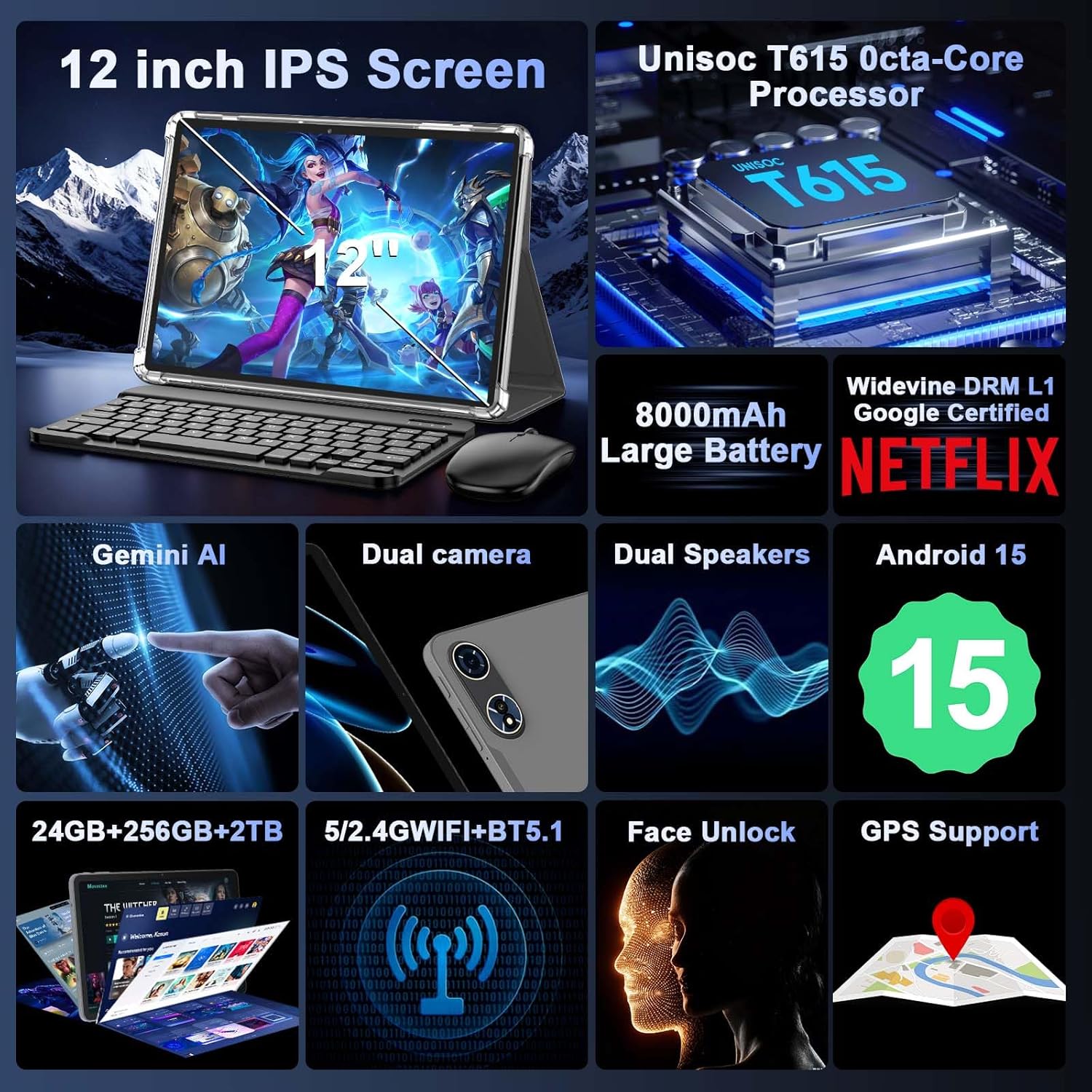
Image: Relndoo TAB9 tablet with its accessories, including a keyboard, mouse, and stylus, arranged on a surface.
Product Overview
The Relndoo TAB9 is a 12-inch tablet featuring an Android 15 operating system, designed for versatile use. It includes a high-resolution display, powerful processor, and comprehensive connectivity options.
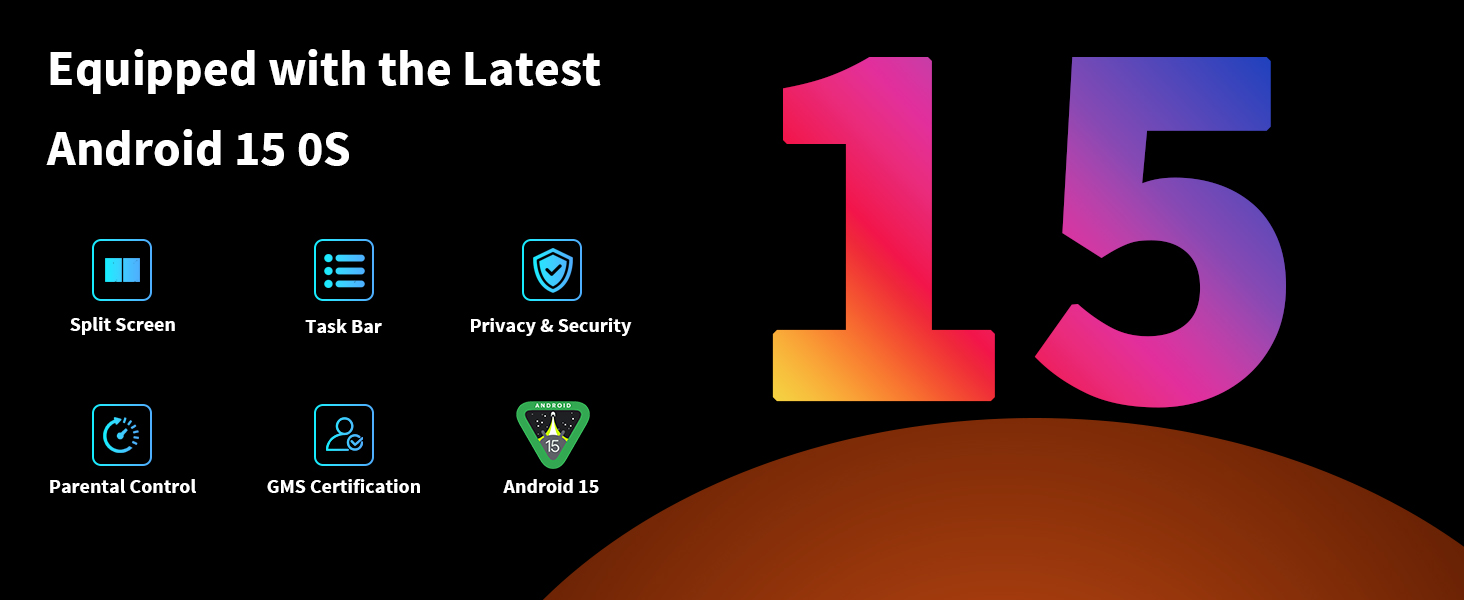
Image: Overview of the Relndoo TAB9 tablet, highlighting its 12-inch display, processor, memory, battery, and connectivity features.
Key Features:
- Display: 12-inch 2K IPS screen (1200x2000 resolution) with Widevine L1 support for HD streaming.
- Processor: Unisoc T615 Octa-Core processor.
- Memory & Storage: 24GB RAM (8GB physical + 16GB extended) and 256GB internal storage, expandable up to 2TB via microSD.
- Operating System: Android 15 with GMS certification.
- Battery: 8000mAh high-capacity battery.
- Cameras: 8MP front camera and 16MP rear camera.
- Connectivity: Dual-band 2.4G/5G Wi-Fi, Bluetooth 5.0, GPS.
- Audio: Dual stereo speakers.
Setup Guide
1. Initial Charging
Before first use, fully charge the tablet using the provided USB-C charging cable and adapter. The charging port is typically located on the side or bottom edge of the tablet. A full charge ensures optimal battery performance.
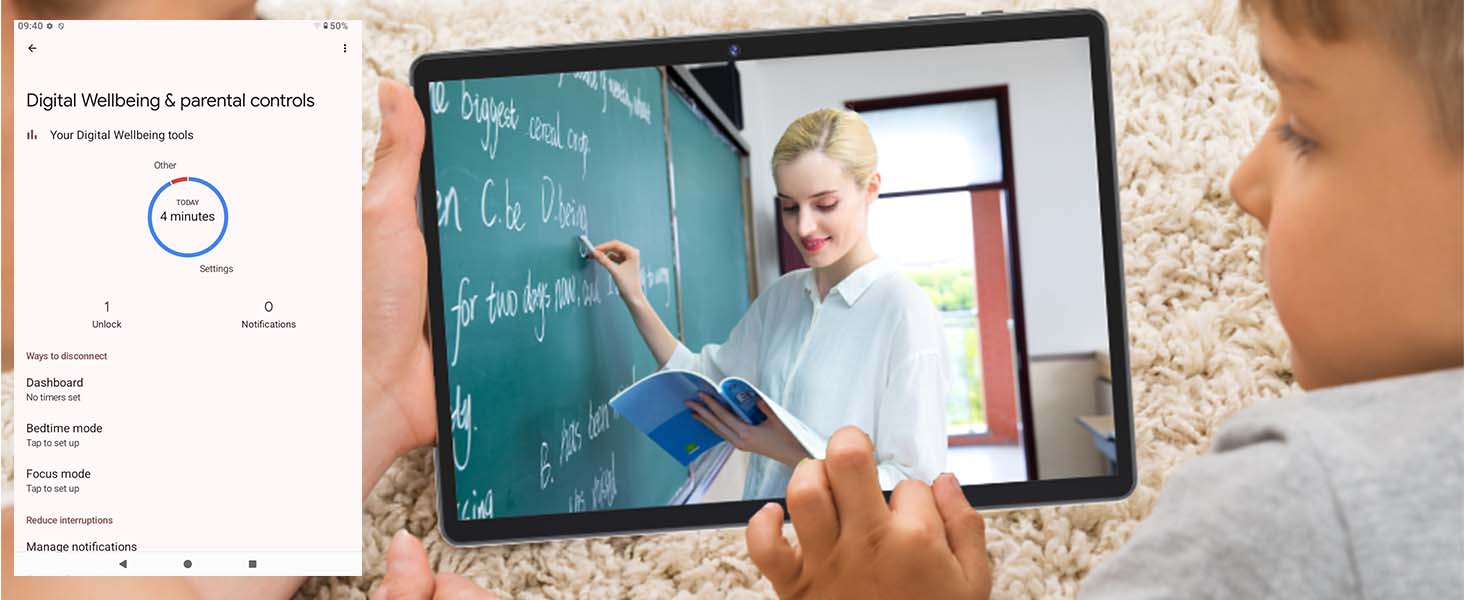
Image: The Relndoo TAB9 tablet connected to a charger, illustrating its 8000mAh battery and charging capabilities.
2. Powering On/Off
- To Power On: Press and hold the Power button (usually on the side) until the Relndoo logo appears on the screen.
- To Power Off: Press and hold the Power button until a power menu appears. Select "Power Off" and confirm.
- To Restart: Press and hold the Power button and select "Restart" from the menu.
3. Initial Setup
Upon first power-on, the tablet will guide you through the initial setup process:
- Select your preferred language.
- Connect to a Wi-Fi network.
- Sign in with your Google account or create a new one. This is necessary to download apps from the Google Play Store.
- Follow the on-screen prompts to set up security (PIN, pattern, password, or Face Unlock).
- Review and accept the terms and conditions.
4. Connecting Accessories
The Relndoo TAB9 comes with a Bluetooth keyboard, wireless mouse, and stylus for enhanced productivity.
- Bluetooth Keyboard/Mouse:
- Ensure the keyboard/mouse is charged and powered on.
- On your tablet, go to Settings > Connected devices > Bluetooth.
- Turn on Bluetooth and scan for available devices.
- Select the keyboard/mouse from the list and follow any pairing instructions.
- Stylus Pen: The stylus pen is generally passive and does not require Bluetooth pairing. Simply use it directly on the screen.
Operating Instructions
1. Display and Visual Experience
The 12-inch 2K IPS display offers a clear visual experience. It supports Widevine L1, allowing for high-definition streaming from services like Netflix, YouTube, and Amazon Prime Video.
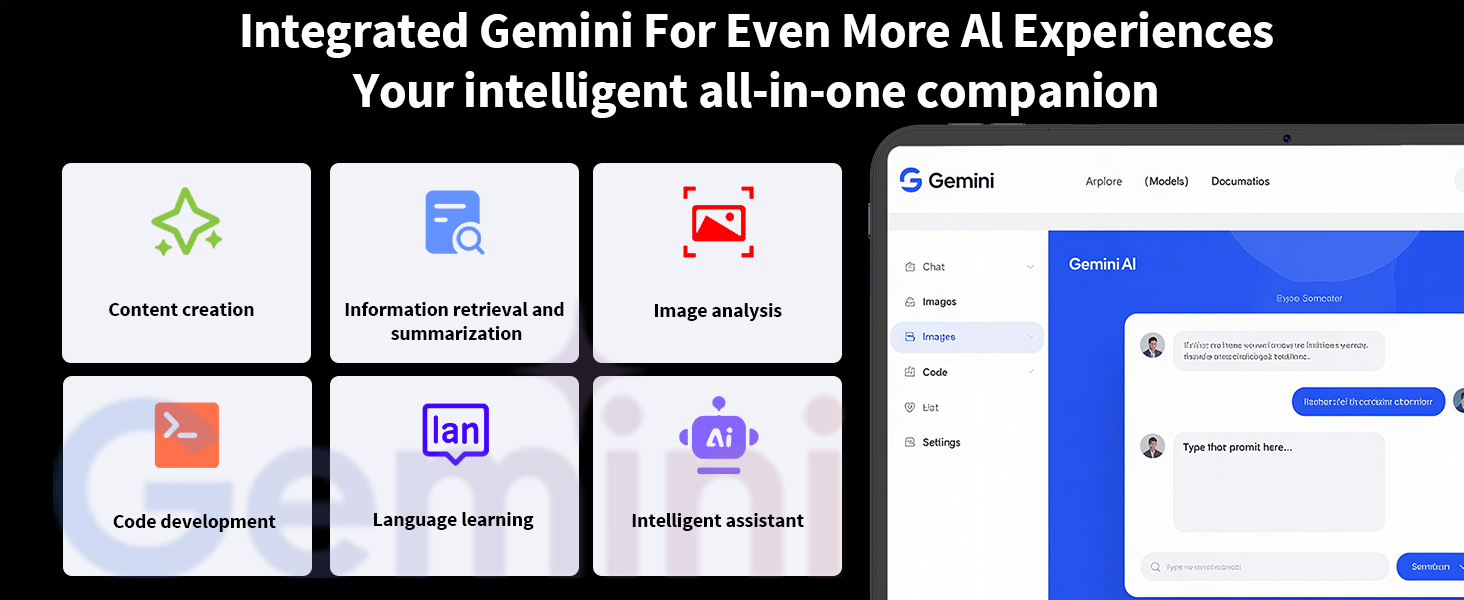
Image: The Relndoo TAB9 tablet showcasing its Widevine L1 support for streaming high-definition content from various platforms.
Adjust display settings in Settings > Display. Options include:
- Brightness Level: Adjust screen brightness.
- Eye-friendly Modes: Activate Reading Mode, Night Light, or Dark Mode to reduce eye strain.
- Color Temperature: Customize the screen's color balance.
2. Android 15 Operating System
Your tablet runs on Android 15, offering enhanced privacy, data management, and user interface features.
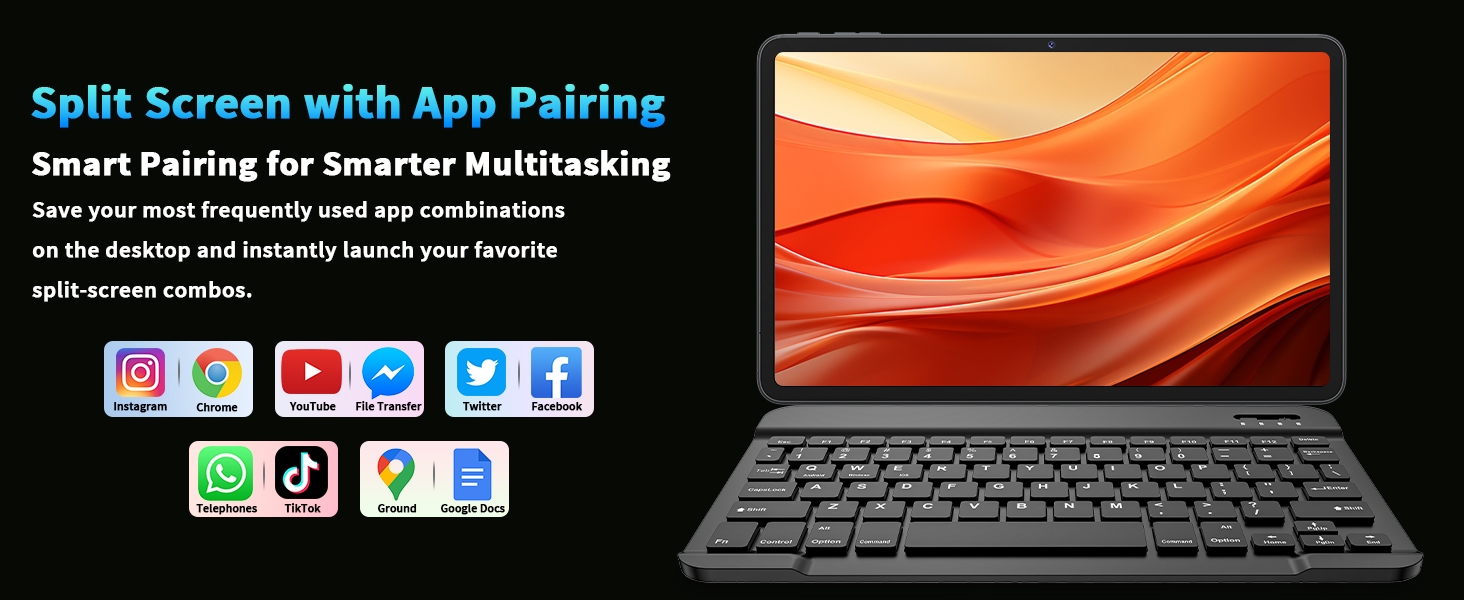
Image: Visual representation of new features in Android 15, such as improved privacy controls, split-screen mode, and personalization options.
- Multitasking: Use split-screen mode to run two apps simultaneously. Access this by swiping up and holding from the bottom of the screen to view recent apps, then tapping the app icon and selecting "Split screen".
- Parental Controls: Set up parental controls through Google Family Link to manage screen time, app access, and content filters for children.
- Gesture Navigation: Customize navigation gestures in Settings > System > Gestures.
- Global Dark Mode: Enable system-wide dark mode for a more comfortable viewing experience in low light.
3. Connectivity
The tablet supports various connectivity options:
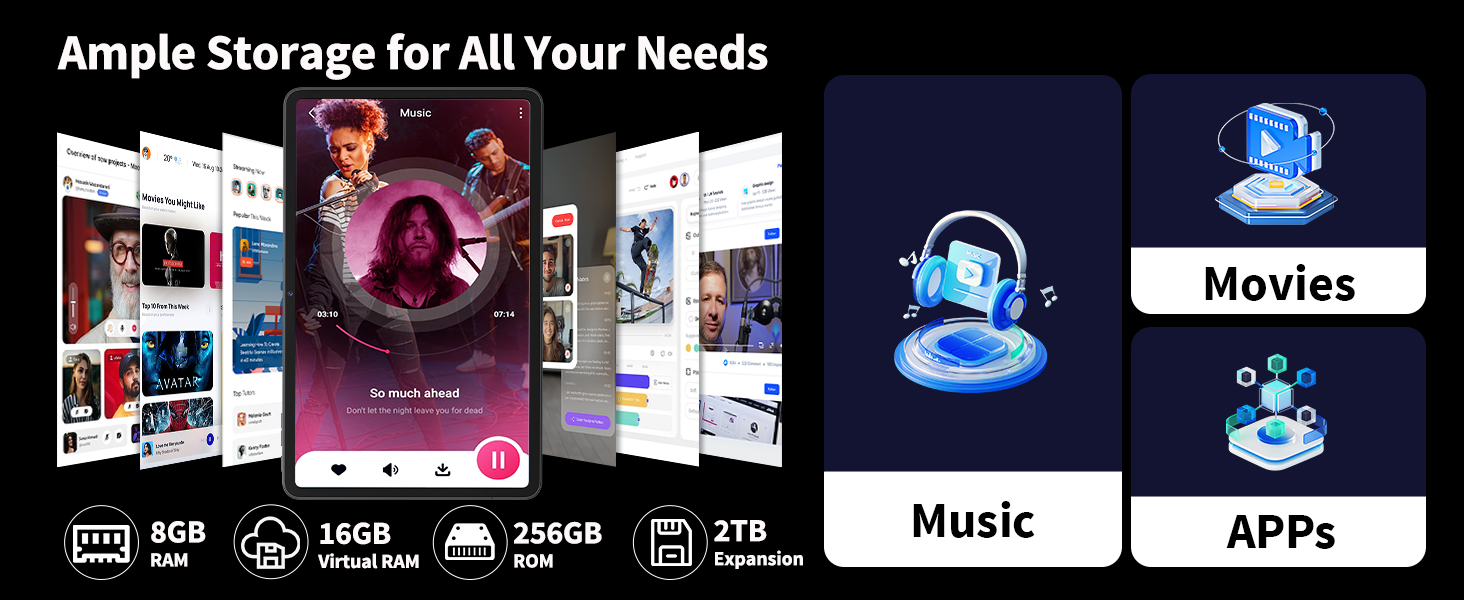
Image: The Relndoo TAB9 tablet demonstrating its connectivity features, including dual-band Wi-Fi, Bluetooth 5.2, and GPS.
- Wi-Fi: Connect to 2.4G or 5G Wi-Fi networks for internet access. Go to Settings > Network & internet > Wi-Fi.
- Bluetooth 5.0: Pair with Bluetooth devices like headphones, speakers, or the included keyboard and mouse. Go to Settings > Connected devices > Bluetooth.
- GPS: Utilize built-in GPS for navigation and location-based services. Ensure location services are enabled in Settings > Location.
4. Camera Usage
The tablet features an 8MP front camera and a 16MP rear camera for photos and video calls.
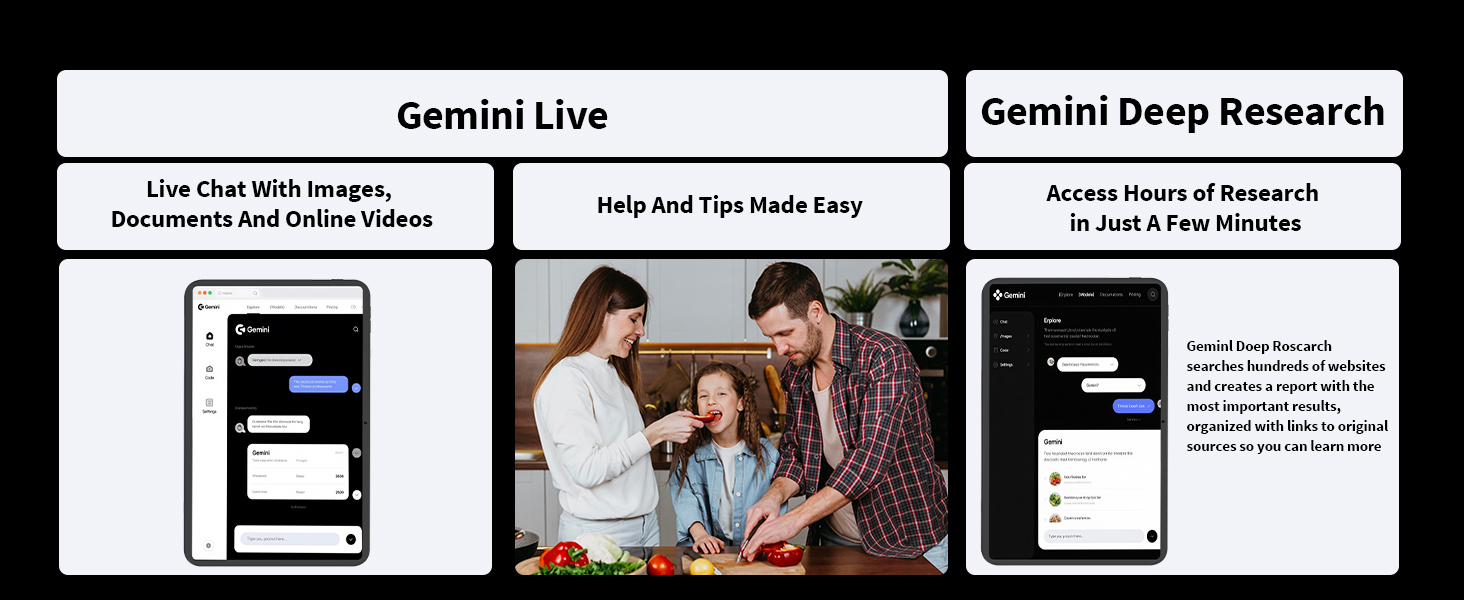
Image: Details of the Relndoo TAB9's 16MP rear and 8MP front cameras, along with examples of captured images.
- Open the Camera app from the home screen or app drawer.
- Switch between front and rear cameras using the icon on the screen.
- Tap the shutter button to take a photo or the video button to record.
- Access settings within the camera app to adjust modes, resolution, and other parameters.
5. Storage Management
Your tablet has 256GB of internal storage, expandable up to 2TB using a microSD card (sold separately).

Image: Information on the Relndoo TAB9's storage capabilities, including 24GB RAM, 256GB ROM, and up to 2TB microSD expansion.
- Inserting a microSD Card: Locate the card slot on the side of the tablet. Carefully insert the microSD card until it clicks into place.
- Managing Storage: Go to Settings > Storage to view storage usage and free up space.
6. Gemini AI Integration
The tablet integrates Gemini AI for various intelligent functions, including content creation, information retrieval, image analysis, code development, language learning, and acting as an intelligent assistant.

Image: The Gemini AI interface on the Relndoo TAB9 tablet, illustrating its capabilities for content creation, information retrieval, and other intelligent tasks.
Access Gemini AI through its dedicated application or integrated features within the Android system.
Maintenance
1. Cleaning Your Tablet
- Use a soft, lint-free cloth to gently wipe the screen and body of the tablet.
- For stubborn smudges, slightly dampen the cloth with water or a screen-cleaning solution. Avoid harsh chemicals.
- Ensure the tablet is powered off and unplugged before cleaning.
2. Software Updates
Regularly check for and install software updates to ensure your tablet has the latest features, security patches, and performance improvements. Go to Settings > System > System update.
3. Storage Optimization
To maintain optimal performance, periodically manage your tablet's storage:
- Uninstall unused apps.
- Clear cache data for apps in Settings > Apps > [App Name] > Storage & cache.
- Transfer large files (photos, videos) to cloud storage or an external microSD card.
Troubleshooting
This section addresses common issues you might encounter with your Relndoo TAB9 tablet.
1. Tablet Not Turning On
- Ensure the tablet is sufficiently charged. Connect it to the charger for at least 30 minutes.
- Try a forced restart: Press and hold the Power button for 10-15 seconds.
2. Wi-Fi Connectivity Issues
- Toggle Wi-Fi off and on in Settings > Network & internet.
- Restart your Wi-Fi router.
- Forget the network and reconnect: Go to Settings > Network & internet > Wi-Fi, tap the gear icon next to your network, then select "Forget".
- Ensure the tablet is within range of the Wi-Fi router.
3. Apps Crashing or Freezing
- Close and reopen the app.
- Clear the app's cache: Go to Settings > Apps > [App Name] > Storage & cache > "Clear cache".
- Update the app from the Google Play Store.
- If the issue persists, uninstall and reinstall the app.
4. Slow Performance
- Close unnecessary background apps.
- Clear cached data (see Storage Optimization above).
- Restart the tablet.
- Ensure sufficient free storage space.
5. Factory Reset
If you experience persistent issues, a factory reset can resolve many software-related problems. Warning: This will erase all data on your tablet. Back up important data before proceeding.
- Go to Settings > System > Reset options.
- Select "Erase all data (factory reset)".
- Confirm your decision and enter your PIN/password if prompted.
- The tablet will restart and begin the reset process.
Specifications
| Feature | Specification |
|---|---|
| Brand | Relndoo |
| Model Name | TAB9 |
| Operating System | Android 15 |
| Processor | Unisoc T615 Octa-Core (ARM) |
| RAM Memory | 24 GB (8GB physical + 16GB extended) |
| Internal Storage | 256 GB |
| Expandable Storage | Up to 2 TB (microSD, FAT32 format) |
| Screen Size | 12 inches |
| Display Resolution | 1200x2000 pixels (2K IPS) |
| Battery Capacity | 8000mAh Lithium Polymer |
| Battery Life (Average) | Up to 12 hours |
| Front Camera | 8 MP |
| Rear Camera | 16 MP |
| Wi-Fi | Dual-band 2.4G/5G AC Wi-Fi |
| Bluetooth | Bluetooth 5.0 |
| GPS | Built-in GPS/Beidou/Glonass |
| Color | Silver |
| Included Components | Tablet, Keyboard, Mouse, Stylus, Case, Screen Protector, Charger, USB-C Cable, User Manual |
Warranty and Support
For warranty information, please refer to the product packaging or the official Relndoo website. If you encounter issues not covered in this manual or require further assistance, please contact Relndoo customer support through their official channels.
You can often find support contact details on the manufacturer's website or within the tablet's Settings > About tablet section.