
Introduction
This manual provides detailed instructions for the installation, operation, and maintenance of your AZDOME V600 Dual Dash Cam. Please read this manual thoroughly before using the device to ensure proper functionality and safety. The AZDOME V600 is designed to record both front road views and interior cabin activity simultaneously, offering comprehensive coverage for your vehicle.

Image: The AZDOME V600 Dual Dash Cam, illustrating its compact design and dual-channel recording capability for both front road and interior cabin views.
Package Contents
Verify that all items listed below are included in your package:
- Dash camera × 1
- Type-C Car Charger × 1
- Electrostatic Films × 2
- 3M Adhesive × 1
- Cable Clips × 5
- Pry Tool × 1
- User Manual × 1

Image: A visual representation of all items included in the AZDOME V600 Dash Cam package, such as the camera, charger, mounting accessories, and user manual.
Product Overview
The AZDOME V600 features a compact design with a 3-inch screen, dual lenses for front and cabin recording, and intuitive controls. It is equipped with infrared night vision for clear interior recording in low light conditions.

Image: An illustrative overview of the AZDOME V600 Dash Cam, highlighting its 2-channel 1080P recording, parking mode, G-sensor, loop recording, wide-angle lens, and night vision capabilities.
Dual-Channel Recording
The V600 records both the road ahead and the vehicle's interior simultaneously. The front lens captures external road details, while the interior lens records cabin activity and audio.
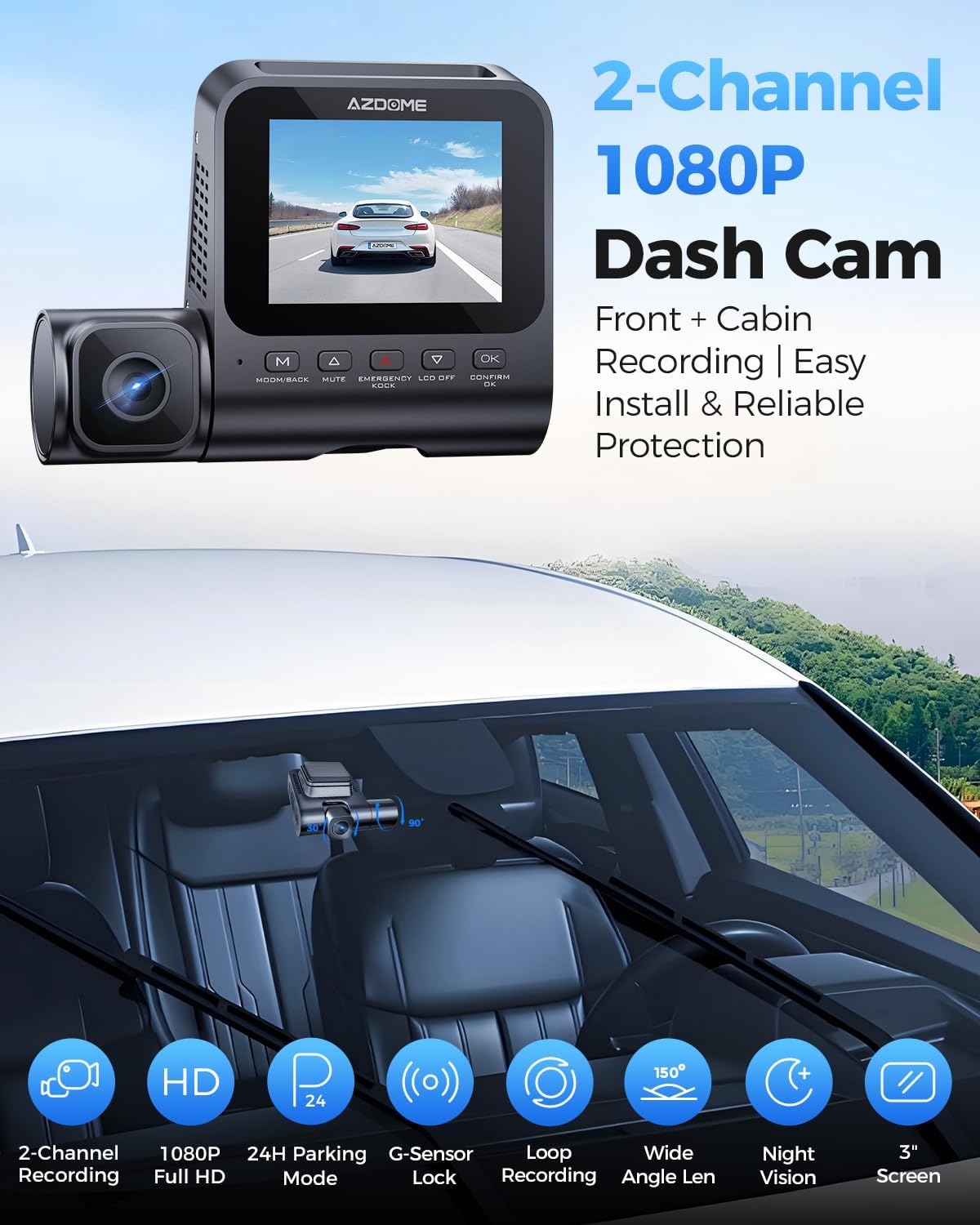
Image: A split view demonstrating the front camera's perspective of the road and the interior camera's view of the cabin, both recording in 1080P Full HD.
Wide Field of View
The dashcam system provides a wide field of view, with a 121° front lens and a 131° cabin lens, designed to capture more of the road and interior surroundings, reducing blind spots.
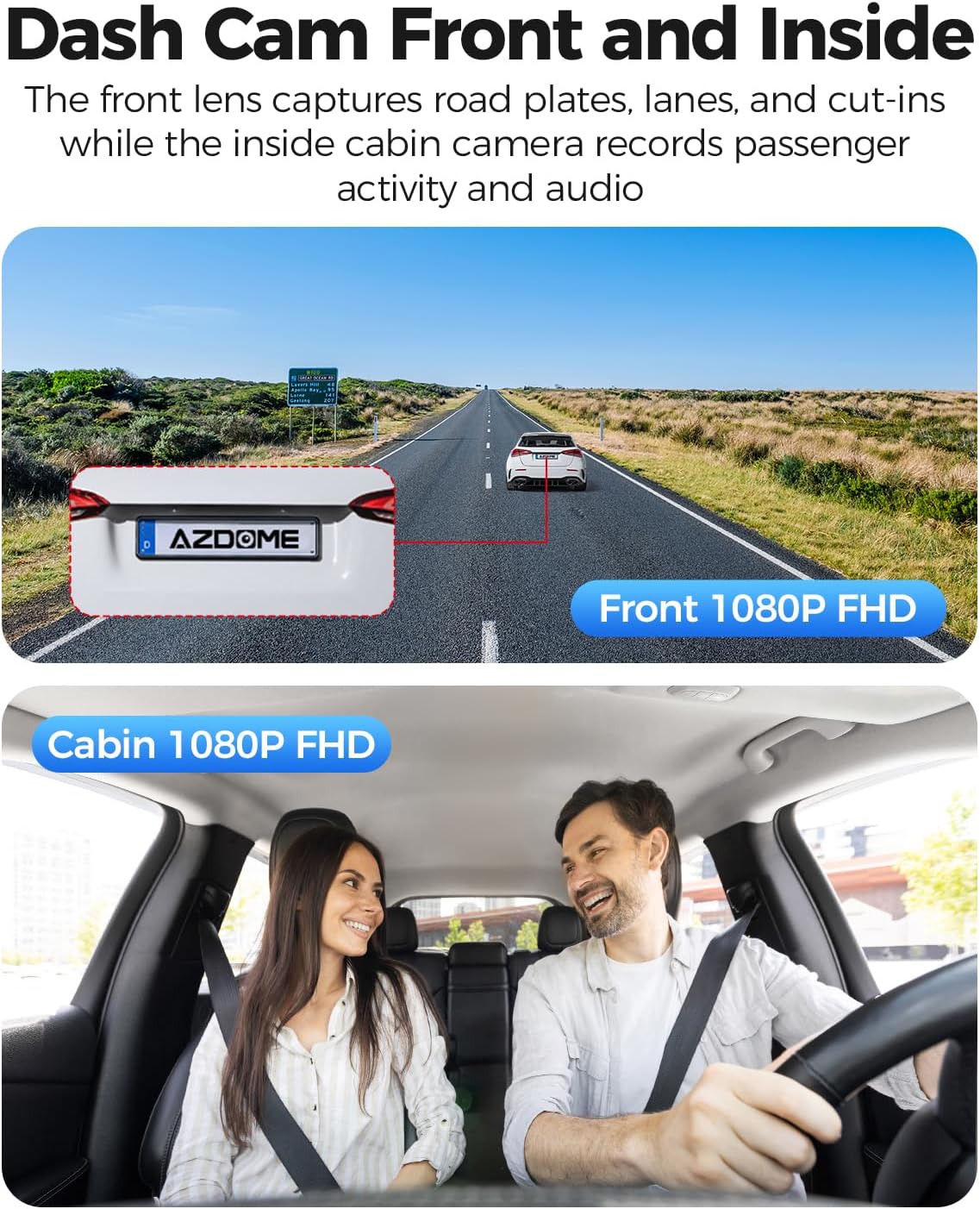
Image: A diagram illustrating the wide-angle coverage of the front (121°) and cabin (131°) cameras, showing how they capture a broad area around the vehicle.
Setup and Installation
Follow these steps for quick and secure installation of your dash cam.
- Clean Windshield: Ensure the chosen area on your windshield is clean and dry for optimal adhesion.
- Apply Static Sticker: Place the electrostatic film on the desired spot on the windshield. This helps in easy removal and repositioning without leaving residue.
- Mount Dash Cam: Attach the dash cam to the static sticker using the provided 3M adhesive. Ensure the lenses have a clear view of the road and cabin.
- Connect Power: Plug the Type-C car charger into the dash cam and then into your vehicle's cigarette lighter socket. Route the cable neatly using the provided cable clips and pry tool.
- Insert MicroSD Card: Before powering on, insert a compatible MicroSD card (up to 128GB, not included) into the designated slot. Ensure the card is inserted correctly until it clicks into place.
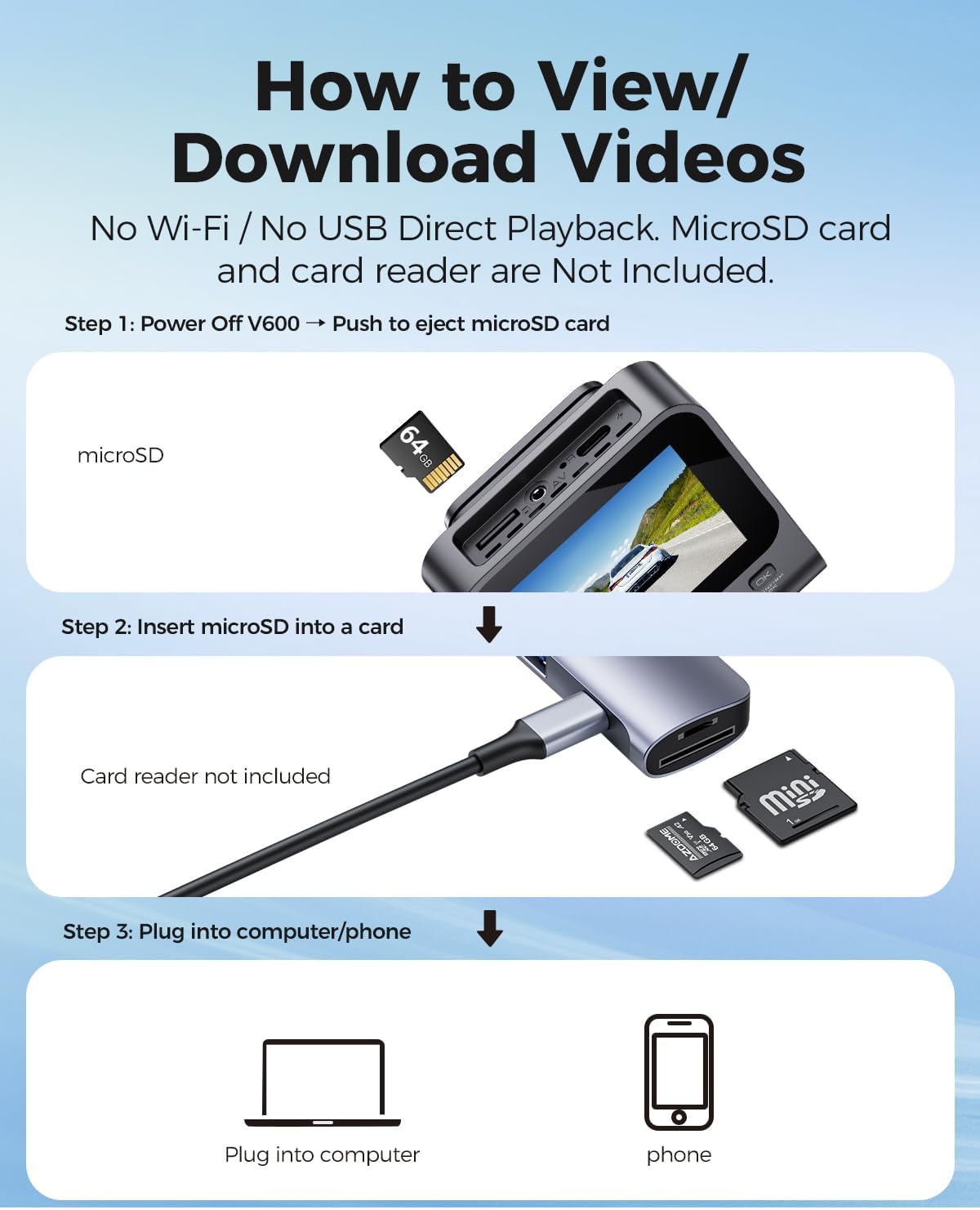
Image: A visual guide demonstrating the quick installation process of the dash cam, including cable routing and camera placement on the windshield.
Operating Instructions
Basic Recording (Loop Recording)
Once powered on, the dash cam will automatically begin recording. The loop recording function continuously records video in segments (e.g., 1, 3, or 5 minutes) and overwrites the oldest unlocked files when the memory card is full. This ensures continuous recording without manual deletion.

Image: A visual representation of the loop recording feature, showing how new footage overwrites older, unlocked files to ensure continuous recording.
G-Sensor (Emergency Lock)
The built-in G-sensor detects sudden impacts or collisions. When an event is detected, the current video segment is automatically locked and saved to prevent it from being overwritten by loop recording. This footage serves as crucial evidence in case of an accident.

Image: An illustration depicting the G-Sensor Auto Lock feature, showing how it detects impacts and automatically locks video clips to protect them from being overwritten.
24-Hour Parking Mode
To enable continuous 24-hour parking monitoring, a 3-lead hardwire kit (not included, search ASIN: B096G6FKZP) is required. In parking mode, the dash cam can detect impacts (Collision Detection Parking Mode) or record continuously at a low frame rate (Time-Lapse Parking Mode). It also features low voltage protection to prevent draining your car battery.

Image: A graphic detailing the 24-Hour Parking Mode, including collision detection, time-lapse recording, and low voltage protection, with a note about the required hardwire kit.
IR Night Vision
The dash cam is equipped with IR lights to enhance interior cabin clarity in low-light conditions. For optimal night vision, the interior recording may switch to black-and-white mode to capture clearer details.

Image: An illustration highlighting the Clear Night Vision capabilities, showing how it brightens dark roads and reduces glare to capture more details, especially with infrared for the cabin.
Viewing and Downloading Videos
To view or download recorded videos, follow these steps:
- Power Off: Ensure the V600 dash cam is powered off.
- Eject MicroSD Card: Gently push the MicroSD card to eject it from the slot.
- Insert into Card Reader: Insert the MicroSD card into a card reader (not included).
- Connect to Device: Plug the card reader into a computer or compatible phone to access the video files.

Image: A step-by-step guide demonstrating how to remove the MicroSD card from the V600, insert it into a card reader, and connect it to a computer or phone to view and download videos.
Maintenance
Proper maintenance ensures the longevity and optimal performance of your dash cam.
- Cleaning: Use a soft, dry cloth to clean the camera lenses and screen. Avoid abrasive cleaners or solvents.
- Temperature: Do not expose the dash cam to extreme temperatures for extended periods.
- MicroSD Card: Regularly format your MicroSD card (at least once a month) to prevent data corruption and ensure smooth recording. Back up important files before formatting.
- Firmware Updates: Check the AZDOME official website periodically for any available firmware updates to improve performance and add new features.
Troubleshooting
Refer to this section for solutions to common issues.
| Problem | Solution |
|---|---|
| Dash cam does not power on. | Ensure the car charger is securely connected to both the dash cam and the vehicle's cigarette lighter. Check if the vehicle's power outlet is functioning. |
| Recording stops unexpectedly. | The MicroSD card may be full or corrupted. Format the card regularly. Ensure you are using a high-speed (Class 10 or U1/U3) MicroSD card. |
| Video footage is blurry or unclear. | Clean the camera lenses with a soft cloth. Ensure the protective film has been removed from the lenses. Check if the camera is securely mounted and not vibrating. |
| Parking mode is not working. | Parking mode requires a dedicated hardwire kit (ASIN: B096G6FKZP) for continuous power. Ensure the hardwire kit is correctly installed and connected. |
| G-Sensor is too sensitive or not sensitive enough. | Adjust the G-sensor sensitivity setting in the dash cam's menu. |
Specifications
| Feature | Detail |
|---|---|
| Model Name | V600 |
| Video Capture Resolution | 1080p (Front and Cabin) |
| Front Field Of View | 150 Degrees |
| Special Features | G-Sensor, Loop Recording, IR Night Vision, 24-Hour Parking Mode |
| Display | 3-inch Screen |
| Storage Support | Up to 128GB MicroSD card |
| Mounting Type | Dashboard Mount |
| Power Source | Charging Cable (Type-C Car Charger) |
| Product Dimensions | 16 x 14 x 6 inches |
| Item Weight | 10.2 ounces |
Warranty and Support
For warranty information and technical support, please refer to the official AZDOME website or contact AZDOME customer service directly. Keep your purchase receipt as proof of purchase for warranty claims.
Manufacturer: AZDOME
Website: Visit the AZDOME Store on Amazon (for general brand information)


