
Introduction
This manual provides comprehensive instructions for the setup, operation, and maintenance of your Ottocast Mini Cube 3.0 Wireless CarPlay & Android Auto Adapter. Please read this manual thoroughly before using the product to ensure optimal performance and safety.
What's in the Box
The Ottocast Mini Cube 3.0 package includes the following items:
- Ottocast Mini Slim adapter
- USB male adapter (Type-A to C)
- User Manual
- Product Packaging
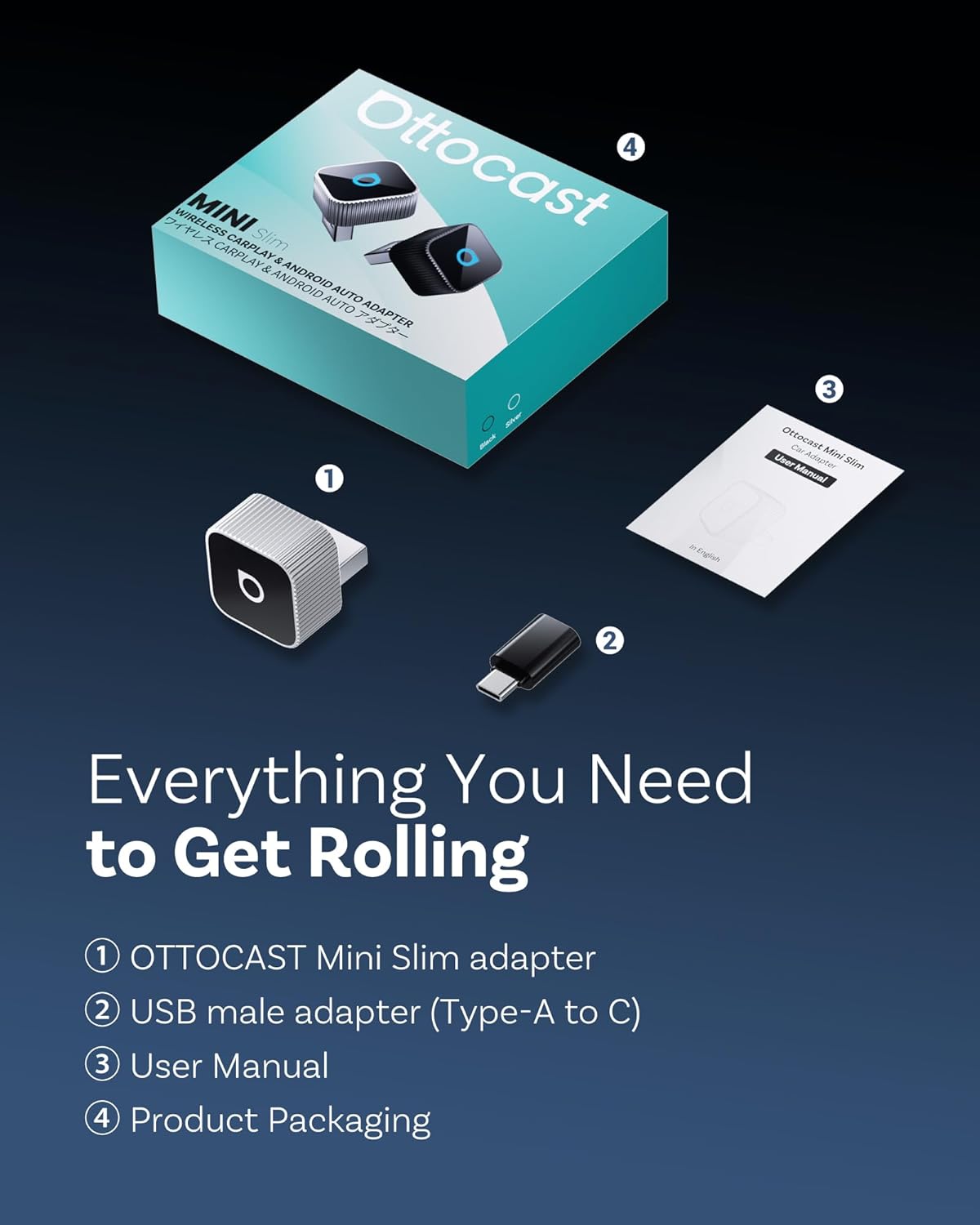
Image Description: The Ottocast Mini Cube 3.0 package contents, including the main adapter unit, a USB-A to USB-C adapter, and the user manual.
Product Overview
The Ottocast Mini Cube 3.0 is a compact adapter designed to convert your vehicle's wired CarPlay or Android Auto system into a wireless one. It features a durable aluminum alloy construction for heat dissipation and stability.

Image Description: A silver Ottocast Mini Cube 3.0 Wireless CarPlay & Android Auto Adapter, shown from two angles, highlighting its compact, cube-like design with a glowing blue indicator light.

Image Description: A size comparison of the Ottocast Mini Cube 3.0 adapter next to a larger, traditional wireless adapter, illustrating its significantly smaller and more discreet form factor.

Image Description: A side-by-side comparison showing a cluttered car console with wired phone connection (Before) and a neat console with the compact Ottocast Mini Cube 3.0 providing wireless connectivity (After).

Image Description: An exploded view of the Ottocast Mini Slim adapter, showing its internal components and highlighting its use of Bluetooth 4.2 and 5GHz Wi-Fi for stable connection and quick data transmission.
Setup Instructions
Initial Connection for Android Auto
- Ensure your vehicle supports wired Android Auto.
- Plug the Ottocast Mini Cube 3.0 into your car's USB port that supports wired Android Auto.
- On your Android phone, go to Bluetooth settings. Search for and connect to the product's Bluetooth device (e.g., "CAR2-XXXX").
- Follow any on-screen prompts on your phone to complete the pairing process.
- Once successfully connected, Android Auto will launch wirelessly on your car's display.
Video Description: A step-by-step guide demonstrating how to connect an Android phone to the Ottocast Mini Cube 3.0 for wireless Android Auto functionality. It shows the phone's Bluetooth settings and the car's infotainment screen.
Initial Connection for Wireless CarPlay
- Ensure your vehicle supports wired CarPlay.
- Plug the Ottocast Mini Cube 3.0 into your car's wired CarPlay-enabled USB port.
- On your iPhone, go to Bluetooth settings. Search for and connect to the product's Bluetooth device (e.g., "CAR2-XXXX").
- Follow any on-screen prompts on your iPhone to complete the pairing process and allow CarPlay access.
- Once successfully connected, CarPlay will launch wirelessly on your car's display.
Video Description: A demonstration of connecting an iPhone to the Ottocast Mini Cube 3.0 to enable wireless CarPlay. The video guides through Bluetooth pairing and confirming the connection on the iPhone and car screen.

Image Description: An infographic illustrating the simple 3-step setup process: 1. Plug in car, 2. Bluetooth Pair, 3. Use CarPlay/Android Auto. It also highlights fast connection times.
Operating Instructions
Automatic Reconnection
After the initial successful connection, the Ottocast Mini Cube 3.0 will automatically connect to your paired phone when you start your car, typically within 5-10 seconds.

Image Description: A man getting into his car, with an inset image of the Ottocast Mini Slim adapter plugged in, illustrating the automatic reconnection feature after the first successful connection.
Using Car's Original Controls
The adapter supports your car's original control methods, including voice control, steering wheel controls, OEM knob control, and touchscreen control.

Image Description: A central image of the Ottocast Mini Cube 3.0 surrounded by four smaller images depicting various car control methods: voice control, steering wheel control, OEM knob control, and touchscreen control, all compatible with the adapter.
Audio Quality
Enjoy high-fidelity audio quality, superior to standard Bluetooth connections, for music, podcasts, and calls.
Multi-Device Sharing
The device allows for easy switching between multiple paired phones, making it convenient for shared vehicles.
Compatibility
The Ottocast Mini Cube 3.0 is compatible with over 98% of vehicles equipped with factory-wired CarPlay or wired Android Auto.
Important Note: This adapter is NOT compatible with BMW or Tesla vehicles.
For a detailed compatibility check, please visit: https://check.adaptermanual.com/AMZ/

Image Description: A graphic displaying various car brand logos, indicating broad compatibility, with a clear note stating incompatibility with BMW and Tesla. A QR code and URL are provided for checking vehicle compatibility.
Phone System Requirements
- iPhone: iOS 10.0 and above
- Android: Android System 11.0 and above
Specifications
| Feature | Detail |
|---|---|
| Model Number | CP88 |
| Product Dimensions | 0.79 x 0.91 x 0.79 inches |
| Item Weight | 0.31 ounces |
| Connectivity Technology | Bluetooth 4.2, 5GHz Wi-Fi |
| Power Source | USB Port |
| Material | Aluminum |
| Special Features | CD-quality Audio, Hands-Free Calls, Low Latency |
Troubleshooting
If you encounter issues with your Ottocast Mini Cube 3.0, please refer to the following common solutions:
- Connectivity Issues:
Ensure your car's wired CarPlay/Android Auto system is functioning correctly with a direct cable connection first.
Verify that Bluetooth and Wi-Fi are enabled on your phone.
Try restarting both your phone and your car's infotainment system.
Re-pair the device by deleting the existing Bluetooth connection on your phone and following the setup instructions again.
- Lag or Disconnections:
Some users have reported occasional lag with music streaming or map navigation. Ensure your phone's operating system is up to date.
Check for any firmware updates for the Ottocast adapter (refer to the official Ottocast website or support for instructions).
Avoid placing other wireless devices directly next to the adapter, which could cause interference.
- Device Overheating:
The device may become warm during operation, which is normal. However, if it feels excessively hot, ensure it is not obstructed and has adequate airflow.
- Siri/Voice Command Issues (CarPlay):
If Siri is not responding correctly outside the CarPlay menu, this might be a car-specific integration issue. Consult your car's manual or dealership for advanced settings related to voice assistants and CarPlay.

Image Description: A car's interior with the infotainment screen displaying various CarPlay applications like maps, music, and messages, emphasizing the adapter's role in providing a seamless and elegant wireless experience.
Maintenance
- Keep the device clean and free from dust and debris. Use a soft, dry cloth for cleaning.
- Avoid exposing the device to extreme temperatures or direct sunlight for prolonged periods.
- Do not attempt to disassemble or repair the device yourself, as this will void the warranty.
Safety Information
For external use only. Do not ingest. Keep out of reach of children.
Warranty and Support
For warranty information and technical support, please contact OTTOCAST Official.
The product has undergone rigorous testing and holds multiple certifications, ensuring quality and safety.

Image Description: The Ottocast Mini Slim adapter shown alongside various international product certifications, highlighting its compliance with quality and safety standards.


