1. Introduction
This manual provides detailed instructions for the installation, operation, and maintenance of your Aublinto 7-inch Double Din Car Stereo. This unit is specifically designed for 2004-2012 GMC Canyon vehicles, offering an enhanced in-car entertainment and navigation experience with Android 13, Wireless CarPlay, Android Auto, GPS, and more. Please read this manual thoroughly before installation and use to ensure proper function and safety.
2. Package Contents
Verify that all items listed below are included in your package. If any items are missing or damaged, please contact customer support.
- 1 x Car MP5 Player (Main Head Unit)
- 1 x Power Cable
- 1 x GPS Antenna
- 1 x AHD Backup Camera
- 1 x RCA Input and Output Cable
- 1 x External Microphone
- 2 x USB Cables
- 1 x Instruction Manual
- Accessories (Fixed bracket, etc.)
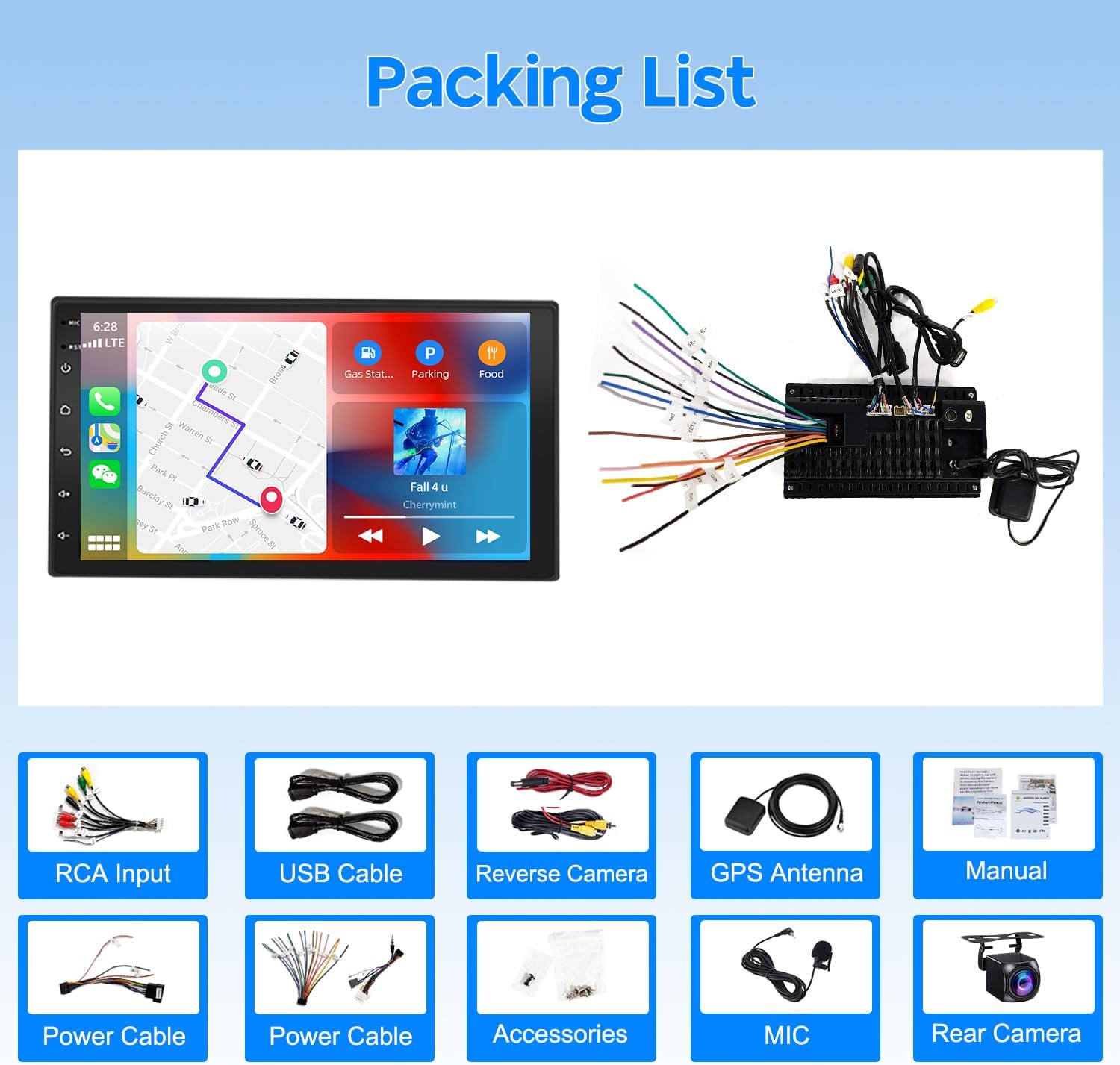
Figure 2.1: Included Package Contents
3. Setup and Installation
Important Note: This unit is NOT plug and play. Installation requires cutting and splicing wires. Professional installation is highly recommended to avoid damage to the unit or your vehicle's electrical system.

Figure 3.1: Important Installation Notice
3.1 Pre-Installation Checks
- Ensure the vehicle's ignition is off and the battery is disconnected before starting installation.
- Confirm the center console of your 2004-2012 GMC Canyon matches the installation requirements for a double din unit.
3.2 Wiring Connections
Refer to the wiring diagram provided with your unit for specific connections. General connections include:
- Power Cable: Connect to vehicle's power supply (constant 12V, accessory 12V, ground).
- Speaker Wires: Connect to vehicle's speaker system.
- GPS Antenna: Mount in a location with a clear view of the sky, typically on the dashboard.
- AHD Backup Camera: Connect the camera's video output to the unit's 'REVERSE IN' port and power to the vehicle's reverse light circuit.
- External Microphone: Plug into the designated microphone input for improved call quality.
- USB Cables: Route to a convenient location for connecting USB devices.
- RCA Input/Output: For external amplifiers or video displays.
- Steering Wheel Control (SWC): Connect to your vehicle's SWC wires. Configuration will be done in the unit's settings.
3.3 Mounting the Unit
After completing all wiring, carefully mount the head unit into the dashboard opening using the provided brackets. Ensure all connections are secure and no wires are pinched.

Figure 3.2: Installation Effect in GMC Canyon
4. Operating Instructions
4.1 Initial Power On and System Setup
After installation, reconnect the battery and turn on the vehicle's ignition. The unit will boot up. Follow the on-screen prompts for initial setup, including language selection and time zone.
4.2 Wireless/Wired CarPlay and Android Auto
This unit supports both wireless and wired connections for Apple CarPlay and Android Auto, allowing seamless integration with your smartphone.
- Wireless Connection: Enable Bluetooth and Wi-Fi on your smartphone. Pair your phone with the car stereo via Bluetooth. Once paired, the unit will prompt you to connect to CarPlay or Android Auto wirelessly.
- Wired Connection: Connect your smartphone to one of the unit's USB ports using a high-quality USB data cable. The unit will automatically detect and launch CarPlay or Android Auto.
Through CarPlay/Android Auto, you can access phone contacts, emails, notifications, online maps, music, videos, and use voice control for various functions.

Figure 4.1: Wireless/Wired CarPlay & Android Auto Interface
4.3 GPS Navigation and WiFi Connection
The unit supports both online and offline navigation applications.
- Offline Maps: The unit comes with built-in offline maps. You can download additional offline maps from the app store after connecting to Wi-Fi.
- Online Navigation: Connect the unit to Wi-Fi (e.g., via your phone's hotspot) to use online navigation apps like Google Maps, Waze, or Here Maps for real-time traffic updates and routing.
- WiFi Connection: Access the unit's settings to connect to an available Wi-Fi network. This enables internet browsing, app downloads, and online media streaming.

Figure 4.2: Navigation and WiFi Connectivity
4.4 Bluetooth Functionality
Connect your smartphone via Bluetooth for hands-free calling and audio streaming.
- Pairing: Go to the Bluetooth settings on the car stereo and your phone. Search for available devices on your phone and select the car stereo's Bluetooth name. Confirm the pairing code if prompted.
- Hands-Free Calls: Make and receive calls directly from the car stereo interface. The built-in microphone (or external microphone) ensures clear communication.
- Audio Streaming: Play music and other audio from your phone through the car's speakers.
4.5 FM/RDS Radio
Enjoy high-quality digital stereo radio with RDS (Radio Data System) functionality.
- Automatic/Semi-Automatic Search: The unit can automatically scan and save available radio stations.
- RDS: Displays station information, song titles, and other data where available.
4.6 Backup Camera Support
The unit supports rear camera video input, automatically displaying the rear view when the vehicle is shifted into reverse.
- Automatic Display: When the vehicle is in reverse, the screen will automatically switch to the backup camera view.
- Parking Assistance: Grid lines (if supported by camera) assist with parking maneuvers.
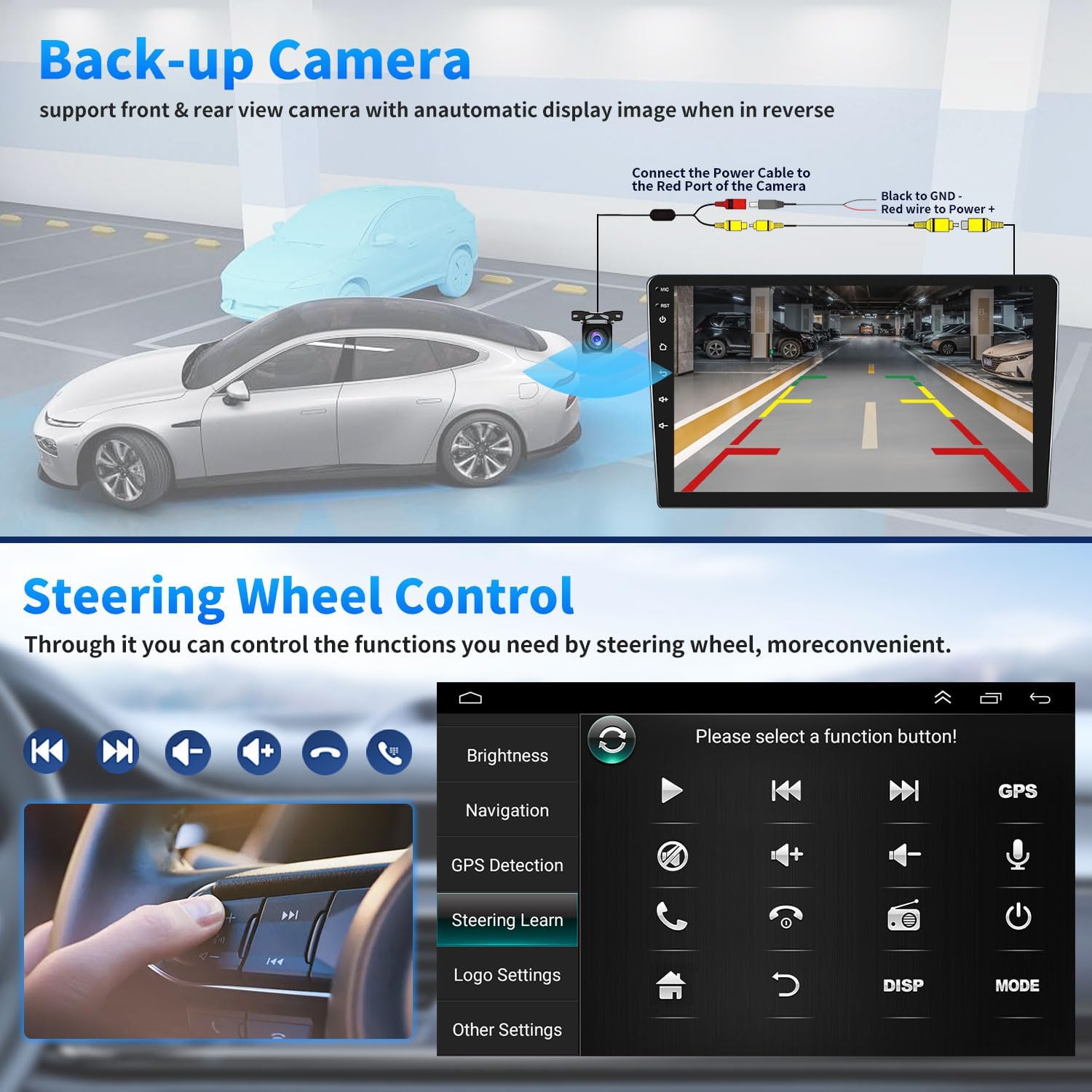
Figure 4.3: Backup Camera View and Steering Wheel Control Interface
4.7 Steering Wheel Control (SWC)
The unit supports original steering wheel controls, allowing you to manage functions like volume, track changes, and calls without taking your hands off the wheel.
- Configuration: Access the 'Steering Learn' or 'SWC Settings' menu in the unit's settings to map your vehicle's steering wheel buttons to the desired functions.
4.8 Split-Screen Functionality
The split-screen feature allows you to run two applications simultaneously on the display, such as navigation and music playback.
- Activation: Typically, long-press the recent apps button or drag an app to one side of the screen to activate split-screen mode.
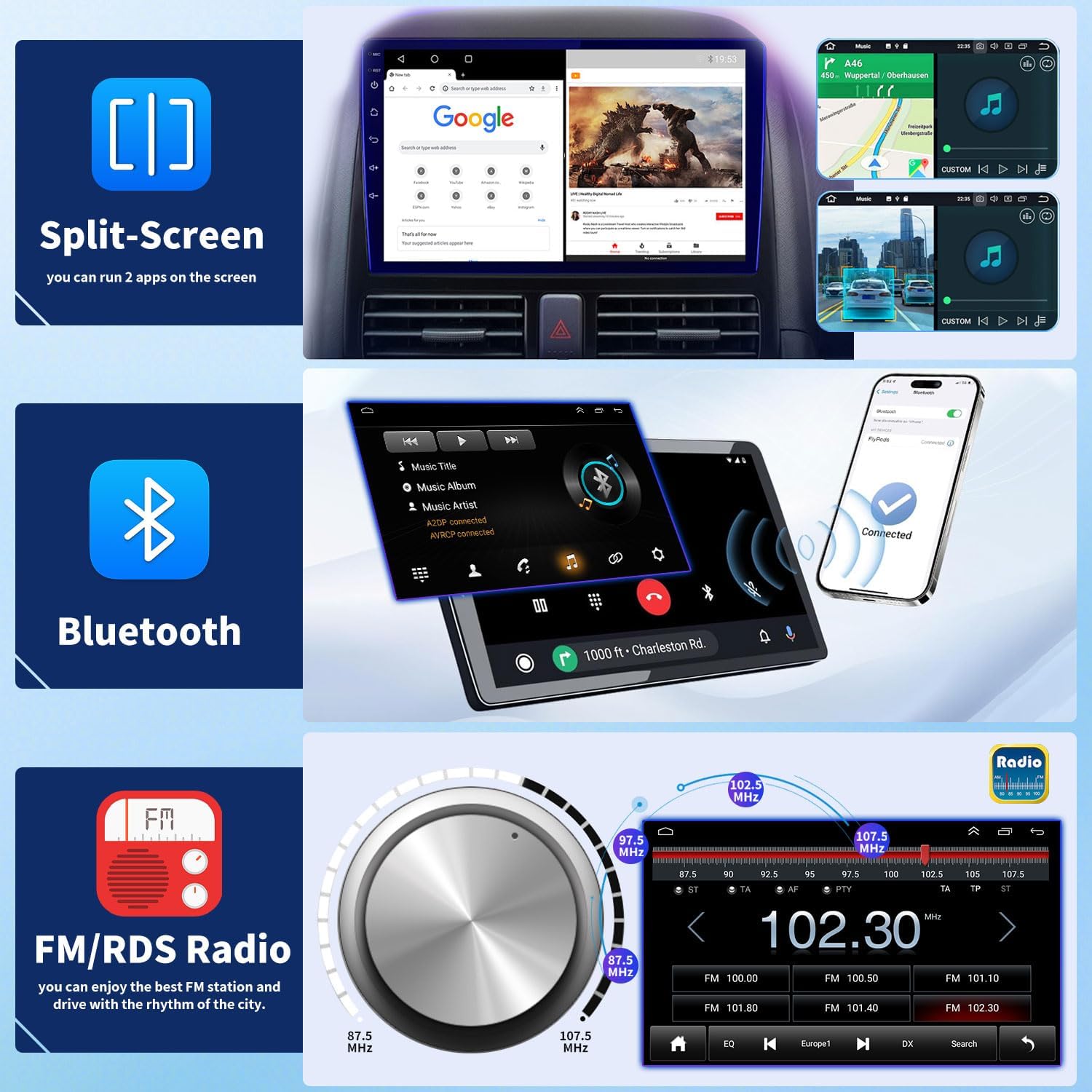
Figure 4.4: Split-Screen, Bluetooth, and FM/RDS Radio Interfaces
5. Maintenance
Proper maintenance ensures the longevity and optimal performance of your car stereo.
- Cleaning the Screen: Use a soft, lint-free cloth to gently wipe the touchscreen. For stubborn smudges, slightly dampen the cloth with water or a screen-safe cleaner. Avoid harsh chemicals or abrasive materials.
- Software Updates: Periodically check for system software updates via the unit's settings menu when connected to Wi-Fi. Updates can improve performance and add new features.
- Avoid Extreme Temperatures: While the unit is designed for automotive environments, prolonged exposure to extreme heat or cold can affect its performance.
- Cable Management: Ensure all cables are securely connected and not exposed to excessive tension or abrasion.
6. Troubleshooting
If you encounter issues with your car stereo, refer to the following common problems and solutions before contacting support.
| Problem | Possible Cause | Solution |
|---|---|---|
| Unit does not power on | Incorrect wiring, blown fuse, loose connection. | Check power cable connections (constant 12V, accessory 12V, ground). Inspect vehicle's fuse box and the unit's fuse. Ensure all connections are secure. |
| No sound from speakers | Incorrect speaker wiring, volume too low, mute function active. | Verify speaker wire connections. Increase volume. Check if the unit is muted. |
| GPS signal lost or inaccurate | GPS antenna improperly placed or disconnected. | Ensure GPS antenna is mounted in a location with a clear view of the sky and is securely connected to the unit. |
| CarPlay/Android Auto not connecting | Incorrect USB cable, phone settings, Bluetooth/Wi-Fi issues. | Use a certified USB data cable. Ensure Bluetooth and Wi-Fi are enabled on your phone. Check phone's CarPlay/Android Auto settings. Restart phone and unit. |
| Backup camera not displaying | Camera wiring issue, reverse trigger wire not connected. | Verify camera power and video connections. Ensure the reverse trigger wire (usually red) is correctly connected to the vehicle's reverse light circuit. |
If the problem persists after trying these solutions, please contact Aublinto customer support.
7. Specifications
Detailed technical specifications for the Aublinto 7-inch Double Din Car Stereo.
| Feature | Specification |
|---|---|
| System | Android 13.0 |
| Chipset | 8227L-DEMO |
| Screen Size | 7 inch Touch Screen |
| Memory (RAM+ROM) | 2GB (RAM) + 32GB (ROM) |
| Screen Resolution | 1024x768 |
| Mirror Link | Android/iOS |
| Power Output | 4x45W |
| Work Temperature | -40℃ to 80℃ |
| Steering Wheel Control | Support |
| Bluetooth Version | 4.0 |
| Radio Band | Frequency Modulation (FM)/RDS |
| Video Output | Support |
| Reversing Input | Support |
| External Microphone | Support |
| Maps | Built-in offline maps |
| WIFI | Support |
| USB Interface | Double USB |
| Audio Format Support | APE/FLAC/WAV/MP3/WMA and more |
| Video Format Support | MKV/RMVB/AVI/MP4/MDV and more |
| Picture Format Support | PNG/JPEG/JPG/GIF/WBMP/BNP and more |
| Factory Setting Keyword | 8888 |
| Supported Languages | Chinese/English/French/Italian/Korean/Japanese/Arabic/Spanish/Portuguese/Russian/Turkish/Vietnamese/Hebrew/Polish/German |
8. Warranty and Support
For warranty information, please refer to the documentation provided at the time of purchase or contact your retailer. For technical support, troubleshooting assistance, or inquiries about replacement parts, please contact Aublinto customer service through the platform where you purchased the product.