
Introduction
This manual provides comprehensive instructions for the installation, operation, and maintenance of your MOES Fingerbot Plus Smart Button Pusher. Please read this manual carefully before using the device to ensure proper functionality and to maximize your user experience. Keep this manual for future reference.
What's in the Box
Verify that all components are present in the package:
- 1 x MOES Fingerbot Plus
- 1 x USB Type-C Charging Cable
- 4 x 3M Adhesive Stickers
Product Overview
The MOES Fingerbot Plus is a compact smart device designed to automate physical buttons and switches. It features a mechanical arm that can press or toggle various controls, integrating traditional appliances into your smart home ecosystem.
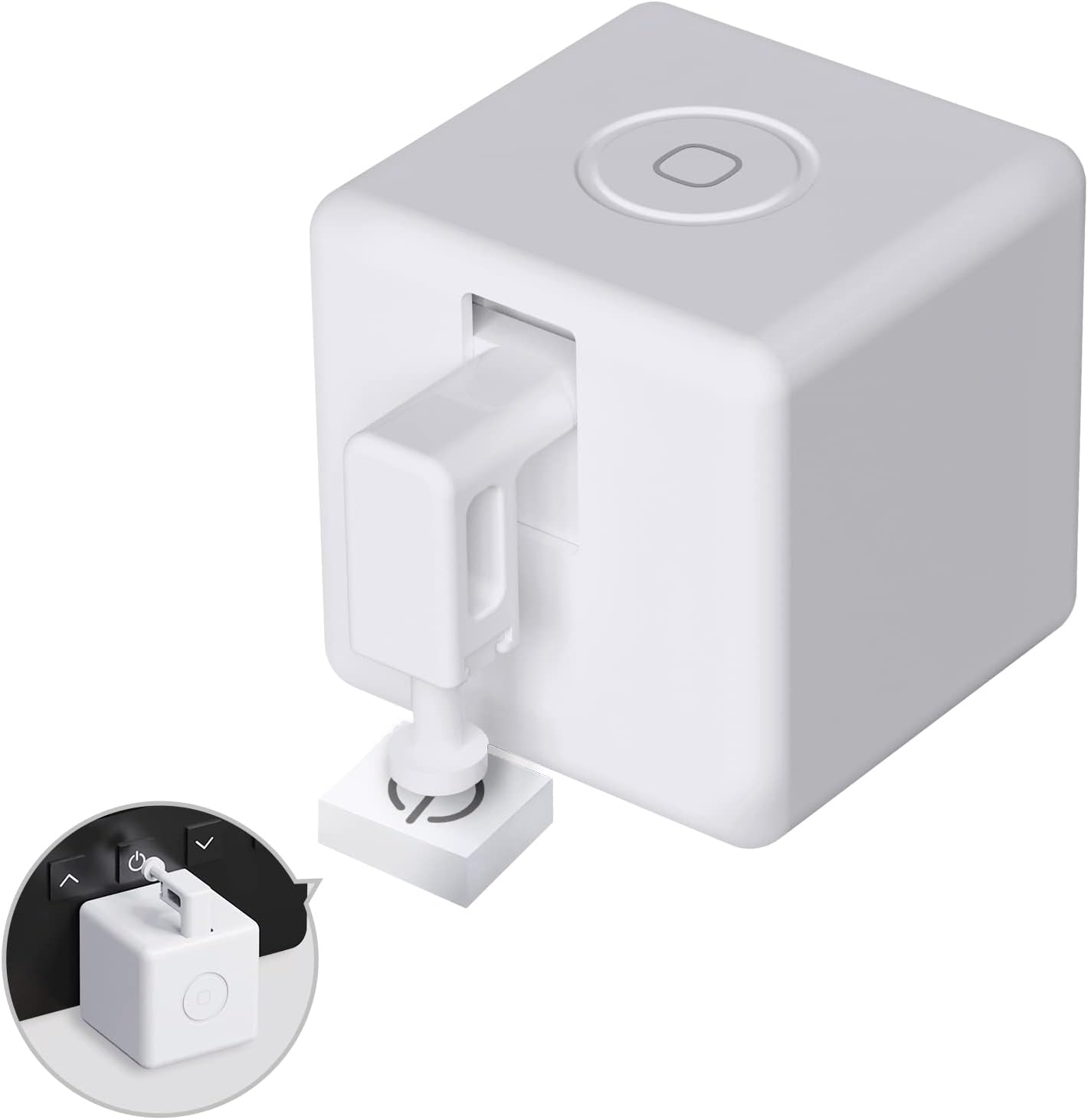
Image: The MOES Fingerbot Plus, a white cube-shaped device with a retractable arm, positioned to press a button. An additional inset highlights the device's top control button and USB-C charging port.
Setup
1. Charging the Device
Before initial use, fully charge the Fingerbot Plus using the provided USB Type-C cable. Connect the cable to the charging port on the device and a standard USB power adapter (not included). The indicator light will show charging status.
2. Installation
- Clean the Surface: Ensure the surface where the Fingerbot Plus will be mounted is clean, dry, and smooth.
- Position the Fingerbot: Carefully align the Fingerbot Plus so its arm can accurately reach and press the target button or switch.
- Apply Adhesive: Peel off the protective film from one of the 3M adhesive stickers and firmly attach it to the back of the Fingerbot Plus.
- Mount the Device: Press the Fingerbot Plus firmly onto the desired surface, ensuring good adhesion. Hold for a few seconds.
3. App Pairing (Smart Life App)
- Download App: Download the "Smart Life" app from your smartphone's app store (iOS or Android).
- Register/Login: Open the app and register for a new account or log in if you already have one.
- Add Device: In the Smart Life app, tap the "+" icon in the top right corner to add a new device.
- Select Device Type: Choose "Fingerbot" or search for "Button Pusher" under the "Small Home Appliances" or "Others" category.
- Enable Bluetooth: Ensure your smartphone's Bluetooth is enabled. The app will automatically search for nearby Fingerbot Plus devices.
- Confirm Pairing: Once detected, follow the on-screen prompts to complete the pairing process. You may need to press the button on the Fingerbot Plus to activate pairing mode.
4. Bluetooth Hub Integration (Optional)
For enhanced functionality, including remote control, voice control (Alexa/Google Home), and timer scheduling, integrate your Fingerbot Plus with a MOES Tuya Bluetooth Hub (sold separately). This hub acts as a bridge, connecting your Bluetooth-only Fingerbot to your Wi-Fi network.
- Set up Hub: Follow the instructions provided with your MOES Tuya Bluetooth Hub to set it up and connect it to your Smart Life app and Wi-Fi network.
- Link Fingerbot to Hub: Once the hub is online, the Smart Life app will guide you to link your paired Fingerbot Plus to the hub. This enables advanced features.
Operating Instructions
1. Basic Operation (Manual)
You can manually activate the Fingerbot Plus by pressing the physical button on its top surface. This will cause the arm to extend and retract, pressing the target button.
2. App Control
Through the Smart Life app, you can control the Fingerbot Plus remotely. The app allows you to:
- Click: Activate the Fingerbot to press the button once.
- Switch: Toggle the Fingerbot between two states (e.g., on/off for a rocker switch).
- Adjust Movement: Fine-tune the arm's movement distance and hold time for precise control.
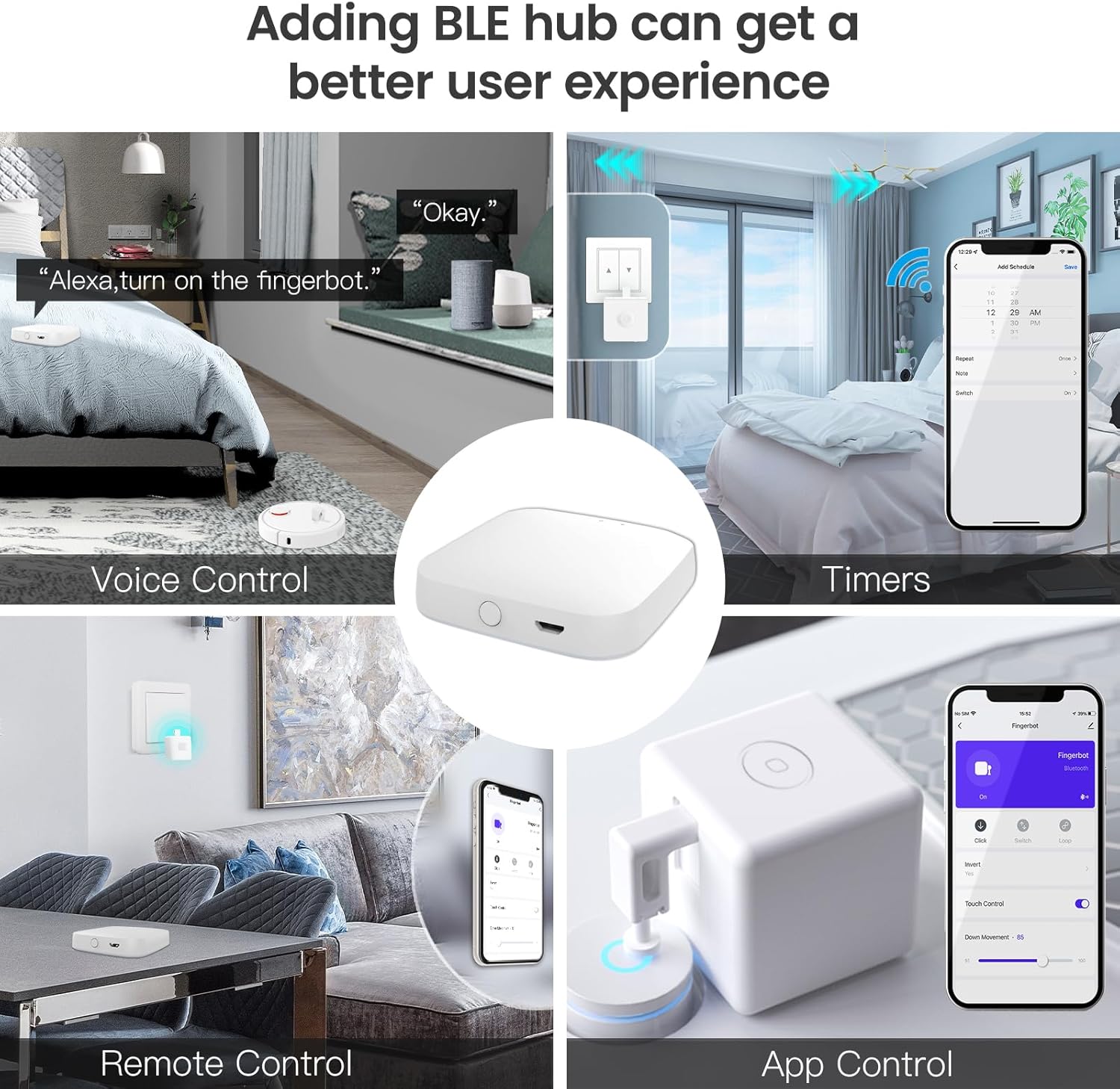
Image: A visual representation of the MOES Fingerbot Plus's versatile control options, including voice commands through smart speakers, scheduled timers set in the app, remote activation, and direct control via the Smart Life mobile application.
3. Voice Control (Requires Bluetooth Hub)
If integrated with a MOES Tuya Bluetooth Hub, you can control your Fingerbot Plus using voice commands via Amazon Alexa or Google Home.
- Link Accounts: In the Alexa or Google Home app, link your Smart Life account.
- Discover Devices: Ask Alexa or Google to "discover devices."
- Voice Commands: Use commands such as:
- "Alexa, turn on [device name]."
- "Hey Google, turn off [device name]."
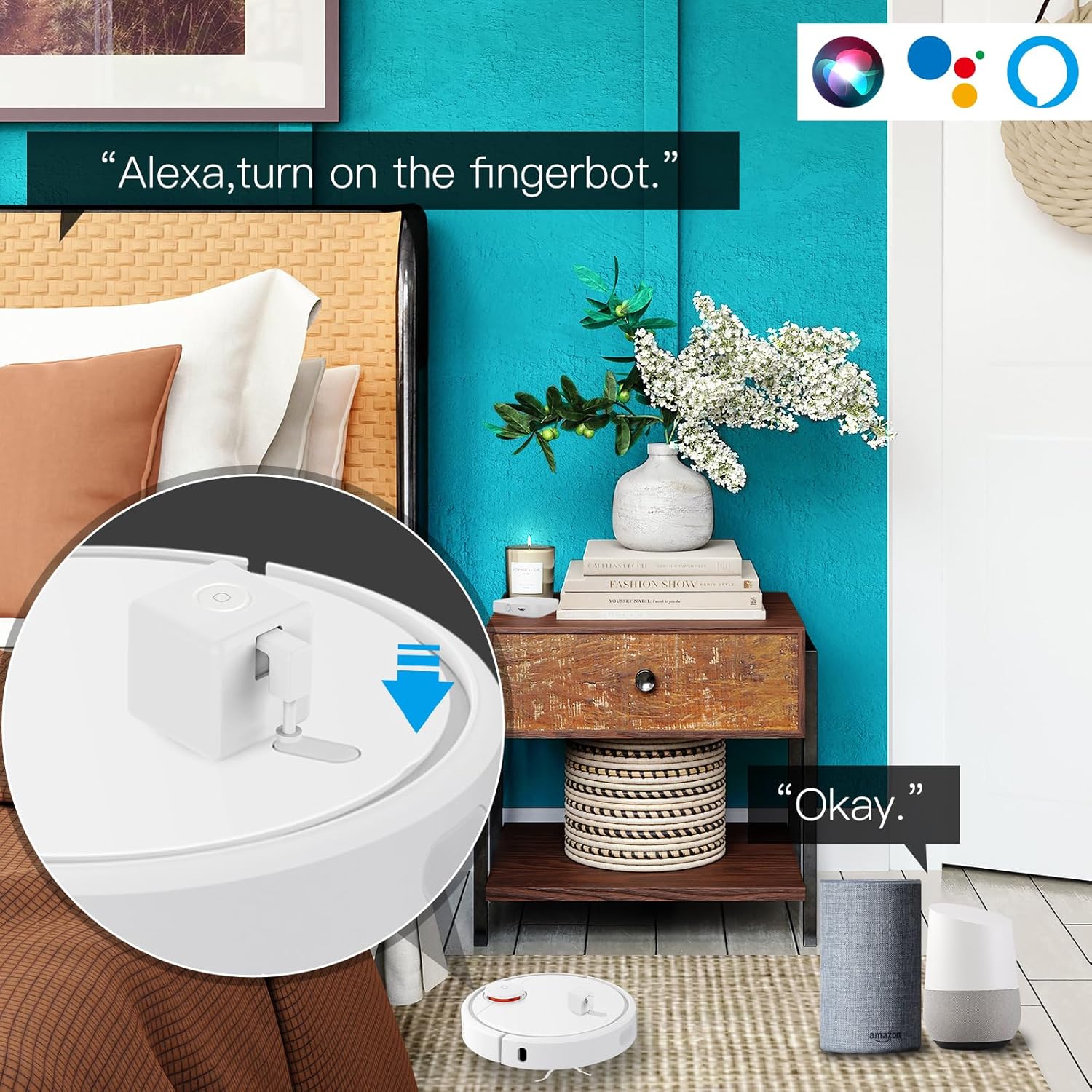
Image: The MOES Fingerbot Plus positioned on a robot vacuum cleaner, illustrating its activation through voice commands like "Alexa, turn on the fingerbot," with visual cues for Amazon Alexa and Google Home integration.
4. Timer Control (Requires Bluetooth Hub)
Set schedules and timers for your Fingerbot Plus through the Smart Life app when connected to a Bluetooth Hub. This allows for automated operation at specific times or based on conditions.
- Open the Smart Life app and select your Fingerbot Plus.
- Navigate to the "Schedule" or "Timer" section.
- Set desired activation times and days.
Maintenance
1. Charging
When the battery is low, the Fingerbot Plus will indicate this (e.g., via an LED indicator or app notification). Recharge the device using the provided USB Type-C cable. A full charge typically takes a few hours.
2. Cleaning
Wipe the exterior of the Fingerbot Plus with a soft, dry cloth. Do not use abrasive cleaners or immerse the device in water.
Troubleshooting
- Device not responding:
- Ensure the battery is charged.
- Check Bluetooth connection on your phone.
- If using a hub, verify the hub is online and connected to Wi-Fi.
- Try restarting the Fingerbot Plus by pressing and holding the top button for a few seconds, then releasing.
- Arm not pressing correctly:
- Re-adjust the Fingerbot's position on the surface.
- In the Smart Life app, adjust the "Movement Distance" and "Hold Time" settings for the Fingerbot.
- Ensure the 3M adhesive is securely holding the device.
- Cannot connect to Smart Life App:
- Ensure Bluetooth is enabled on your phone.
- Make sure the Fingerbot Plus is in pairing mode (refer to app instructions).
- Try restarting your phone and the Fingerbot Plus.
- Voice control not working:
- Verify your MOES Tuya Bluetooth Hub is online and connected to the internet.
- Confirm that your Smart Life account is correctly linked to Alexa/Google Home.
- Ensure the device name in Smart Life matches the name used in voice commands.
Specifications
| Model Number | T-BS-FB-V3 |
| Dimensions | 32mm x 32mm x 32mm (1.26 x 1.26 x 1.26 inches) |
| Weight | 32g |
| Wireless Protocol | Bluetooth Low Power 4.2 |
| Charging Port | USB Type-C |
| Stall Torque | 1.6 kgfcm |
| Maximum Arm Movement | 8 mm |
| Battery Capacity | 500 mAh |
| Manufacturer | WENZHOU NOVA NEW ENERGY CO.,LTD |
Warranty and Support
For warranty information and technical support, please refer to the official MOES website or contact your retailer. Keep your purchase receipt as proof of purchase.
Manufacturer: WENZHOU NOVA NEW ENERGY CO.,LTD
Date First Available: September 12, 2025