
1. Introduction
The Nanoleaf 4D V2 TV LED Backlight is designed to enhance your entertainment experience by extending the colors from your TV screen into your room. This smart addressable gradient lightstrip kit provides immersive bias lighting for home theater and gaming setups, supporting TVs and monitors up to 65 inches.
The kit features a high-resolution gradient lightstrip with 10 color zones per meter, allowing multiple colors to appear simultaneously. The lightstrip is trimmable to fit your screen size, with lighting effects automatically remapping to the new length. The versatile camera can be positioned above or below your screen, and a magnetic privacy cover is included for peace of mind. With Sync+ Technology, you can extend the screen mirroring effect across 50+ Nanoleaf RGB lighting devices.

Image: Nanoleaf 4D V2 TV LED Backlight creating an immersive screen sync experience.
2. What's in the Box
Verify that all components are present in your Nanoleaf 4D V2 kit:
- Addressable Zigzag Gradient Lightstrip x1
- Screen Mirror Camera x1
- Camera Mount x1
- Nanoleaf 4D Controller x1
- Magnetic Privacy Cover x1
- Power Supply x1
- Quick Start Guide x1
- Dust Cloth x1
- Corner Guides x1
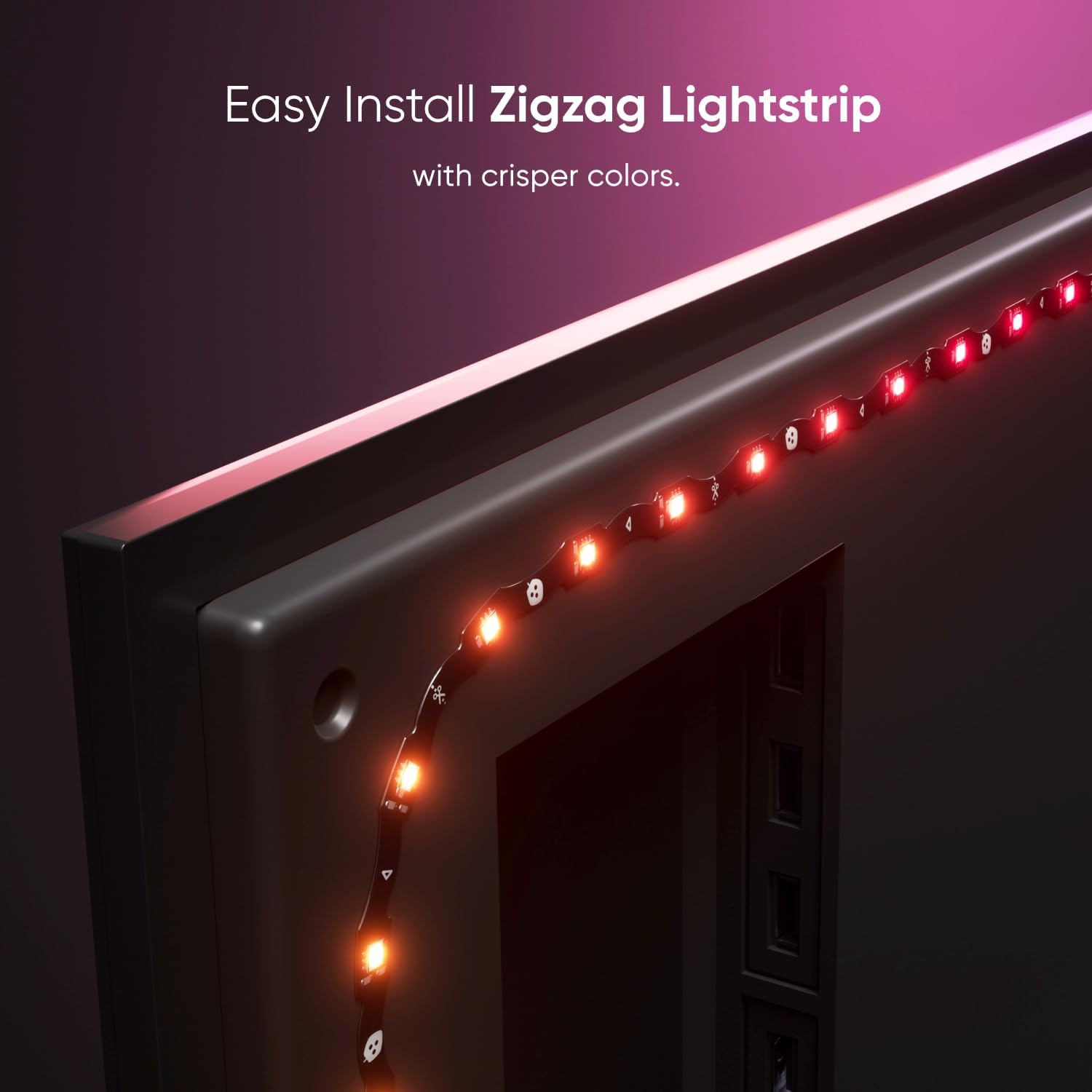
Image: Easy installation of the zigzag lightstrip on the TV's rear.
3. Setup
Follow these steps to set up your Nanoleaf 4D V2 TV LED Backlight kit:
- Prepare the TV Surface: Use the included dust cloth to wipe the back of your TV to ensure it is clean and free of dust.
- Adhere the Lightstrip: Carefully adhere the lightstrip along the perimeter of the back of your TV. Ensure a firm and even application.
- Navigate Corners: Use the provided corner guides to help lay the lightstrip smoothly around the corners of your TV. If the lightstrip is too long, you can trim excess length off the free end (not the end that connects to the Controller).
- Mount the Camera: Mount the Screen Mirror Camera either above or below your TV, depending on your setup preference. Ensure the camera has a clear view of the screen.
- Connect Components: Connect the lightstrip and camera to the Nanoleaf 4D Controller. Then, connect the power supply to the controller and plug it into an outlet.
- Pair with Nanoleaf App: Download the Nanoleaf App on your smartphone (iOS 16.5+ or Android 9+). Ensure your Wi-Fi is set to 2.4 GHz (not 5 GHz) and Bluetooth is enabled. Open the app, tap 'Add Device', and follow the on-screen instructions to scan the QR code or enter the 8-digit pairing code from your Quick Start Guide or the back of the Controller.
- Calibrate the Lightstrip: Follow the in-app directions for lightstrip calibration. This involves identifying the corners of the lightstrip.
- Calibrate the Screen: Perform screen calibration using the app. For best results, place the calibration points slightly inwards, away from the very edges of the TV, to reduce potential errors.
- Enable Sync+ (Optional): If you have other Nanoleaf RGB lighting devices, enable Sync+ in the app to extend the mirroring effect across your entire space.
Setup Video Guide
Video: Official Nanoleaf 4D V2 TV LED Backlight setup guide, demonstrating unboxing, lightstrip application, camera mounting, and initial app pairing and calibration.
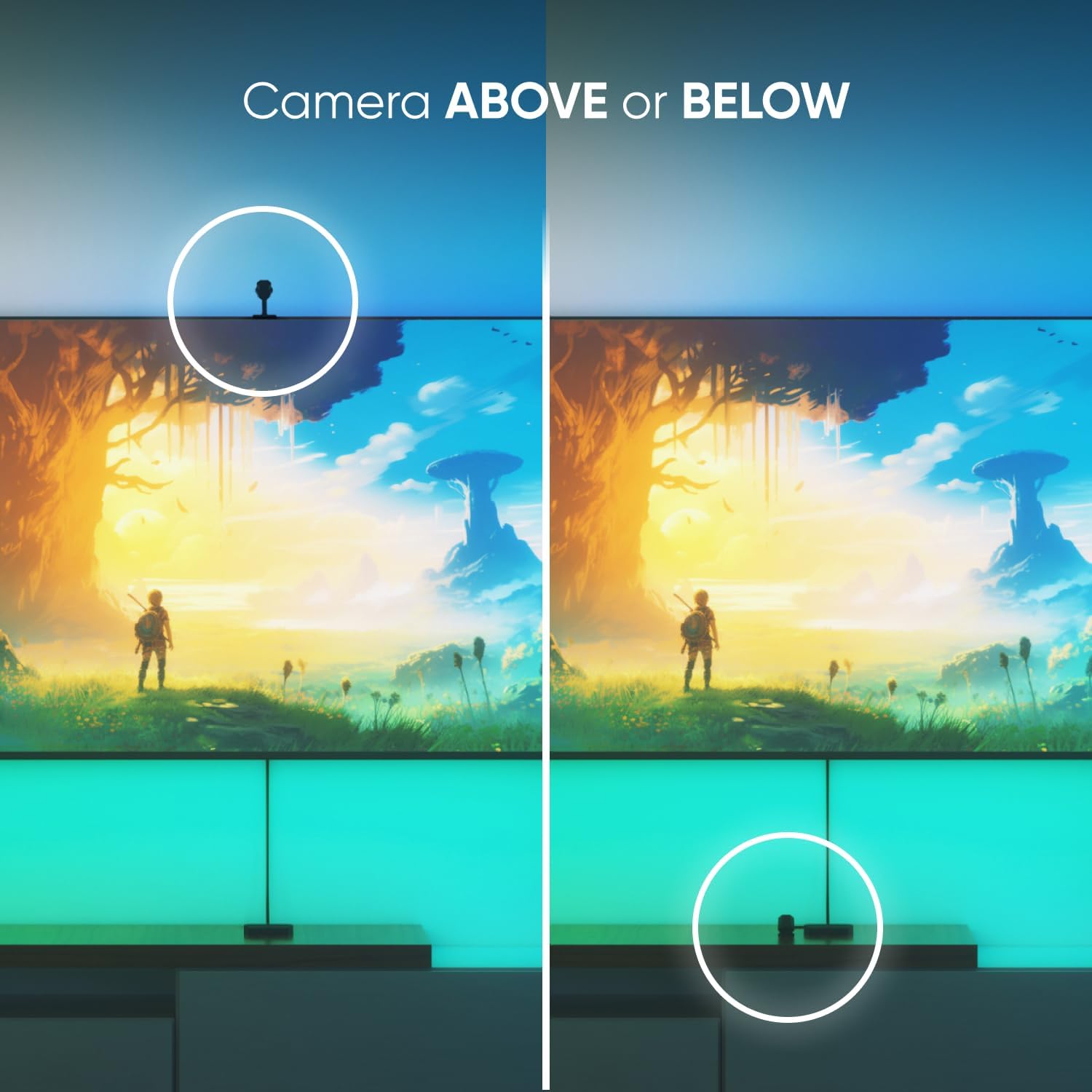
Image: Versatile camera positioning options (above or below the TV).
4. Operating
The Nanoleaf 4D V2 offers various modes and control options for a personalized experience:
- Screen Mirroring: The primary function extends the colors from your TV screen into your space.
- 4 Mirror Modes: Choose from 4 distinct screen mirror modes with varying degrees of immersion: ambient background lighting, fluid color melts, and a direct '4D' match for the highest impact.
- Rhythm Mode: Add sound reactivity to any screen mirror mode to synchronize lighting with your audio.
- Color-Changing Animations: Even when the screen is off, create and customize colorful lighting effects with over 16 million colors. Transition colors slowly for ambiance or increase speed for dynamic effects.
- Control Options: Control your Nanoleaf 4D V2 using the Nanoleaf App, the physical Controller, or voice assistants (Amazon Alexa, Apple HomeKit, Google Assistant) for non-mirroring effects like ON/OFF, Scenes, and Rhythm Mode.

Image: Customize colors and screen mirroring settings via the Nanoleaf App.
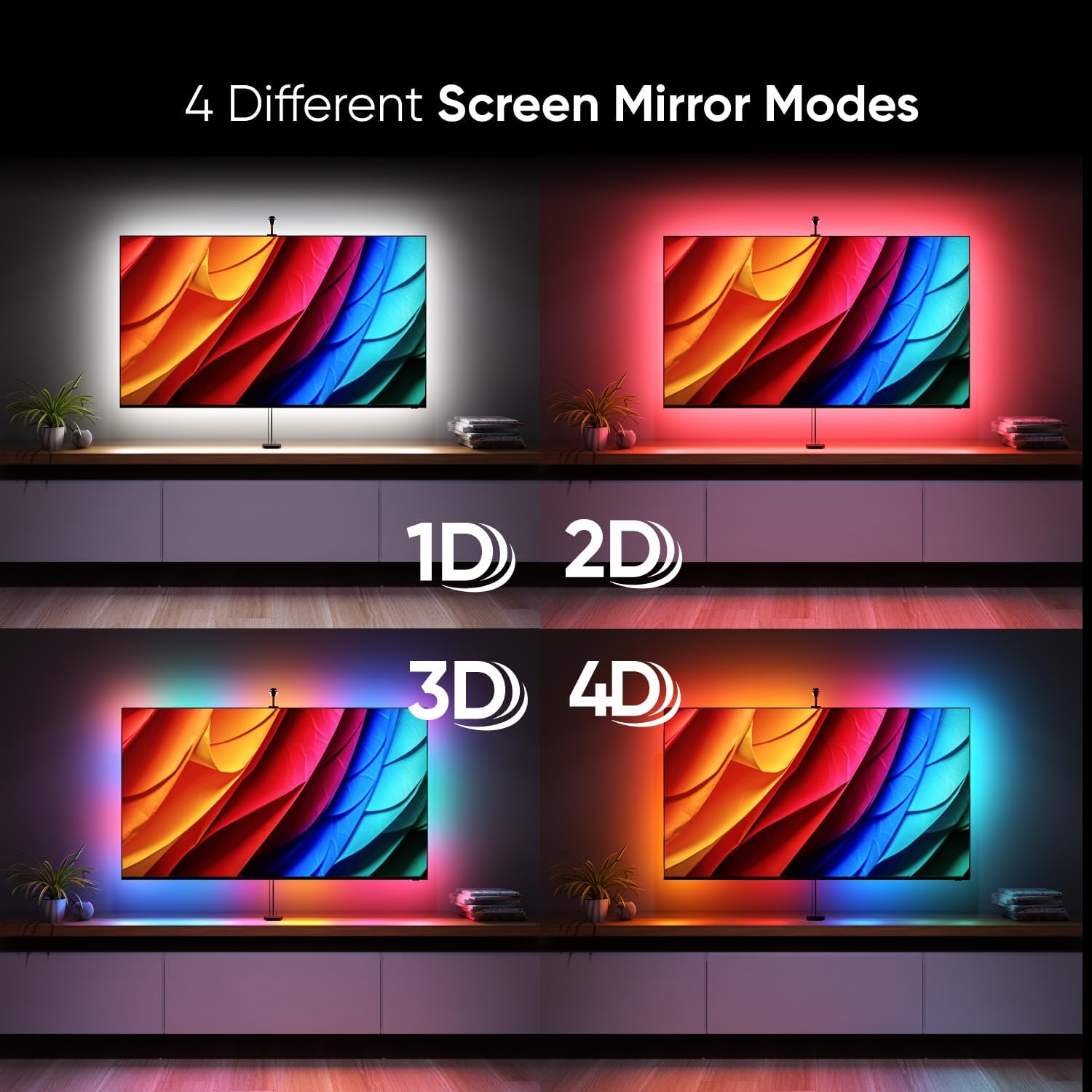
Image: Visual representation of the 4 different screen mirror modes.
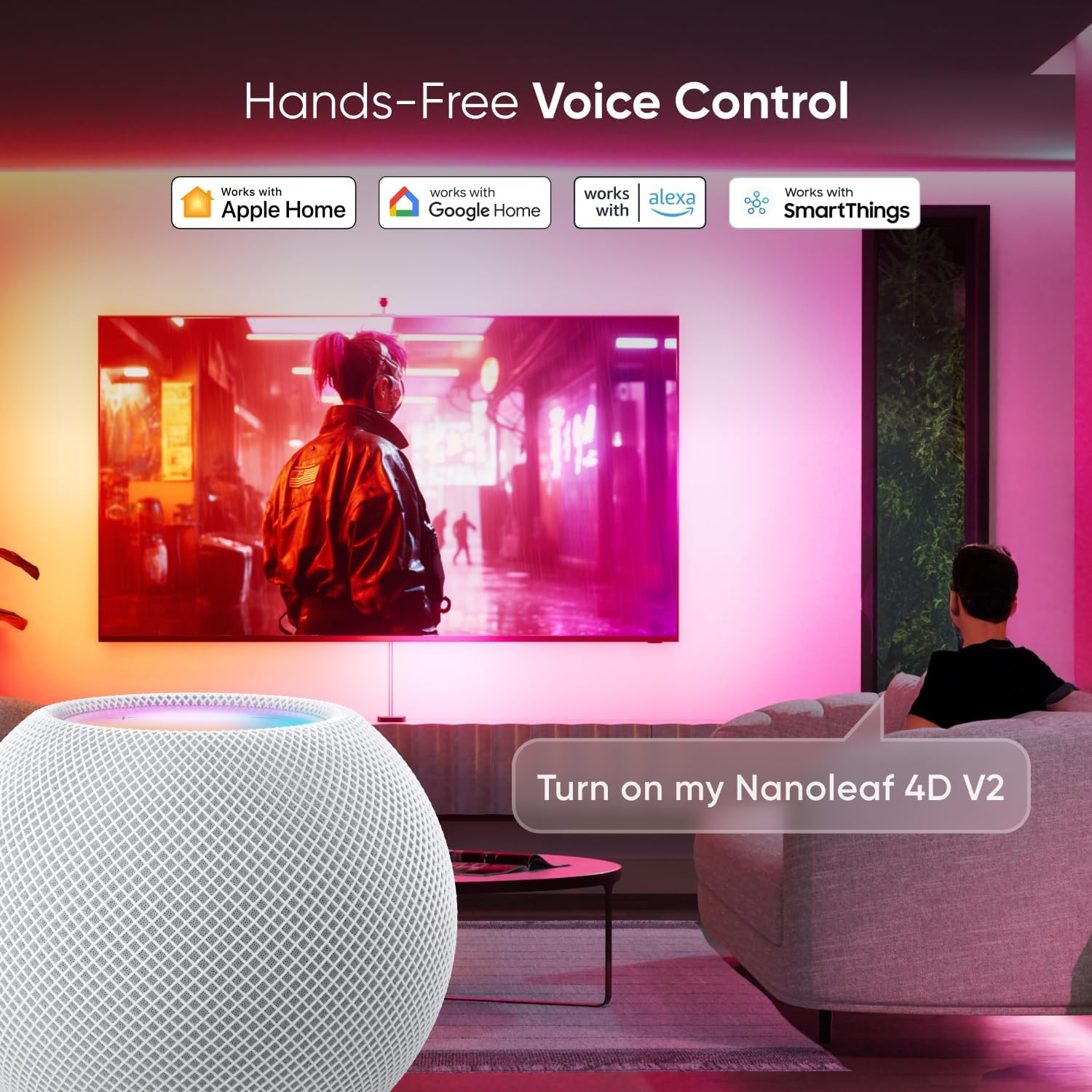
Image: Hands-free voice control integration with popular smart home platforms.
5. Maintenance
To ensure the longevity and optimal performance of your Nanoleaf 4D V2 kit, follow these simple maintenance guidelines:
- Cleaning: Use a soft, dry cloth to gently wipe the lightstrip, camera, and controller. Avoid using abrasive cleaners, solvents, or harsh chemicals, as these can damage the product.
- Dust Removal: Periodically use the provided dust cloth or a similar soft cloth to clean the camera lens and the lightstrip to prevent dust buildup from affecting performance.
- Cable Management: Ensure all cables are neatly organized and not under tension or pinched, which could lead to damage.
- Storage: If storing the device for an extended period, disconnect it from power and store it in a cool, dry place away from direct sunlight.
6. Troubleshooting
If you encounter issues with your Nanoleaf 4D V2, refer to the following common solutions:
Calibration Issues
Accurate calibration is crucial for optimal screen mirroring. If you experience sub-optimal accuracy:
- Low Light Environment: Ensure the room is in a low-light environment. Close curtains and turn off other ambient light sources to prevent reflections and obstruction of the screen's content.
- TV On During Calibration: Always keep your TV turned on during calibration. This helps the screen contrast against the frame, making corners easier to locate.
- Camera Angle: If mounting the camera above the TV, tilt the mount to a lower angle to ensure the camera can see the entire screen, especially for larger TVs.
- Video Method: If your TV is a smart TV, play a calibration video (like the one in the '4D Setup Tips and Tricks' video below) on your TV and pause it at a frame that highlights the corners. This enhances visibility for calibration points.
- Flashlight Method: Open the calibration screen in the Nanoleaf app. Turn on your phone's flashlight and hold it at each corner of your TV screen, facing the 4D camera. Press the refresh button in the app to capture the image. Then, move the corresponding calibration point in the app to the exact spot where the flashlight is showing in the captured image. Repeat for all corners.
- Adjust Calibration Points: Try moving all calibration points slightly closer together and farther away from the very edge of the screen to reduce the margin for error.
Pairing Issues
If you are having trouble pairing your device:
- Controller Reset: If the controller has been powered on for more than 15 minutes, reset it to ensure successful pairing. Hold the Power and Color Scenes buttons on the Controller for 10 seconds while powered on.
- Network Requirements: Ensure your device is running iOS 16.5 or later (for Apple Home) or Android 9 or later. Your Wi-Fi should be set to 2.4 GHz (not 5 GHz), and Bluetooth must be turned on.
Troubleshooting & Setup Tips Videos
Video: Detailed tips and tricks for optimizing your Nanoleaf 4D setup and calibration for the most accurate viewing experience.
Video: Instructions on how to pair your Nanoleaf 4D V2 with iOS and Android devices, including controller reset procedures.
7. Specifications
| Feature | Detail |
|---|---|
| Brand | Nanoleaf |
| Model Number | N6900K03-43LS |
| Color | Black |
| Indoor/Outdoor Usage | Indoor |
| Special Features | Adjustable, Color Changing, Dimmable, Screen Mirroring, Zigzag Lightstrip |
| Light Source Type | LED |
| Power Source | Corded Electric |
| Light Color | Multicolor |
| Controller Type | Amazon Alexa, Apple HomeKit, Button Control, Google Assistant |
| White Brightness | 1075 Lumens |
| Control Method | App, Remote, Voice |
| Material Type | Plastic |
| Number of Light Sources | 129 |
| Item Length | 169 Inches (for up to 65" TV) |
8. Warranty
The Nanoleaf 4D V2 TV LED Backlight comes with a 2-year parts manufacturer warranty. Please retain your proof of purchase for any warranty claims. For detailed warranty terms and conditions, refer to the official Nanoleaf website or contact customer support.
9. Support
For further assistance, product updates, or to explore other Nanoleaf products, please visit the official Nanoleaf website:
- Official Website: nanoleaf.me
- Customer Support: Refer to the support section on the Nanoleaf website for FAQs, troubleshooting guides, and contact information.
- Nanoleaf App: Download the latest version of the Nanoleaf App from your device's app store for the best experience and access to all features.