
1. Introduction
The Vasco Translator Q1 is an advanced electronic translator designed to facilitate communication across language barriers. It features AI voice cloning, real-time translation for voice, text, photos, and phone calls, and includes free lifetime internet connectivity in nearly 200 countries. This manual provides essential information for setting up, operating, maintaining, and troubleshooting your device.

The Vasco Translator Q1, featuring voice translation technology.
2. What's in the Box
Upon unboxing your Vasco Translator Q1, verify that all the following items are included:
- Vasco Translator Q1 device
- Integrated SIM card with free unlimited internet
- USB-C cable for charging and data transfer
- Lanyard for convenient carrying
- Warranty information
- User manual (this document)
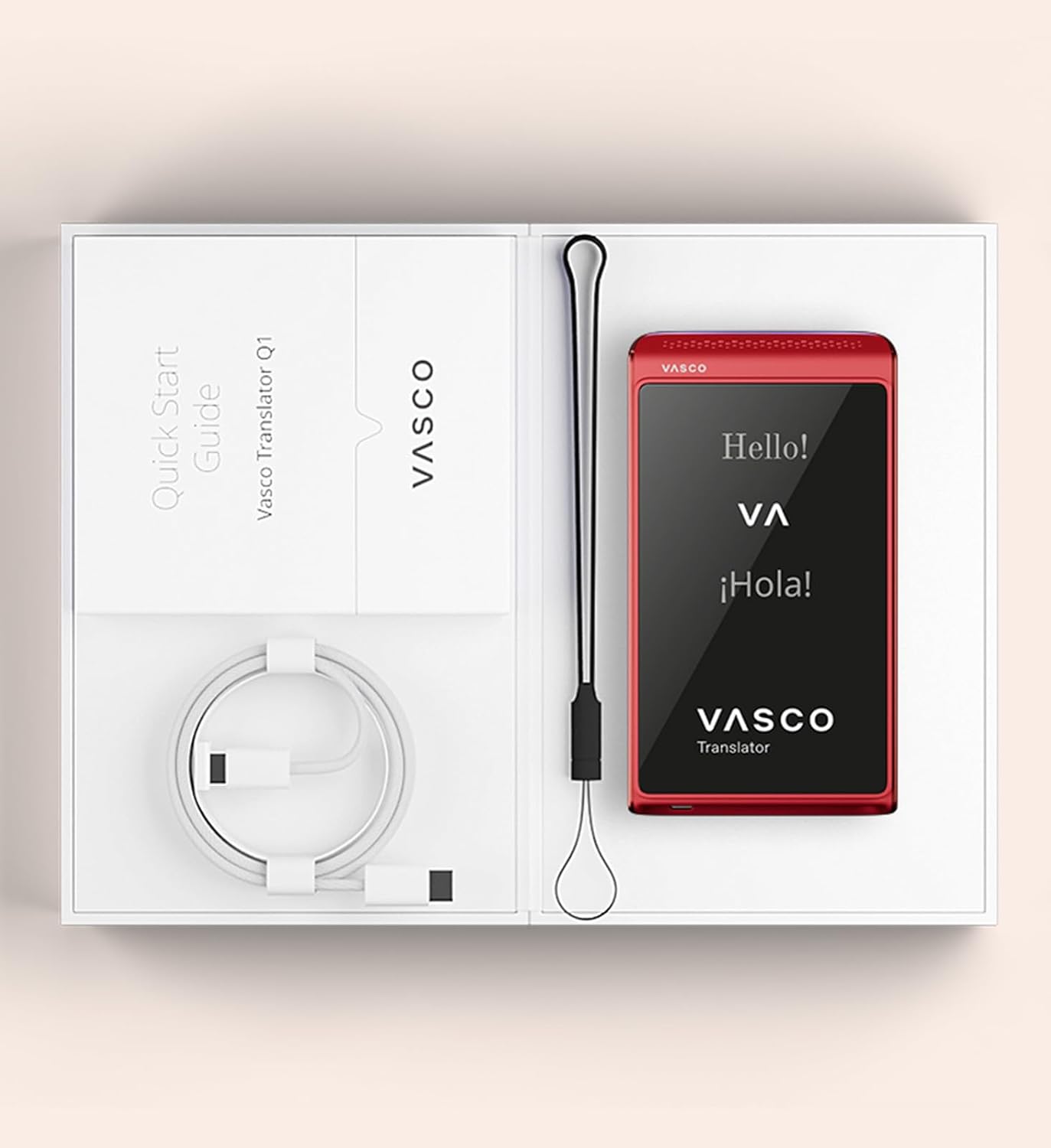
The Vasco Translator Q1 and its included accessories.
3. Setup
3.1 Initial Charging
Before first use, fully charge your Vasco Translator Q1 using the provided USB-C cable and a compatible power adapter. The device will indicate charging status on its screen.
3.2 Powering On/Off
- To Power On: Press and hold the power button (usually on the side) until the Vasco logo appears.
- To Power Off: Press and hold the power button, then select 'Power Off' from the on-screen options.
3.3 Initial Configuration
Upon first power-on, follow the on-screen prompts to select your preferred interface language and connect to a Wi-Fi network if available. The integrated SIM card provides automatic internet access in supported regions, but Wi-Fi can be used as an alternative.
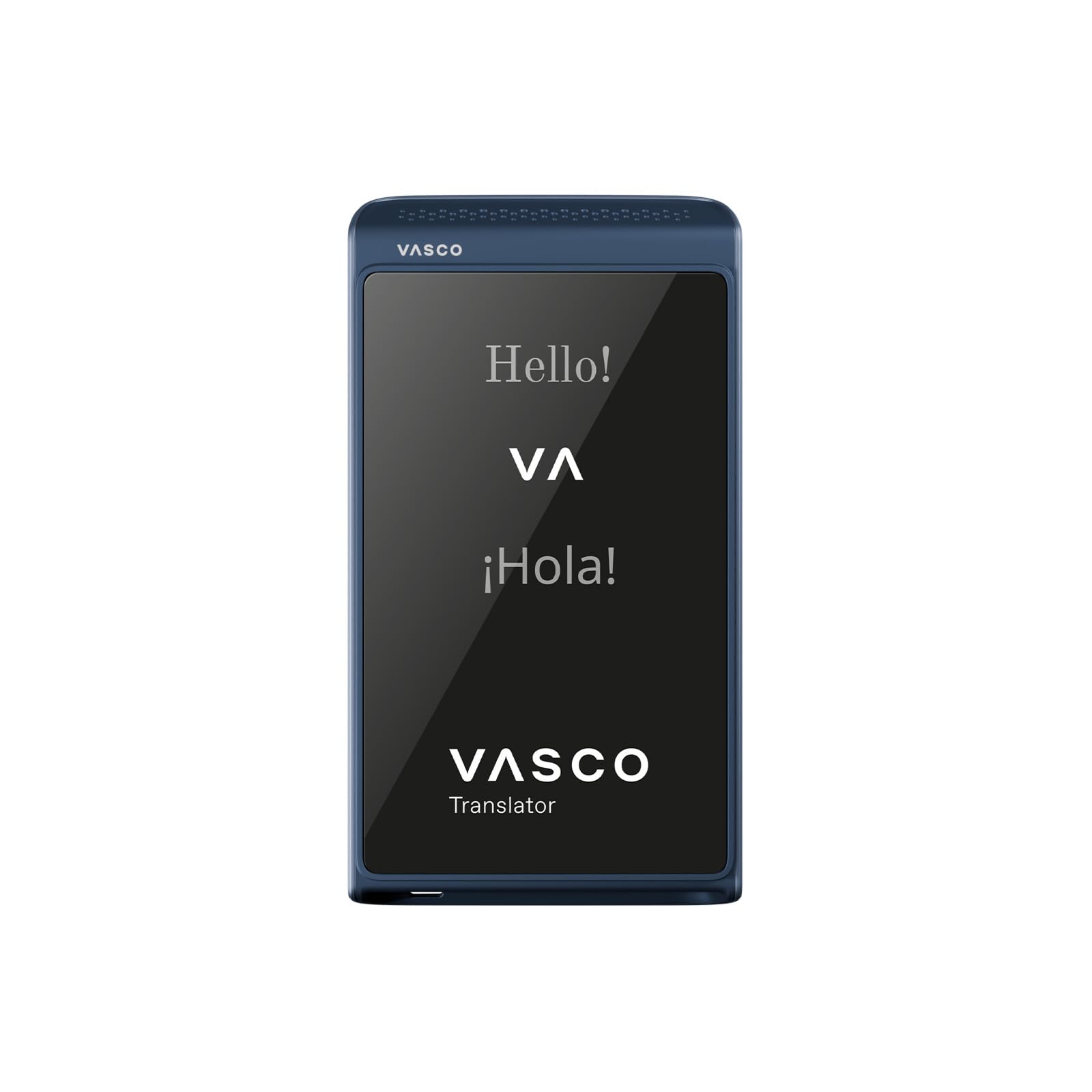
The Vasco Translator Q1 display during initial setup.
4. Operating Instructions
The Vasco Translator Q1 offers various translation modes to suit different communication needs.
4.1 Voice Translation
This is the primary function for real-time spoken communication. The device supports 86 languages for voice translation.
- Select the two languages for translation on the device screen.
- Press and hold the designated microphone button for your language.
- Speak clearly into the device.
- Release the button. The device will translate and speak the phrase in the target language.

The device interface for voice translation.

Hands-free translation for uninterrupted conversations.

Using the Vasco Translator Q1 in a group setting.
4.2 Voice Cloning (Vasco My Voice)
The Vasco Translator Q1 can clone your voice in 54 languages, providing a more personalized and natural translation output. Follow the on-screen instructions to record your voice and enable this feature.
4.3 Phone Call Translation
Translate international phone calls in real-time, supporting 53 languages. The device comes with 10 minutes of free call translation, with additional time available for purchase.
- Navigate to the 'Phone Call Translation' feature.
- Dial the international number.
- The device will translate both sides of the conversation in real-time.

Translating phone calls with the Vasco Translator Q1.

Staying connected with real-time phone call translation.
4.4 Photo Translation
Translate text from images using the device's camera. This feature supports 113 languages.
- Open the 'Photo Translator' application.
- Point the camera at the text you wish to translate (e.g., a menu, sign, or document).
- Tap the screen to capture the image. The device will display the translated text.

Translating text from a magazine using the photo translation feature.

Translating a menu with the Vasco Translator Q1.
4.5 Text Translation
For direct text input, the device supports 108 languages.
- Open the 'Text Translator' application.
- Type or paste the text you want to translate.
- Select the target language. The translation will appear on the screen.
4.6 Internet Connectivity
The Vasco Translator Q1 includes an integrated SIM card providing free, unlimited internet for translations in nearly 200 countries. No contracts or hidden fees are required for this service.

The device highlights its free lifetime internet feature.
5. Maintenance
5.1 Cleaning the Device
Use a soft, dry, lint-free cloth to clean the device. Avoid using abrasive cleaners, solvents, or aerosol sprays, as these can damage the screen or casing.
5.2 Software Updates
Periodically check for software updates to ensure optimal performance and access to the latest features and language improvements. Updates can typically be found in the device's settings menu under 'System Updates'.
5.3 Battery Care
To prolong battery life, avoid exposing the device to extreme temperatures. Charge the device regularly, but avoid leaving it fully charged or fully discharged for extended periods.
6. Troubleshooting
If you encounter issues with your Vasco Translator Q1, refer to the following common solutions:
| Problem | Possible Solution |
|---|---|
| Device not turning on | Ensure the device is fully charged. Press and hold the power button for at least 10 seconds for a forced restart. |
| Translation is inaccurate | Speak clearly and at a moderate pace. Ensure correct source and target languages are selected. Check for software updates. |
| No internet connection | Verify you are in a country with coverage. Check Wi-Fi settings if attempting to connect via Wi-Fi. Restart the device. |
| Voice cloning not working | Ensure the feature is enabled in settings and you have completed the voice recording process. Check if your language is supported for voice cloning. |
| Screen is unresponsive | Perform a forced restart. If the issue persists, contact customer support. |
7. Specifications
Detailed technical specifications for the Vasco Translator Q1:
- Brand: Vasco Electronics
- Model Number: Vasco Translator Q1
- Color: Slate Blue (variant shown)
- Manufacturer: Vasco Electronics
- Number of Items: 1
- ASIN: B0FQPJV8BG
- Voice Translation Support: 86 languages
- Photo Translation Support: 113 languages
- Text Translation Support: 108 languages
- Voice Cloning Support: 54 languages
- Phone Call Translation Support: 53 languages
- Internet Connectivity: Free lifetime internet via integrated SIM card in nearly 200 countries
- Accuracy: Up to 96% accuracy with over 10 specialized AI translation engines
- Camera: 12MP Sony camera with flash for photo translation
- Charging: USB-C
7.1 Language Support Overview
The following tables provide a detailed overview of language support for various features:

Language support details (Part 1).

Language support details (Part 2).

Language support details (Part 3).

Language support details (Part 4).
8. Warranty and Support
8.1 Warranty Information
The Vasco Translator Q1 comes with a manufacturer's warranty. Please refer to the warranty card included in your product packaging for specific terms, conditions, and duration. Retain your proof of purchase for warranty claims.
8.2 Customer Support
For technical assistance, troubleshooting beyond this manual, or warranty inquiries, please contact Vasco Electronics customer support. Contact details can typically be found on the manufacturer's official website or in the documentation provided with your device.


