
1. Introduction
Thank you for choosing the iWIMIUS S29 Smart Projector. This manual provides essential information for setting up, operating, and maintaining your device. Please read it thoroughly before use to ensure optimal performance and safety.
The iWIMIUS S29 is a portable smart projector featuring native 1080P resolution with 4K support, 600 ANSI lumens brightness, and a high 18,000:1 contrast ratio. It includes 2x10W Dolby Audio speakers, WiFi 6, and two-way Bluetooth 5.2 connectivity. Key features also include automatic focus, 4D/4P automatic keystone correction, and a 360° rotatable stand for flexible projection.

2. Setup
2.1 Unboxing and Initial Inspection
Carefully remove all components from the packaging. Verify that all items listed in the packing list are present and undamaged. If any items are missing or damaged, contact customer support.
2.2 Placement and Positioning
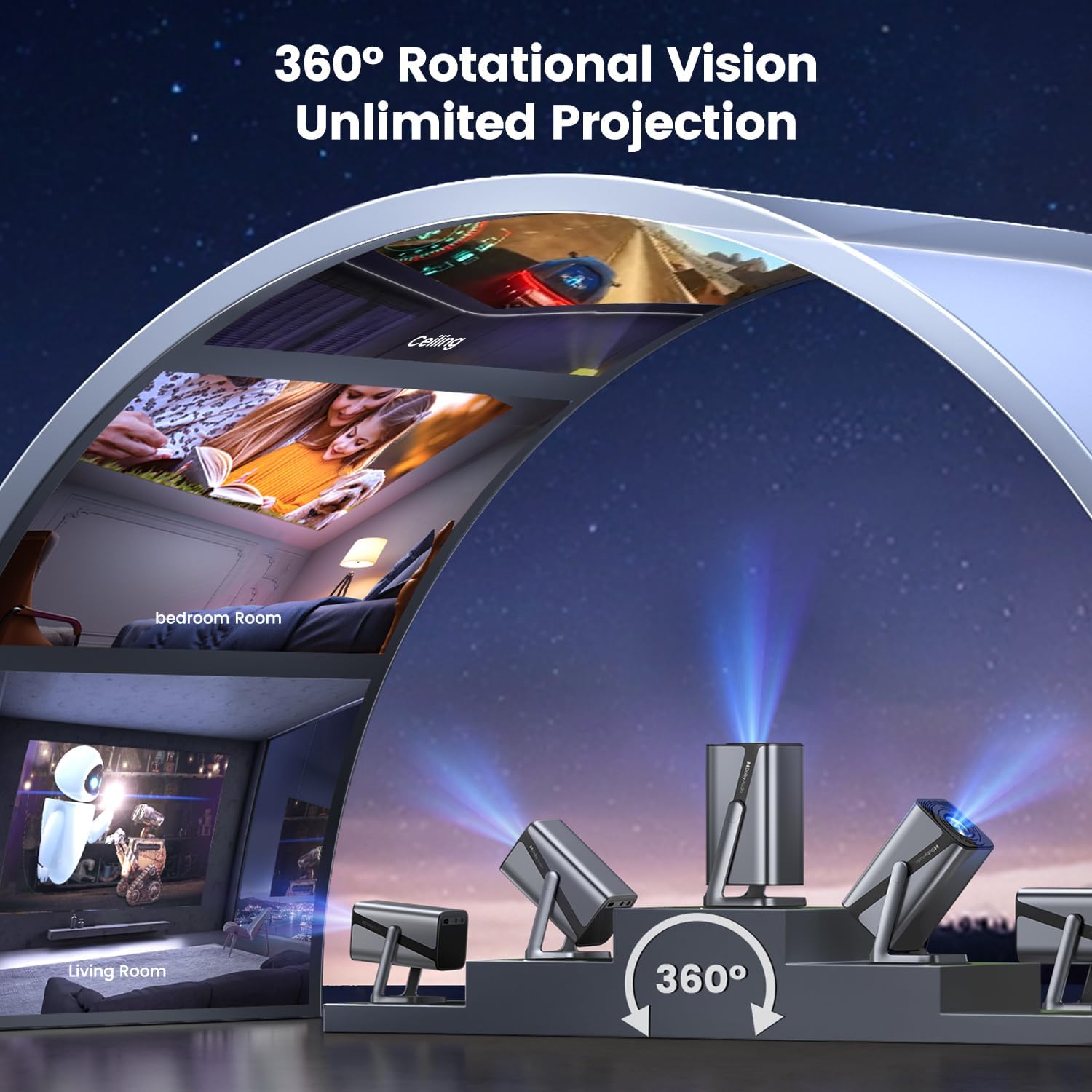
The iWIMIUS S29 features a 360° rotatable stand, allowing for versatile projection angles. Position the projector on a stable surface, such as a tabletop, floor, or mount it on a ceiling or wall using the 1/4-inch screw hole at the bottom.
2.3 Power Connection
- Connect the power cord to the projector's power input port.
- Plug the other end of the power cord into a suitable electrical outlet.
- Press the power button on the projector or remote control to turn on the device.
2.4 Automatic Focus and Keystone Correction
Upon startup or movement, the S29 projector will automatically adjust focus and correct keystone distortion (4D/4P automatic keystone correction) to ensure a clear, rectangular image. If manual adjustment is needed, use the remote control.

2.5 Network and Bluetooth Connectivity
- WiFi 6: Navigate to the network settings menu to connect to your wireless network. WiFi 6 provides faster and more stable streaming.
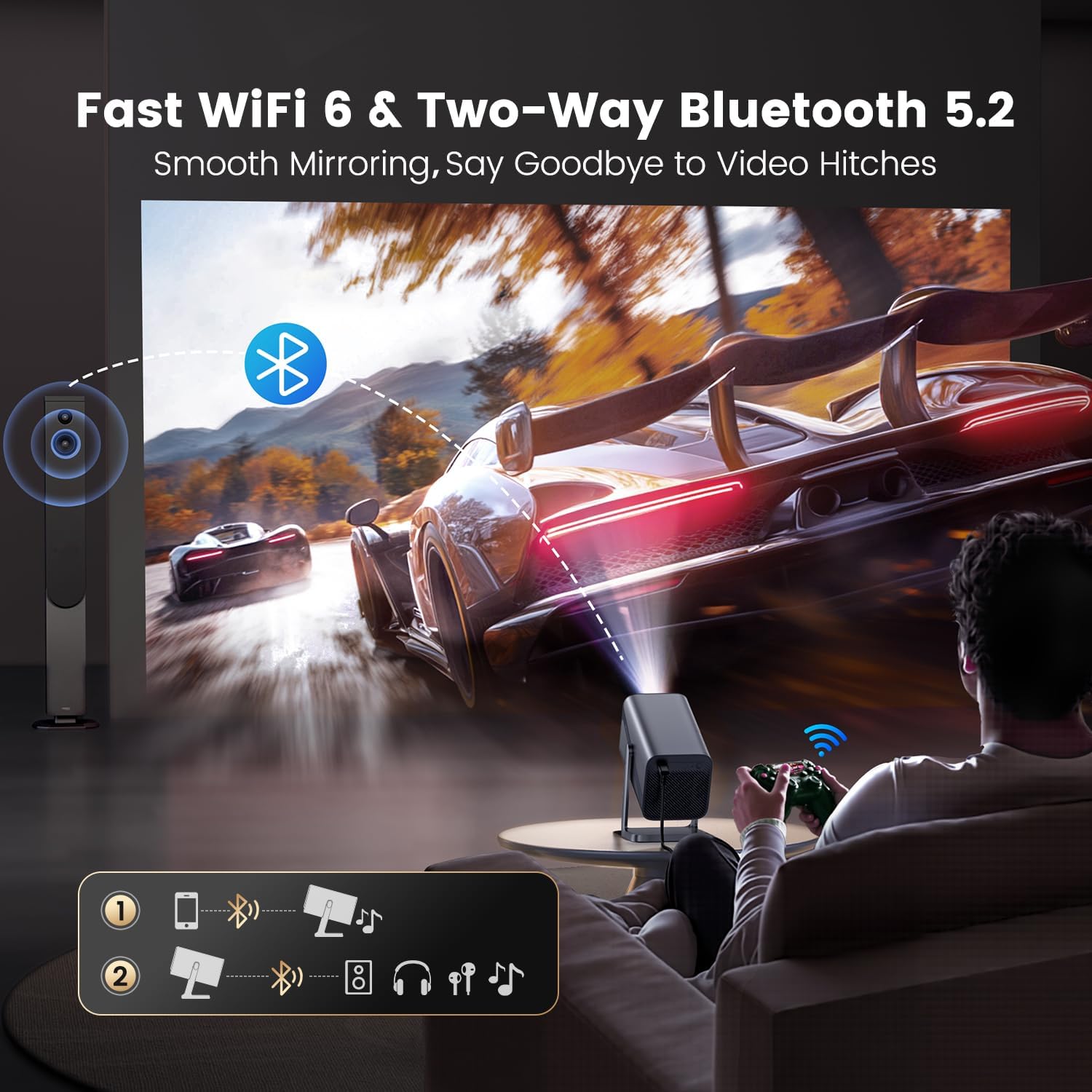
- Two-Way Bluetooth 5.2: The projector supports two-way Bluetooth. You can connect external Bluetooth speakers for enhanced audio or connect your smartphone to the projector to use the projector's speakers.
3. Operating Instructions
3.1 Remote Control Functions
Use the provided remote control to navigate the projector's interface, select input sources, adjust volume, and access settings. Specific buttons are available for auto-focus and keystone adjustments.
3.2 Input Sources
The projector is equipped with multiple input options:
- HDMI Port: Connect devices such as laptops, gaming consoles (PS4/PS5, Switch), TV sticks, or Roku devices.
- USB Port: Connect USB flash drives for media playback.
- 3.5mm Audio Jack: Connect external audio devices or headphones.
- Screen Mirroring: Wirelessly mirror content from iPhones, Android devices, and iPads.
3.3 Smart Features and Applications
The iWIMIUS S29 comes with pre-installed applications, including Netflix, Prime Video, and YouTube. Access these directly from the projector's home screen for streaming content.

3.4 Image and Audio Adjustment
- Zoom Function: Adjust the projection size from 50% to 100% using the remote control without moving the projector.
- Aspect Ratio: Switch between 16:9 and 4:3 aspect ratios as needed.
- Dolby Audio: The integrated 2x10W dual-channel speakers provide immersive sound. Adjust volume via the remote.

4. Maintenance
4.1 Cleaning the Lens
Use a soft, lint-free cloth specifically designed for optical lenses to gently clean the projector lens. Avoid using abrasive materials or harsh chemicals, which can damage the lens coating.
4.2 Cleaning the Vents
Regularly check and clean the projector's ventilation openings to prevent dust buildup, which can affect performance and lead to overheating. Use a soft brush or compressed air to remove dust.
4.3 Storage
When not in use for extended periods, store the projector in a cool, dry place, away from direct sunlight and extreme temperatures. Use the original packaging or a protective case to prevent dust and damage.
5. Troubleshooting
This section addresses common issues you might encounter with your iWIMIUS S29 projector.
5.1 Image is Blurry or Out of Focus
- Ensure the projector is on a stable surface.
- Press the auto-focus button on the remote control.
- If the issue persists, check the lens for smudges or dust and clean it as described in Section 4.1.
5.2 Image is Distorted (Trapezoid Shape)
- The projector features automatic keystone correction. If the image is still distorted, try repositioning the projector.
- Use the manual keystone correction options on the remote control to fine-tune the image.
5.3 No Sound or Low Volume
- Check the volume settings on the projector and any connected source device.
- If using external speakers via Bluetooth, ensure they are properly paired and powered on.
- Verify that the audio output settings on your source device are correctly configured.
5.4 WiFi or Bluetooth Connectivity Issues
- Ensure the projector is within range of your WiFi router or Bluetooth device.
- Restart the projector and the device you are trying to connect.
- Check for any interference from other electronic devices.
5.5 No Signal from Input Source
- Ensure the HDMI or USB cable is securely connected to both the projector and the source device.
- Select the correct input source on the projector using the remote control.
- Verify that the source device is powered on and outputting a signal.
For further assistance, please refer to the Warranty & Support section.
6. Specifications
Below are the technical specifications for the iWIMIUS S29 Smart Projector:
| Feature | Specification |
|---|---|
| Brand | iWIMIUS |
| Model | S29 |
| Display Technology | LCD |
| Native Resolution | 1920 x 1080 (1080P) |
| Supported Resolution | Up to 4K (4096 x 2160 Pixels) |
| Brightness | 600 ANSI Lumens |
| Image Contrast Ratio | 18000:1 |
| Aspect Ratio | 16:9, 4:3 |
| Refresh Rate | 60 Hz |
| Audio | 2x10W Dual Speakers, Dolby Audio Support |
| Connectivity | WiFi 6, Two-Way Bluetooth 5.2, HDMI, USB, 3.5mm Audio |
| Special Features | Intelligent System, 360° Rotatable Stand, Auto Focus, Automatic Vertical Keystone Correction |
| Compatible Devices | Laptop, PS4/PS5, Smartphone, Speaker, Switch, TV Stick, Roku |
| Mounting Type | Ceiling Mount, Floor Mount, Tabletop Mount, Wall Mount |
| Product Dimensions | 12 x 11.6 x 24 cm |
| Weight | 1.09 kg |
| Wattage | 60 watts |

7. Warranty and Support
iWIMIUS is committed to providing excellent customer service. Your S29 Smart Projector comes with comprehensive support:
- Customer Support: 24-hour professional after-sales customer support.
- Money-Back Guarantee: A 2-year money-back guarantee.
- Repair Guarantee: A 3-year repair guarantee.
- Technical Support: Lifetime technical support.
For any questions, troubleshooting, or warranty claims, please contact iWIMIUS customer service. Refer to the official contact information provided with your product documentation for the most direct assistance.