
Inateck N6050-BK
Inateck N6050-BK Wireless 2D Barcode Scanner User Manual
Model: N6050-BK
1. Introduction
Thank you for choosing the Inateck N6050-BK Wireless 2D Barcode Scanner. This manual provides detailed instructions for setting up, operating, and maintaining your device. Please read this manual thoroughly before use to ensure proper functionality and to maximize the scanner's performance.
2. Package Contents
Please verify that all items are present in your package:
- Inateck N6050-BK Barcode Scanner
- Charging Station
- 2 x 2000mAh Rechargeable Batteries (one pre-installed, one spare)
- USB-C Cable
- User Manual (this document)
3. Product Overview
The Inateck N6050-BK is a versatile wireless 2D barcode scanner designed for efficient and accurate data capture. It features a robust design, multiple connection options, and an intelligent battery system.
3.1. Components

Figure 3.1: The Inateck N6050-BK barcode scanner, its charging station, and a spare interchangeable battery. The scanner features an ergonomic grip and a durable casing.
- Scanner Body: Ergonomically designed for comfortable handling during extended use.
- Scan Window: Area where barcodes are read.
- Trigger Button: Activates the scanning beam.
- LED Indicators: Provide status feedback (power, connection, scanning success).
- USB-C Port: For direct wired connection and charging.
- Battery Compartment: Houses the removable 2000mAh battery.
- Charging Station: Used for charging the scanner and/or spare battery, and acts as a 2.4GHz wireless receiver.
3.2. Durability and Ergonomics

Figure 3.2: The scanner's robust construction, featuring a dual-layer protective structure of hard and soft rubber, designed to withstand drops from up to 1.8 meters.

Figure 3.3: The ergonomic design of the scanner, shaped to fit comfortably in the hand for prolonged use, reducing user fatigue.
The scanner is built with a dual-layer protective structure of hard and soft rubber, providing resistance against daily drops and impacts. Its ergonomic handle ensures comfortable operation even during extended periods of use.
4. Setup
4.1. Battery Installation and Charging
The scanner comes with two 2000mAh rechargeable batteries. One battery is typically pre-installed.
- Install Battery: If not already installed, open the battery compartment at the bottom of the scanner (usually secured by a small screw) and insert one of the 2000mAh batteries. Close the compartment securely.
- Initial Charge: For first-time use, fully charge the scanner and the spare battery.

Figure 4.1: Illustration of the two 2000mAh interchangeable batteries, highlighting the extended operational time provided by the dual battery system.

Figure 4.2: The scanner docked in its charging station, illustrating the real-time power display feature that indicates battery charge levels (100%, 75%, 50%, 25%).
The charging station allows convenient charging. Connect the USB-C cable to the charging station and a power source. Place the scanner into the station, or connect the spare battery directly to the USB-C port on the battery itself for independent charging. The scanner features a smart power display to monitor battery levels.
5. Connection Modes
The Inateck N6050-BK offers three connection methods for broad compatibility:
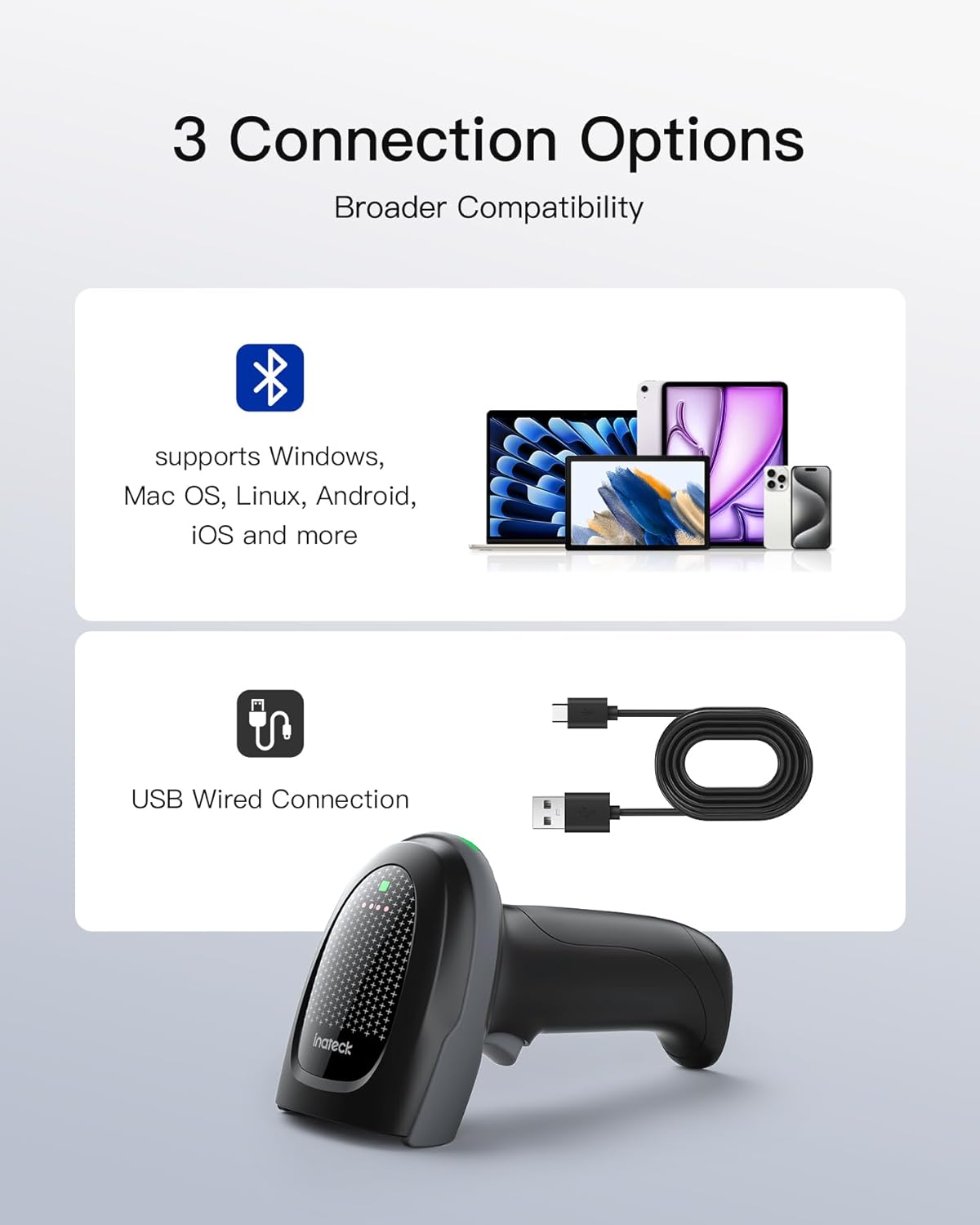
Figure 5.1: Visual representation of the three available connection options: Bluetooth for various operating systems, USB wired connection, and 2.4GHz wireless connection via the charging station.
5.1. 2.4GHz Wireless Connection (via Charging Station)
This mode uses the charging station as a wireless receiver.
- Connect the charging station to your computer's USB port using the provided USB-C cable.
- The charging station will act as a plug-and-play receiver.
- Ensure the scanner is powered on. It should automatically connect to the charging station.
- A successful connection is indicated by a specific LED status on both the scanner and the charging station (refer to LED indicator section in full manual for details).
5.2. Bluetooth Connection
The scanner can connect to devices via Bluetooth, supporting Windows, macOS, Linux, Android, and iOS.
- Activate Bluetooth Mode: Scan the specific "Bluetooth Pairing" barcode (usually found in a separate quick start guide or full manual). The scanner's LED will indicate it's in pairing mode.
- Enable Bluetooth on Host Device: On your computer, tablet, or smartphone, go to Bluetooth settings and turn Bluetooth on.
- Pair Device: Search for available devices. The scanner should appear as "Inateck N6050-BK" or similar. Select it to pair.
- Confirmation: The scanner's LED will change to indicate a successful connection.
5.3. USB Wired Connection
For a direct and reliable connection, use the USB-C cable.
- Connect one end of the USB-C cable to the scanner's USB-C port.
- Connect the other end to a USB port on your computer.
- The scanner will function as a wired device and will also charge simultaneously.
6. Operating Instructions
6.1. Basic Scanning
To scan a barcode:
- Point the scanner's window at the barcode.
- Press and hold the trigger button. A red aiming beam will appear.
- Center the aiming beam over the barcode.
- Upon successful scan, the scanner will emit a beep and the LED indicator will flash. The barcode data will be transmitted to your connected device.
6.2. Supported Barcode Types and Performance

Figure 6.1: The scanner's capability to read a wide range of 1D and 2D barcodes, including those that are damaged, stained, reflective, or displayed on screens. It also supports high-density, long, and small barcodes.

Figure 6.2: An internal view highlighting the 1-megapixel resolution scanning module, which enables accurate decoding of high-density barcodes and ensures readability of various barcode sizes.

Figure 6.3: The scanner's ability to accurately read barcodes displayed on various digital screens, such as smartphones and laptops.
Equipped with a high-resolution 1-megapixel scanning module, the N6050-BK can easily read both 1D and 2D barcodes. It supports all common barcode types, including those that are damaged, stained, reflective, or displayed on digital screens. It also handles high-density, long, and small barcodes effectively.
6.3. Scanning Modes
The scanner supports three operational modes to suit different workflows:
- Button Triggering Mode: The scanner activates only when the trigger button is pressed. Ideal for precise, on-demand scanning.
- Continuous Scanning Mode: The scanner continuously emits a scanning beam, automatically reading any barcode placed in its path. Suitable for high-volume scanning.
- Automatic Detection Mode: The scanner remains in standby and activates the scanning beam only when a barcode is detected in its field of view.
To switch between these modes, refer to the specific configuration barcodes provided in the full user manual or quick start guide.
6.4. Offline Storage Mode
The scanner can store up to 27,000 barcodes internally when out of range or disconnected. Once reconnected, the stored data can be uploaded to the host device. Refer to the full manual for instructions on activating and managing offline storage.
7. Maintenance
7.1. Cleaning
- Use a soft, clean cloth slightly dampened with water or a mild cleaning solution to wipe the scanner's exterior.
- For the scan window, use a lint-free cloth and a non-abrasive cleaner suitable for optics.
- Do not use harsh chemicals, solvents, or abrasive materials, as these can damage the device.
7.2. Battery Care
- Always use the provided Inateck batteries and charging station.
- Avoid exposing batteries to extreme temperatures.
- Store spare batteries in a cool, dry place.
- The interchangeable battery system allows for continuous operation by swapping a depleted battery with a fully charged one.
8. Troubleshooting
If you encounter issues with your Inateck N6050-BK scanner, please refer to the following common problems and solutions:
| Problem | Possible Cause | Solution |
|---|---|---|
| Scanner not powering on | Low battery; Battery not installed correctly | Charge the battery; Reinstall the battery securely. |
| No data transmitted to host device | Not connected; Incorrect connection mode; Out of range | Ensure proper connection (2.4GHz, Bluetooth, or USB); Verify the scanner is in the correct mode; Move closer to the receiver. |
| Cannot scan barcodes | Barcode damaged/unreadable; Scanner settings incorrect; Scan window dirty | Try scanning a different barcode; Reset scanner to factory defaults (via barcode); Clean the scan window. |
| Bluetooth connection unstable | Interference; Distance too far; Host device Bluetooth issue | Reduce distance to host device; Avoid sources of interference; Restart host device's Bluetooth. |
For more detailed troubleshooting or persistent issues, please consult the full user manual or contact Inateck customer support.
9. Specifications
| Feature | Detail |
|---|---|
| Model Number | N6050-BK |
| Scanning Module | 1 Megapixel CMOS |
| Barcode Types | 1D and 2D (e.g., QR Code, Data Matrix, Code 128, UPC/EAN) |
| Connection Modes | 2.4GHz Wireless, Bluetooth, USB Wired |
| Battery Capacity | 2 x 2000mAh Lithium Ion (interchangeable) |
| Compatibility | Windows, macOS, Linux, Android, iOS |
| Drop Resistance | Up to 1.8 meters |
| Offline Storage | Up to 27,000 barcodes |
10. Warranty and Support
Inateck products come with a standard manufacturer's warranty. For specific warranty terms and conditions, please refer to the warranty card included with your product or visit the official Inateck website.
For technical support, product inquiries, or service requests, please contact Inateck customer support through their official channels. You can usually find contact information on the Inateck website or in your product packaging.
Related documentsN6050-BK


Ask a question about this manual
Ask about setup, troubleshooting, compatibility, parts, safety, or missing instructions. Manuals+ will review the question and use this page’s manual context to help answer it.