
1. Product Overview
The MCHOSE UT98 is a compact wireless mechanical keyboard designed for gaming and everyday use. It features a tri-mode connection, hot-swappable switches, a gasket structure for enhanced typing feel, and customizable RGB lighting.

Key Features:
- Tri-Mode Connection: Bluetooth 5.0, 2.4GHz Wireless, and USB-C Wired.
- Hot-Swappable: Compatible with 3-pin and 5-pin mechanical switches.
- Gasket Mount Structure: Five layers of dampening material for a stable and quiet typing experience.
- Customizable RGB: 16 million colors with various effects via MCHOSE HUB.
- Integrated Knob: For instant mute, precise volume control, and other functions.
- Long Battery Life: Built-in 8000mAh battery for extended use.
2. Package Contents
Please ensure all items are present upon unboxing:
- MCHOSE UT98 Wireless Mechanical Keyboard
- Keycap & Switch Puller
- USB Cable (USB-A to USB-C)
- 2.4GHz Wireless Receiver (stored within the keyboard)
- 2 x Replace Switches
- Dust Cover
- User Manual (this document)

3. Setup and Connectivity
3.1 Powering On/Off
Locate the power switch on the side of the keyboard. Slide it to the 'ON' position to power on the keyboard. Slide it to 'OFF' to power off.
3.2 Tri-Mode Connection
The UT98 supports three connection modes: 2.4GHz Wireless, Bluetooth 5.0, and USB-C Wired. A switch on the left side of the keyboard allows you to select the desired mode.

2.4GHz Wireless Mode:
- Locate the 2.4GHz wireless receiver. It is stored in a magnetic compartment on the side of the keyboard. Press the 'PRESS' button to release it.
- Plug the 2.4GHz receiver into an available USB port on your computer.
- Slide the mode switch on the keyboard to the 2.4GHz wireless icon.
- The keyboard should automatically connect.
Bluetooth 5.0 Mode:
- Slide the mode switch on the keyboard to the Bluetooth icon.
- On your device (PC, laptop, smartphone, tablet), go to Bluetooth settings and search for new devices.
- Select "MCHOSE UT98" from the list of available devices to pair.
- The keyboard can connect to up to 3 devices and easily switch between them using FN + key combinations (refer to the user manual for specific key combinations).
USB-C Wired Mode:
- Connect the provided USB-C cable to the keyboard's USB-C port.
- Connect the other end of the USB-C cable to an available USB port on your computer.
- Slide the mode switch on the keyboard to the USB icon.
- The keyboard will function in wired mode and charge simultaneously.
3.3 OS Compatibility
The keyboard is optimized for both macOS and Windows. Use the following FN key combinations to switch between operating system layouts:
- FN + Q: Android
- FN + W: Windows
- FN + R: iOS
- FN + E: Mac

4. Operating Instructions
4.1 Knob Functions
The integrated knob provides quick control over audio:
- Rotate Up: Volume +
- Rotate Down: Volume -
- Push Down: Mute/Unmute
4.2 RGB Lighting Control
The UT98 features vibrant soft light RGB with 16 million customizable colors. You can fine-tune brightness, effects, and reactive modes.
- Change RGB Mode: Use FN + specific keys (refer to the included handy guide for exact combinations).
- Change Solid Color: Use FN + Tab.
- Change Pattern: Use FN + Backspace.
Note: The keycaps are non-shine-through, so the backlight will shine around the keys but not through the characters.
4.3 MCHOSE HUB Software
For advanced customization, download the MCHOSE HUB software. This allows you to:
- Create and assign macros.
- Customize key assignments.
- Set rhythm-based lighting effects.
- Configure various lighting modes.
5. Maintenance
5.1 Cleaning
Regularly clean your keyboard to maintain performance and appearance. Use a soft, dry cloth to wipe down the surface. For deeper cleaning, you may remove keycaps.
5.2 Hot-Swappable Switches
The UT98 features hot-swappable PCB sockets, allowing you to change switches without soldering. Use the provided keycap and switch puller:
- Gently remove the keycap using the keycap puller.
- Use the switch puller to carefully grip the switch and pull it straight up.
- Align the pins of the new switch with the holes on the PCB and press down firmly until it clicks into place.
- Replace the keycap.

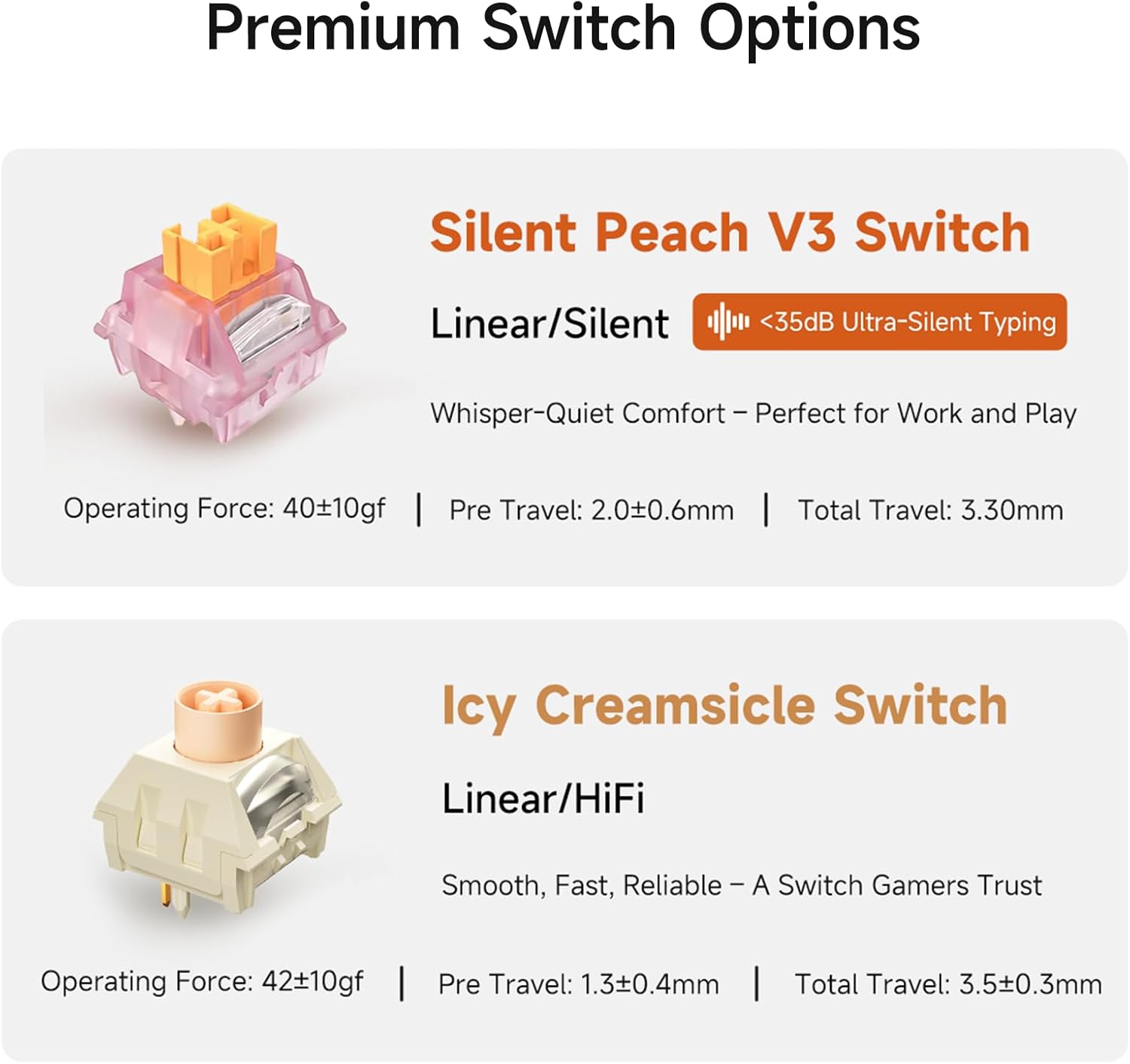
5.3 Switch Options
The UT98 offers premium switch options for different typing preferences:
- Silent Peach V3 Switch: Linear/Silent (<35dB Ultra-Silent Typing). Operating Force: 40±10gf, Pre Travel: 2.0±0.6mm, Total Travel: 3.30mm.
- Icy Creamsicle Switch: Linear/HiFi. Operating Force: 42±10gf, Pre Travel: 1.3±0.4mm, Total Travel: 3.5±0.3mm.
6. Troubleshooting
If you encounter any issues with your MCHOSE UT98 keyboard, please try the following:
- No Connection: Ensure the mode switch is set correctly (2.4GHz, BT, or USB). For 2.4GHz, check if the dongle is properly inserted. For Bluetooth, ensure the keyboard is paired and within range. For wired, check the USB-C cable connection.
- RGB Not Working: Verify the keyboard is powered on. Use FN key combinations to cycle through lighting modes or adjust brightness. Check MCHOSE HUB software settings.
- Keys Not Responding: Ensure the keyboard is powered on and connected. If specific keys are not working, try re-seating or replacing the switch using the provided tools.
- Battery Issues: Charge the keyboard using the USB-C cable. If battery life is significantly shorter than expected, contact support.
7. Specifications
| Feature | Detail |
|---|---|
| Brand | MCHOSE |
| Model Number | UT98 |
| Product Dimensions | 15"L x 5"W x 2"H (15 x 5 x 2 inches) |
| Item Weight | 40.7 pounds |
| Connectivity Technology | 2.4GHz Wireless, BT5.0, USB-C |
| Keyboard Description | Mechanical |
| Special Features | Backlit, Customizable Display Keys, Ergonomic, Hot-Swappable, Rechargeable |
| Keyboard Backlighting Color Support | RGB |
| Batteries | 1 Nonstandard Battery (included) |
| Battery Capacity | 8000mAh (up to 500 hours battery life) |
| Compatible Devices | Gaming Console, Laptop, PC, Smartphone, Tablet |
| Date First Available | September 11, 2025 |
8. Warranty and Support
For warranty information and technical support, please refer to the official MCHOSE website or contact MCHOSE customer service directly. Keep your purchase receipt for warranty claims.
Additional support and resources may be available through the MCHOSE HUB software and online community.


