
Introduction
Welcome to the user manual for your RUXINGX T40 4G Kids Smartwatch. This guide provides detailed instructions to help you set up, operate, and maintain your device, ensuring your child can safely enjoy its features while staying connected. Please read this manual thoroughly before using the smartwatch.

Image: The RUXINGX T40 4G Kids Smartwatch, showcasing its vibrant display and blue strap.
Safety Information
- Do not attempt to disassemble or modify the device.
- Keep the smartwatch away from extreme temperatures and direct sunlight.
- Ensure the charging cable is used correctly to prevent damage.
- This device is IP68 waterproof, but avoid using it in hot water or steam environments.
- Supervise children during initial setup and usage.
What's Included
Upon unboxing, please verify that all the following components are present:
- RUXINGX T40 Smartwatch
- Charging Cable
- User Manual
- Watch Strap (additional strap may be included)

Image: Contents of the RUXINGX T40 Smartwatch package.
Setup Guide
1. SIM Card Installation
The RUXINGX T40 smartwatch requires a Nano SIM card for 4G connectivity, calls, and GPS features. Ensure the SIM card is activated and has a data plan.
- Power off the smartwatch completely.
- Locate the SIM card slot on the side of the smartwatch.
- Carefully insert the Nano SIM card into the slot with the gold contacts facing up, ensuring it clicks into place.
- Close the SIM card tray securely.
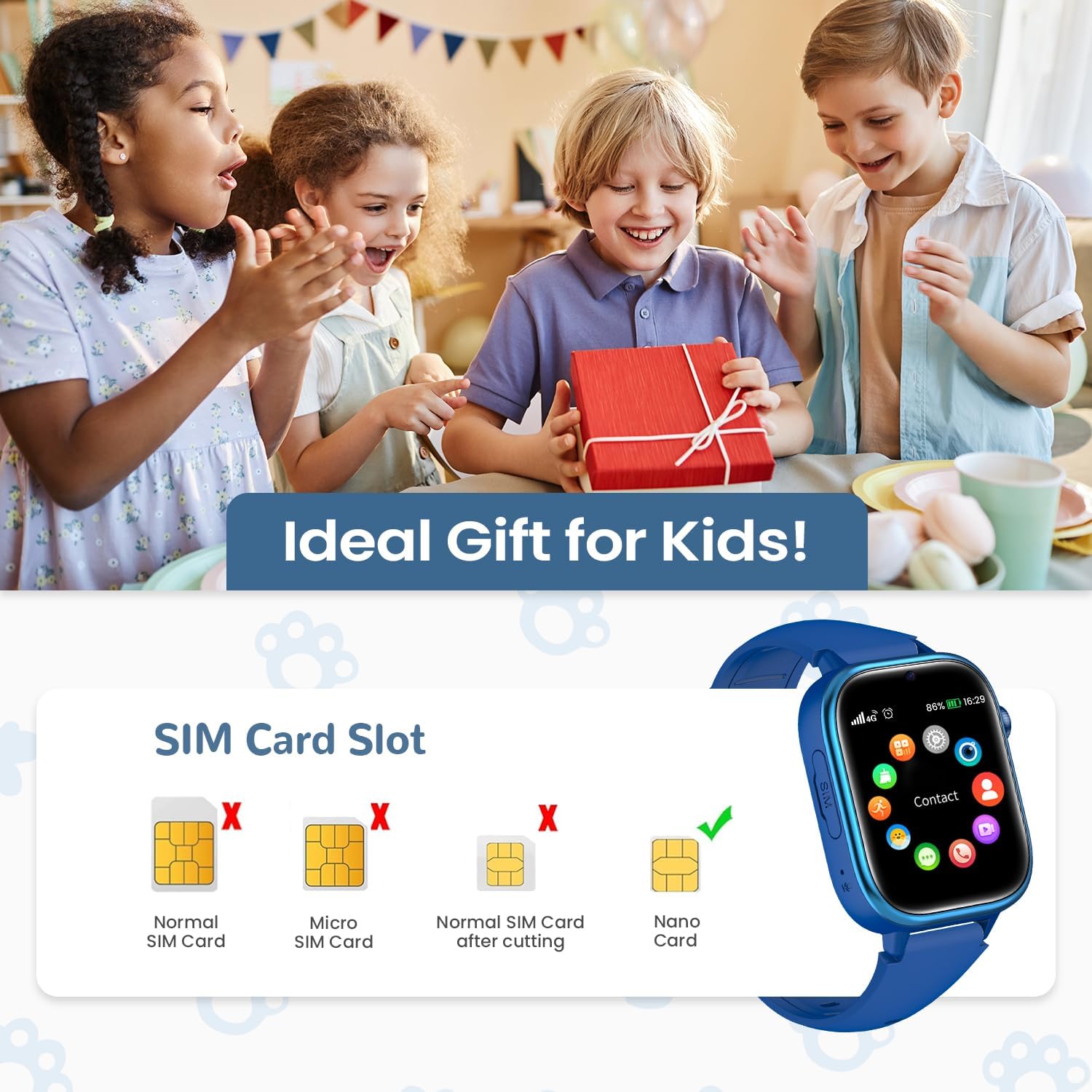
Image: Correct Nano SIM card insertion for the smartwatch.
2. App Installation and Pairing
To manage the smartwatch features and communicate with your child, you need to install the 'Setracker2' application on your smartphone.
- Download the 'Setracker2' app from your smartphone's app store (iOS or Android).
- Open the app and register a new account.
- On the smartwatch, locate the unique 15-digit IMEI barcode. This can usually be found in the watch settings or on a sticker on the packaging.
- In the 'Setracker2' app, scan the IMEI barcode or manually enter the number to bind the smartwatch to your account.
- Once paired, you can configure contacts, safe zones, and other settings through the app.

Image: Visual guide for Setracker2 app setup and smartwatch connection.
Operating Instructions
Basic Navigation
The smartwatch features a touch screen for navigation. Swipe left/right to browse applications, swipe up/down for quick settings or notifications, and tap to select.
Calling Functions (Voice & Video)
The RUXINGX T40 supports two-way voice and video calls with pre-approved contacts.
- Making a Call: From the main screen, tap the 'Contacts' icon, select a contact, and choose to make a voice or video call.
- Receiving a Call: When a call comes in, tap the green answer button to accept or the red button to decline.
- Voice Chat: Use the voice chat feature to send short audio messages to contacts via the app.
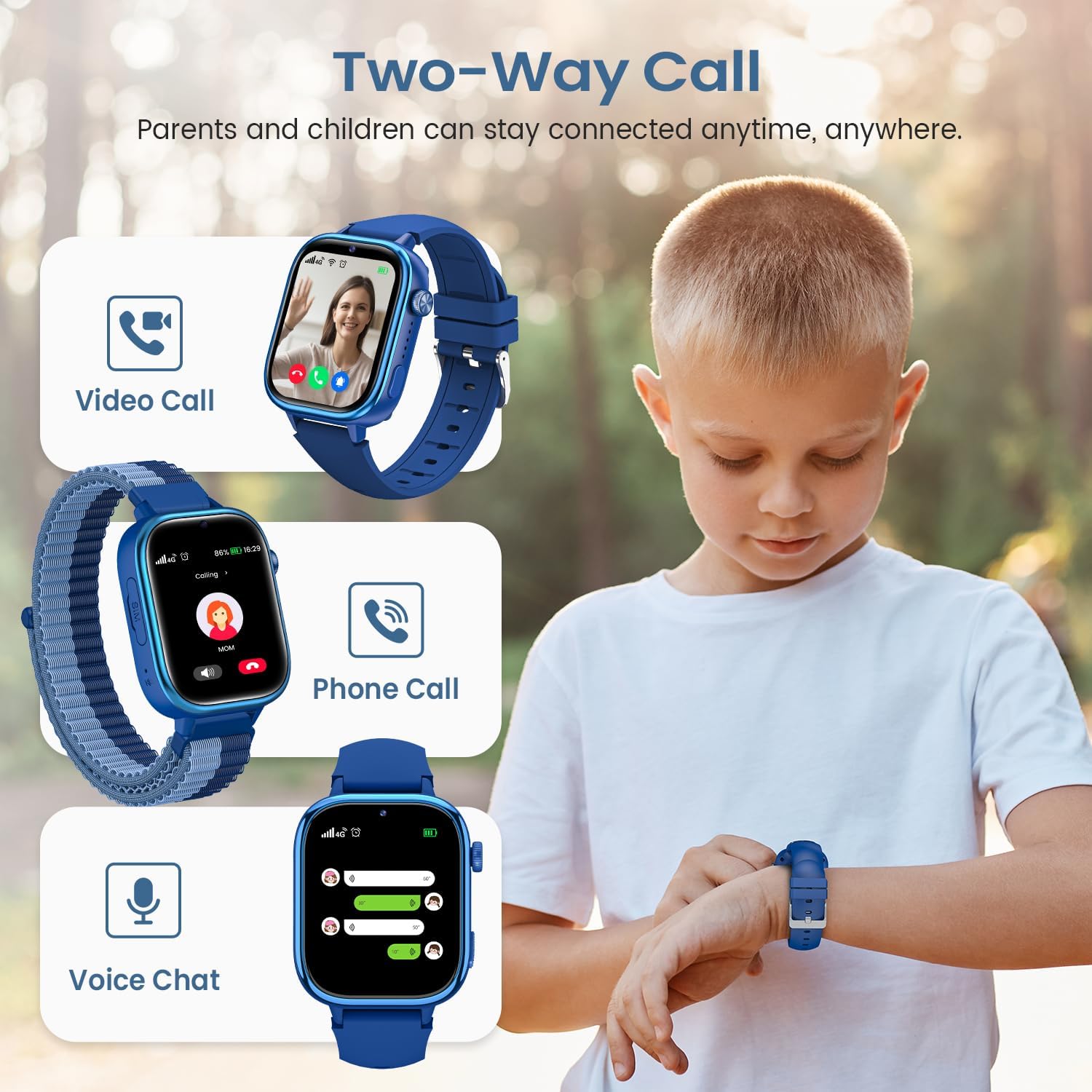
Image: Two-way communication features: Video Call, Phone Call, and Voice Chat.
SOS Emergency Call
In an emergency, the child can activate the SOS function to alert pre-set emergency contacts.
- Activation: Press and hold the designated SOS button (usually a side button) for 2-3 seconds.
- The smartwatch will automatically dial up to 3 pre-set emergency numbers in a loop until one is answered.
- An emergency notification with the child's location will also be sent to the parent's app.

Image: Activating the SOS emergency call feature.
GPS Tracking & Safe Zones
The smartwatch uses GPS and LBS (Location Based Service) technology to provide real-time location tracking.
- Real-time Tracking: View your child's current location on a map through the 'Setracker2' app.
- Safe Zones: Set up virtual boundaries (e.g., home, school) in the app. You will receive alerts if your child enters or exits these designated areas.
- History Footprint: Review your child's past locations and routes.

Image: GPS and LBS tracking features for location monitoring and safe zones.
Class Mode
To prevent distractions during school hours, the smartwatch offers a 'Class Mode'.
- Configuration: Set specific time periods for Class Mode via the 'Setracker2' app.
- During Class Mode, most functions, including calls and games, are disabled. Only the SOS function remains active.

Image: Class Mode feature to minimize distractions during study time.
Other Features
- Pedometer: Tracks daily steps and activity levels.
- Alarm Clock: Set multiple alarms for reminders.
- Games: Includes several educational puzzle games for entertainment.
- Camera & Photo Album: Take photos and store them on the watch.
- Stopwatch & Calculator: Basic utility tools.
- Sleep Monitoring: Monitors sleep patterns (data available in the app).
- Reject Unknown Calls: Configure the watch to only accept calls from approved contacts.
- Customizable Dials: Long press the watch face to change between various fun dial designs.

Image: Overview of additional features including games, alarm, and activity tracking.

Image: Customizable watch dials for personalized display.
Maintenance
Cleaning
To keep your smartwatch clean, gently wipe the screen and strap with a soft, dry, or slightly damp cloth. Avoid using harsh chemicals or abrasive materials.
Water Resistance (IP68)
The RUXINGX T40 is IP68 waterproof, meaning it is resistant to dust and can withstand immersion in water up to 1.5 meters for 30 minutes. It is suitable for daily activities like hand washing or playing in the rain.
Important: Do not use the smartwatch in hot water, saunas, or steam environments, as this can compromise the water resistance seals.

Image: IP68 water resistance for everyday use, with a caution against hot water.
Charging
Charge the smartwatch using the provided magnetic charging cable. Connect the cable to a standard USB power adapter (not included). A full charge typically takes 2-3 hours.
Troubleshooting
- Smartwatch not turning on: Ensure the device is fully charged. If it still doesn't turn on, try a different charging cable or power adapter.
- No network signal: Check if the Nano SIM card is correctly inserted and activated. Verify that the area has 4G coverage. Restart the smartwatch.
- GPS location inaccurate: GPS accuracy can be affected by environment (e.g., indoors, dense urban areas). Ensure the watch has a clear view of the sky. LBS provides approximate location when GPS is unavailable.
- Cannot make/receive calls: Confirm the SIM card has sufficient balance/data. Check if the numbers are correctly saved in the contacts list via the 'Setracker2' app. Ensure Class Mode is not active.
- App not connecting to watch: Verify the smartwatch is powered on and has network connectivity. Ensure the IMEI is correctly bound in the 'Setracker2' app. Try restarting both the watch and the app.
Product Specifications
| Feature | Specification |
|---|---|
| Brand | RUXINGX |
| Model | T40 |
| Connectivity | 4G, Bluetooth |
| Positioning | GPS, LBS |
| Display Size | 1.83 Inches |
| Display Type | LED |
| Water Resistance | IP68 |
| Compatible Devices | Smartphone |
| Memory Capacity | 40 MB |
| Product Weight | 180 g |
Warranty Information
Your RUXINGX T40 Smartwatch comes with a standard manufacturer's warranty. Please refer to the warranty card included in your product packaging for specific terms, conditions, and duration. Keep your proof of purchase for warranty claims.
Customer Support
For further assistance, technical support, or inquiries regarding your RUXINGX T40 Smartwatch, please contact RUXINGX customer service through the contact information provided on the product packaging or the official RUXINGX website.


