
Rapoo VT7 MAX
Contents
Rapoo VT7 MAX Wireless Gaming Mouse User Manual
Model: VT7 MAX
Introduction
The Rapoo VT7 MAX is a high-performance wireless gaming mouse designed for precision and comfort. It features an 8K wireless polling rate, a lightweight design, and a long-lasting battery, making it suitable for extended gaming sessions.
What's in the Box
Verify that all the following components are included in your package:
- 1 x Wireless Gaming Mouse (VT7 MAX)
- 1 x Type-C Cable
- 1 x USB Adapter
- 1 x Anti-Slip Sticker Set
- 1 x Replacement PTFE Mouse Feet

Image: Rapoo VT7 MAX mouse with its accessories, including the Type-C cable, USB adapter, anti-slip stickers, and replacement PTFE mouse feet.
Setup
1. Initial Connection
- Insert the USB adapter into an available USB port on your computer.
- Turn on the Rapoo VT7 MAX mouse using the power switch located on the bottom of the mouse.
- The mouse should automatically connect to your computer. If not, ensure the USB adapter is securely inserted and the mouse is powered on.
2. Charging the Mouse
- Connect the provided Type-C cable to the mouse and the other end to a USB power source (e.g., your computer's USB port or a USB wall adapter).
- The mouse can be used while charging.
- The mouse is also compatible with wireless charging docks (P5 Wireless Charging Dock sold separately).

Image: The Rapoo VT7 MAX mouse resting on a wireless charging dock, indicating its wireless charging compatibility.
3. Software Installation (A HUB)
- Download the A HUB driver software from the official Rapoo website.
- Install the software on your Windows or Mac OS computer to access advanced features like programmable buttons and macros.
- The software includes onboard memory functionality, allowing your settings to be saved directly to the mouse for use across different devices and operating systems without re-setting.

Image: A computer screen displaying the Rapoo A HUB software, illustrating its interface for customizing mouse settings.
Setup Overview Video
Video: A brief overview of the Rapoo VT7 MAX Gaming Mouse, highlighting its features and components during an unboxing and initial setup.
Operating Instructions
1. Basic Mouse Functions
The Rapoo VT7 MAX features standard left/right click buttons, a scroll wheel, and side buttons. Its ambidextrous ergonomic form is optimized for claw and fingertip grip styles.

Image: The Rapoo VT7 MAX mouse, showcasing its ambidextrous ergonomic design suitable for various grip styles.
2. DPI Adjustment
The mouse supports up to 30,000 DPI with 99.9% resolution accuracy. You can adjust DPI levels on-the-fly using the DPI +/- buttons on the mouse. The A HUB software allows for independent X/Y-axis DPI settings to fine-tune sensitivity based on your display and in-game preferences.

Image: A screenshot from the A HUB software demonstrating independent X/Y DPI adjustment sliders.
3. Programmable Buttons and Macros
The VT7 MAX features 10 programmable buttons. Utilize the A HUB software to assign custom functions, macros, or key combinations to these buttons. This allows for personalized control and efficiency in various applications and games.

Image: A screenshot from the A HUB software showing options for macro recording and button assignment.
4. Polling Rate
Experience a true 8K wireless polling rate (8000Hz) for minimal latency and smooth cursor movement. This native 8000Hz performance does not rely on software algorithms or extra dongles, ensuring consistent responsiveness even in demanding environments.

Image: The Rapoo VT7 MAX mouse, emphasizing its true 8K wireless polling rate capability.

Image: A screenshot from the A HUB software displaying RF strategy, battery life calculation, and polling rate options.
5. Optical Switches
The VT7 MAX utilizes 120-million click optical switches. These switches register clicks using infrared light, eliminating debounce delay and the risk of accidental double clicks, while offering an extended lifespan.

Image: A detailed view of the Rapoo VT7 MAX mouse, highlighting its 120-million click optical switch technology.
6. Battery Life
Equipped with a Nordic nRF54L15 MCU, the VT7 MAX offers an ultra-low-power wireless technology, providing up to 750 hours of battery life at 1000Hz polling rate.
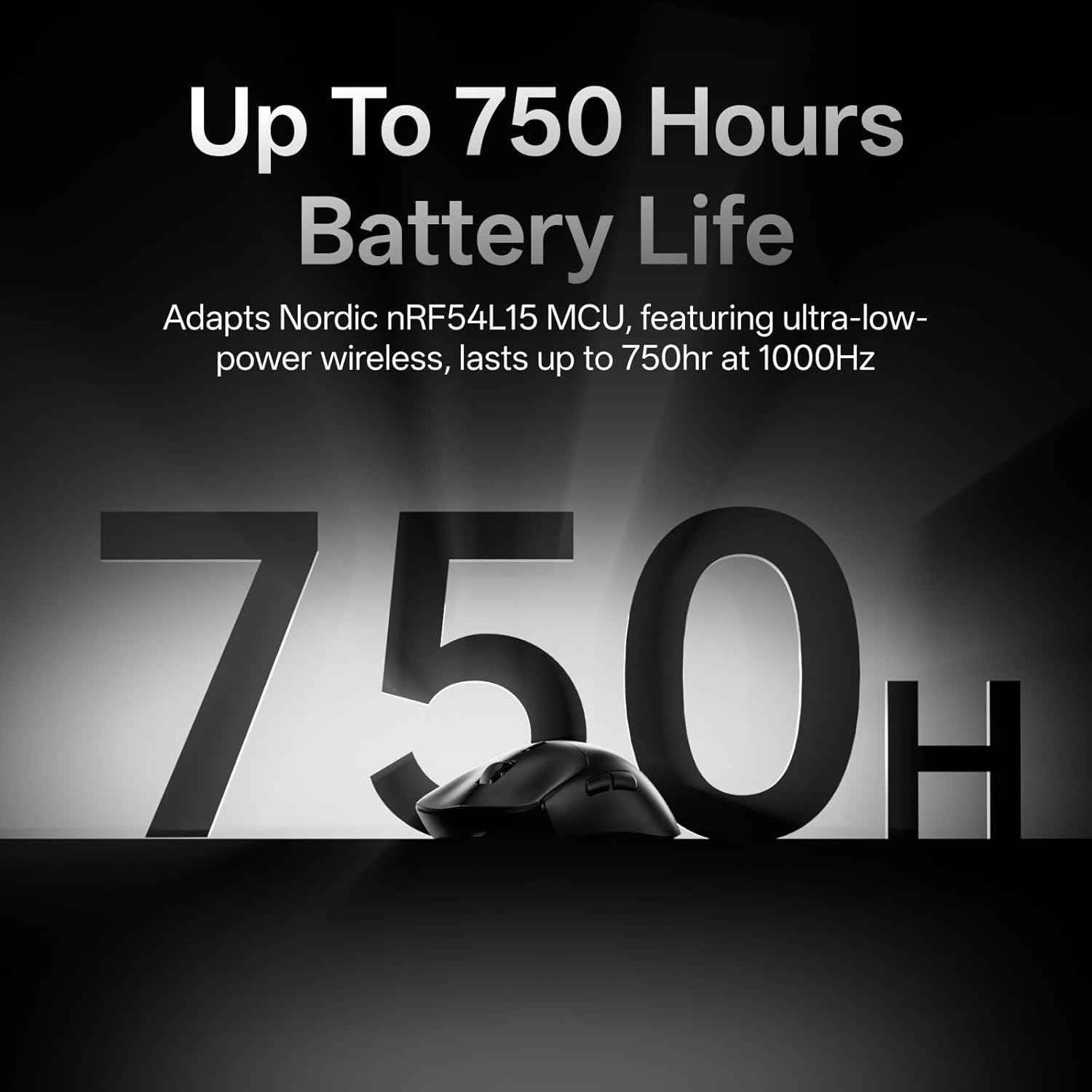
Image: The Rapoo VT7 MAX mouse, emphasizing its impressive battery life of up to 750 hours.
Maintenance
Cleaning
- To clean the mouse, use a soft, dry cloth.
- For stubborn dirt, slightly dampen the cloth with water or a mild cleaning solution. Avoid harsh chemicals.
- Do not immerse the mouse in water or allow liquids to enter openings.
Replacing Mouse Feet
If the mouse feet show significant wear, replace them with the included PTFE mouse feet for optimal glide performance. Carefully peel off the old feet and apply the new ones, ensuring they are aligned correctly.
Troubleshooting
Connectivity Issues
- Mouse not responding: Ensure the mouse is powered on and fully charged. Check that the USB adapter is securely plugged into your computer. Try a different USB port.
- Intermittent connection: Move the mouse closer to the USB adapter. Avoid placing the adapter near other wireless devices that might cause interference.
Software Issues (A HUB)
- Software not detecting mouse: Ensure the mouse is connected and powered on. Restart the A HUB software and your computer. Reinstall the A HUB software if the issue persists.
- Settings not saving: Make sure you apply or save changes within the A HUB software. Ensure the software has necessary permissions on your operating system.
Specifications
| Feature | Detail |
|---|---|
| Brand | Rapoo |
| Model Name | VT7 MAX |
| Color | Black |
| Connectivity Technology | Bluetooth, USB (Wireless 2.4GHz) |
| Movement Detection Technology | Optical |
| Buttons Quantity | 10 (Programmable) |
| Hand Orientation | Right |
| Compatible Devices | Personal Computer |
| Operating System Compatibility | Windows XP and above (Windows 7 minimum required), Mac OS |
| Battery Average Life | Up to 750 hours (at 1000Hz) |
| Item Weight | 53 g (1.87 oz) |
| Item Dimensions (L x W) | 127.4mm x 64.3mm (5.01"L x 2.53"W) |
| Maximum Sensitivity | 30,000 DPI |
| Optical Switch Lifespan | 120 Million Clicks |
| Polling Rate | True 8K Wireless (8000Hz) |
Warranty and Support
Warranty Information
The Rapoo VT7 MAX Wireless Gaming Mouse comes with a 1 Year Manufacturer Warranty. Please retain your proof of purchase for warranty claims.
Customer Support
For technical assistance, troubleshooting, or warranty inquiries, please visit the official Rapoo support website or contact their customer service. Refer to the product packaging or Rapoo's official website for the most current contact information.
Documents and downloads
Ask a question about this manual
Ask about setup, troubleshooting, compatibility, parts, safety, or missing instructions. Manuals+ will review the question and use this page’s manual context to help answer it.