
NEWFAST NF-U329
NEWFAST AC1300 NF-U329 USB WiFi Adapter User Manual
Model: NF-U329
1. Product Overview
The NEWFAST AC1300 NF-U329 USB WiFi Adapter is designed to provide wireless network connectivity for desktop PCs. It supports 802.11ac wireless standards and operates on dual bands (2.4GHz and 5GHz) to deliver a combined data transfer rate of up to 1300Mbps. This adapter features four external antennas for enhanced signal reception and coverage, and utilizes a USB 3.0 interface for stable data transmission. It also supports MU-MIMO technology for efficient multi-user data handling and includes a Soft AP function to create a Wi-Fi hotspot.
2. Package Contents
Upon opening the package, verify that all items are present:
- 1 x NEWFAST AC1300 USB WiFi Adapter (Model NF-U329)
- 1 x Micro USB 3.0 Type B Data Cable
- 1 x User Manual
Video: NF-U329 Product Packaging Unboxing. This video demonstrates the unboxing process and shows the contents included in the NEWFAST AC1300 NF-U329 USB WiFi Adapter package.

Image: The NEWFAST AC1300 NF-U329 USB WiFi Adapter, featuring its four adjustable antennas and compact design.
3. Setup and Driver Installation
Follow these steps to set up your NEWFAST AC1300 NF-U329 USB WiFi Adapter:
- Connect the Adapter: Plug the Micro USB 3.0 Type B data cable into the adapter, then connect the USB 3.0 end of the cable to an available USB 3.0 port on your desktop PC. Ensure the connection is secure.
- Driver Installation:
- The adapter comes with pre-installed drivers. After connecting the adapter, your computer should recognize it as a storage device (e.g., "CD-Drive (F) WIRELESS NETWORK").
- Open "This PC" or "My Computer", locate the recognized drive, and double-click it.
- Find and double-click the "Setup" application to begin the driver installation.
- Follow the on-screen prompts to complete the installation.
- Once the installation is complete, restart your computer if prompted.
- Connect to Wi-Fi:
- After restarting, click on the network icon (usually a Wi-Fi symbol) in the lower right corner of your desktop (system tray).
- Select "Network & Internet settings" or directly choose the desired Wi-Fi network from the list.
- Enter the network security key (Wi-Fi password) and click "Next" or "Connect".
- Your computer should now be connected to the Wi-Fi network.
Video: NF-U329 USB WiFi Adapter Installation Guide. This video provides a visual guide for connecting the adapter, installing drivers, and connecting to a Wi-Fi network on a Windows PC.

Image: A visual representation of the three-step easy setup process: insert the adapter, install the driver, and connect to Wi-Fi.
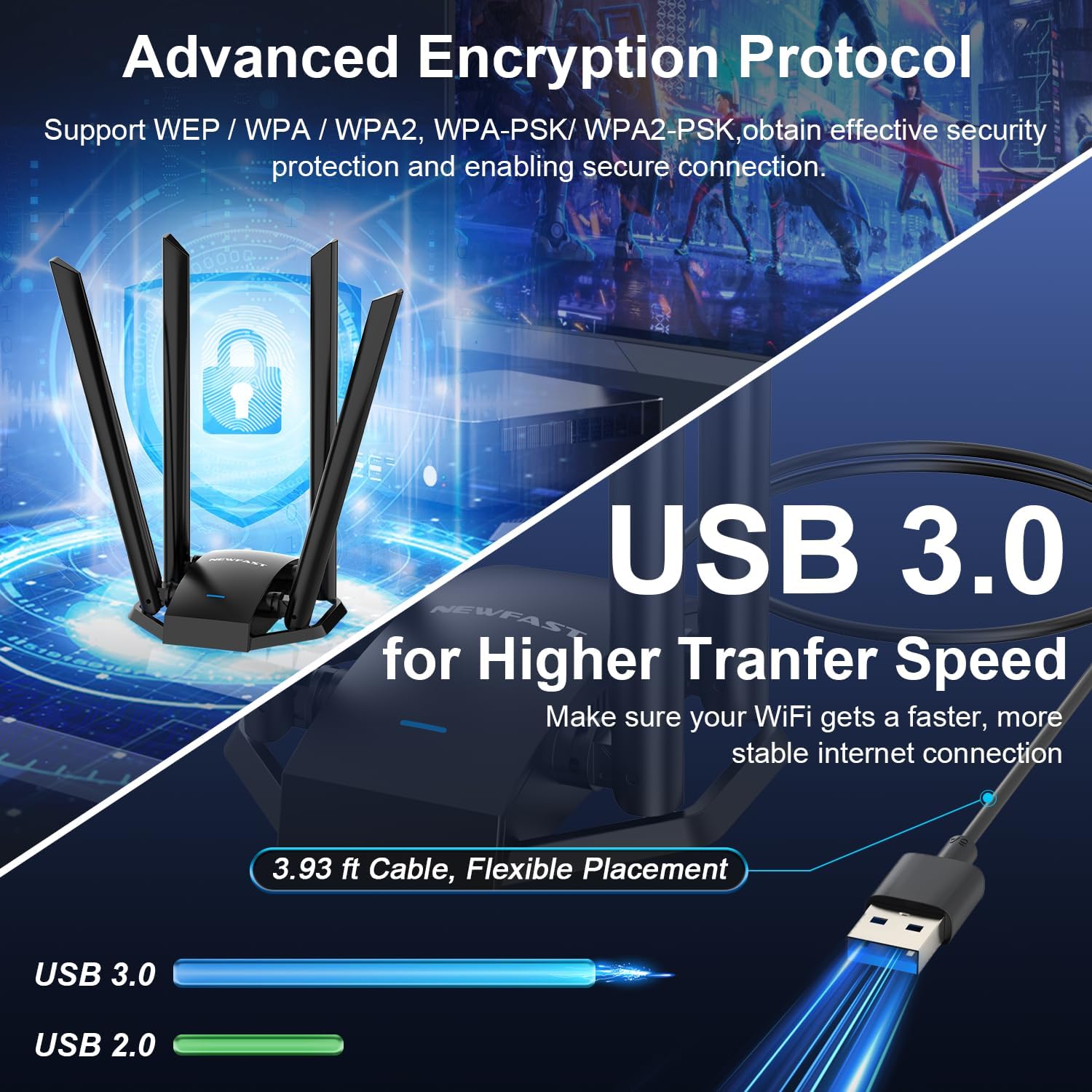
Image: This image highlights the USB 3.0 interface for higher data transfer speeds and the advanced encryption protocols (WPA-WEP/WPA-PSK/WPA2-PSK) supported by the adapter.
4. Operating Modes
The NEWFAST AC1300 NF-U329 USB WiFi Adapter supports two primary operating modes:
- Station Mode: In this mode, the adapter acts as a signal receiver, allowing your desktop or laptop PC to connect to an existing Wi-Fi network. This is the standard mode for accessing the internet wirelessly.
- Soft AP Mode: This function allows the adapter to turn a wired network connection into a Wi-Fi hotspot. Your PC, when connected to a wired network, can then transmit a wireless signal, enabling other Wi-Fi devices (smartphones, tablets, etc.) to connect to the internet through your PC.

Image: Illustration of the Soft AP Mode, showing the adapter creating a Wi-Fi hotspot for multiple devices.
5. Specifications
| Feature | Description |
|---|---|
| Model | NF-U329 |
| Wireless Standard | IEEE 802.11ac, IEEE 802.11b, IEEE 802.11g, IEEE 802.11n |
| Data Transfer Rate | Up to 1300 Mbps (867Mbps on 5GHz, 300Mbps on 2.4GHz) |
| Frequency Bands | 2.4 GHz and 5 GHz |
| Antennas | 4 x 6dBi Dual-Band Antennas |
| Interface | Micro USB 3.0 Type B (compatible with USB 2.0) |
| Security Encryption | WPA-WEP/WPA-PSK/WPA2-PSK |
| Operating System Support | Windows XP/7/8/8.1/10/11 |
| Product Dimensions | 6.89 x 3.85 x 3.97 inches |
| Item Weight | 9.6 ounces |

Image: An overview of the NEWFAST AC1300 Dual Band USB3.0 Wireless Adapter's key features, including 2.4G/5G support, 4*6dBi antennas, USB3.0, AC1300 speeds, Soft AP, and MT7612UN chipset.

Image: Visualizing the adapter's speed capabilities, showing 400Mbps on 2.4GHz and 867Mbps on 5.8GHz, contributing to a total of 1300Mbps.
6. Troubleshooting
- No Wi-Fi Networks Detected:
- Ensure the adapter is securely plugged into a USB port.
- Verify that the drivers are correctly installed. Check Device Manager for any yellow exclamation marks next to the network adapter.
- Restart your computer.
- Confirm that your router's Wi-Fi is enabled and broadcasting.
- Slow Connection Speed:
- Ensure the adapter is connected to a USB 3.0 port for optimal performance. USB 2.0 ports will limit speed.
- Try connecting to the 5GHz band if available, as it generally offers higher speeds and less interference, especially for activities like streaming or gaming.
- Position the adapter for optimal signal reception. The four external antennas can be adjusted.
- Reduce physical obstructions (walls, large furniture) between the adapter and your Wi-Fi router.
- Check for other devices causing interference on the same Wi-Fi channel.
- Frequent Disconnections:
- Ensure the adapter's drivers are up to date.
- Check for strong signal strength. If the signal is weak, reposition the adapter or consider a Wi-Fi extender.
- Verify that your router's firmware is updated.
- Disable power-saving features for the USB port in Device Manager to prevent the system from turning off the adapter.
- Driver Installation Issues:
- If the automatic driver installation fails, try manually browsing the "CD-Drive (F) WIRELESS NETWORK" drive and running the "Setup" executable.
- Ensure your operating system is supported (Windows XP/7/8/8.1/10/11).
- Temporarily disable antivirus software during installation if it interferes.

Image: Depiction of the four high-gain antennas providing broader coverage and stronger signals, even through walls and floors.
7. Maintenance
To ensure optimal performance and longevity of your NEWFAST AC1300 NF-U329 USB WiFi Adapter:
- Keep Clean: Periodically clean the adapter and its antennas with a soft, dry cloth to prevent dust buildup, which can affect performance.
- Driver Updates: Check the NEWFAST official website periodically for updated drivers to ensure compatibility and performance improvements.
- Proper Handling: Avoid dropping the adapter or subjecting it to excessive force. Handle the antennas carefully when adjusting their position.
- Environmental Conditions: Use the adapter in a well-ventilated area and avoid extreme temperatures or humidity.
8. Warranty and Support
For warranty information, technical support, or further assistance with your NEWFAST AC1300 NF-U329 USB WiFi Adapter, please refer to the contact information provided in the product packaging or visit the official NEWFAST website. Keep your purchase receipt as proof of purchase for warranty claims.
Related documentsNF-U329


Ask a question about this manual
Ask about setup, troubleshooting, compatibility, parts, safety, or missing instructions. Manuals+ will review the question and use this page’s manual context to help answer it.