
Product Overview
The Thlevel Smart Key Lock Box Model G22 provides secure key storage with advanced access control features. It is designed for various applications, including homes, rentals, offices, and property management. The lock box offers multiple unlocking methods and robust construction for durability.
- Smart Access: Control your lock box using the free TTLock App, generating virtual passwords and sharing time-limited access permissions.
- Durable Construction: Made from zinc alloy with IP65 certification, it resists water, dust, and extreme temperatures (-20°C to 55°C).
- Removable Shackle: Easily hang the key safe on doorknobs or railings without tools. The shackle locks with the main unit to prevent theft.
- Dual Backup Power: Powered by 3 AAA batteries (not included) with real-time low-battery alerts. An emergency USB-C power bank port provides instant charging to prevent lockouts.
- Spacious Interior: Securely holds up to 5 keys, 3 access cards, and 1 car key fob.
Setup
1. Unboxing and Components
Upon opening the package, you will find the Thlevel Smart Key Lock Box, a small screwdriver, mounting screws, and a USB-C cable. The lock box itself is made from durable metal with a keypad on the front.
Video: Unboxing the Thlevel Smart Key Lock Box and reviewing its components.
2. Battery Installation
The lock box requires 3 AAA batteries (not included). To install, use the provided screwdriver to open the battery compartment located inside the lock box. Insert the batteries according to the polarity markings, then secure the cover.
3. App Download and Connection
Download the 'TTLock' app from your smartphone's app store. Ensure your phone's Bluetooth is enabled. Open the app, register an account, and follow the on-screen instructions to add your device. You may need to press a button on the lock box keypad to wake it up for Bluetooth connection.

Image: Step-by-step guide on connecting the lock box to the TTLock mobile application.
4. Physical Installation
The lock box features a removable shackle for versatile mounting. To install, remove the shackle, place it onto a doorknob or railing, and then reattach the lock box. Alternatively, use the provided screws to wall-mount the unit.

Image: Visual instructions for installing the lock box with its removable shackle.
Operating Instructions
1. Unlocking via App
Once connected to the TTLock app, open the app and select your lock box. Tap the unlock icon on the screen to remotely unlock the device via Bluetooth. The lock box will emit an audible signal upon successful unlocking.
2. Unlocking via PIN Code
Enter a valid 6-9 digit PIN code on the lock box keypad. After entering the code, press the unlock button (usually a checkmark or similar symbol) to open the lock box. The keypad lights up for visibility.
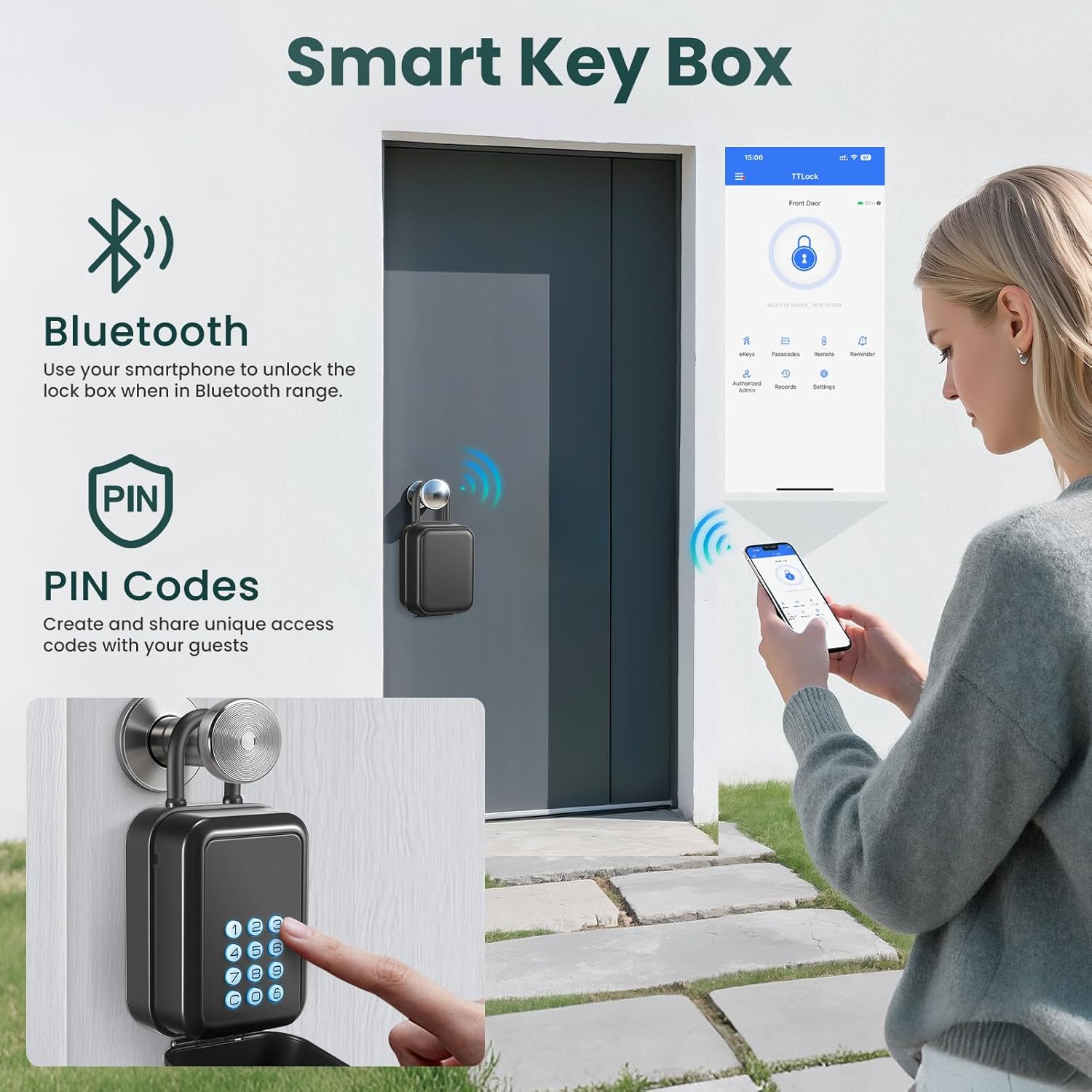
Image: Demonstrates unlocking the key box using both Bluetooth via the app and direct PIN entry on the keypad.
3. Sharing Access (eKeys & Passcodes)
The TTLock app allows you to generate and share various types of access: timed, one-time, permanent, or recurring eKeys and passcodes. This feature is ideal for granting temporary access to family, cleaners, tenants, or guests without physical key exchange. You can specify start and end times for timed access.

Image: Illustrates the process of generating and sharing temporary passcodes through the app for different users.
4. Access History and Reminders
The TTLock app maintains a detailed record of all unlock events, showing who unlocked the device and when. You can also set up various reminders, such as notifications for family members arriving home, forced door openings, or low battery alerts.
Maintenance
1. Battery Replacement
When the app indicates a low battery, replace the 3 AAA batteries promptly. Follow the battery installation steps outlined in the Setup section. Ensure the battery compartment is securely closed after replacement to maintain the IP65 rating.
2. Cleaning
Clean the exterior of the lock box with a soft, damp cloth. Avoid using abrasive cleaners or solvents that could damage the finish or electronic components. The IP65 rating ensures protection against dust and water splashes, but direct submersion is not recommended.
3. Interior Storage
The spacious interior is designed to hold multiple items. Ensure items are placed neatly to avoid obstructing the closing mechanism or damaging the internal components. The interior can accommodate up to 5 keys, 3 access cards, and 1 car key fob.

Image: Detailed view of the lock box interior, highlighting its storage capacity for various items.
Troubleshooting
1. Lock Box Not Responding
- Check Batteries: Ensure the AAA batteries are correctly installed and not depleted. The app provides low-battery alerts.
- Emergency Power: If batteries are completely dead, connect a USB-C power bank to the emergency port on the bottom of the keypad to temporarily power the device and unlock it.

Image: Demonstrates using the emergency USB-C power port to power the lock box when batteries are low.
2. App Connection Issues
- Bluetooth On: Verify that Bluetooth is enabled on your smartphone.
- Wake Up Device: Press any button on the lock box keypad to wake it up and make it discoverable by the app.
- Proximity: Ensure your smartphone is within Bluetooth range of the lock box.
- App Permissions: Check that the TTLock app has necessary Bluetooth and location permissions on your phone.
3. PIN Code Not Working
- Correct Code: Double-check that the entered PIN code is correct.
- Validity Period: If using a timed or one-time passcode, ensure it is still within its valid period.
- App Sync: If a new passcode was recently created, ensure the lock box has synced with the app (requires Bluetooth connection).
Specifications
| Brand | Thlevel |
| Model Number | G22 |
| Lock Type | Pin Tumbler |
| Color | Black |
| Material | Zinc alloy + ABS plastic |
| Special Feature | Anti-Peeping Password |
| Mounting Type | Wall Mount |
| Item Weight | 0.6 Kilograms |
| Power Source | 3 AAA Batteries (not included), USB-C Emergency Port |
Warranty and Support
Warranty Information
This Thlevel Smart Key Lock Box Model G22 comes with a standard manufacturer's warranty. Please refer to the product packaging or contact customer support for specific warranty terms and conditions.
Customer Support
For technical assistance, troubleshooting, or any product-related inquiries, please contact Thlevel customer support. Contact details can typically be found on the product packaging, the official Thlevel website, or through your purchase platform.