

Introduction
This manual provides essential information for the setup, operation, and maintenance of your Hyperkin The Competitor Wired Controller. Designed for precision and performance, this controller is compatible with Xbox Series X|S, Xbox One, and Windows PC. Please read this manual thoroughly before use to ensure optimal performance and longevity of your device.
Package Contents
Verify that all items are present in your package:
- Hyperkin The Competitor Wired Controller
- Detachable USB-C Cable
- Quick Start Guide
- Swappable Stick Caps (Domed & Concave)

Image: Contents of the Hyperkin The Competitor package, including the controller, cable, and documentation.
Setup
The Hyperkin The Competitor Wired Controller offers plug-and-play functionality for supported platforms.
Connecting to Xbox Series X|S or Xbox One:
- Ensure your Xbox console is powered on.
- Connect the detachable USB-C cable to the USB-C port on the top of the controller.
- Plug the USB-A end of the cable into an available USB port on your Xbox console.
- The controller will automatically connect and be ready for use.
Connecting to PC (Windows):
- Ensure your PC is powered on.
- Connect the detachable USB-C cable to the USB-C port on the top of the controller.
- Plug the USB-A end of the cable into an available USB port on your PC.
- Windows will automatically detect and install the necessary drivers. The controller will be ready for use once the installation is complete.
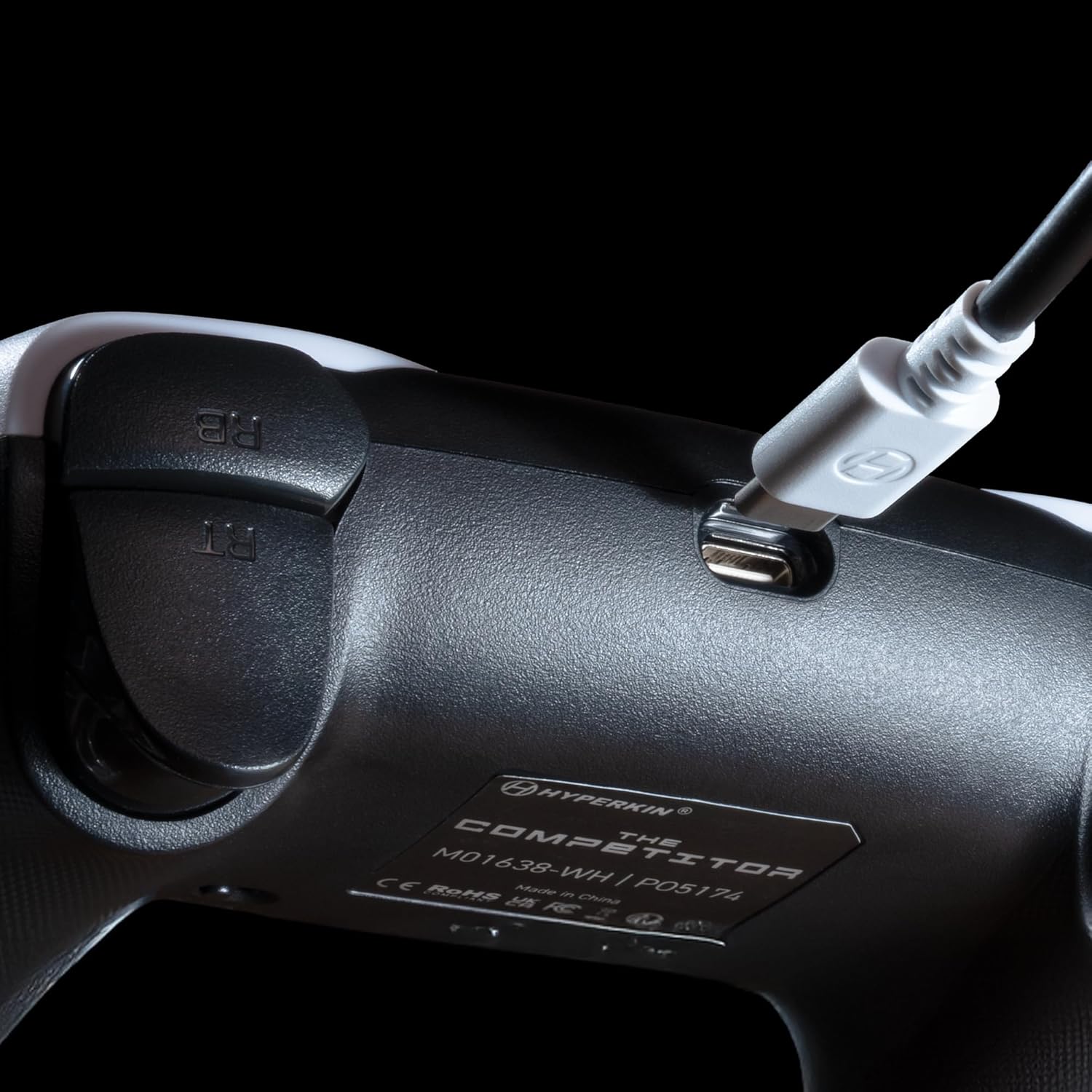
Image: Close-up view of the USB-C port on the Hyperkin The Competitor controller, illustrating the connection point for the detachable cable.
Operating the Controller
Familiarize yourself with the key features and controls of your Hyperkin The Competitor controller.
Key Features:
- Hall Effect Joysticks: Experience drift-free accuracy and magnetic precision for ultra-smooth movement and long-lasting durability.
- Impulse Triggers: Provides immersive and reliable haptic feedback for enhanced gameplay.
- Symmetrical Analog Stick Layout: Offers a balanced and comfortable design, supporting precision play.
- Segmented Traditional D-pad: Delivers ultra-responsive control and satisfying feedback for pinpoint accuracy.
- Programmable Back Buttons: Two customizable rear buttons for on-the-fly remapping to suit your playstyle.
- Dedicated Mute Button: Quickly mute your microphone during gameplay.
- Swappable Stick Caps: Customize your feel with included Domed and Concave stick caps.
- Anti-Friction Gates & Metal Glide Rings: Engineered for ultra-smooth control and reduced wear.

Image: Diagram highlighting the Hall Effect Sticks and the Symmetrical Twin Stick Layout of the controller.

Image: Diagram illustrating the Hall Effect Impulse Triggers and the location of the programmable Back Buttons.

Image: Detailed views of the Traditional Segmented D-Pad, the interchangeable Dome and Concave stick caps, and the Metal Glide Rings.
Programming Back Buttons:
Specific instructions for programming the back buttons are typically found in the Quick Start Guide included with your product or on the Hyperkin official support website. Generally, this involves a combination of holding a program button and pressing the desired back button and the button you wish to map.
Maintenance
To ensure the longevity and optimal performance of your controller, follow these maintenance guidelines:
- Cleaning: Use a soft, dry cloth to wipe down the controller. For stubborn dirt, slightly dampen the cloth with water. Avoid using harsh chemicals or abrasive cleaners.
- Storage: Store the controller in a cool, dry place away from direct sunlight and extreme temperatures.
- Cable Care: Avoid sharply bending or twisting the USB-C cable. Always grasp the connector, not the cable, when plugging or unplugging.
- Avoid Drops: Protect the controller from drops and impacts, which can damage internal components.
Troubleshooting
If you encounter issues with your Hyperkin The Competitor controller, try the following steps:
- Controller Not Responding:
- Ensure the USB-C cable is securely connected to both the controller and the console/PC.
- Try plugging the controller into a different USB port.
- Restart your console or PC.
- Test the controller on another compatible device if possible.
- Buttons/Joysticks Not Working Correctly:
- Ensure no debris is lodged around the buttons or joysticks.
- Perform a system update on your console or PC to ensure the latest drivers are installed.
- If using on PC, check controller calibration settings in your operating system.
- Audio Issues (Mic Mute Button):
- Ensure the dedicated mute button is not activated.
- Check your in-game or system audio settings.
If problems persist after attempting these steps, please contact Hyperkin customer support for further assistance.
Specifications
| Model Number | M01638-WH |
| Compatibility | Xbox Series X|S, Xbox One, PC (Windows) |
| Connectivity | Wired (Detachable USB-C to USB-A cable) |
| Joysticks | Hall Effect |
| Triggers | Impulse Triggers |
| Layout | Symmetrical Analog Sticks |
| D-Pad | Segmented Traditional D-pad |
| Buttons | ABXY, Menu, View, Share, Xbox Guide, 2 Programmable Back Buttons, Dedicated Mic Mute Button |
| Customization | Swappable Stick Caps (Domed & Concave) |
| Dimensions | 6.25 x 2.5 x 5 inches |
| Weight | 15.6 ounces |
Warranty and Support
Warranty Information:
Warranty details for the Hyperkin The Competitor Wired Controller are typically provided with your product packaging or can be found on the official Hyperkin website. Please retain your proof of purchase for any warranty claims.
Customer Support:
For technical assistance, troubleshooting, or further inquiries, please visit the official Hyperkin support page or contact their customer service directly. Refer to the contact information provided in your product's Quick Start Guide or on the Hyperkin website.
