
1. Introduction
Thank you for choosing the Toladrone TD12PRO Drone. This manual provides essential information for setting up, operating, and maintaining your drone. Please read it thoroughly before your first flight to ensure safe and optimal performance.
The TD12PRO is a high-performance, foldable quadcopter designed for both beginners and experienced users. It features a 1080P HD camera with a 90° motorized adjustable lens, a powerful brushless motor, and advanced flight functions for an enhanced aerial experience.

Image 1.1: Toladrone TD12PRO Drone with highlighted features.
2. Package Contents
Verify that all the following items are included in your package:
- 1x Toladrone TD12PRO Drone
- 1x Remote Control
- 1x Modular Battery
- 1x Screwdriver
- 1x Carrying Case
- 2x Instruction Manuals (this document)
- 1x Charging Cable
- 4x Spare Propellers

Image 2.1: All components included in the TD12PRO package.
3. Setup
3.1 Battery Charging and Installation
- Connect the charging cable to the drone's modular battery.
- Plug the other end of the charging cable into a USB power adapter (not included).
- Charge the battery until the indicator light shows a full charge. Charging typically takes 60-90 minutes.
- Once charged, insert the modular battery securely into the drone's battery compartment.

Image 3.1: Modular battery and drone.
3.2 Propeller Installation
The propellers are typically pre-installed. If replacement is needed, ensure correct orientation (A and B propellers) as indicated on the drone's motor arms and the propellers themselves. Use the provided screwdriver to secure them.
3.3 Remote Control Setup
- Install 3x AAA batteries (not included) into the remote control's battery compartment.
- Power on the remote control.
- Power on the drone. Place the drone on a flat, level surface.
- Push the left joystick up and then down to pair the remote control with the drone. The drone's indicator lights will stop flashing and remain solid once paired.
3.4 App Download and Connection
- Scan the QR code in the instruction manual or search for the 'Toladrone' app in your device's app store.
- Install the app on your smartphone.
- Turn on the drone and your smartphone's Wi-Fi.
- Connect your smartphone to the drone's Wi-Fi network (usually named 'TD12PRO-XXXXXX').
- Open the Toladrone app to view the live camera feed and access additional flight controls.

Image 3.2: Drone, remote control, and app interface.
4. Operating Instructions
4.1 Pre-Flight Checklist
- Ensure the drone and remote control batteries are fully charged.
- Check that propellers are securely attached and undamaged.
- Choose an open area free from obstacles, people, and animals.
- Ensure good GPS signal (if applicable, for outdoor flight) or clear optical flow sensor area for indoor flight.
- Calibrate the drone if necessary (refer to app instructions).
4.2 Takeoff and Landing
- One-Key Takeoff: Press the one-key takeoff button on the remote control or in the app. The drone will automatically ascend to a stable altitude.
- Manual Takeoff: Push both joysticks down and outwards simultaneously to start the motors. Then, gently push the left joystick up to ascend.
- One-Key Landing: Press the one-key landing button. The drone will automatically descend and land.
- Manual Landing: Gently pull the left joystick down to descend. Once landed, push both joysticks down and inwards to stop the motors.
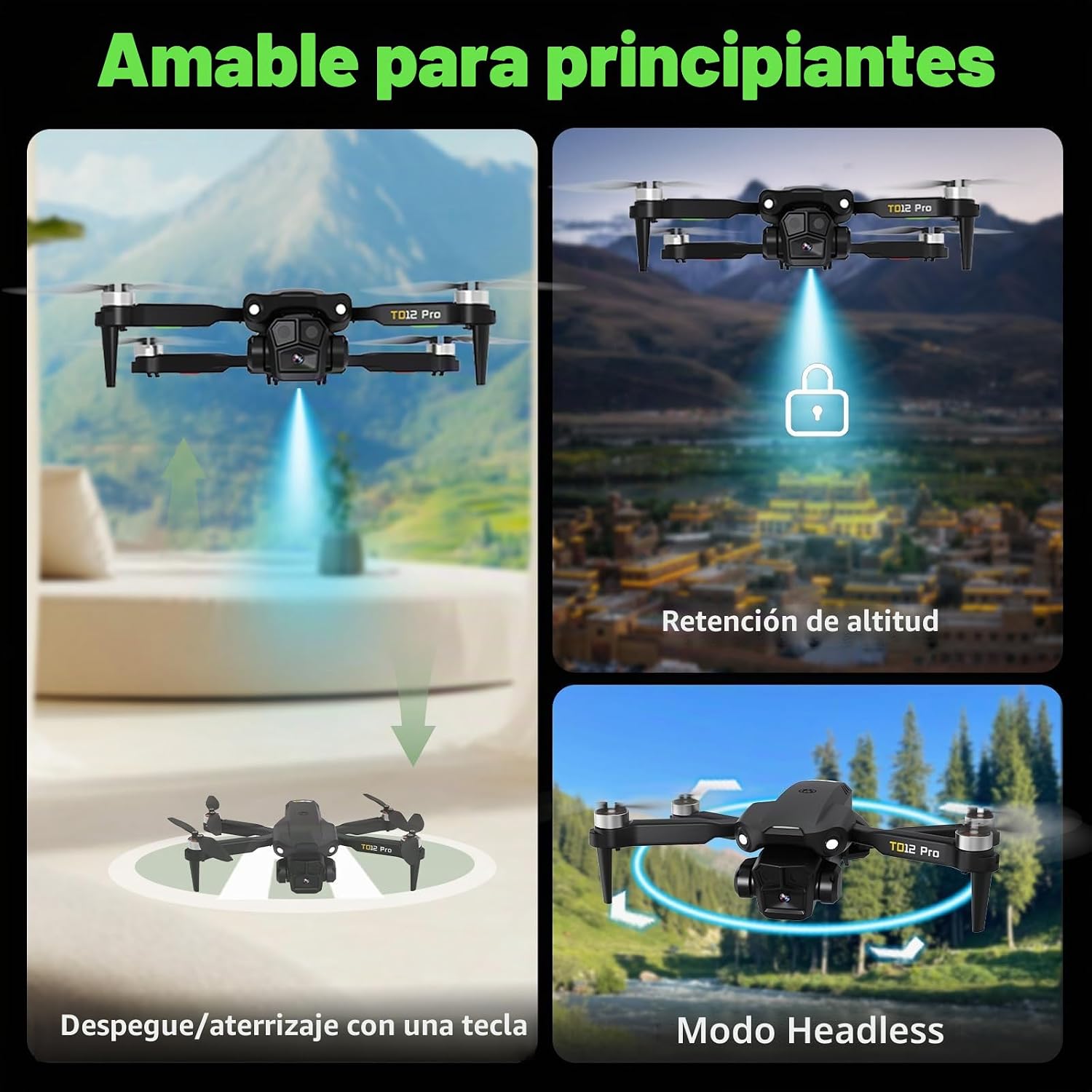
Image 4.1: Beginner-friendly flight modes.
4.3 Basic Flight Controls
- Left Joystick: Up/Down for altitude control (throttle), Left/Right for rotation (yaw).
- Right Joystick: Up/Down for forward/backward movement (pitch), Left/Right for sideways movement (roll).
- Speed Modes: The drone offers 3 speed adjustments (low, medium, high). Select the appropriate speed for your skill level and environmental conditions.
- Headless Mode: When activated, the drone's orientation is relative to the pilot, regardless of the drone's front direction. This simplifies control for beginners.
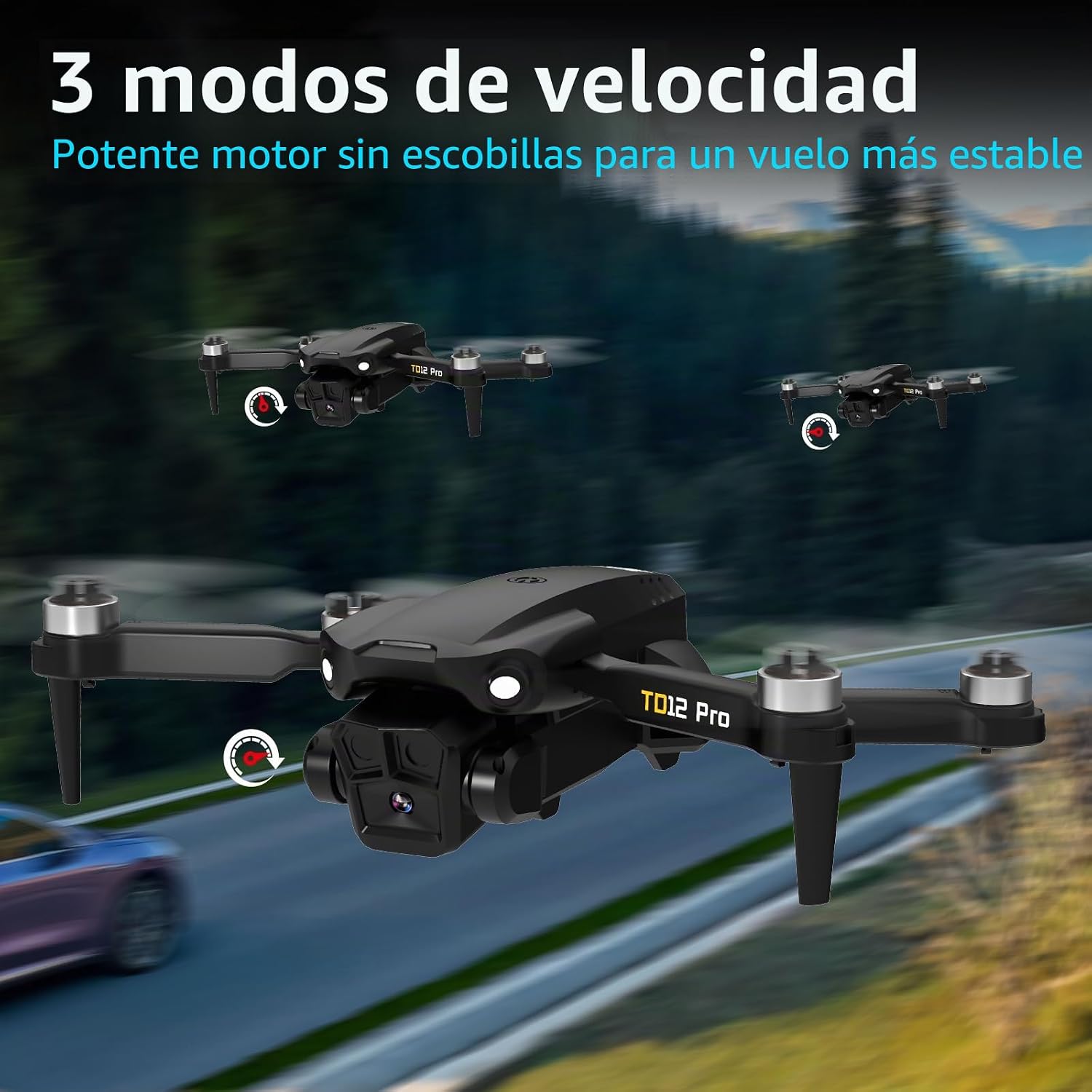
Image 4.2: Three speed modes for varied flight experience.
4.4 Advanced Flight Functions
- 360° Flip: Press the 360° flip button on the remote control, then push the right joystick in any direction to perform an aerial flip. Ensure sufficient altitude.
- Trajectory Flight: In the app, draw a desired flight path on your screen. The drone will automatically follow this path.
- Gravity Control: Use your smartphone's gravity sensor to control the drone's movement by tilting your phone.

Image 4.3: Performing a 360° flip.

Image 4.4: Trajectory flight and gravity control.
4.5 Camera Operation
- 1080P HD Camera: The drone is equipped with a 1080P HD camera for high-definition photo and video capture.
- 90° Motorized Adjustable Lens: Adjust the camera angle remotely via the remote control or app to capture various perspectives.
- Photo/Video Capture: Use the dedicated buttons on the remote control or the app interface to take photos or start/stop video recording.

Image 4.5: Capturing moments with the 1080P HD camera.

Image 4.6: 1080P camera features for photos and videos.
4.6 Optical Flow Positioning and Altitude Hold
- The optical flow positioning system helps the drone maintain its position and altitude stably, especially in indoor environments or areas with limited GPS signal.
- Altitude Hold ensures the drone hovers at a consistent height, allowing for easier control and stable photo/video capture.
4.7 Wind Resistance
The TD12PRO drone is designed with Level 3 wind resistance, allowing for stable flight even in moderate breezy conditions. However, avoid flying in strong winds to prevent loss of control or damage.

Image 4.7: Drone demonstrating Level 3 wind resistance.
4.8 Official Product Video
Video 4.8: An official product video demonstrating the Toladrone TD12PRO drone's features and flight capabilities.
5. Maintenance
5.1 Cleaning
- Regularly clean the drone's body, motors, and camera lens with a soft, dry cloth.
- Ensure no dust or debris obstructs the optical flow sensor on the bottom of the drone.
5.2 Battery Care
- Do not overcharge or over-discharge the battery.
- Store the battery in a cool, dry place away from direct sunlight and extreme temperatures.
- If storing for extended periods, charge the battery to approximately 50-60% capacity.
5.3 Propeller Care
- Inspect propellers before each flight for cracks, bends, or damage.
- Replace any damaged propellers immediately using the provided spare parts and screwdriver.
6. Troubleshooting
- Drone not responding to remote control: Ensure both drone and remote are powered on and properly paired. Check remote control batteries.
- Unstable flight: Calibrate the drone on a flat surface. Check for damaged propellers. Ensure optical flow sensor is clean. Avoid flying in strong winds.
- Poor camera quality/no image: Ensure the drone's Wi-Fi is connected to your smartphone. Check for obstructions on the camera lens. Ensure sufficient lighting.
- Short flight time: Ensure the battery is fully charged. Flight time can be affected by aggressive flying, wind conditions, and cold temperatures.
- Drone drifts: Perform a gyroscope calibration. Adjust trim settings on the remote control if available.
If you encounter issues not listed here or require further assistance, please contact customer support.
7. Specifications
| Feature | Detail |
|---|---|
| Model Name | TD12PRO |
| Brand | Toladrone |
| Camera Resolution | 1080P HD Video, 2 MP Still Image |
| Camera Adjustment | 90° Motorized Adjustable Lens |
| Motor Type | Brushless Motor |
| Wind Resistance | Level 3 |
| Control Type | Remote Control, App Control (Wi-Fi) |
| Battery Capacity | 1600 mAh Lithium Polymer |
| Estimated Flight Time | Up to 15 minutes |
| Product Dimensions | 18 x 16 x 6 cm |
| Product Weight | 540 g (Note: Some promotional materials may indicate a weight of 112g, which is likely for a different variant or a misprint. Please refer to the 540g specification for this model.) |
| Material | Plastic |
| Special Features | Optical Flow Positioning, Altitude Hold, 3-Speed Modes, One-Key Takeoff/Landing, Headless Mode, 360° Flip, Trajectory Flight, Gravity Control |

Image 7.1: Brushless motor detail.
8. Warranty and Support
Toladrone is committed to providing high-quality products and dedicated customer support. If you encounter any issues or have questions regarding your TD12PRO drone, please do not hesitate to contact us.
8.1 Customer Support
For assistance with setup, operation, troubleshooting, or any other inquiries, please reach out to our support team:
- Email: Toladrone_support@163.com

Image 8.1: Toladrone customer support contact.
8.2 Warranty Information
Please refer to the warranty card included in your package or contact customer support for detailed information regarding the product warranty period and terms.