
Introduction
This manual provides detailed instructions for the setup, operation, maintenance, and troubleshooting of your MCHOSE Mix 87 TKL Wired Gaming Keyboard. Please read this manual thoroughly to ensure proper use and to maximize the performance of your device.
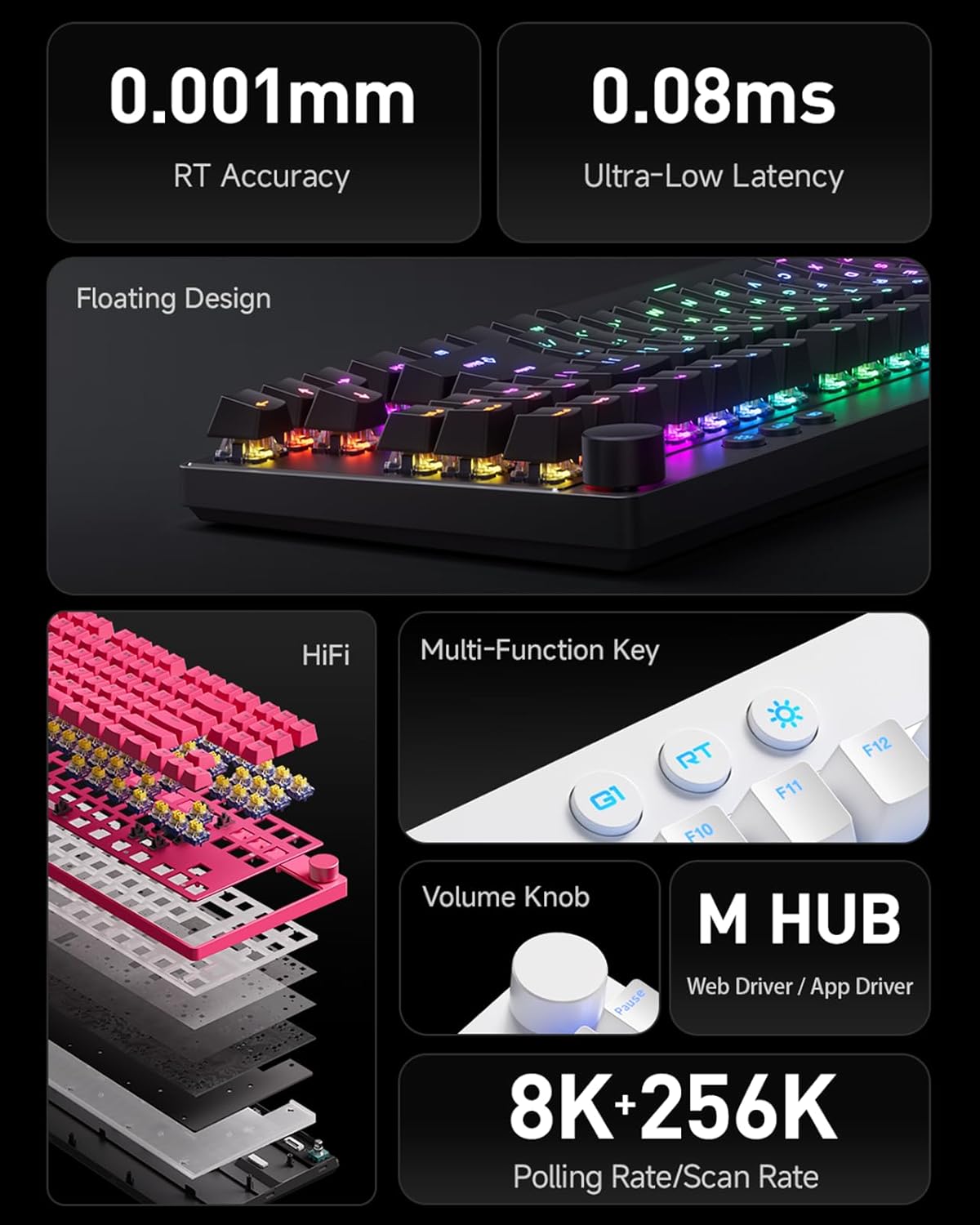
Image: Overview of MCHOSE Mix 87 TKL keyboard features, highlighting 0.001mm RT Accuracy, 0.08ms Ultra-Low Latency, Floating Design, HiFi sound dampening, Multi-Function Key, Volume Knob, M HUB software, and 8K Polling Rate / 256K Scan Rate.
1. Setup
1.1 Package Contents
Verify that all items are present in the package:
- MCHOSE Mix 87 TKL Wired Gaming Keyboard
- USB-C Cable
- User Manual (this document)
- Keycap Puller (if included)
- Switch Puller (if included)
1.2 Connecting the Keyboard
- Locate the USB-C port on the back or side of the MCHOSE Mix 87 keyboard.
- Connect one end of the provided USB-C cable to the keyboard's USB-C port.
- Connect the other end of the USB-C cable to an available USB port on your computer, gaming console (PS5, XBOX), or laptop.
- The keyboard will automatically be recognized by your operating system.
1.3 Driver Installation (MCHOSE Driver)
For advanced customization and features, install the MCHOSE driver software:
- Visit the official MCHOSE website (www.mchose.com) to download the latest MCHOSE driver (M HUB Web/App Driver).
- Follow the on-screen instructions to complete the installation.
- The driver allows for key remapping, RGB lighting adjustments, and activation of advanced gaming features like Rapid Trigger and Berserk Mode.
- All settings can be saved to the keyboard's onboard memory.
2. Operating Instructions
2.1 Basic Keyboard Functions
The MCHOSE Mix 87 functions as a standard TKL keyboard for typing and general computer use upon connection.
2.2 Volume Knob Operation

Image: Close-up of the volume knob on the MCHOSE Mix 87 TKL keyboard, illustrating its functions: Rotate to Adjust Volume and Press to Mute.
- Rotate: Turn the knob clockwise to increase volume, and counter-clockwise to decrease volume.
- Press: Press the knob to mute or unmute audio.
2.3 Multi-Function Keys and RGB Lighting

Image: Close-up of the multi-function keys (G1, RT, Adjustable Lighting) and volume knob on the MCHOSE Mix 87 TKL keyboard.
The keyboard features dedicated multi-function keys for quick access to specific features:
- G1 Key: One-Key Desktop Switch (Customizable). This key can be configured via the MCHOSE driver for various functions.
- RT Key: One-Key Profile Switching. Use this key to cycle through different Rapid Trigger profiles configured in the MCHOSE driver.
- Lighting Key (Sun icon): Adjustable Lighting Brightness. Press this key to cycle through different RGB brightness levels or lighting effects. Further customization is available through the MCHOSE driver.
2.4 Advanced Customization (MCHOSE Driver)

Image: Diagram illustrating advanced features of the MCHOSE Mix 87 TKL keyboard, including Magnetic Switch Algorithm 3.0, RT Smart (15-Level Adjustability), ADC Direct Connection for WASD keys, and Customizable Dynamic Keystroke Travel (DKS, SOCD, MT, TGL, RS, key macros).
The MCHOSE driver unlocks the full potential of your keyboard:
- Key Remapping: Assign custom functions to any key.
- RGB Lighting: Customize per-key RGB lighting, effects, and brightness.
- Rapid Trigger: Adjust the sensitivity and behavior of Rapid Trigger for instant key activation and deactivation.
- Berserk Mode: Activate specialized gaming modes for enhanced performance.
- Adjustable Actuation Point: Set the actuation point for each key from 0.1mm to 4.0mm to match your preference.
- Dynamic Keystroke Travel (DKS): Configure multiple actions based on key press depth.
- Simultaneous Opposite Cardinal Directions (SOCD): Manage conflicting directional inputs for precise movement in games.
- Macro Recording: Create and assign complex key sequences to a single key.
- Other Features: Explore MT (Mod-Tap), TGL (Toggle), and RS (Rapid Stop) functionalities for advanced control.
3. Maintenance
3.1 Cleaning the Keyboard
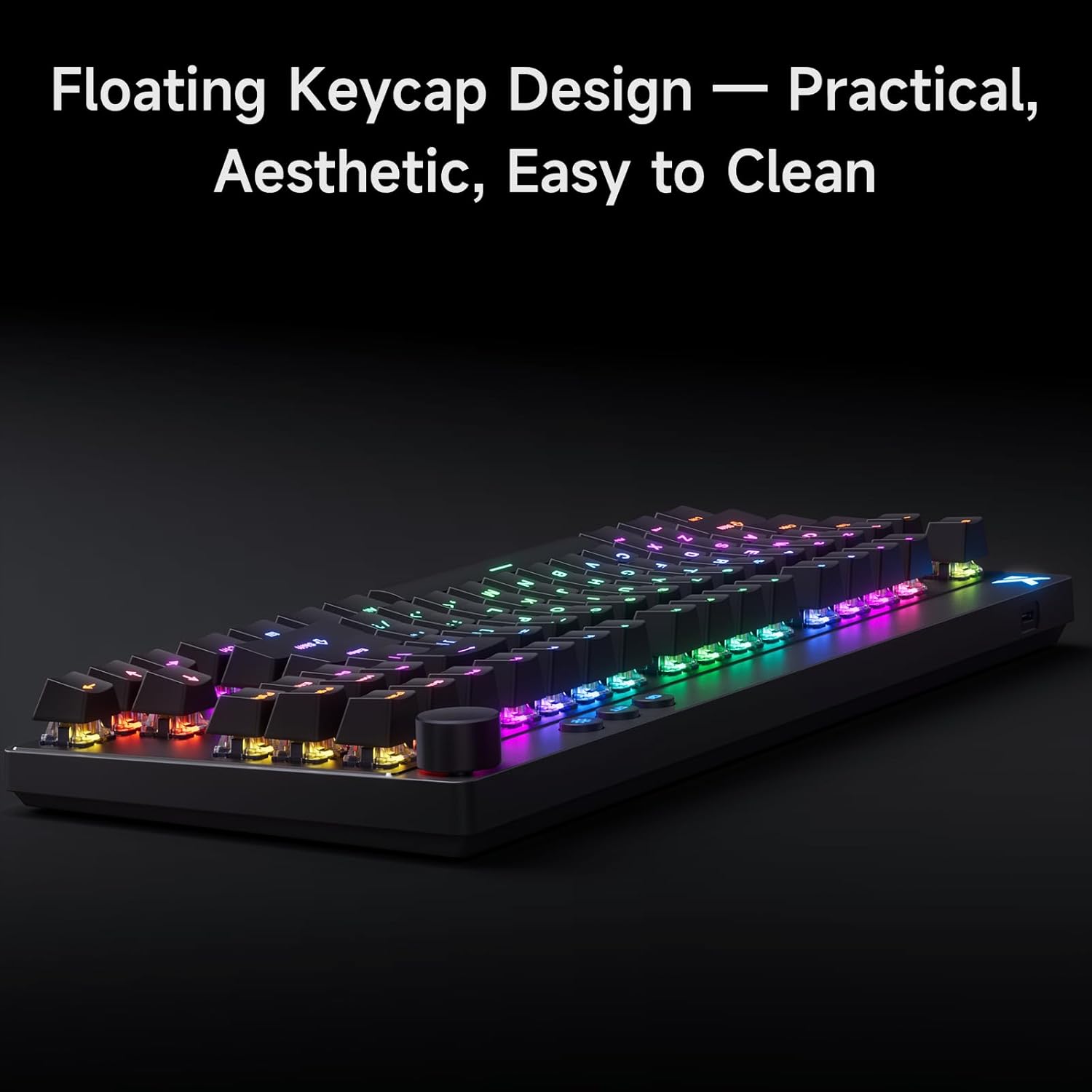
Image: The MCHOSE Mix 87 TKL keyboard showcasing its floating keycap design, which facilitates easy cleaning and maintenance.
The MCHOSE Mix 87 TKL keyboard features a floating keycap design, which makes cleaning easier:
- Dust Removal: Use a can of compressed air to blow away dust and debris from between the keycaps.
- Keycap Cleaning: Gently remove keycaps using a keycap puller (if provided). Clean keycaps with a soft, damp cloth and mild soap solution. Ensure keycaps are completely dry before reattaching.
- Surface Cleaning: Wipe the keyboard surface with a soft, lint-free cloth. For stubborn marks, slightly dampen the cloth with water or a mild electronics cleaner. Avoid excessive moisture.
- Switch Maintenance: The keyboard uses magnetic switches. Avoid disassembling the switches unless you are familiar with the process, as it may void your warranty.
Always disconnect the keyboard from your computer before cleaning.
4. Troubleshooting
4.1 Keyboard Not Responding
- Check Connection: Ensure the USB-C cable is securely connected to both the keyboard and the computer's USB port. Try a different USB port.
- Cable Integrity: Test with a different USB-C cable if available, to rule out a faulty cable.
- Restart Computer: Sometimes a simple system restart can resolve connectivity issues.
- Driver Check: Verify that the MCHOSE driver is installed correctly and up to date.
4.2 Keys Not Registering or Double-Typing
- Adaptive Dynamic Calibration 2.0: The keyboard features Adaptive Dynamic Calibration 2.0, which automatically recalibrates key actuation on every press. This should prevent most issues related to inconsistent key presses.
- Clean Keycaps/Switches: Dust or debris under a keycap can interfere with switch operation. Refer to the Maintenance section for cleaning instructions.
- Driver Settings: Check the MCHOSE driver for any custom actuation point settings that might be too sensitive or too deep for your typing style. Reset to default if necessary.

Image: A user interacting with the MCHOSE Mix 87 TKL keyboard, illustrating the function of Adaptive Dynamic Calibration 2.0 for precise and stable key actuation without manual adjustment.
4.3 RGB Lighting Issues
- Brightness Adjustment: Use the dedicated lighting key (sun icon) to adjust brightness.
- MCHOSE Driver: All RGB lighting customization is managed through the MCHOSE driver. Ensure the driver is running and settings are applied.
- Software Conflicts: If you have other RGB control software installed, it might conflict with the MCHOSE driver. Try disabling other software.
5. Specifications
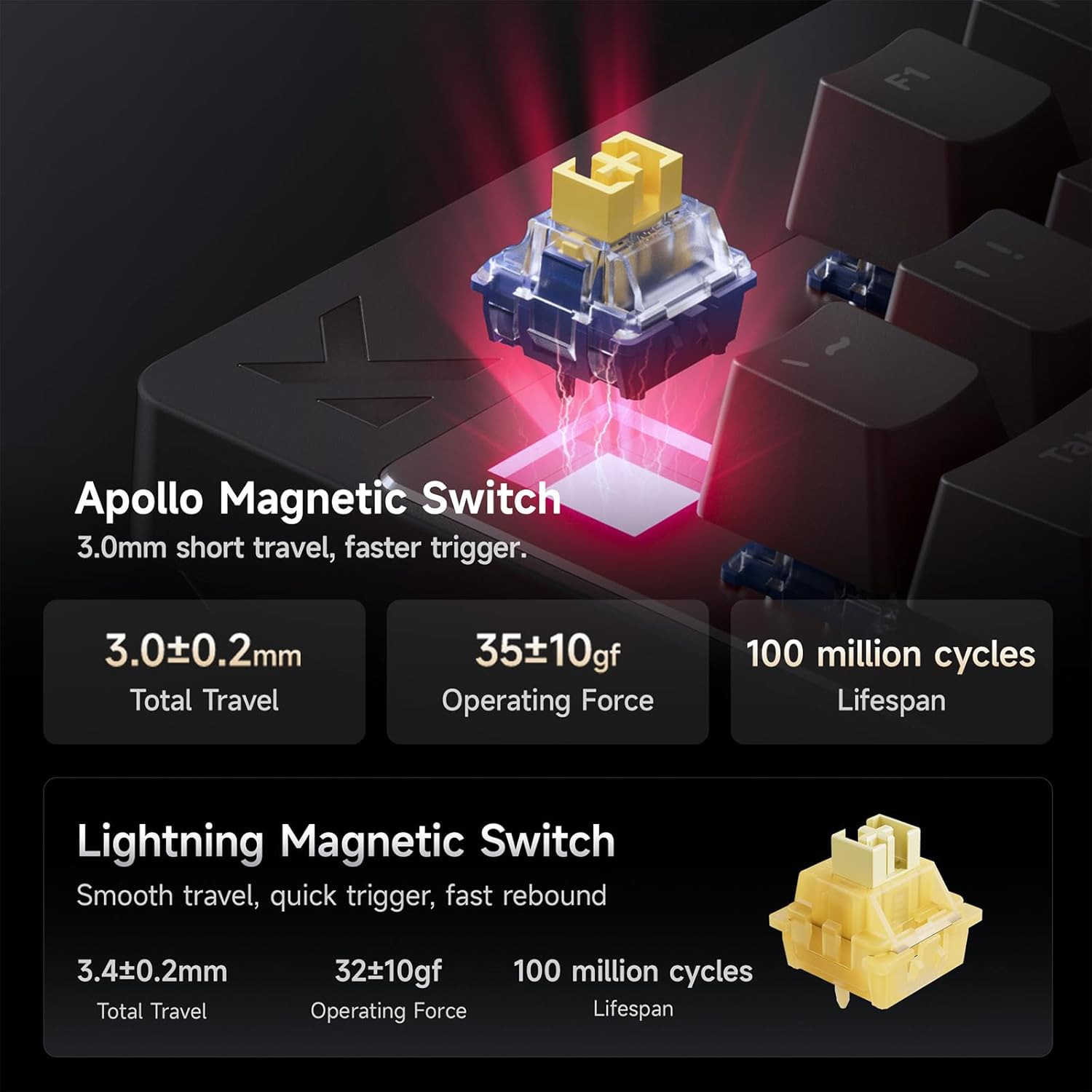
Image: Detailed specifications for the Apollo Magnetic Switch and Lightning Magnetic Switch, including total travel, operating force, and lifespan.
| Feature | Detail |
|---|---|
| Model | Mix 87 |
| Layout | TKL (Tenkeyless) |
| Connectivity | Wired (USB-C) |
| Switch Type | Magnetic Hall Effect Switches (e.g., Apollo Magnetic Switch) |
| Actuation Point | Adjustable from 0.1mm to 4.0mm |
| Rapid Trigger Accuracy | 0.001mm |
| Latency | 0.08ms (Ultra Esports Edition) |
| Polling Rate | 8K (8000Hz) |
| Scan Rate | Up to 256K |
| Keycaps | PBT with front-facing shine-through legends, Floating Keycap Design |
| Backlighting | RGB |
| Compatible Devices | PC, Laptop, Gaming Console (PS5, XBOX) |
| Product Dimensions | 14.5"L x 6"W x 1.2"H |
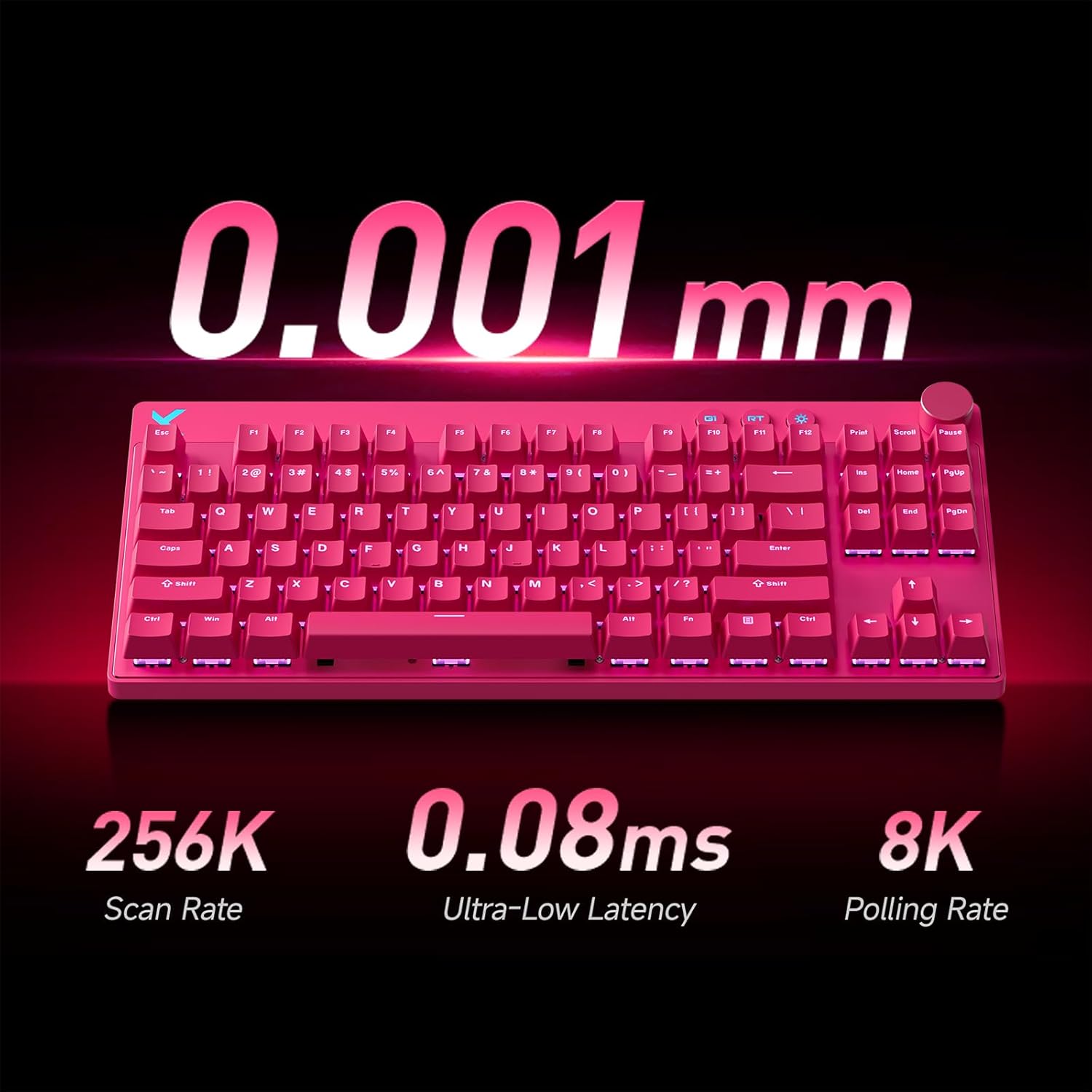
Image: A pink MCHOSE Mix 87 TKL keyboard highlighting key performance metrics: 256K Scan Rate, 0.08ms Ultra-Low Latency, and 8K Polling Rate.
6. Warranty Information
MCHOSE products are covered by a limited warranty against defects in materials and workmanship. The specific duration and terms of the warranty may vary by region and product. Please retain your proof of purchase for warranty claims.
For detailed warranty information, please visit the official MCHOSE website or contact customer support.
7. Customer Support
If you encounter any issues or have questions regarding your MCHOSE Mix 87 TKL Wired Gaming Keyboard that are not covered in this manual, please contact MCHOSE customer support:
- Website: www.mchose.com (for FAQs, driver downloads, and support contact information)
- Email: Refer to the MCHOSE website for specific support email addresses.
- Online Resources: Check the MCHOSE brand store on Amazon for additional product information and support links.


