1. Introduction
This manual provides detailed instructions for the operation and maintenance of your Hagibis AI Voice Recorder, model LYB615. Please read this manual carefully before using the device to ensure proper functionality and to maximize its features. Keep this manual for future reference.
2. Product Overview
The Hagibis AI Voice Recorder is a compact and intelligent recording device designed for various applications, including meetings, lectures, and personal notes. It features advanced AI capabilities for noise cancellation, transcription, and summarization, alongside a long-lasting battery and magnetic attachment for convenience.

Figure 2.1: Hagibis AI Voice Recorder with key features. This image illustrates the device's compact design and highlights its core functionalities such as AI-powered processing, sound tracking, dynamic noise cancellation, extended battery life, magnetic attachment, and USB-C charging.
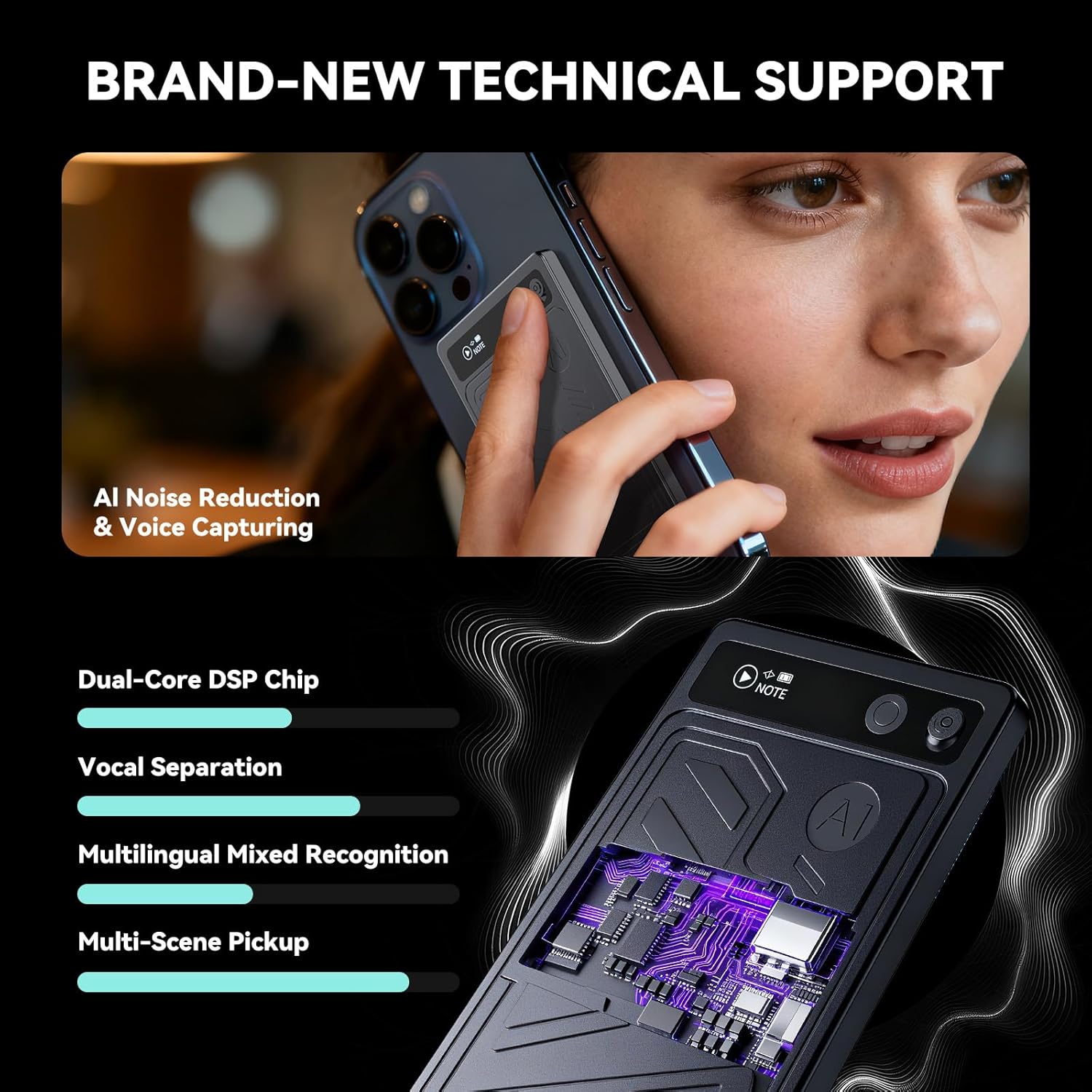
Figure 2.2: Technical overview of the Hagibis AI Voice Recorder. This image shows the device's internal components and advanced technical support, including AI noise reduction, voice capturing, a dual-core DSP chip, vocal separation, multilingual mixed recognition, and multi-scene pickup.
3. Setup
3.1 Charging the Device
Before initial use, fully charge the AI Voice Recorder. Connect the included USB-C cable to the device's charging port and plug the other end into a compatible USB power adapter or computer USB port. The charging indicator will show the charging status and turn off when fully charged.
3.2 Powering On/Off
To power on the device, slide the designated switch to the 'ON' position. To power off, slide the switch to the 'OFF' position. The device is designed for instant, silent operation.
3.3 Initial Pairing (if applicable)
If your model requires pairing with a smartphone for advanced features, activate Bluetooth on your smartphone and follow the instructions in the companion application to connect to the 'Hagibis Voice Recorder' device. The device uses Bluetooth 5 for connectivity.
4. Operating Instructions
4.1 Recording Audio
To start recording, simply slide the recording switch to the 'ON' position. The device will begin recording immediately and silently. To stop recording, slide the switch back to the 'OFF' position. Recordings are saved automatically to the internal 64GB storage.
4.2 Call Recording and Note Taking
The device supports dual modes for various recording scenarios. For call recording, position the device near your phone during a call. For note-taking, place it on a flat surface during meetings or lectures. The magnetic back allows for secure attachment to metal surfaces.

Figure 4.1: Call recording and note-taking capabilities. This image illustrates the versatility of the device for different recording needs, supporting 112 languages, custom templates, and AI suggestions.
4.3 AI Features: Transcribe, Translate, Summarize
Utilize the device's AI capabilities to process your recordings. Connect the device to its companion application on your smartphone or computer to access features such as:
- Transcription: Convert spoken words into text.
- Translation: Translate transcribed text into various languages (112 languages supported).
- Summarization: Generate concise summaries of longer recordings.
- Mind Map Generation: Create visual mind maps from your audio content.

Figure 4.2: AI-powered transcription, translation, summarization, and mind map generation. These features are designed to save time by efficiently processing recorded audio content.
4.4 Data Transfer
To transfer recorded files, connect the device to your computer using the USB-C cable. The device will appear as a removable storage drive, allowing you to copy files (AIFF, WAV, WMA formats) directly to your computer.
5. Maintenance
5.1 Cleaning
Wipe the device with a soft, dry cloth. Do not use liquid cleaners or solvents, as they may damage the device's surface or internal components.
5.2 Storage
Store the device in a cool, dry place away from direct sunlight, extreme temperatures, and high humidity. Avoid dropping the device or exposing it to strong impacts.
6. Troubleshooting
- Device not powering on: Ensure the battery is charged. Connect to a power source and try again.
- Poor audio quality: Ensure the microphone is not obstructed. Record in a quieter environment. Verify AI noise cancellation settings in the companion app.
- Cannot transfer files: Ensure the USB-C cable is securely connected to both the device and the computer. Try a different USB port or cable.
- AI features not working: Ensure the device is connected to the companion app and has an active internet connection for AI processing.
7. Specifications
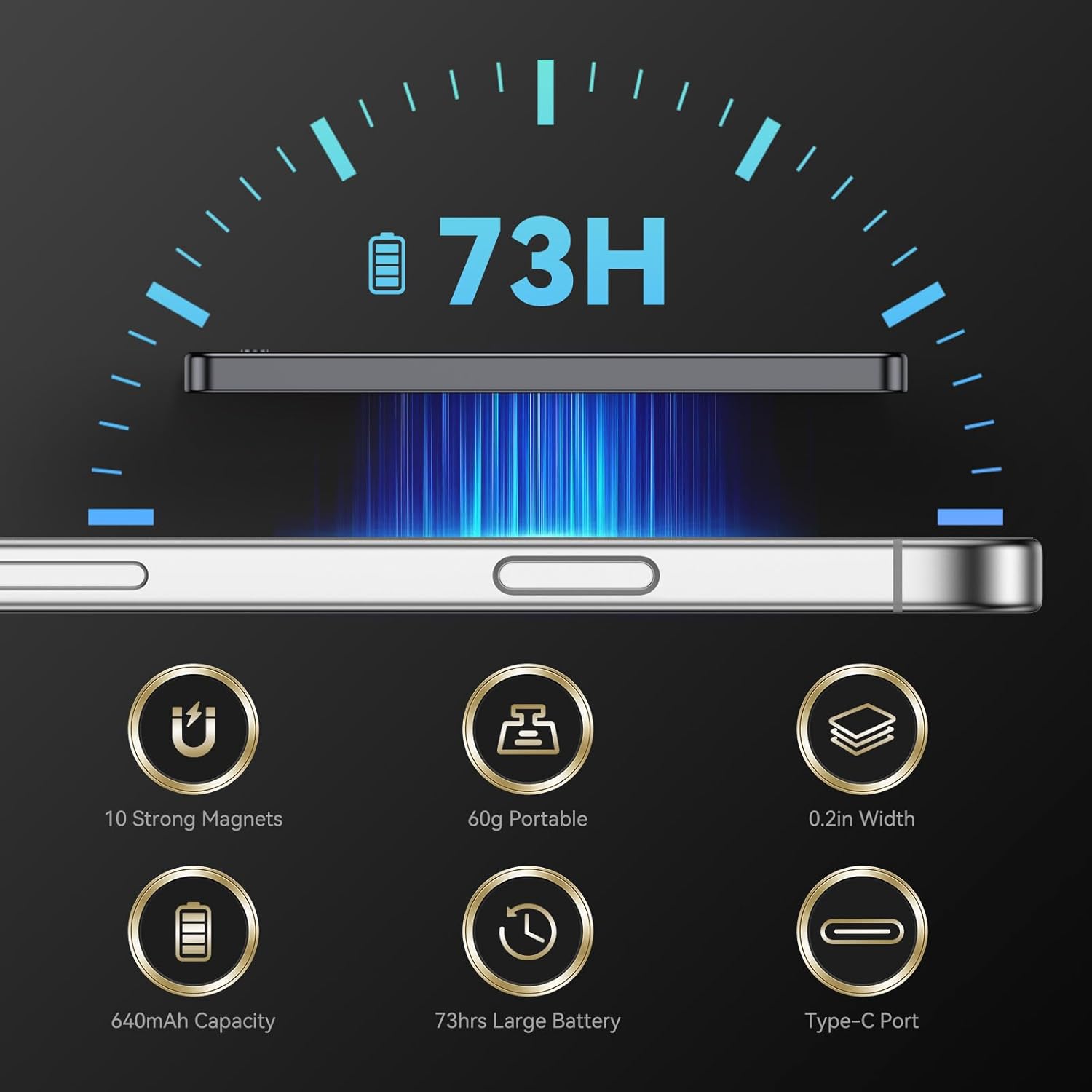
Figure 7.1: Physical and power specifications of the Hagibis AI Voice Recorder. This image details the device's 73-hour battery life, 10 strong magnets, 60g weight, 0.2-inch width, 640mAh capacity, and Type-C charging port.
| Feature | Specification |
|---|---|
| Brand | Hagibis |
| Model | LYB615 |
| Memory Storage Capacity | 64 GB |
| Hardware Interface | Bluetooth 5 |
| Compatible Devices | Smartphone |
| Microphone Format | Built-In |
| Battery Type | Lithium Polymer (Rechargeable) |
| Battery Life | Up to 73 hours |
| Media Format | AIFF, WAV, WMA |
| Product Dimensions | 0.51 x 6.1 x 9.4 cm |
| Item Weight | 60 g |
| Charging Port | USB-C |
| Screen Size | 1.5 Centimeters |
8. Warranty and Support
For warranty information and technical support, please refer to the documentation included with your purchase or visit the official Hagibis website. Keep your proof of purchase for warranty claims.

Figure 8.1: Privacy and security features. This image highlights the commitment to data protection, including one-to-one encryption, user control over data, and a dedicated cloud server.


