
1. Introduction
This manual provides essential information for the proper setup, operation, maintenance, and troubleshooting of your ZZA 24.5-inch 120Hz Curved Gaming Monitor (Model Z245A). Please read these instructions carefully before using the product to ensure optimal performance and safety.
The ZZA 24.5-inch FHD (1920x1080) curved monitor features a 3000R curvature, 178° wide viewing angle, 120Hz refresh rate, and 1ms response time. It incorporates blue light reduction technology for eye comfort and supports AMD FreeSync Premium for a smooth gaming experience.
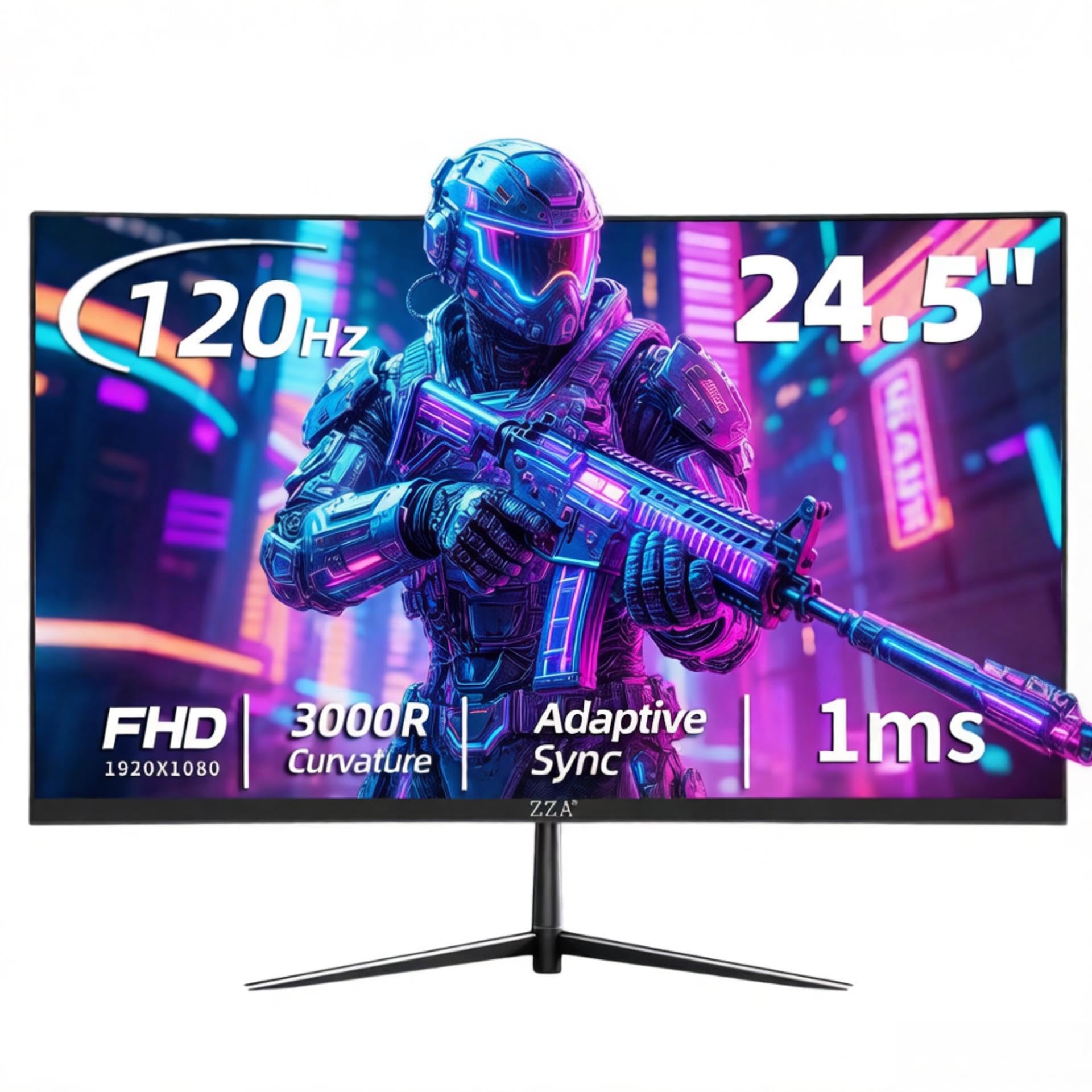
Image 1.1: Front view of the ZZA 24.5-inch Curved Gaming Monitor.
2. Package Contents
Verify that all items are present in the package:
- ZZA 24.5-inch Curved Gaming Monitor
- Monitor Stand (Base and Neck)
- HDMI Cable
- DisplayPort Cable
- Power Cable
- User Manual (this document)
3. Setup
3.1 Assembling the Stand
- Carefully remove the monitor from its packaging, placing it face down on a soft, clean surface to prevent scratches.
- Attach the stand neck to the back of the monitor by aligning the tabs and pushing until it clicks into place.
- Attach the stand base to the neck, securing it with the provided screw.
- Gently lift the assembled monitor and place it on a stable, flat surface.
3.2 Connecting the Monitor
The monitor supports HDMI and DisplayPort connections. Ensure your computer or gaming console is powered off before making connections.
- Power Connection: Connect the power cable to the monitor's power input and then to a power outlet.
- Video Connection:
- For 120Hz refresh rate, use the provided HDMI 2.0 cable and connect it to the HDMI port on the monitor and your device.
- Alternatively, use the provided DisplayPort cable and connect it to the DisplayPort on the monitor and your device.

Image 3.1: Rear view of the monitor with port locations.

Image 3.2: Side-back view illustrating control buttons and ports.
3.3 Initial Power-On
- Ensure all cables are securely connected.
- Press the power button on the monitor (typically located on the back or bottom right).
- Power on your computer or gaming console. The monitor should automatically detect the input signal. If not, you may need to manually select the input source using the On-Screen Display (OSD) menu.
4. Operating the Monitor
4.1 On-Screen Display (OSD) Menu
The OSD menu allows you to adjust various monitor settings. Access the OSD menu by pressing the designated OSD button (refer to Image 3.2 for button location). Use the navigation buttons to browse and select options.
4.2 Key Settings
- Brightness/Contrast: Adjust these settings to suit your viewing environment.
- Color Settings: Modify color temperature, gamma, and individual RGB values for precise color calibration.
- Input Source: Manually select between HDMI and DisplayPort inputs if auto-detection fails.
- Refresh Rate: Ensure your device's display settings are configured to utilize the monitor's 120Hz refresh rate for optimal performance. This setting is typically adjusted within your operating system's display settings.
- AMD FreeSync Premium: Enable this feature in the OSD menu and your graphics card settings to synchronize the monitor's refresh rate with your GPU's frame rate, eliminating screen tearing and stuttering.
- Eye Care Technology: The monitor features Flicker-Free technology and Low Blue Light modes to reduce eye strain during extended use. These can be enabled or adjusted in the OSD menu.

Image 4.1: Visual representation of 120Hz refresh rate compared to 60Hz.

Image 4.2: Monitor in a typical gaming setup.
5. Maintenance
5.1 Cleaning the Monitor
- Always power off and unplug the monitor before cleaning.
- Use a soft, lint-free cloth lightly dampened with water or a non-abrasive screen cleaner.
- Do not spray cleaner directly onto the screen.
- Avoid using harsh chemicals, alcohol, or abrasive materials, as these can damage the screen surface.
5.2 General Care
- Keep the monitor away from direct sunlight, excessive heat, and humidity.
- Ensure proper ventilation around the monitor to prevent overheating.
- Avoid placing heavy objects on the monitor or its cables.
6. Troubleshooting
If you encounter issues with your monitor, refer to the following common problems and solutions:
| Problem | Possible Cause | Solution |
|---|---|---|
| No image on screen | Power cable disconnected, video cable loose, incorrect input source selected. | Check power and video cable connections. Ensure the monitor is powered on. Select the correct input source via the OSD menu. |
| Image flickering or unstable | Video cable issue, refresh rate mismatch, FreeSync not enabled. | Ensure video cable is securely connected. Verify refresh rate settings in your device's display options. Enable AMD FreeSync in OSD and graphics card settings. |
| Colors appear incorrect | Color settings misconfigured, faulty video cable. | Adjust color settings (brightness, contrast, color temperature) in the OSD menu. Try a different video cable. |
| Monitor does not turn on | Power cable disconnected, power outlet issue. | Check power cable connection to both monitor and outlet. Test the power outlet with another device. |
7. Specifications
Detailed technical specifications for the ZZA 24.5-inch 120Hz Curved Gaming Monitor (Model Z245A):
- Screen Size: 24.5 Inches
- Resolution: FHD 1920 x 1080 Pixels
- Aspect Ratio: 16:9
- Curvature: 3000R
- Refresh Rate: 120Hz (via HDMI 2.0)
- Response Time: 1ms
- Brightness: 300 cd/m²
- Contrast Ratio: 3000:1 (Dynamic)
- Color Depth: 8-bit (16.7 million colors)
- sRGB Gamut Coverage: 120%
- Viewing Angle: 178°
- Connectivity: HDMI, DisplayPort
- Features: AMD FreeSync Premium, Low Blue Light, Flicker-Free, VESA Wall Mount Compatible
- Product Dimensions: 23.4 x 4.64 x 15.4 inches
- Item Weight: 7.43 pounds
- Model Number: Z245A
8. Warranty and Support
8.1 Warranty Information
Your ZZA monitor comes with a 1-year warranty from the date of purchase, covering manufacturing defects. Please retain your proof of purchase for warranty claims.
8.2 Customer Support
For any inquiries, technical assistance, or warranty support, please contact our dedicated support team:
- Email: zza-direct@outlook.com
Our support team is available to address your questions and ensure your satisfaction.