
1. Introduction
Thank you for choosing the lovpo HDV910 4K 48MP Camcorder. This device is designed to capture high-quality video and photos, offering advanced features for vlogging, travel, and everyday moments. With its 4K UHD resolution, 48MP image capability, 18X digital zoom, and a 3-inch rotating touchscreen, it provides versatility and ease of use. This manual will guide you through the setup, operation, and maintenance of your new camcorder.
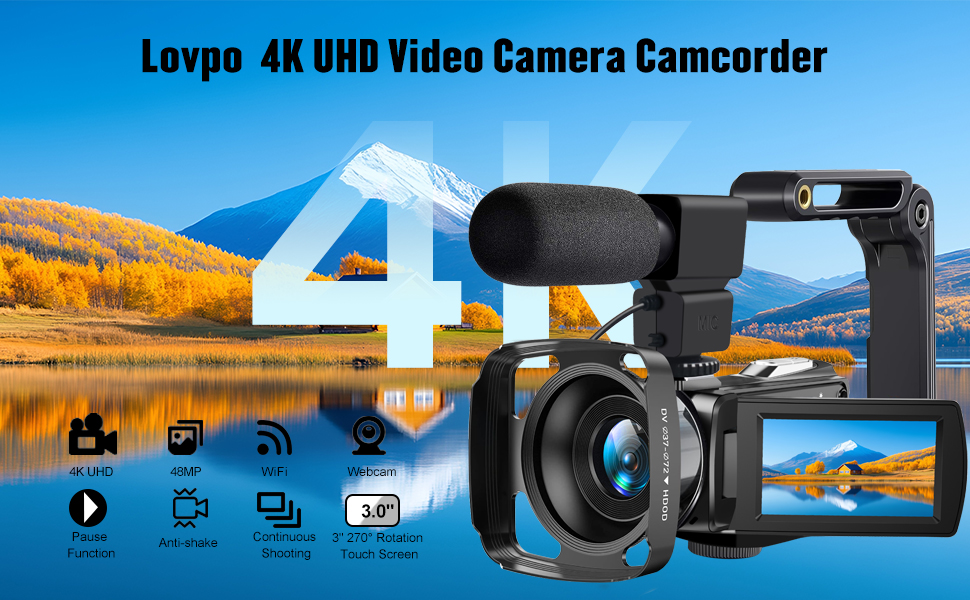
Image: The lovpo 4K UHD & 48MP Camcorder in action, showcasing its ability to record smooth videos and take high-resolution photos.
2. What's in the Box
Your lovpo HDV910 Camcorder package includes the following items:
- Camcorder
- Microphone
- Visor and Handle (Handheld Stabilizer)
- USB Cable
- HDMI Cable
- Remote Control
- Lens Cap
- 2 Lithium Ion Batteries
- Lens Hood

Image: A visual representation of all included accessories: Camcorder, External Microphone, Lens Hood, Handheld Holder, 2 Batteries, HDMI Cable, USB Cable, Remote, and Lens Cap.
3. Product Overview
The lovpo HDV910 Camcorder is equipped with a range of features to enhance your recording experience:
- HD 4K Video & 48MP Image: Supports up to UHD 4K (30FPS) ultra-high-definition resolution and 48.0 MP image resolution for vivid quality.
- 3.0" Touch Screen & 18X Digital Zoom: Features a 3.0-inch 270-degree rotation touch screen for flexible shooting angles and an 18x digital zoom to capture distant details.
- Wi-Fi & Webcam Function: Connects to mobile phones via Wi-Fi for easy photo/video sharing and functions as a webcam for video chatting and live streaming.
- HDMI Output & Accessories: Allows connection to a TV for playback via HDMI. Includes a foldable handheld stabilizer for steady recording and a lens hood to reduce glare and protect the lens.
- Multifunctional: Supports video pause, slow motion, time-lapse, self-shooting, and continuous shooting modes.
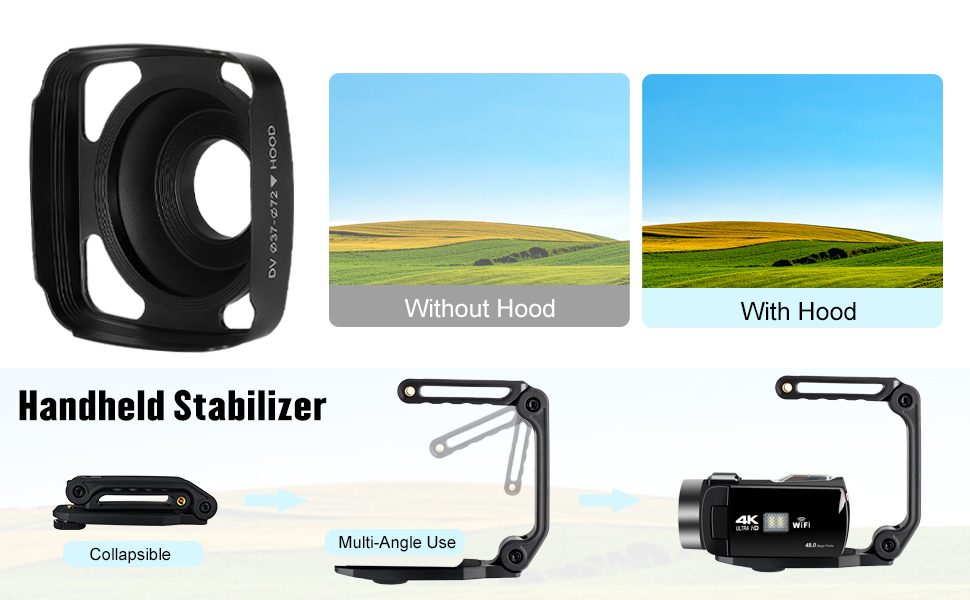
Image: The camcorder connected via Wi-Fi to a smartphone, illustrating the ease of sharing videos and photos.
4. Setup
4.1 Battery Installation
- Locate the battery compartment on the camcorder.
- Press the release button and slide the battery cover open.
- Insert the Lithium Ion battery, ensuring correct polarity.
- Close the battery cover until it clicks securely into place.
4.2 SD Card Insertion
- Open the screen to reveal the SD card slot.
- Insert a Micro SD card into the designated slot until it clicks.
- The camera may prompt you to format the card; follow on-screen instructions.
4.3 Attaching Accessories
The camcorder comes with several accessories to enhance your recording experience:
- Microphone: Attach the external microphone to the hot shoe mount on top of the camcorder and plug its cable into the microphone port.
- Handheld Stabilizer: Attach the foldable handheld stabilizer to the tripod mount at the bottom of the camcorder for steady shots.
- Lens Hood: Screw the lens hood onto the front of the camcorder lens to reduce glare and protect the lens.
Video: A seller-provided demonstration of unboxing, assembling the microphone, stabilizer, and lens hood, and navigating the camcorder's menu and settings.
5. Operating Instructions
5.1 Power On/Off
To power on the camcorder, simply open the 3.0-inch rotating screen. To power off, close the screen or use the Power/Down button.
5.2 Recording Video
- Ensure the camcorder is in video mode (check the mode button).
- Press the 'Start/Stop' button (usually a red dot) to begin recording.
- Press the 'Start/Stop' button again to stop recording.
5.3 Taking Photos
- Switch the camcorder to photo mode using the 'Photo' button or mode selector.
- Press the 'Photo' button to capture an image.
5.4 Zoom Function
Use the 'W' (Wide) and 'T' (Telephoto) slider/buttons to adjust the 18x digital zoom.

Image: The camcorder's 3-inch touch screen displaying the 18X digital zoom capability, showing different zoom levels on a dog.
5.5 Touch Screen Navigation
The 3.0-inch touch screen allows for intuitive navigation through menus, settings, and playback of recorded content. Tap on icons to select options.
5.6 Wi-Fi & Webcam
Activate Wi-Fi from the menu to connect to your smartphone for easy file transfer. Connect the camcorder to a computer via USB to use it as a webcam.

Image: The camcorder functioning as a webcam for a video call and connected to a television via HDMI for video playback.
5.7 HDMI Output
Connect the camcorder to an HDMI-compatible display (e.g., TV) using the provided HDMI cable to view your recordings on a larger screen.
5.8 Special Functions
Explore various recording modes including Slow Motion, Time-Lapse, Self-Shooting, and Continuous Shooting through the camcorder's menu options.
Image: A collage demonstrating the camcorder's special functions: Time-lapse Shooting, Slow Motion, Loop Recording, Continuous Shooting, Selfie, and Pause Function.
5.9 Deleting Files
Navigate to the playback menu, select the file you wish to delete, and choose the delete option (often represented by a trash can icon) on the touchscreen.
6. Charging and Battery
The camcorder uses rechargeable Lithium Ion batteries. To charge, connect the provided USB cable to the camcorder's charging port and a power source. The camcorder can also record while charging.
7. Maintenance
To ensure the longevity and optimal performance of your camcorder:
- Keep the lens clean using the provided lens wipe or a soft, lint-free cloth.
- Store the camcorder in its carrying case when not in use to protect it from dust and scratches.
- Avoid exposing the camcorder to extreme temperatures or moisture.
8. Troubleshooting
If you encounter any issues with your camcorder, try the following:
- Camera not powering on: Ensure the battery is correctly inserted and fully charged.
- No recording: Check if an SD card is inserted and has sufficient storage space. Format the SD card if necessary.
- Poor audio quality: Ensure the external microphone is securely connected and its settings are correctly configured.
9. Specifications
| Feature | Detail |
|---|---|
| Brand Name | lovpo |
| Item Model Number | HDV910 |
| Video Capture Resolution | 4K |
| Photo Sensor Technology | CMOS |
| Optical Zoom | 18 x |
| Special Features | Slow Motion, Time Lapse, Self-Shooting, Digital Zoom, WiFi & Webcam Function, HDMI Output |
| Connectivity Technology | HDMI |
| Screen Size | 3.0 inches |
| Flash Memory Type | Micro SD |
| Batteries | 2 Lithium Ion batteries (included) |
| Item Weight | 1.7 pounds |
| Package Dimensions | 7.72 x 6.38 x 3.19 inches |
10. Warranty and Support
For any questions, concerns, or warranty information, please refer to your order details and contact the seller directly. Our customer service team is available to assist you.
