Introduction
The Silhouette America Cameo 5 Alpha (CAMEO5α) is a versatile smart cutting machine designed for precision crafting. This manual provides essential information for setting up, operating, maintaining, and troubleshooting your device, ensuring optimal performance for a wide range of creative projects.
Setup Guide
1. Unboxing and Initial Inspection
Carefully remove all components from the packaging. Verify that all included items are present: Cameo 5 Alpha machine, AutoBlade, Cutting Mat, Sketch Pens Adapter, power cable, and USB cable. Inspect the machine for any visible damage.
2. Power and Connectivity
- Connect the power cable to the machine and a power outlet.
- Connect the machine to your computer using the provided USB cable or establish a Bluetooth connection.
- Press the power button to turn on the machine.
3. Software Installation and Firmware Update
- Download and install the latest version of Silhouette Studio software from the official Silhouette America website.
- Launch Silhouette Studio and follow the on-screen prompts to register your machine and check for firmware updates. It is crucial to update the firmware for optimal performance and connectivity. A direct USB connection may be required for initial firmware updates.
4. Tool Installation
The Cameo 5 Alpha features a dual carriage system. Tools are inserted into the tool holders.
- AutoBlade: Insert the AutoBlade into Tool Holder 1. Ensure it clicks securely into place.
- Other Tools: For other compatible tools like the Heat Pen, Embossing Tool, or Pen Holder, insert them into the designated tool holder (Tool Holder 1 or 2) as required by your project.
Video Description: This video provides an overview of the Silhouette Cameo 5 Alpha, demonstrating its features and capabilities, including tool installation and material loading.
Operating Instructions
1. Loading Materials
- With Cutting Mat: Place your material onto the cutting mat, aligning it with the grid. Load the mat into the machine by pressing the load button.
- With Electrostatic Mat (ES Mat): The ES Mat provides increased clearance for thicker materials up to 0.5mm. Place your material directly onto the ES Mat and load it into the machine.
- With Roll Feeder: For rolled materials like vinyl, extend the roll feeder from the front of the machine. Load the material into the feeder, ensuring it is straight.
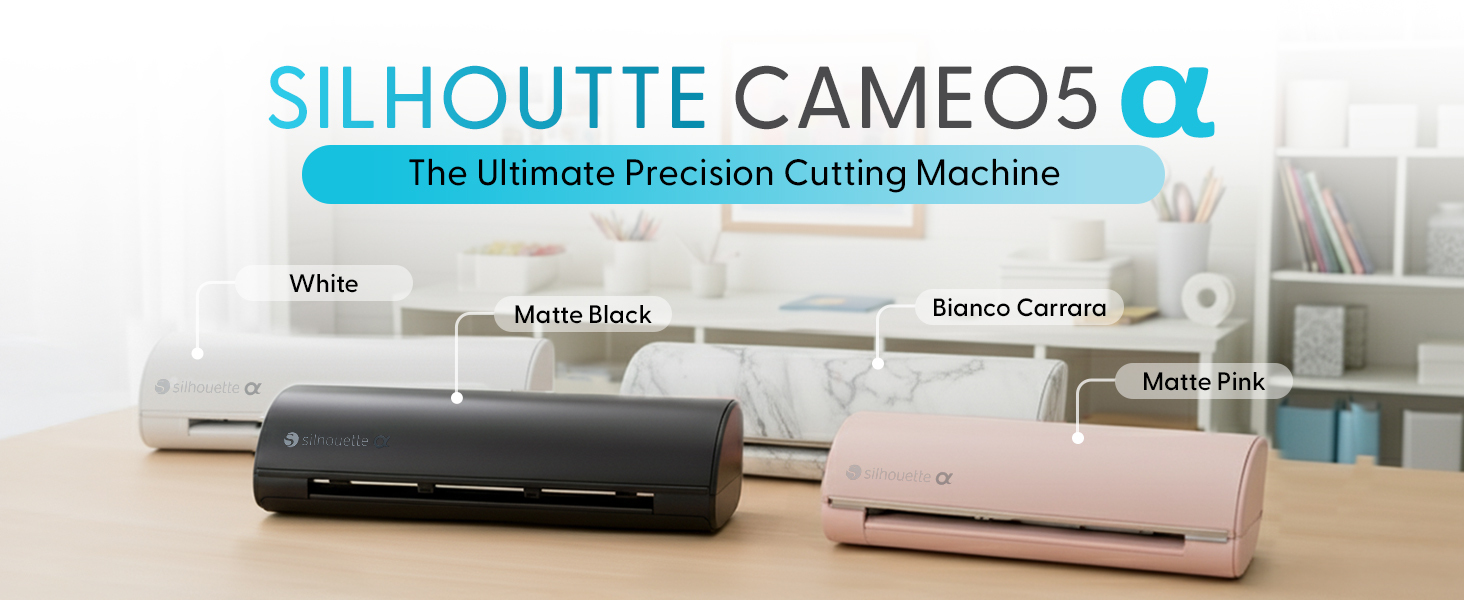
Image Description: The Silhouette Cameo 5 Alpha is shown cutting various materials including vinyl, cardstock, and heat transfer vinyl (HTV), demonstrating its adaptability for different project types.
Video Description: This video demonstrates the use of the Cameo 5 Alpha's Electrostatic Mat (ES Mat) for cutting materials without a traditional adhesive mat.
2. Designing and Sending Projects
- Create or import your design in Silhouette Studio.
- Adjust cut settings (material type, blade depth, force, passes) according to your material. The AutoBlade will automatically adjust its depth.
- For Print & Cut projects, ensure your design includes registration marks. The 4-point registration system provides superior accuracy.
- Send the project to your Cameo 5 Alpha.
3. Utilizing Advanced Features
- Intelligent Path Technology (IPT): This feature optimizes the cutting order for smoother, cleaner results and reduced material stress.
- Fast Sketch Mode: Achieve higher-speed sketching and drawing without compromising detail.
- Heat Pen: Insert the Heat Pen into Tool Holder 2. The powered carriage allows for easy foiling without external power.
- Embossing Tool: Insert the Embossing Tool into Tool Holder 2 to create embossed designs.
- Auto Crosscut: When using the roll feeder, the auto crosscut feature allows for automatic trimming of your material after a job is complete.
Video Description: This video demonstrates the installation and use of the Cameo 5 Alpha's Heat Pen for adding foil accents to projects.
Video Description: This video illustrates the process of using the Cameo 5 Alpha's Embossing Tool to create textured designs.
Maintenance
1. Cleaning the Machine
- Regularly wipe the exterior of the machine with a soft, dry cloth.
- Use a soft brush or compressed air to clear any dust or debris from the tool carriage and cutting strip.
- Ensure the pinch rollers are free of adhesive residue or material fragments.
2. Blade Care
- Remove the blade from the tool holder and gently clean any material buildup from the blade tip.
- Replace blades when they become dull to maintain cut quality.
3. Cutting Mat Care
- Keep the cutting mat covered when not in use to prevent dust and debris accumulation.
- Clean the mat periodically with warm water and mild soap to restore tackiness. Allow it to air dry completely.
Troubleshooting
- Connectivity Issues: If the machine does not connect via Bluetooth, try connecting directly with a USB cable. Ensure Silhouette Studio is updated to the latest version and check for any pending firmware updates for the machine. Restart both the machine and your computer.
- Poor Cut Quality: Check if the blade is dull or damaged and replace if necessary. Verify that the correct material settings (blade depth, force, passes) are selected in Silhouette Studio. Ensure the cutting mat is sufficiently tacky and the material is properly secured.
- Material Not Feeding Properly: Ensure the pinch rollers are correctly adjusted to the width of your material and locked in place. Check for any obstructions in the material path.
- Print & Cut Registration Errors: Ensure your printer prints clear registration marks. Check for adequate lighting around the machine. Clean the optical eye if necessary.
For more detailed troubleshooting, refer to the comprehensive help section within the Silhouette Studio software or visit the Silhouette America support website.
Specifications
| Feature | Detail |
|---|---|
| Brand | Silhouette America |
| Model Number | SILH-CAMEO-5A |
| Material | Metal, Plastic |
| Color | Classic White |
| Product Dimensions | 6.94"D x 22.28"W x 4.89"H |
| Active Surface Area | 12 in. x 24 in. |
| Operation Mode | Automatic |
| Item Weight | 11.5 Pounds |
| Print Media Compatibility | Banner paper, Card stock, Fabric, Glossy film, Glossy photo paper |
| Included Components | AutoBlade, Cutting Mat, Sketch Pens Adapter, 100 designs, Studio software |
Warranty and Support
Warranty Information
The Silhouette America Cameo 5 Alpha is covered by a manufacturer's warranty. Please refer to the warranty card included with your product or visit the official Silhouette America website for detailed terms and conditions.
Customer Support
For technical assistance, product inquiries, or support, please visit the Silhouette America support page on their official website. You can find FAQs, troubleshooting guides, and contact information for their customer service team.


