
1. Introduction
1.1 Product Overview
The Garmin GPSMAP H1 is a rugged handheld GPS navigator designed for outdoor activities. It features a bright 3.5-inch color touchscreen display, physical buttons for versatile control, and extended battery life. This manual provides essential information for the setup, operation, and maintenance of your device.
1.2 What's in the Box
- Garmin GPSMAP H1 Premium GPS Handheld Navigator
- PlayBetter Z05 5000mAh Powerbank
- PlayBetter GPS Tether Lanyard (Black)
- Loop Carabiner
- Charging/Data Cable & Documentation

Image: Garmin GPSMAP H1 bundle showing the handheld navigator, portable power bank, tether lanyard, and carabiner.
2. Setup
2.1 Charging the Device
Before initial use, fully charge your Garmin GPSMAP H1. Connect the provided charging/data cable to the device's USB port and then to a compatible USB power source, such as a wall adapter or computer. The included PlayBetter Z05 5000mAh Powerbank can be used for portable charging.

Image: PlayBetter Z05 5000mAh Powerbank, suitable for charging the GPSMAP H1.
2.2 Initial Power On and Basic Configuration
To power on the device, press and hold the power button located on the side. Upon the first startup, the device will guide you through initial setup steps, including language selection, time zone, and unit preferences. Follow the on-screen instructions to complete this process.
3. Operating the Device
3.1 Navigation and Mapping
The GPSMAP H1 features preloaded TopoActive maps and supports downloadable high-resolution satellite imagery. Its multi-band GPS and multi-GNSS support ensure superior positional accuracy. Use the 3.5-inch touchscreen or the physical buttons to navigate menus, zoom, pan, and interact with map features.
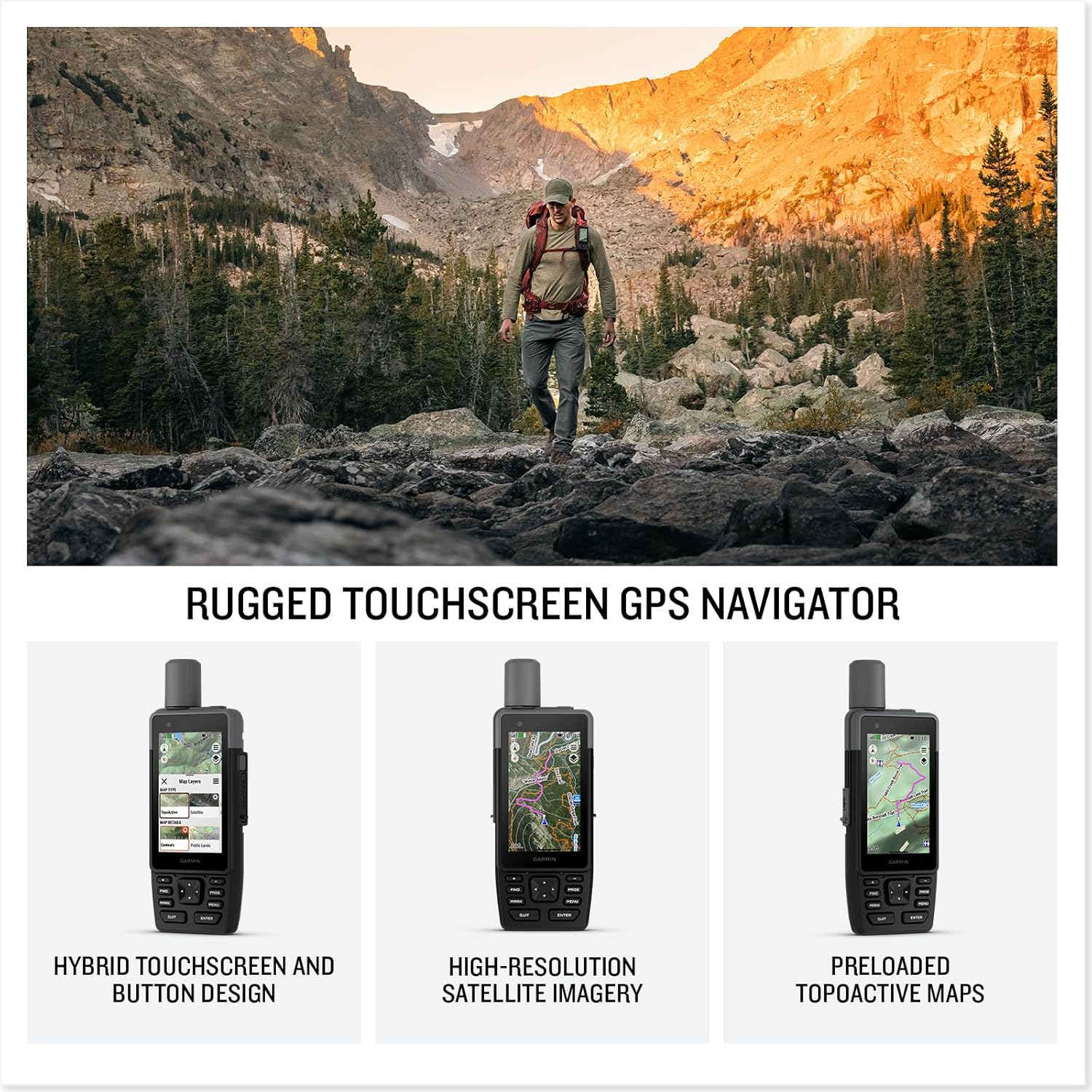
Image: Garmin GPSMAP H1 showing detailed topographic map data for navigation.
3.2 Communication Features (GPSMAP H1i Plus)
For models equipped with iReach® technology (e.g., GPSMAP H1i Plus), satellite communication allows for sending text messages, photos, and voice messages even outside cellular coverage. An active iReach® subscription is required for these features. The following video demonstrates the capabilities of the GPSMAP H1 and H1i Plus models.
Video: Overview of Garmin GPSMAP H1 and H1i Plus Premium Handheld Navigators, showcasing features including communication.
3.3 Using the Garmin Explore App
The Garmin Explore app (available for Android and iOS) enhances your navigation experience by allowing you to plan trips, download maps, and manage waypoints and routes. Connect your GPSMAP H1 to your smartphone via Bluetooth or Wi-Fi to synchronize data and access additional features.

Image: Garmin Explore app interface on a mobile device, used for trip planning and map management.
3.4 Built-in Flashlight
The device includes a built-in LED flashlight, useful for illuminating your path or finding items in low-light conditions. Activate the flashlight through the device's menu or a dedicated button, if available.

Image: Garmin GPSMAP H1 demonstrating its built-in flashlight feature.
4. Maintenance
4.1 Battery Care
The GPSMAP H1 offers up to 145 hours of battery life in GPS mode. To prolong battery lifespan, avoid exposing the device to extreme temperatures. When storing the device for extended periods, ensure it has a partial charge (approximately 50%).
4.2 Cleaning
Clean the device's exterior with a soft, damp cloth. Avoid using abrasive materials, harsh chemicals, or solvents, as these can damage the device's finish or internal components. Ensure the touchscreen is clean for optimal responsiveness.
4.3 Water Resistance
The Garmin GPSMAP H1 is rated IP67 for water resistance, meaning it can withstand immersion in water up to 1 meter for 30 minutes. For optimal protection, ensure all port covers are securely closed before exposing the device to water or moisture.
5. Troubleshooting
5.1 Common Issues and Solutions
- Device not powering on: Ensure the battery is adequately charged. Connect the device to a power source and attempt to power it on again. If the issue persists, try a soft reset by holding the power button for an extended period (e.g., 15 seconds).
- GPS signal loss or inaccuracy: Move to an open area with a clear view of the sky, away from tall buildings, dense foliage, or large metal objects that may obstruct the signal. Ensure the device's GPS antenna is not covered.
- Touchscreen unresponsiveness: Clean the touchscreen to remove any dirt or moisture. If the screen remains unresponsive, try restarting the device. In cold weather, ensure your fingers or gloves are compatible with capacitive touchscreens.
- Battery draining quickly: Reduce screen brightness, disable unnecessary features like Wi-Fi or Bluetooth when not in use, and ensure no background applications are consuming excessive power. Check for available software updates, as these often include power optimization improvements.
6. Specifications
6.1 Technical Specifications
- Model Name: GPSMAP H1
- Item Model Number (GPS): 010-02920-00
- Display Size: 3.5 Inches
- Battery Life: Up to 145 hours in GPS mode
- Connectivity: Bluetooth, Wi-Fi
- Water Rating: IP67
- Product Dimensions: 2.6"L x 1.3"W x 7"H
- Item Weight: 9.7 ounces
- Map Type: Topographical
- Operating System: Android, iOS (for Garmin Explore app compatibility)
- Voice Command: Buttons, Touchscreen
7. Warranty and Support
7.1 Warranty Information
The Garmin GPSMAP H1 is covered by a Garmin 1 Year Manufacturer Warranty. For complete details regarding warranty terms, conditions, and registration, please refer to the official Garmin website or the documentation included with your product.
7.2 Customer Support
For technical assistance, troubleshooting guidance, or further product information, please visit the official Garmin support website. You may also contact Garmin customer service directly for personalized support.