1. Introduction
Thank you for choosing the HUAYU KL RM-L1710 Universal LCD LED TV Remote Control. This remote is designed to provide seamless control over various LCD and LED televisions, featuring dedicated buttons for popular streaming services. This manual will guide you through the setup, operation, and maintenance of your new remote control.
2. Important Safety Instructions
- Do not mix old and new batteries.
- Do not mix alkaline, standard (carbon-zinc), or rechargeable (nickel-cadmium) batteries.
- Always remove exhausted batteries promptly to prevent leakage and damage.
- Dispose of used batteries according to local regulations.
- Keep the remote control away from direct sunlight, heat sources, and moisture.
- Do not attempt to disassemble or modify the remote control.
3. Package Contents
- 1 x HUAYU KL RM-L1710 Universal LCD LED TV Remote Control
- 1 x User Manual (this document)
4. Remote Control Button Layout
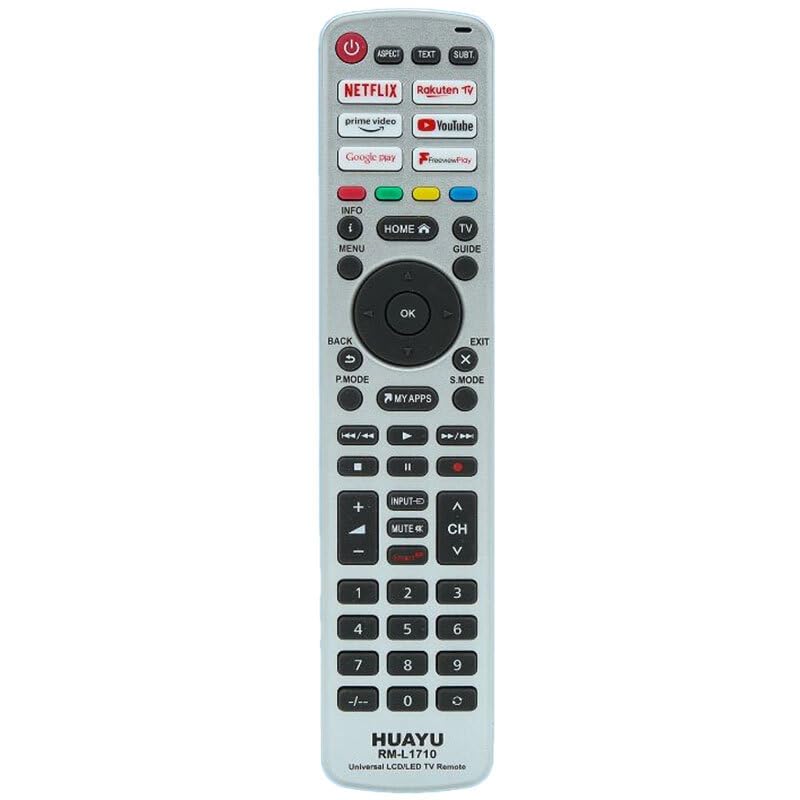
This image displays the full layout of the HUAYU RM-L1710 remote control. It is a silver-colored remote with black buttons. At the top are the power button, aspect ratio, text, and subtitle buttons. Below these are dedicated app buttons for Netflix, Rakuten TV, Prime Video, YouTube, Google Play, and FreeviewPlay. The central navigation cluster includes Home, Info, Menu, TV Guide, and a directional pad with an OK button. Below this are Back, Exit, P.Mode, S.Mode, and My Apps buttons. Media playback controls (rewind, play, fast forward, stop, pause, record) are located next. Further down are volume and channel controls, input, and mute buttons. The bottom section features a numeric keypad from 0-9, along with a dash button. The brand 'HUAYU' and model 'RM-L1710 Universal LCD/LED TV Remote' are printed at the very bottom.
Button Functions:
- POWER (Red Button): Turns the TV on or off.
- ASPECT: Changes the screen aspect ratio.
- TEXT: Activates or deactivates teletext.
- SUBT: Toggles subtitles on or off.
- NETFLIX, Rakuten TV, prime video, YouTube, Google play, FreeviewPlay: Direct access buttons for respective streaming applications.
- INFO (i): Displays on-screen information.
- HOME (House icon): Returns to the TV's main home screen or smart hub.
- TV GUIDE: Opens the electronic program guide.
- MENU: Accesses the TV's main menu.
- Directional Pad (Up, Down, Left, Right): Navigates through menus and options.
- OK: Confirms selections.
- BACK (U-turn arrow): Returns to the previous screen or menu.
- EXIT (X): Exits the current menu or application.
- P.MODE: Changes picture modes.
- S.MODE: Changes sound modes.
- MY APPS: Accesses the TV's applications list.
- Media Playback Controls (Rewind, Play, Fast Forward, Stop, Pause, Record): Controls media playback.
- INPUT (Arrow into box): Selects input sources (HDMI, AV, etc.).
- MUTE (Speaker with cross): Mutes or unmutes the TV sound.
- VOL (+/-): Adjusts the volume level.
- CH (Up/Down arrows): Changes TV channels.
- Numeric Keypad (0-9, -/--): Enters channel numbers or other numerical data.
5. Initial Setup
5.1 Installing Batteries
- Open the battery compartment cover on the back of the remote control.
- Insert two AAA batteries (not included), ensuring the positive (+) and negative (-) terminals match the markings inside the compartment.
- Close the battery compartment cover securely.
5.2 Programming the Remote Control
As a universal remote, the RM-L1710 may require programming to operate your specific TV model. There are typically two methods for programming universal remotes:
Method 1: Auto Search
- Ensure your TV is turned on.
- Press and hold the 'SET' button (if available, or a combination like 'POWER' + 'SET' for 3 seconds) until the indicator light stays on.
- Point the remote at your TV and repeatedly press the 'POWER' button (or 'CH+' button) until your TV turns off or changes channel.
- Once the TV responds, immediately press the 'SET' or 'OK' button to save the code. The indicator light should turn off.
- Test all functions of the remote. If some functions do not work, repeat the auto-search process to find a more compatible code.
Method 2: Code Entry
- Locate the brand code for your TV from the code list provided with the remote (if applicable). Note: A code list is not provided with this manual. Please refer to the packaging or manufacturer's website for specific codes.
- Turn on your TV.
- Press and hold the 'SET' button (or a similar programming button) until the indicator light stays on.
- Enter the 3 or 4-digit code for your TV brand using the numeric keypad.
- If the code is valid, the indicator light will turn off.
- Test the remote's functions. If it does not work, try another code for your TV brand.
6. Operating Your Remote Control
6.1 Basic TV Functions
- Press POWER to turn your TV on or off.
- Use VOL +/- to adjust the sound volume.
- Use CH Up/Down to change channels sequentially.
- Press MUTE to temporarily silence the TV.
- Press INPUT to cycle through available input sources (e.g., HDMI 1, AV, Component).
6.2 Smart TV and App Functions
The remote features dedicated buttons for quick access to popular streaming services:
- Press NETFLIX to launch the Netflix application.
- Press prime video to launch the Amazon Prime Video application.
- Press YouTube to launch the YouTube application.
- Press Rakuten TV to launch the Rakuten TV application.
- Press Google play to launch the Google Play Store or Google Play Movies & TV.
- Press FreeviewPlay to access the Freeview Play platform (if supported by your TV).
- Press MY APPS to view all installed applications on your TV.
6.3 Navigation and Menu Controls
- Use the Directional Pad (Up, Down, Left, Right arrows) to move the cursor or highlight items in menus.
- Press OK to confirm a selection or open a highlighted item.
- Press MENU to open the TV's main settings menu.
- Press HOME to return to the TV's main home screen or smart hub.
- Press BACK to go back to the previous screen or menu.
- Press EXIT to close the current menu or application.
- Press INFO to display information about the current program or input.
- Press TV GUIDE to access the electronic program guide.
6.4 Media Playback Controls
These buttons control media playback in compatible applications or when viewing content from connected devices:
- Play: Starts playback.
- Pause: Pauses playback.
- Stop: Stops playback.
- Rewind (Double left arrow): Rewinds media.
- Fast Forward (Double right arrow): Fast forwards media.
- Skip Back (Double left arrow with line): Skips to the previous track/chapter.
- Skip Forward (Double right arrow with line): Skips to the next track/chapter.
- Record (Red dot): Initiates recording (if supported by your TV and connected storage).
6.5 Numeric Keypad
- Use numbers 0-9 to directly enter channel numbers.
- The -/-- button is used for entering two-digit channel numbers or other specific functions.
7. Care and Maintenance
- Clean the remote control with a soft, dry cloth. Do not use liquid or aerosol cleaners.
- Avoid dropping the remote control or subjecting it to strong impacts.
- If the remote control will not be used for an extended period, remove the batteries to prevent leakage.
- Store the remote in a cool, dry place.
8. Troubleshooting Guide
| Problem | Possible Cause | Solution |
|---|---|---|
| Remote not working. | Batteries are dead or incorrectly inserted. | Replace batteries with new ones, ensuring correct polarity. |
| Remote not working. | Remote is not programmed to the TV. | Refer to Section 5.2 "Programming the Remote Control" and try programming again. |
| Remote has short range or intermittent response. | Weak batteries. Obstruction between remote and TV. | Replace batteries. Ensure a clear line of sight to the TV's IR receiver. |
| Some buttons do not work. | Incorrect TV code programmed. | Try reprogramming the remote with a different code for your TV brand (if available). |
| App buttons (Netflix, YouTube, etc.) do not work. | TV does not support the app or is not connected to the internet. | Ensure your Smart TV is connected to the internet and the apps are installed and up-to-date. Some older TVs may not support these direct access buttons. |
9. Product Specifications
- Model: RM-L1710
- Brand: HUAYU
- Compatibility: Universal for most LCD/LED TVs
- Power Source: 2 x AAA Batteries (not included)
- Transmission: Infrared (IR)
10. Warranty Information and Customer Support
This product is covered by a standard manufacturer's warranty. Please refer to the warranty card included with your purchase or contact your retailer for specific warranty terms and conditions. For technical support or further assistance, please contact the point of purchase or visit the HUAYU official website for contact information.


