
1. Introduction
This manual provides instructions for the installation, operation, and maintenance of the ANYFAR Decoder RM-LH2523F. This device integrates advanced connectivity features such as Wireless CarPlay, Android Auto, Mirror Link, and backup camera support into compatible Land Rover and Jaguar vehicles, enhancing your in-car infotainment experience while retaining original vehicle controls.
2. Compatibility
The ANYFAR Decoder RM-LH2523F is specifically designed for certain Land Rover and Jaguar vehicles equipped with a Harman head unit and an 8-inch screen system. Please verify your vehicle's compatibility before installation.
Compatible Vehicle Models:
- Land Rover: Range Rover Evoque (2016–2019), Discovery 5 (2016–2019)
- Jaguar: XE (2016–2019), XF (2016–2019), XJL (2016–2019), F-Type (2016–2019)
Important: This decoder is compatible only with vehicles featuring an 8-inch Harman head unit. Incompatible systems include Bosch style units or 10.25-inch Harman style screens.

Figure 2.1: Visual guide for compatible 8-inch Harman screen styles (right) versus incompatible Bosch or 10.25-inch screens (left).

Figure 2.2: Detailed compatibility list for Land Rover and Jaguar models.
3. Features
- Wireless CarPlay & Android Auto: Enjoy seamless integration of your smartphone's navigation, music, calls, and messaging without physical connection.
- Mirror Link & USB Drive Playback: Mirror your phone's display to the car screen for video playback or use the USB port for media files and device charging.
- In-Car Hi-Fi Audio: Digital audio transmission ensures high-quality sound without interference or delay, preserving the original audio system's integrity.
- Retain Original Car Controls: Full functionality of the original touchscreen, voice control, physical buttons, and knobs is maintained after installation.
- Backup Camera Input Support: Connect an aftermarket backup or front camera; the feed automatically displays when shifting into reverse.
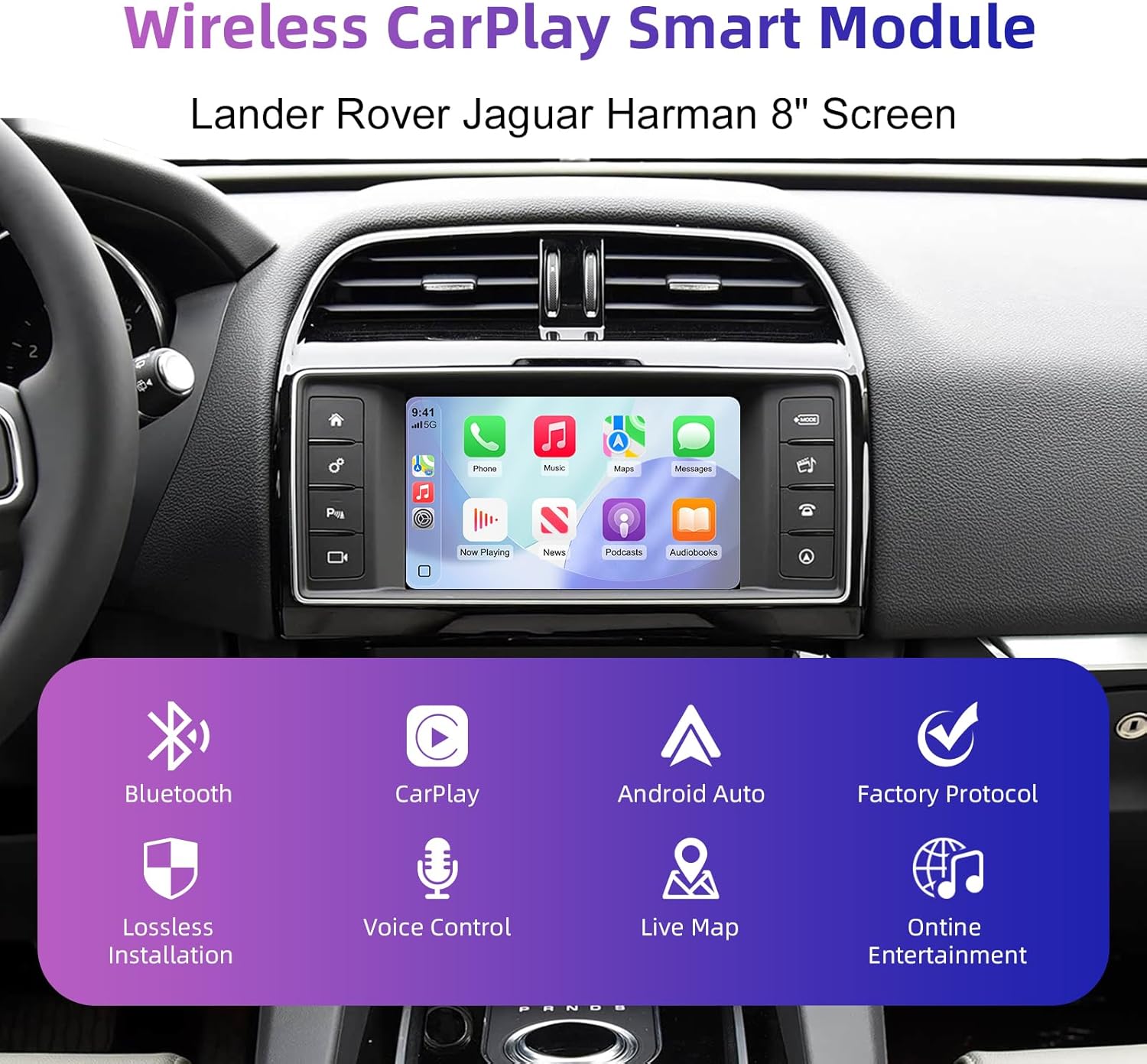
Figure 3.1: Overview of the Wireless CarPlay Smart Module's core functionalities.
4. What's in the Box
The product package includes the following items:
- ANYFAR Decoder Unit
- Wiring Harnesses (specific to vehicle model)
- USB Cable
- Antenna
Note: Additional accessories such as cameras or specific tools may be required for installation and are sold separately.
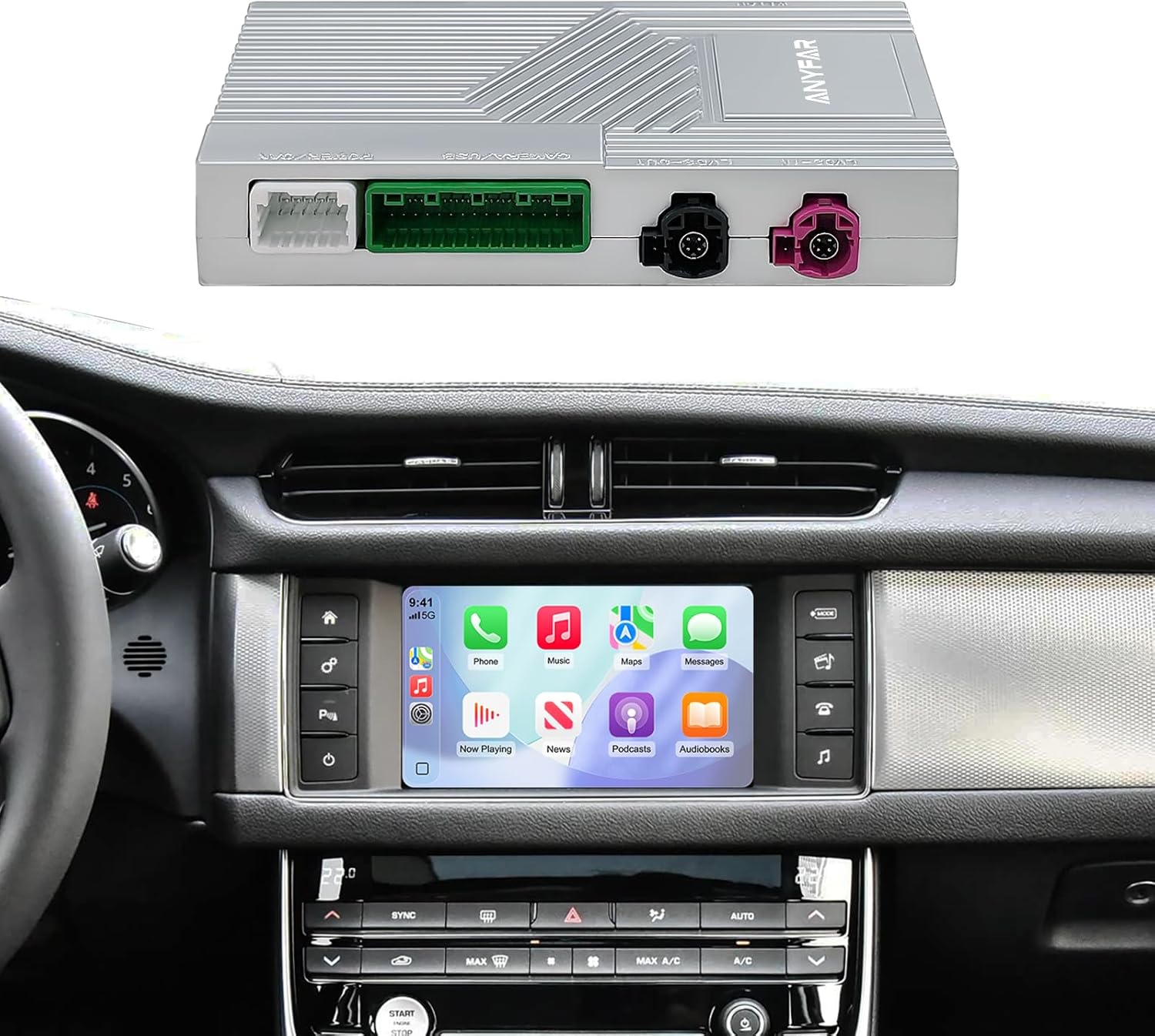
Figure 4.1: The ANYFAR decoder unit and its integration with a car's infotainment system.
5. Setup (Installation)
Installation of the ANYFAR Decoder RM-LH2523F requires technical knowledge and familiarity with automotive electronics. It is recommended that installation be performed by a qualified professional. Incorrect installation may damage the vehicle's electrical system or the decoder unit.
General Installation Steps:
- Preparation: Ensure the vehicle's ignition is off and the battery is disconnected.
- Access Head Unit: Carefully remove the necessary trim panels to access the vehicle's factory head unit.
- Connect Decoder: Integrate the decoder unit into the vehicle's wiring harness using the provided cables. This typically involves connecting between the factory head unit and the display.
- Route Cables: Securely route all cables to prevent interference or damage.
- Test Functionality: Reconnect the battery and test all functions before reassembling the dashboard.
- Secure Decoder: Mount the decoder unit in a safe, accessible location within the dashboard.
- Reassemble: Reinstall all trim panels.
For detailed, vehicle-specific installation instructions, please refer to the separate installation guide provided with your purchase or consult a professional installer.
6. Operating Instructions
6.1 Switching Between Systems
To switch between the factory OEM car system and the CarPlay/Android Auto system, long-press the "Home" button on your car's knob or central control panel. This action toggles the display between the two interfaces.

Figure 6.1: Switching between OEM and integrated CarPlay/Android Auto systems.
6.2 Wireless CarPlay & Android Auto
- Pair Bluetooth: First, pair your smartphone with the car's Bluetooth system.
- Connect CarPlay/Android Auto: Once Bluetooth is paired, the system will prompt you to connect to CarPlay or Android Auto. Confirm the connection on your phone and the car screen.
- Audio Output: Ensure audio output is set to the car's Bluetooth for optimal sound quality.

Figure 6.2: Steps for establishing Bluetooth audio output for CarPlay/Android Auto.
6.3 Voice Control
The system supports intelligent voice control (Siri for CarPlay, Google Assistant for Android Auto). Activate voice control by pressing the voice command button on your steering wheel or by saying the wake phrase (e.g., "Hey Siri" or "Hey Google").
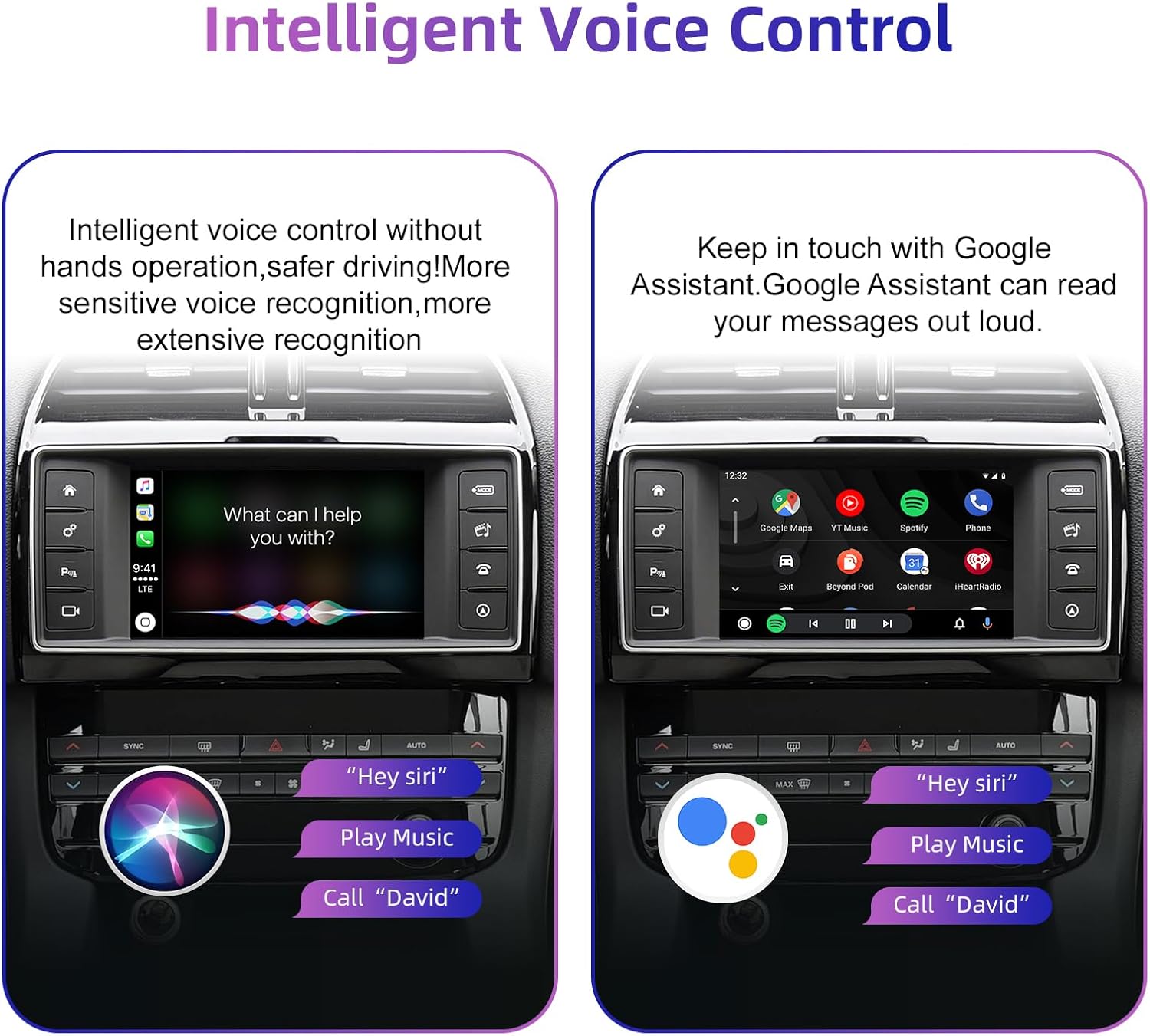
Figure 6.3: Using voice commands with Siri and Google Assistant.
6.4 Retaining Original Car Controls
The decoder allows continued use of your vehicle's existing control mechanisms:
- Steering Wheel Buttons: Control volume, track skipping, and voice awakening.
- Central Control Panel: Use physical buttons and knobs for navigation and system switching.
- Touch Screen: Interact directly with the display for all functions.

Figure 6.4: Continued use of original car controls with the decoder installed.
6.5 Backup Camera Functionality
If an aftermarket backup camera is connected, it will automatically display its feed on the car screen when the vehicle is shifted into reverse gear. This feature enhances parking safety.

Figure 6.5: Backup camera display on the car screen.
7. Maintenance
To ensure optimal performance and longevity of your ANYFAR Decoder, follow these general maintenance guidelines:
- Cleaning: Keep the decoder unit and its connections free from dust and debris. Use a soft, dry cloth for cleaning. Avoid liquid cleaners directly on the unit.
- Software Updates: Periodically check the manufacturer's website or contact support for any available software or firmware updates. Updates can improve performance, add features, or resolve issues.
- Environmental Conditions: Avoid exposing the unit to extreme temperatures, direct sunlight for prolonged periods, or excessive moisture.
8. Troubleshooting
If you encounter issues with your ANYFAR Decoder, refer to the following common troubleshooting steps:
- No Display/Black Screen:
- Ensure all cables are securely connected.
- Verify the correct input source is selected on your car's head unit (if applicable).
- Try restarting the car's ignition.
- No Audio:
- Confirm your phone is paired via Bluetooth to the car's system.
- Check the audio output settings on your phone and the car's infotainment system.
- Ensure the car's volume is not muted or set too low.
- CarPlay/Android Auto Not Connecting:
- Ensure Bluetooth and Wi-Fi are enabled on your smartphone.
- Forget the device from your phone's Bluetooth settings and re-pair.
- Restart your smartphone.
- Intermittent Connectivity:
- Check for potential signal interference from other devices.
- Ensure the decoder's antenna (if external) is properly positioned.
If problems persist after attempting these steps, please contact ANYFAR customer support for further assistance.
9. Specifications
| Feature | Specification |
|---|---|
| Model Number | RM-LH2523F |
| Brand | ANYFAR |
| Connectivity Technology | USB, Wireless (Bluetooth, Wi-Fi for CarPlay/Android Auto) |
| Compatible Devices | Smartphone (iOS/Android) |
| Special Feature | Hands-Free Calling, Voice Control, Mirror Link |
| Audio Output Mode | Stereo |
| Item Weight | 1.76 pounds |
| Package Dimensions | 10.63 x 6.69 x 4.33 inches |
10. Warranty & Support
For warranty information and customer support, please refer to the documentation included with your purchase or visit the official ANYFAR website. Ensure you have your product model number (RM-LH2523F) and purchase details available when contacting support.
Manufacturer: Huizhou Rhythm Technology Co, Ltd


