
1. Introduction
This manual provides detailed instructions for the installation, operation, and maintenance of your ANYFAR RM-LX2509F Decoder Adapter. This device integrates advanced features like wireless CarPlay, Android Auto, Mirror Link, and support for backup cameras into compatible Lexus vehicles, enhancing your in-car entertainment and navigation experience while retaining original vehicle controls.

Image 1.1: The ANYFAR RM-LX2509F Decoder Adapter unit.
2. Compatible Vehicle Models
The ANYFAR RM-LX2509F Decoder Adapter is designed for specific Lexus models and years. Please verify your vehicle's compatibility before installation.
- Lexus ES, ES300h, UX, NX, IS: 2018-2021 models
- Lexus GX460: 2021-2023 models
- Lexus RC300: 2009 model

Image 2.1: Table detailing compatible Lexus models, years, and screen sizes.
3. Key Features
The RM-LX2509F Decoder Adapter offers a range of features to enhance your driving experience:
- Wireless CarPlay & Android Auto: Seamless integration of your smartphone for navigation, music, calls, and messaging without physical connection.
- Mirror Link & USB Drive Playback: Display your phone's screen on the car's display and play media directly from a USB drive.
- In-Car Hi-Fi Audio: Digital audio transmission ensures high-quality sound without interference.
- Retain Original Car Controls: Full functionality of existing touchscreen, voice control, physical buttons, and knobs is preserved.
- Backup Camera Input Support: Connect aftermarket backup or front cameras for enhanced safety.
- Intelligent Voice Control: Utilize voice assistants like Siri or Google Assistant for hands-free operation.

Image 3.1: Overview of the smart module's features integrated into a Lexus dashboard.
4. Package Contents
Please check the package for the following items:
- ANYFAR RM-LX2509F Decoder Adapter Unit
- Power Cable
- Screen Harness
- LVDS OUT Cable
- LVDS IN Cable
- RCA & USB Cable

Image 4.1: Diagram showing the decoder unit dimensions and included accessories.
5. Setup and Installation
Installation of the ANYFAR RM-LX2509F Decoder Adapter involves connecting it to your vehicle's existing infotainment system. Due to the complexity of automotive electronics, professional installation is highly recommended to ensure proper function and avoid damage to your vehicle.
General Installation Steps (Consult a Professional):
- Preparation: Ensure the vehicle's ignition is off and the battery is disconnected.
- Access Head Unit: Carefully remove the necessary trim panels to access the back of your car's head unit/display.
- Connect Cables: Connect the provided power cable, screen harness, LVDS IN/OUT cables, and RCA/USB cable to the decoder unit and the corresponding ports on your vehicle's head unit and display.
- Secure Unit: Mount the decoder unit in a secure, accessible location within the dashboard.
- Test Functionality: Reconnect the battery and test all functions before reassembling the dashboard.
For detailed, vehicle-specific wiring diagrams and instructions, please refer to the professional installer's guide or contact ANYFAR customer support.
6. Operating Instructions
6.1 Switching Between Systems
After installation, you can switch between your vehicle's original OEM system and the CarPlay/Android Auto system by long-pressing the 'Back' button or a designated button on your car's knob or central control panel.
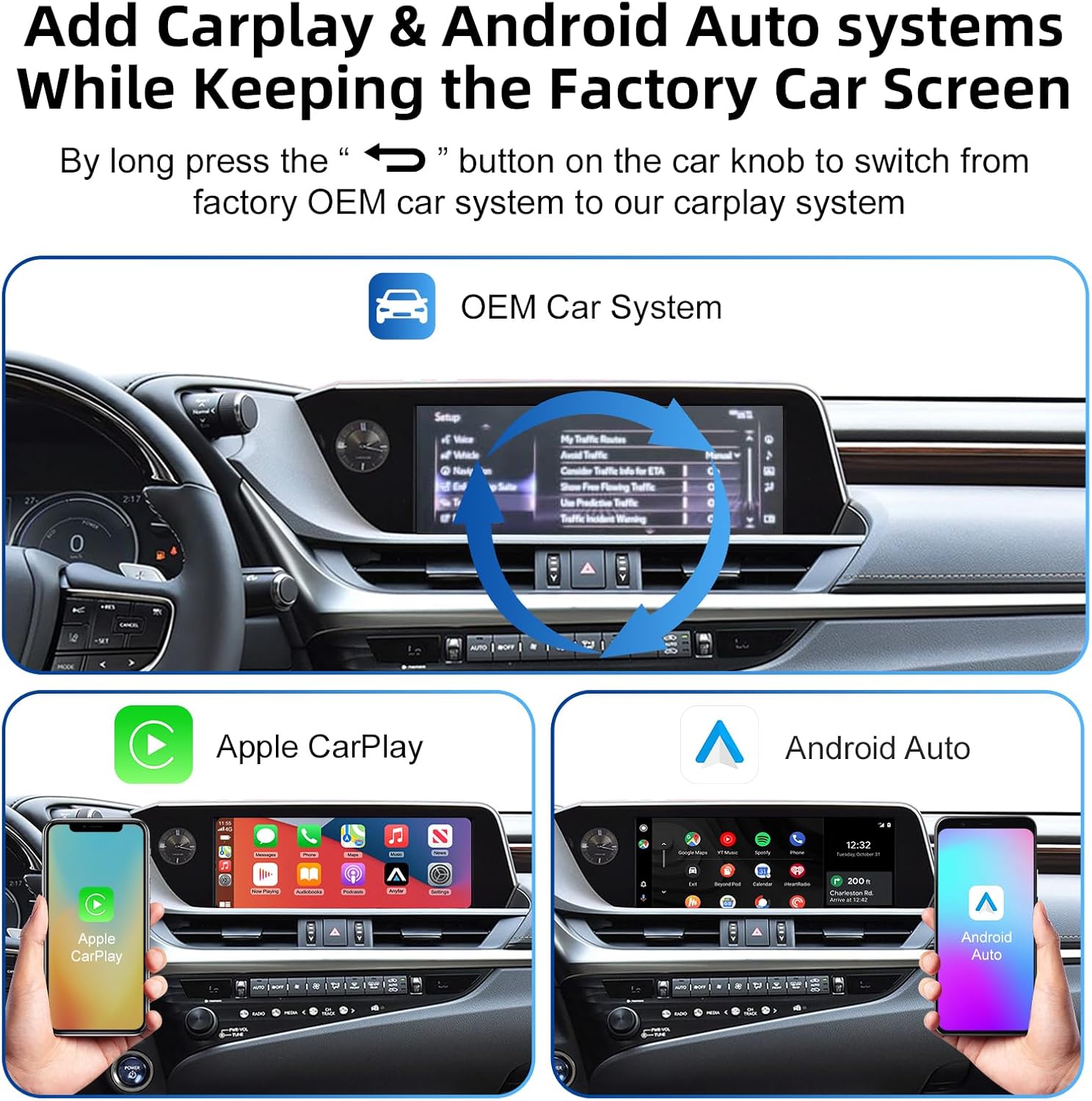
Image 6.1: Illustration of switching between the OEM car system and the CarPlay/Android Auto system.
6.2 Wireless CarPlay & Android Auto Connection
- Pair Bluetooth: On your smartphone, enable Bluetooth and connect to the adapter's Bluetooth signal (e.g., 'Car Audio-xxxx').
- Confirm Connection: Follow the prompts on your phone and car screen to confirm the CarPlay or Android Auto connection.
- Audio Output: Ensure audio output is directed to your car's Bluetooth or AUX input for optimal sound.

Image 6.2: Steps for pairing Bluetooth and connecting to CarPlay for audio output.
6.3 Voice Control
Activate your smartphone's voice assistant (Siri for CarPlay, Google Assistant for Android Auto) by pressing the voice awakening button on your steering wheel or by saying the activation phrase (e.g., "Hey Siri" or "Hey Google").

Image 6.3: Examples of voice commands for Siri and Google Assistant.
6.4 Mirror Link
To use Mirror Link, select the Mirror Link option from the adapter's interface. Follow the on-screen instructions to connect your smartphone and mirror its display to the car screen. This feature supports video playback from various applications.
6.5 Backup Camera Functionality
If an aftermarket backup camera is connected, the display will automatically switch to the camera feed when the vehicle is shifted into reverse.
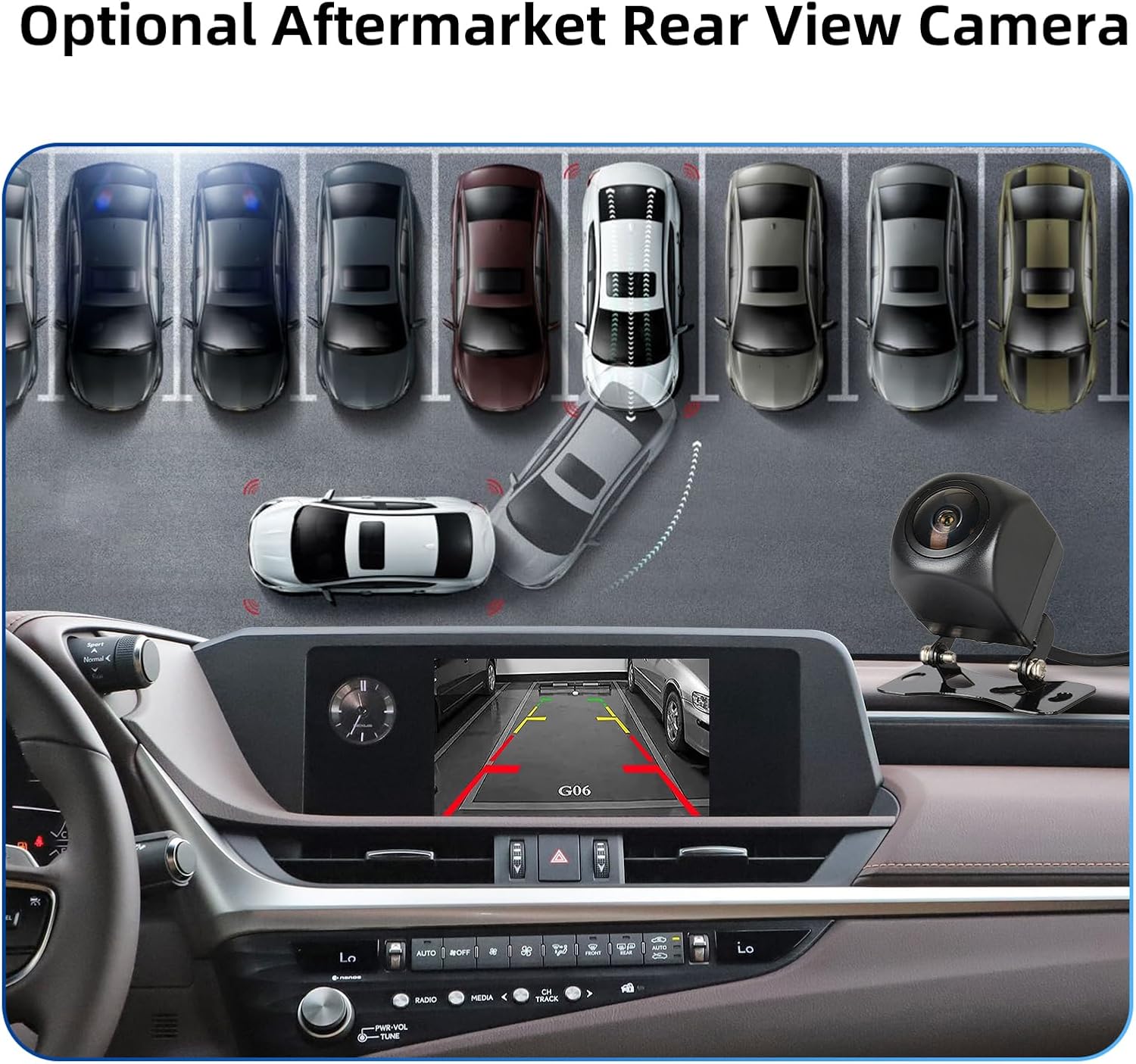
Image 6.4: Example of a rear view camera display on the car screen.
7. Maintenance
The ANYFAR RM-LX2509F Decoder Adapter requires minimal maintenance. Keep the unit free from dust and moisture. Do not attempt to open or repair the unit yourself, as this may void the warranty and cause damage.
- Cleaning: Use a soft, dry cloth to clean the exterior of the unit. Avoid using harsh chemicals or abrasive materials.
- Software Updates: Periodically check the ANYFAR official website for any available firmware updates to ensure optimal performance and compatibility.
8. Troubleshooting
If you encounter issues with your decoder adapter, please refer to the following common solutions:
| Problem | Possible Cause | Solution |
|---|---|---|
| No display/power | Loose power connection, incorrect wiring. | Check all power cables and connections. Ensure the vehicle's battery is properly connected. |
| CarPlay/Android Auto not connecting wirelessly | Bluetooth not paired, Wi-Fi interference, phone settings. | Ensure Bluetooth is enabled and paired. Check phone's Wi-Fi settings. Restart phone and adapter. |
| No audio output | Incorrect audio source selected in car, Bluetooth audio not connected. | Select the correct audio input (e.g., Bluetooth, AUX) on your car's head unit. Verify Bluetooth audio connection. |
| Original car controls not working | Incorrect wiring of control signals. | Recheck wiring connections for the control signals. Ensure the adapter is correctly integrated. |
| Backup camera not displaying | Camera not connected, faulty camera, incorrect input. | Verify camera connection to the decoder. Test the camera independently if possible. |
If the problem persists after attempting these solutions, please contact ANYFAR customer support for further assistance.
9. Specifications
| Feature | Detail |
|---|---|
| Model Number | RM-LX2509F |
| Package Dimensions | 10.63 x 6.69 x 4.33 inches |
| Item Weight | 1.72 pounds |
| Compatible Devices | Smartphone |
| Connector Type | Micro USB |
| Manufacturer | Huizhou Rhythm Technology Co, Ltd |
10. Warranty and Support
For warranty information and technical support, please refer to the documentation included with your purchase or visit the official ANYFAR website. Our customer service team is available to assist with any questions or issues you may encounter.
ANYFAR Store Link: Visit the ANYFAR Store on Amazon


