
1. Introduction
This user manual provides comprehensive instructions for the installation, operation, and maintenance of your ANYFAR Decoder Adapter, model RM-BM2506F. This device integrates advanced features like Wireless CarPlay, Android Auto, Mirror Link, and USB media playback into your vehicle's existing infotainment system, enhancing your driving experience with modern connectivity.
Please read this manual thoroughly before installation and use to ensure proper functionality and to avoid any damage to the product or your vehicle.
2. Product Overview
The ANYFAR Decoder Adapter is designed to seamlessly integrate smartphone functionalities into your car's display while retaining all original vehicle controls and features. It offers a digital transmission for high-fidelity audio and supports various multimedia options.

Image 2.1: The ANYFAR Decoder Adapter main unit. This image displays the compact design of the decoder box with its various ports and connectors, including the ANYFAR branding.

Image 2.2: Overview of Wireless CarPlay Smart Module features for BMW EVO/MGU System. This graphic highlights key functionalities such as Bluetooth, CarPlay, Android Auto, Factory Protocol retention, Lossless Installation, Voice Control, Live Map, and Online Entertainment.
3. Compatibility
This decoder adapter is specifically designed for:
- Vehicle Models: 2017–2018 BMW 1 Series, 2 Series, 3 Series, 4 Series, 5 Series, X1, X2, X3, X4, X5, X6, and MINI.
- Infotainment System: Vehicles equipped with the EVO/MGU system.
Important Compatibility Check:
Before installation, it is crucial to verify your car's system and LVDS port type. This adapter is not compatible with NBT systems or 4-PIN LVDS ports.

Image 3.1: Visual guide for checking car system and LVDS port compatibility. This image shows examples of NBT (incompatible) vs. EVO ID5, ID6, ID7 (compatible) system interfaces, and illustrates the difference between a compatible 6-PIN LVDS port and an incompatible 4-PIN LVDS port.
- Step 1: Check your original car radio homescreen menu picture. Ensure it matches EVO ID5, ID6, or ID7 systems, not NBT.
- Step 2: Check the LVDS port on the back of the OEM car screen. It must be a 6-PIN connector.
4. Package Contents
The package includes the following items:
- ANYFAR Decoder Adapter (Main Unit)
- Power Cable
- LVDS OUT Cable (1 PC)
- LVDS IN Cable (1 PC)
- RCA & USB Cable
- User Manual (This document)

Image 4.1: Contents of the ANYFAR Decoder Adapter package. This image displays the main decoder unit with its dimensions (152mm x 102mm x 30mm) and the included cables: Power cable, LVDS OUT, LVDS IN, and RCA & USB cable.
5. Setup and Installation
Installation of the ANYFAR Decoder Adapter requires technical knowledge and careful handling of vehicle electronics. It is recommended that installation be performed by a qualified professional.
5.1 Pre-Installation Checks
- Verify vehicle compatibility as described in Section 3.
- Ensure the vehicle's ignition is off and the battery is disconnected before starting installation.
- Gather all necessary tools (e.g., trim removal tools, screwdrivers).
5.2 Installation Steps (General Guide)
- Carefully remove the vehicle's infotainment screen and access the rear connections.
- Disconnect the original LVDS cable from the screen.
- Connect the provided LVDS IN cable from the decoder to the original LVDS port on the screen.
- Connect the provided LVDS OUT cable from the decoder to the vehicle's original LVDS cable.
- Connect the power cable and other necessary cables (e.g., RCA for camera, USB) to the decoder unit and the vehicle's wiring harness.
- Securely mount the decoder unit in a suitable location within the dashboard, ensuring it does not interfere with other components.
- Reconnect the vehicle's battery and test the system before reassembling the dashboard.
Note:
Detailed vehicle-specific installation guides may be available from the manufacturer's support channels. Always refer to your vehicle's service manual for specific panel removal and wiring diagrams.
6. Operating Instructions
6.1 Switching Between Original System and Adapter System
After installation, you can switch between your car's original OEM system and the ANYFAR adapter system by long-pressing the "Menu" button on your car's control knob.
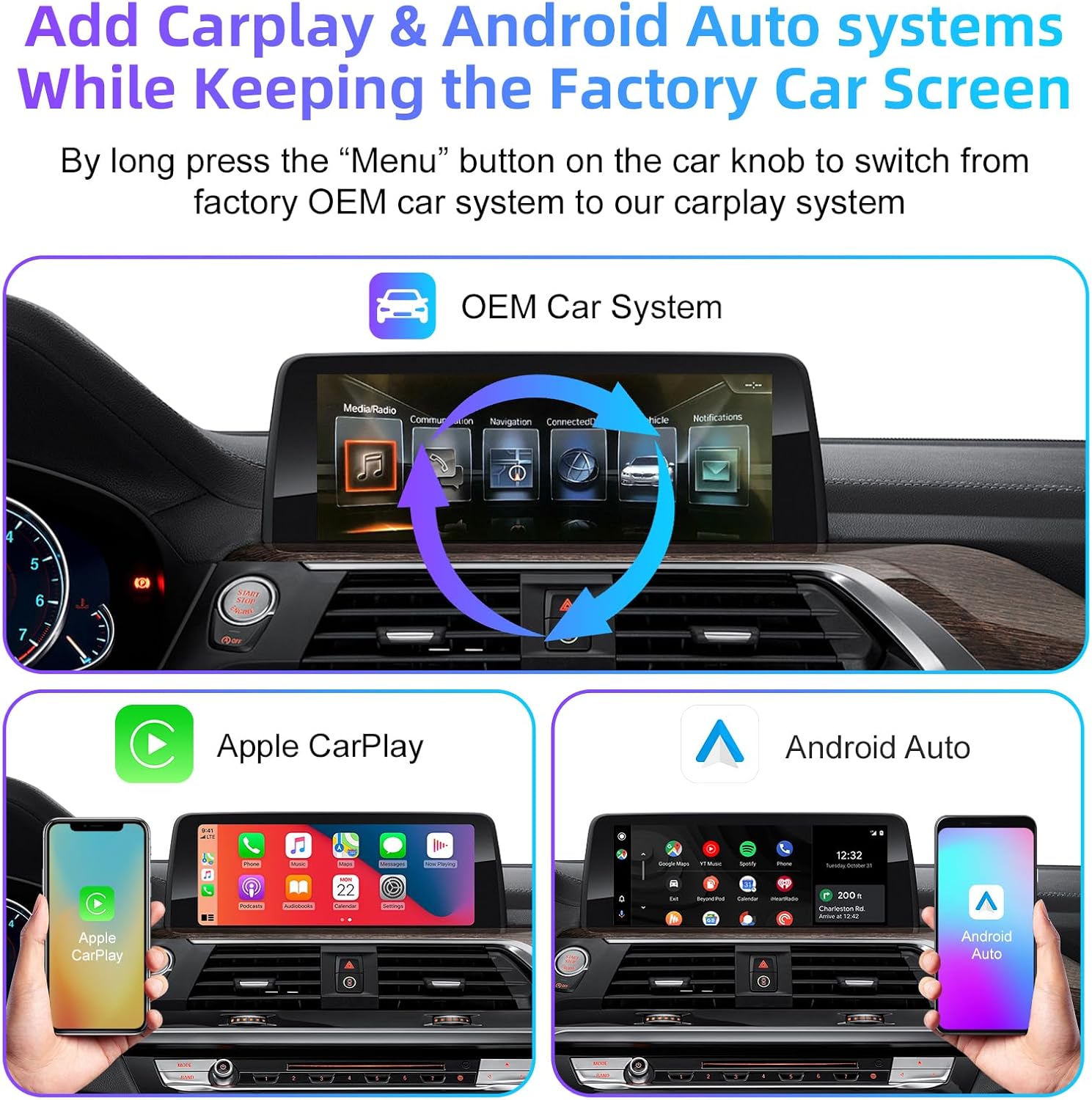
Image 6.1: Illustration of switching between the OEM car system and the CarPlay/Android Auto interface. This image shows the original BMW infotainment screen and then the Apple CarPlay and Android Auto interfaces, indicating the seamless transition.
6.2 Wireless CarPlay and Android Auto
The adapter supports both wireless Apple CarPlay and wireless Android Auto. Once connected, you can access navigation, music, calls, messaging, and voice assistant features directly on your car's screen without needing to plug in your phone.
- Connection: Pair your smartphone via Bluetooth to the adapter, then follow the on-screen prompts to enable Wireless CarPlay or Android Auto.
- Functionality: Enjoy full access to compatible apps, including maps, music streaming, communication, and more.
6.3 Mirror Link & USB Drive Playback
The Mirror Link (AirPlay for iOS) feature allows you to mirror your smartphone's display onto the car screen. This is ideal for viewing videos from apps like YouTube, Netflix, or Disney+.
- Mirror Link: Connect your phone to the adapter via Wi-Fi or USB to cast your screen.
- USB Playback: The integrated USB port allows you to play videos or music directly from a USB drive. It can also be used to charge your phone.
6.4 Intelligent Voice Control
Utilize your phone's voice assistant (Siri for CarPlay, Google Assistant for Android Auto) for hands-free operation. This allows for safer driving by controlling navigation, music, and calls using voice commands.

Image 6.2: Demonstrating intelligent voice control functionality. This image shows examples of voice commands for Siri (Apple CarPlay) and Google Assistant (Android Auto) for tasks like playing music or making calls.
6.5 Retaining Original Car Controls
The adapter ensures that all original car controls remain fully functional. You can continue to use the touchscreen, voice control, physical buttons, and the iDrive knob to navigate and control the system.

Image 6.3: Highlighting the retention of original car controls. This image shows the use of steering wheel buttons (e.g., volume, voice awakening) and the central control panel (iDrive knob with "HOME" button for switching to CarPlay) while the adapter is active.
6.6 Backup Camera Input Support
The decoder supports connecting an aftermarket backup camera or front camera. When the vehicle is shifted into reverse, the camera feed will automatically display on the car screen.
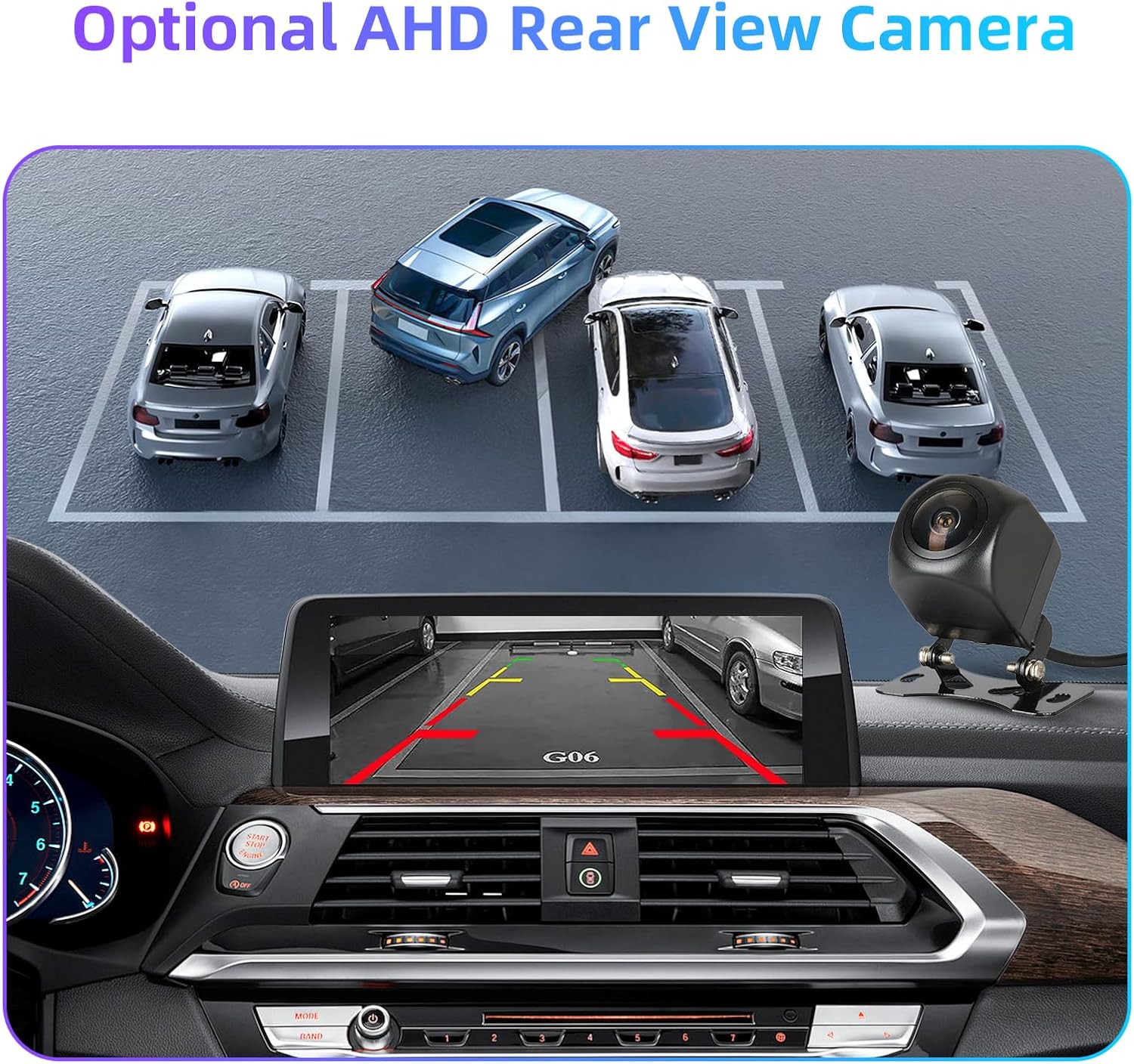
Image 6.4: Display of an optional AHD rear view camera feed on the car screen. This image illustrates how the backup camera view, complete with parking guidelines, is integrated into the infotainment display.
7. Audio Output
The ANYFAR Decoder Adapter provides premium in-car Hi-Fi audio through digital transmission. This ensures high-quality, uninterrupted music playback without signal interference or audio delay, preserving the original sound quality of your car's audio system.
Audio output is routed through the car's factory Bluetooth system, which minimizes interference and provides faster sound response.

Image 7.1: Steps for connecting Bluetooth audio output. This image shows the process: 1. Pair the Car Bluetooth, 2. Connect CarPlay, 3. Sound Output selection on the iPhone to "CAR BT".
8. Maintenance
The ANYFAR Decoder Adapter is designed for durability and requires minimal maintenance. Follow these guidelines to ensure optimal performance:
- Cleaning: Keep the unit free from dust and debris. Use a soft, dry cloth for cleaning. Avoid liquid cleaners.
- Software Updates: Periodically check the manufacturer's website for any available firmware updates to ensure compatibility and access to new features.
- Environmental Conditions: Avoid exposing the unit to extreme temperatures or moisture.
9. Troubleshooting
If you encounter issues with your ANYFAR Decoder Adapter, please refer to the following common troubleshooting steps:
- No Display/Black Screen:
- Ensure all cables are securely connected, especially the LVDS IN and OUT cables.
- Verify that the power cable is properly connected and receiving power.
- Confirm your vehicle's compatibility (EVO/MGU system, 6-PIN LVDS port).
- No Audio:
- Check your phone's Bluetooth connection to the car.
- Ensure the car's audio input is set to the correct Bluetooth source.
- Verify volume levels on both your phone and the car's infotainment system.
- CarPlay/Android Auto Not Connecting Wirelessly:
- Ensure Bluetooth and Wi-Fi are enabled on your smartphone.
- Forget the device from your phone's Bluetooth settings and re-pair.
- Restart both your phone and the car's infotainment system.
- Original Car Controls Not Responding:
- Check all wiring connections to the decoder unit.
- Ensure the decoder is receiving proper power.
- Try resetting the car's infotainment system (refer to your car's manual).
If the problem persists after attempting these steps, please contact ANYFAR customer support for further assistance.
10. Specifications
| Feature | Detail |
|---|---|
| Model Number | RM-BM2506F |
| Brand | ANYFAR |
| Compatible Vehicles | 2017-2018 BMW (1-5 Series, X1-X6), MINI with EVO/MGU System |
| Connectivity Technology | USB, Wireless (Bluetooth, Wi-Fi for CarPlay/Android Auto) |
| Controller Type | Hand Control (retains original car controls) |
| Special Feature | Hands-Free Calling, Wireless CarPlay, Wireless Android Auto, Mirror Link, USB Playback, Backup Camera Support |
| Compatible Devices | Smartphone (iOS, Android) |
| Connector Type | Micro USB (for USB playback/charging) |
| Audio Output Mode | Stereo (via car's factory Bluetooth) |
| Package Dimensions | 9.61 x 6.81 x 3.94 inches |
| Item Weight | 1.91 pounds |
11. Warranty and Support
For warranty information and technical support, please refer to the official ANYFAR website or contact their customer service directly. Keep your purchase receipt as proof of purchase for any warranty claims.
Manufacturer: Huizhou Rhythm Technology Co, Ltd
Date First Available: September 9, 2025


